How to Prevent Ransomware in 2026: 7 Steps to Protect Yourself


Imagine clicking a link or downloading a file—only to find all your photos, documents, and other important data suddenly encrypted. That’s how a ransomware attack starts: cybercriminals lock you out of your data (or even your entire PC) and demand payment to restore access.
The good news? With the right steps, you can drastically reduce your risk. Here’s how to protect yourself against this type of extortion.


Ransomware is malware that encrypts your data or even your entire system and demands a ransom. Never pay the ransom—there’s no guarantee you’ll get your data back.
The most common entry points are outdated software, phishing emails, infected downloads, and compromised USB drives.
The best defense is prevention: Keep your operating system and software up to date, use strong passwords, and be cautious with emails, links, and downloads.
Active antivirus protection is also a must. Modern operating systems include built-in protection, while commercial antivirus programs offer extra features.
Regular backups make you less vulnerable in an attack. Ideally, you can restore your data without paying a ransom.
The 7 Most Important Steps to Prevent Ransomware Attacks
The best time to protect yourself is now, before an attack happens. You don’t need advanced technical skills or expensive security software. Just follow a few basic security rules, keep your antivirus active, and back up your data regularly. These steps will help you stay one step ahead of malware.
Here are the seven most effective ways to protect yourself from ransomware and other malware:
Keep Your System and Software Up to Date
It may sound simple, but it’s critical: always keep your system updated. According to CISA, security flaws in outdated software rank among the most common entry points for ransomware. Software companies release patches regularly, but users often fail to install them in time.
To check if Windows is up to date, go to Start → Settings → Windows Update. By default, Windows downloads new updates automatically. You can also check manually by clicking “Check for updates.”
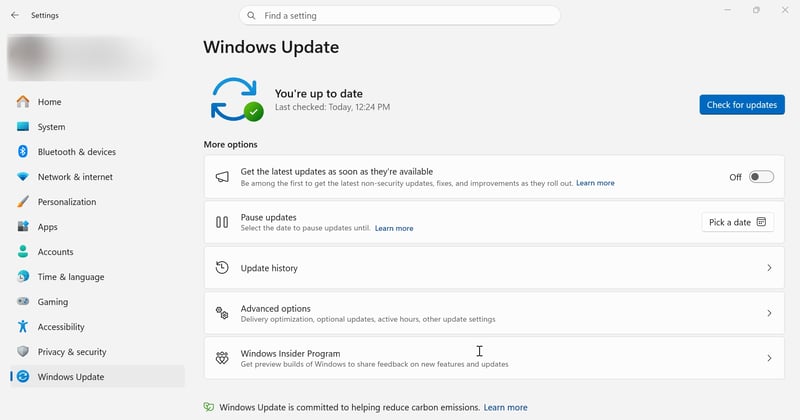
Check for updates under Windows Update to make sure your system is up to date.
What if a program no longer receives updates? Operating systems and software eventually reach end-of-life. Once that happens, developers stop releasing security updates, leaving your system more exposed to attacks. Upgrade to a supported version or switch to an alternative that still receives regular security patches.
Use a Firewall and Malware Protection
Protect your system with a firewall and malware protection. Windows already includes solid built-in protection for home users: the Windows Firewall and Virus & threat protection. Both run automatically in the background and are enabled by default.
You can access them by going to Start → Settings → Privacy & security → Windows Security.
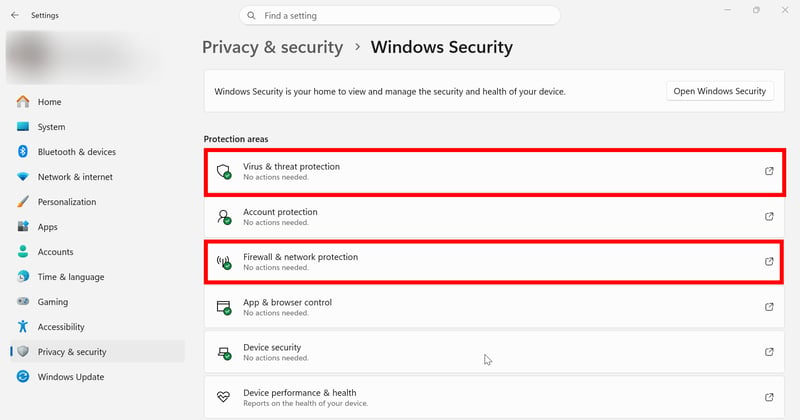
Windows Security includes virus and threat protection as well as the firewall.
Adding a third-party anti-malware tool from providers like Malwarebytes, Avira, or Bitdefender isn’t strictly necessary anymore.
Still, it may be worth it if you want extra features like parental controls, a VPN, or a password manager. And if ransomware has already infected your PC, a second tool can help detect and remove it.

Still looking for a good antivirus tool? We tested 15 popular options in depth:
Important: Antivirus programs aren’t foolproof. A good anti-malware program catches known threats, but even the best software can miss brand-new attacks (zero-day exploits). Don’t rely on it alone.
Antivirus software doesn’t replace smart online habits or regular backups.
Stop Phishing Attacks in Their Tracks
Phishing emails are one of the most common ways ransomware gets into your system. Scammers send messages that appear to come from banks, shipping companies, or other trusted sources. Their goal is to trick you into clicking a malicious link or opening an infected attachment.
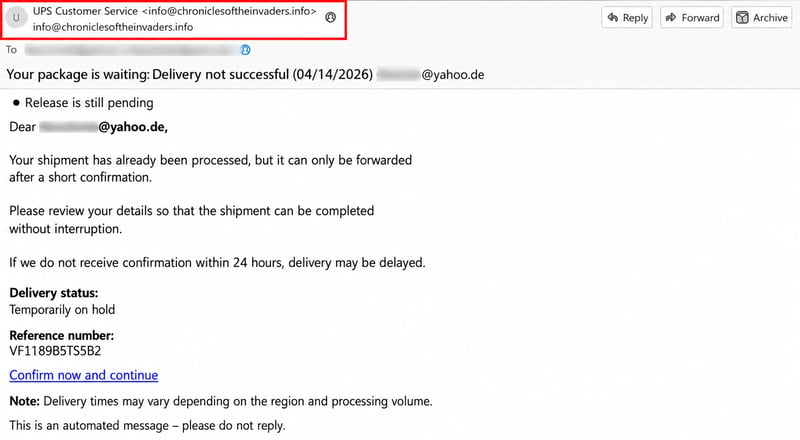
Phishing email pretending to be from a shipping company. The sender’s address doesn’t match any real delivery service.
Watch for red flags like generic greetings, mismatched sender addresses, urgent threats (“Act now or your account will be locked!”), and obvious spelling mistakes.
When in doubt, contact the sender directly using a verified phone number or email, not the one in the suspicious message.
Want to learn more about phishing and how to protect yourself? See our guide:

Be Careful with External Drives
Don’t plug unknown USB drives into your computer—such as ones found in parking lots or given out at events. They could be rigged to install malware the moment you connect them.
Be careful with your own devices too. Malware can spread unnoticed to external hard drives or USB drives, for example, when you create a backup (see step 7). Before transferring files, make sure the source system is clean and scan external drives regularly with your antivirus software.
For extra safety, disconnect the drive right after backing up.
Stay Alert While Browsing
Browsing the web can expose you to ransomware. Phishing websites often look almost identical to legitimate ones, but they trick you into downloading infected files.
You can spot these fake sites by odd URLs that don’t match the official spelling or use unusual domain extensions. For example, “amaz0n.com” (with a zero instead of the letter O) instead of “amazon.com” or “dhl.org” instead of the official .com domain.
Only download files or software from trusted sources, preferably directly from the manufacturer’s website rather than forums or unverified third-party platforms. Keep your browser updated and use an ad blocker to protect yourself from malicious ads (malvertising).
Secure Your Online Accounts
Protect your online accounts, such as email, banking, and social media, with strong, unique passwords. A password manager can help.
It generates and stores a secure, unique password for each service. You only need to remember one strong master password to unlock the manager. That way, if one account is hacked, the rest stay safe.

Wherever possible, turn on two-factor authentication. It adds a layer of security by sending a code to your phone or asking for app confirmation when you log in or perform sensitive actions.
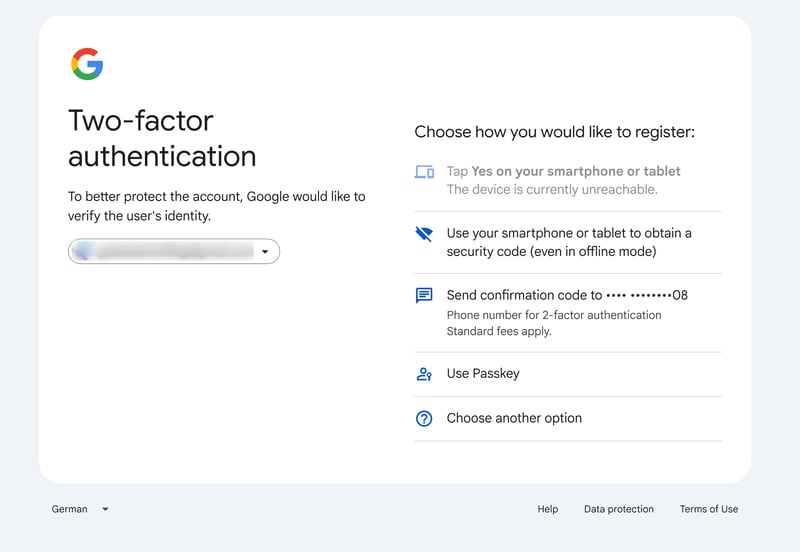
Google protects your accounts with two-factor authentication.
If you ever lose access to an online account, recovery options can help. Keep your backup phone numbers and email addresses up to date.
By default, Windows logs you in with administrator rights. That’s risky: if your system gets infected, ransomware inherits those same rights and can spread freely.
Tip: Create a standard user account for everyday use (go to Settings → Accounts → Other users) and only use the admin account when you need it.
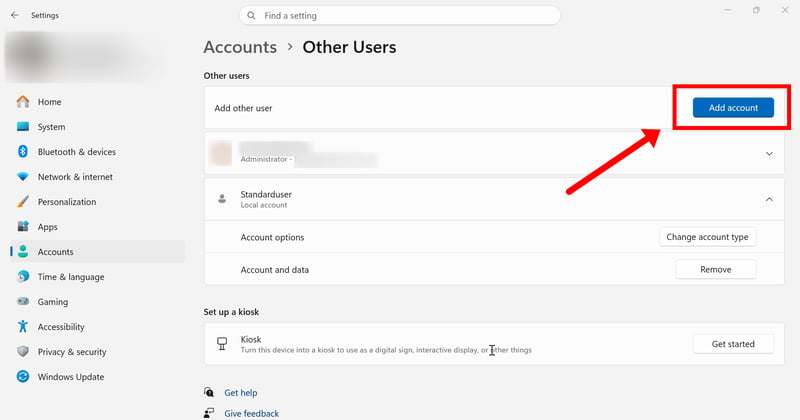
Create a new standard user account in Windows settings.
Backups—Do Them Right
Regular external backups are one of the most effective defenses against ransomware. If you have a copy of your important files, an encryption attack loses most of its bite. Security experts recommend the 3-2-1 backup rule:
Three copies: Keep at least three versions of your data (the original plus two backups).
Two storage types: Store your data on two different types of media (for example, internal and external hard drives). That way you don’t depend on a single technology that could fail.
One offsite copy: Keep one copy in a separate location, such as a cloud service or a secure offsite storage location. This protects against fire, theft, or ransomware that could encrypt connected backup drives.
You can back up files and folders manually by copying them to the cloud or an external drive, or you can set up automated backups.
In Windows, go to Start → Settings → Privacy & Security → Windows Security → Virus & Threat Protection. Under “Ransomware protection,” you can restrict access to certain folders and set up automatic backups with OneDrive.
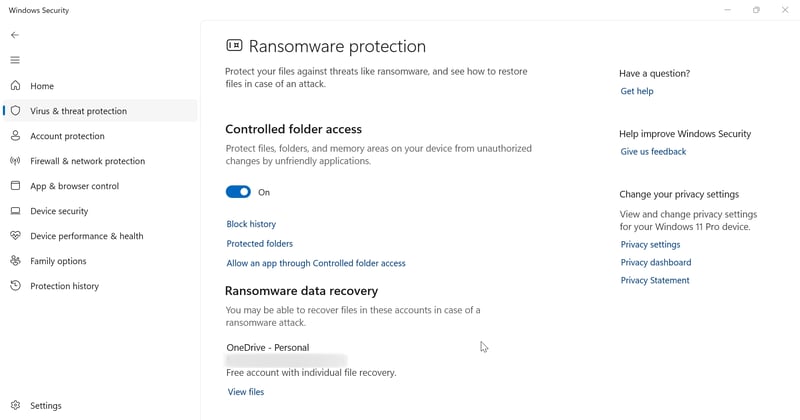
Ransomware protection helps secure selected folders and backs up your data using OneDrive.
If you work on important documents daily, back them up daily. For most home users, a weekly backup is enough.
Test your backup regularly, too. At least once a year, check whether you can actually restore individual files before you’re facing an emergency.
Quick Check: Are You Protected Against Ransomware?
Use this quick checklist to see whether you've covered the basics or where you still need to improve:
What to Do If You’re Hit by Ransomware
If ransomware does infect your system, stay calm and don’t pay the ransom. Here’s what to do:
- 1.
Disconnect the infected device from the network and turn off Wi-Fi. This keeps the malware from communicating with attackers.
- 2.
Save copies of the encrypted files to an external drive. Websites like nomoreransom.org offer free decryption tools for many types of ransomware.
- 3.
Document the attack: take screenshots, save encrypted files, and note the ransom demand. Report the attack to your local police, use your local online reporting portal if available, or file a report with the FBI’s Internet Crime Complaint Center (IC3).
- 4.
Use anti-malware software to remove the ransomware from your system. This can take some technical know-how, so if you’re unsure, get professional help.
- 5.
Once your system is clean, try restoring your files using a decryption tool.
For a step-by-step guide on recovering your data and removing ransomware, take a look at our detailed instructions:
Final Thoughts: How to Stay Protected Against Ransomware
You don’t need to be an IT expert to protect yourself from ransomware. A few simple habits make it much harder for attackers to succeed: keep your operating system and software up to date, use strong passwords, run current antivirus software, and stay cautious with emails and downloads.
Automatic backups (such as OneDrive’s built-in Windows ransomware protection) plus an extra copy on an external drive make you far less vulnerable if an attack happens. Together, these steps drastically reduce your risk of falling victim to ransomware.
Frequently Asked Questions
Don’t open links or attachments from unexpected or suspicious emails. Avoid downloading software from untrusted sources like forums or file-sharing sites, and never plug in unknown USB drives. Keeping your system up-to-date removes one of the most common ways ransomware spreads.
No. A firewall is just one piece of the puzzle. It monitors network traffic but can’t stop ransomware that sneaks in through email attachments, infected USB drives, or software vulnerabilities.
Ransomware is malicious software that encrypts the files on your device or locks you out of your system entirely. Attackers then demand a ransom in exchange for restoring access to your data.
Windows includes solid built-in protection with its firewall and virus and threat protection. You can also turn on the dedicated “Ransomware Protection” feature under “Virus & threat protection.” This restricts access to protected folders and lets you set up automatic backups via OneDrive.
No. Authorities like the U.S. Cybersecurity and Infrastructure Security Agency (CISA) strongly advise against paying. There’s no guarantee you’ll get your files back, and paying the ransom funds further criminal activity while increasing the likelihood that you’ll be targeted again.