Norton Tutorial: How to Install and Configure Norton


Norton 360 (formerly “Norton Antivirus”) is one of the most popular antivirus solutions for home users, alongside McAfee, Bitdefender, and Malwarebytes. As an all-in-one cybersecurity solution, Norton offers more than just virus and malware protection. It also includes a VPN, dark web monitoring, cloud backup, a firewall, and a built-in password manager.
This guide walks you through how to install Norton 360, activate your subscription, configure its security features, and uninstall it if needed.


How to Buy Norton
Norton 360 comes in several plans. The main differences are the number of devices you can protect, how much cloud storage you get, and the extra security features. Depending on the plan, you may also get parental controls, a VPN, or identity theft protection.
To use Norton, you’ll need a Norton account, which serves as your central hub for downloading, managing, and activating the software.
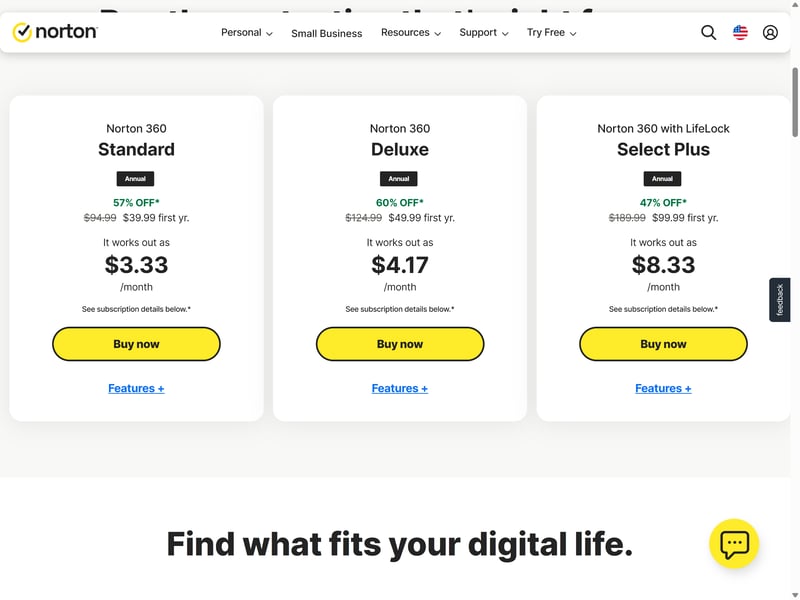
Norton offers different subscription plans to fit your needs.
Most Norton 360 subscriptions run for a year and renew automatically unless you turn off auto-renewal in your Norton account (a process we'll explain later).
Keep in mind that promotional prices usually only apply to the first year. After renewal, you’ll pay the regular price.
Once you’ve picked a plan, you can pay by credit or debit card, PayPal, or bank transfer.
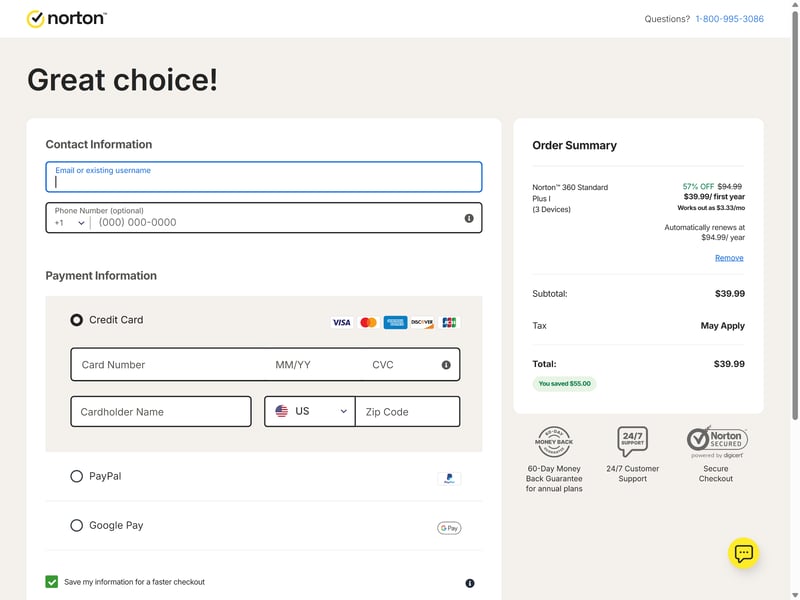
Norton offers several payment options.
Download Norton
After purchasing Norton 360, you can download it immediately.
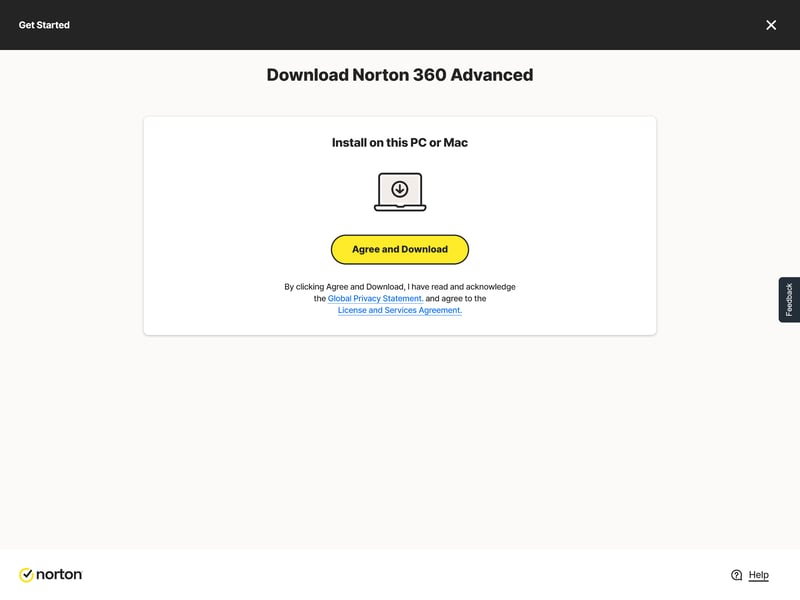
After purchase, the download starts directly from the server.
You can also download the software anytime from your Norton account. Just sign in to the Norton website and go to “My Account.” Under “My Subscriptions,” you’ll see all your active products.
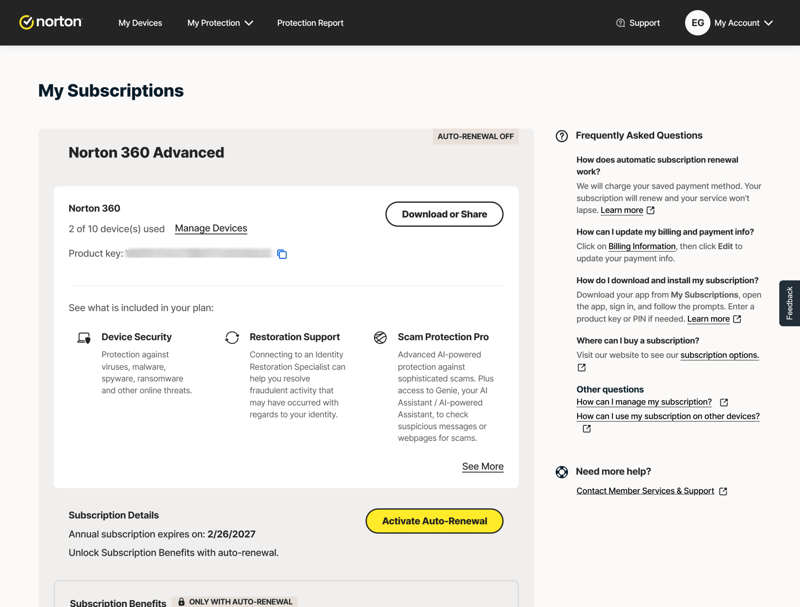
Under “My Subscriptions,” you can download the software.
The installer launches automatically once the download is complete. You can install Norton directly on your current device or send a download link to another device.
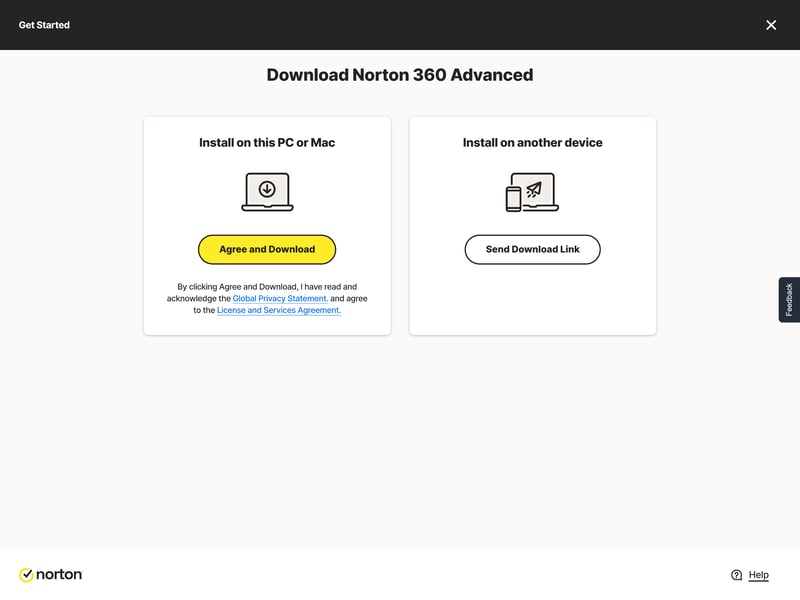
You can download Norton directly or send a download link.
Install Norton
Once you start the installer, a setup assistant walks you through each step.
During setup, you can also install Norton Browser. If you prefer to skip it, you can enable it later at any time.
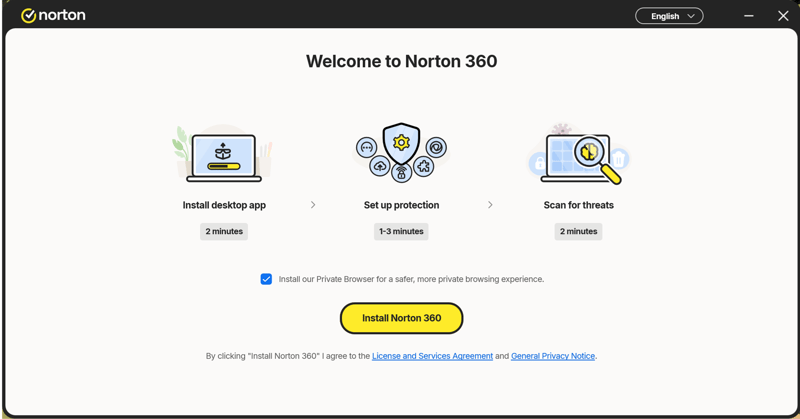
Uncheck the box if you would rather not install the Norton browser.
Once installation is complete, your device shows up in your Norton account under “My Devices.” Here you can check which devices have Norton 360 installed and add more if needed.
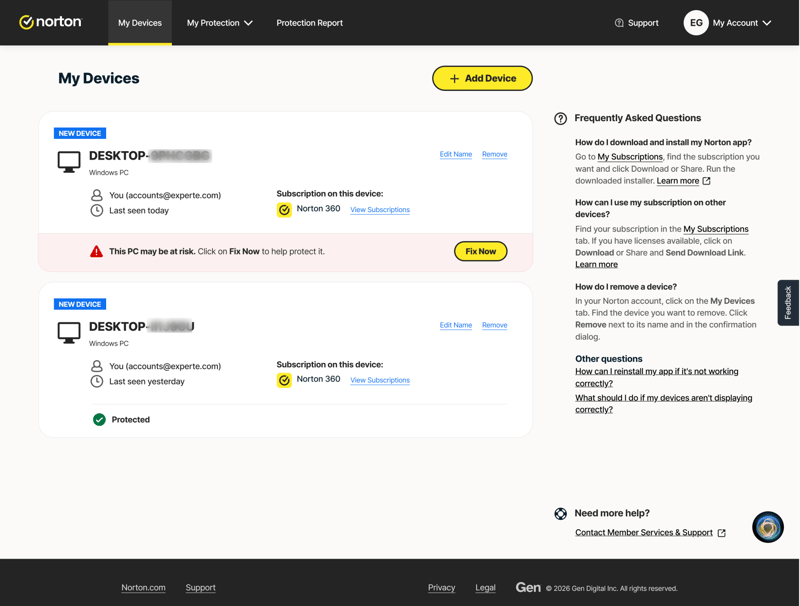
The “My Devices” section shows you where Norton 360 is already installed.
Set Up Norton
The software is now installed, but you still need to activate it with your Norton account. To activate your subscription, sign in to your Norton account or enter your product key.
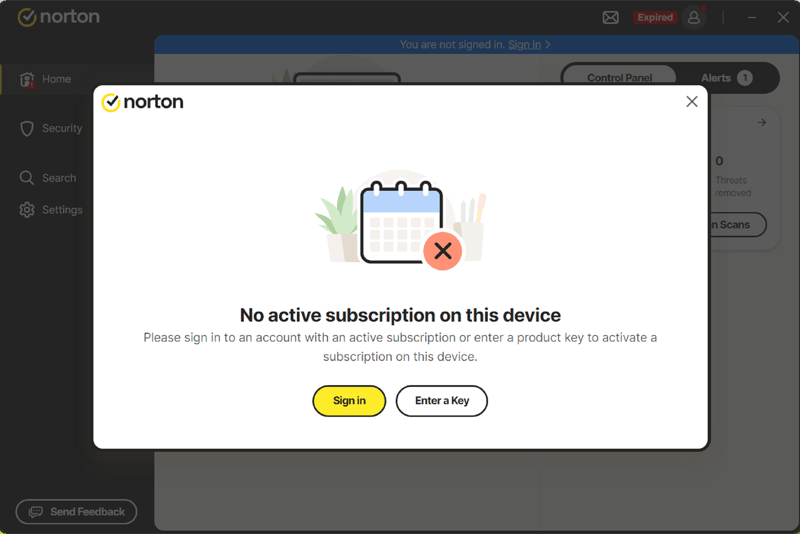
First, sign in with your account details.
You can sign in with your password or request a one-time verification code sent to your email address.
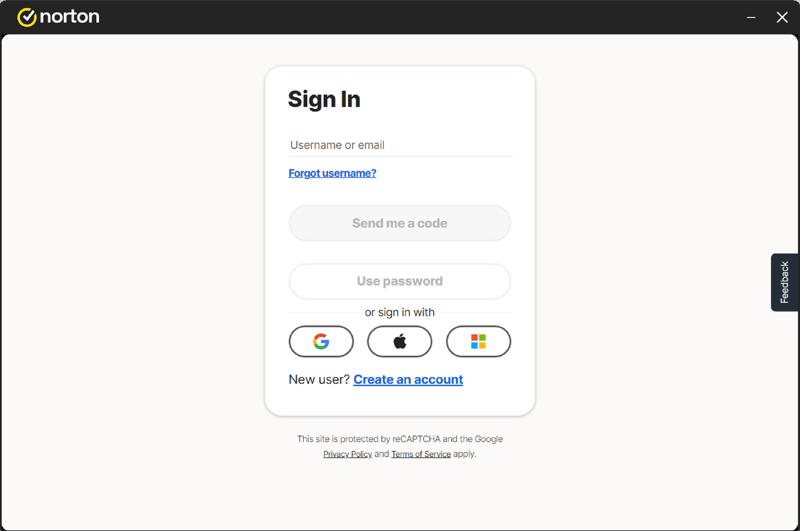
Sign in to link the software to your Norton subscription.
After you sign in, Norton walks you through the setup. You can configure extra features, but they aren't required for basic virus protection.
First, Norton will prompt you to set up a cloud backup of your PC files. To skip this step, click “Next.”
Note: If you skip any setup steps, you can always enable them later under “Set up Protection” in Norton 360.
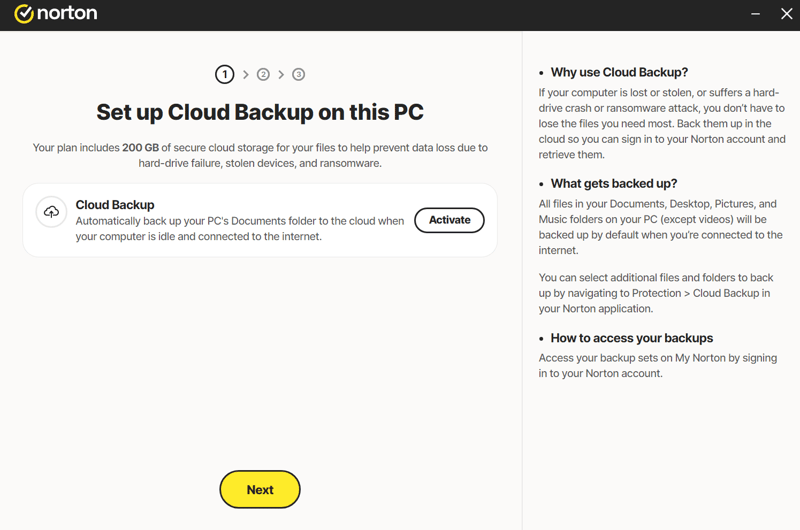
Optional: Set up a cloud backup with Norton.
Next, you can decide how Norton’s built-in VPN should work. If you turn on Auto-Connect, the VPN activates automatically whenever Norton detects an unsecured Wi-Fi network.
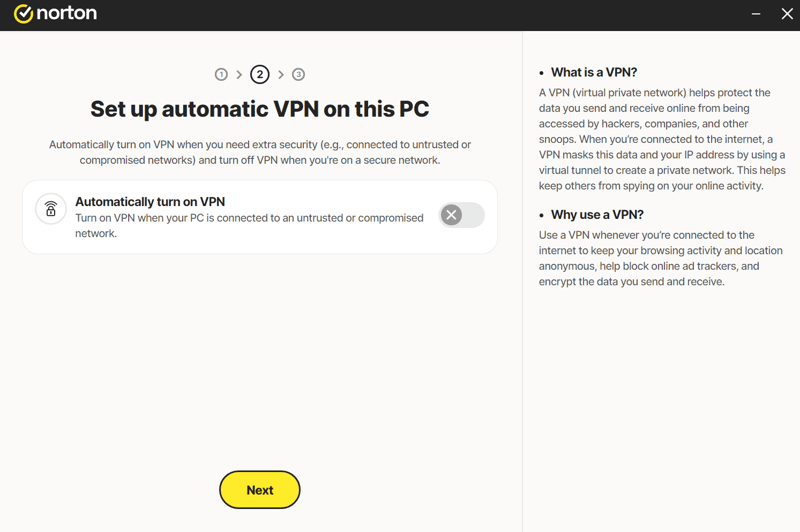
Choose whether Norton VPN should connect automatically when needed.
In the third step, you can set up Norton’s password manager, which stores and manages passwords across all your devices. If you’d rather not set it up now, click “Next” to skip it.
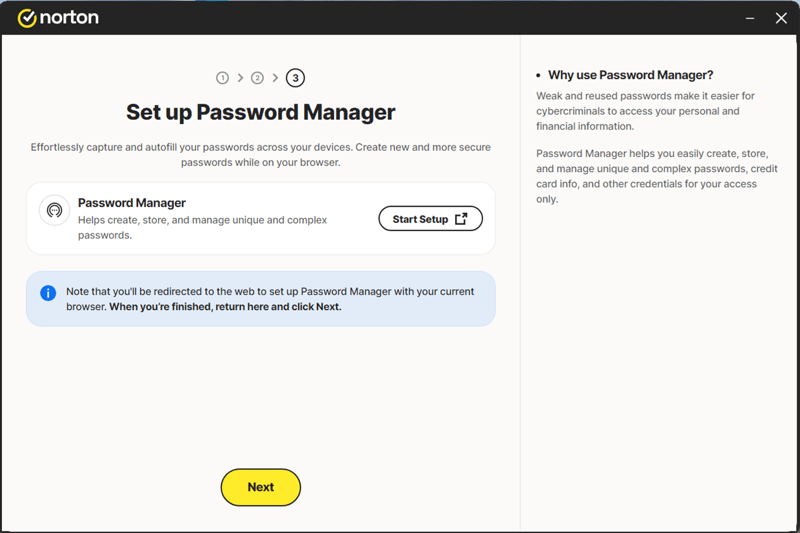
Norton also includes a built-in password manager.
That’s it. Norton 360 is now set up on your device.
Using Norton
Norton 360’s interface is clean and easy to navigate. The dashboard shows your device's security status and lets you run a quick Smart Scan to check for issues.
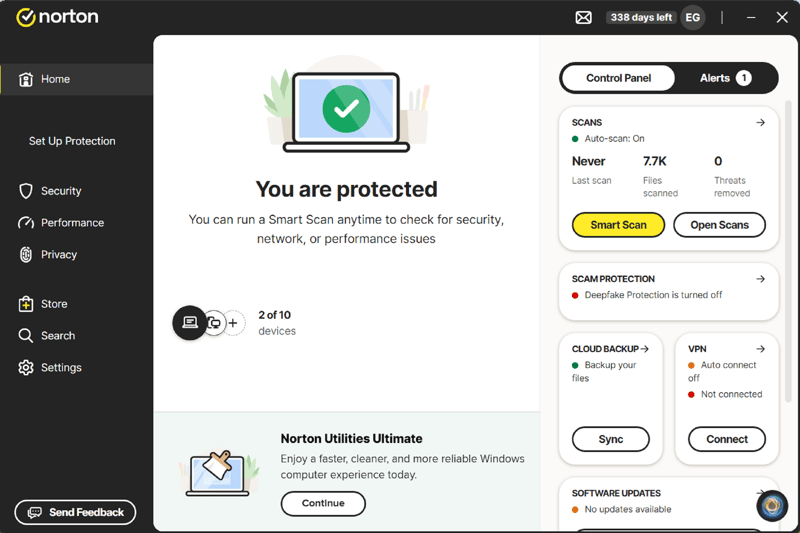
The Norton 360 user interface.
On the right, you’ll find quick access to key features like virus scans, fraud protection, VPN, cloud backup, and Norton’s private browser.
The left sidebar is your main navigation. It takes you to the “Security,” “Performance,” and “Privacy,” sections. To redo the initial setup, just click “Set Up protection.”
Security Section
The “Security” section is where you manage Norton’s protection features. Here, you’ll find scan options, cloud backups, live updates, and additional security features such as fraud protection.
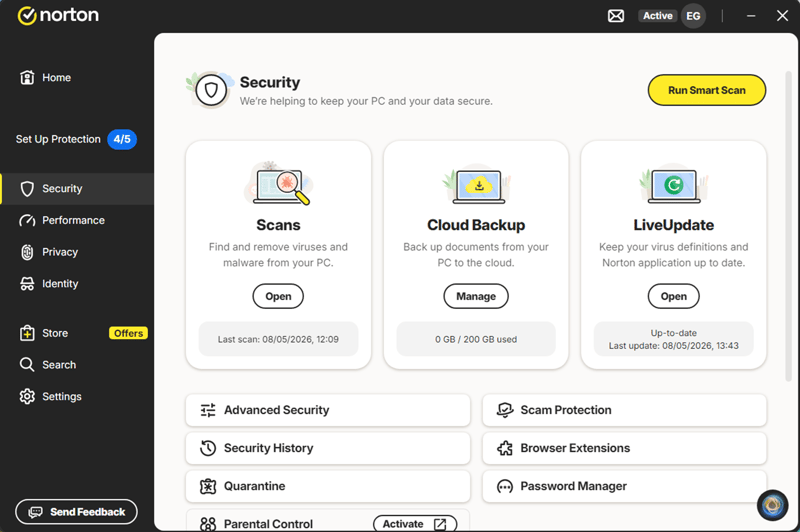
The “Security” tab in Norton 360 with its most important features.
The “Advanced Security” tab shows Norton’s core protection features: virus protection, exploit protection, firewall, and ransomware protection. These are on by default, so you don’t need to change anything here.
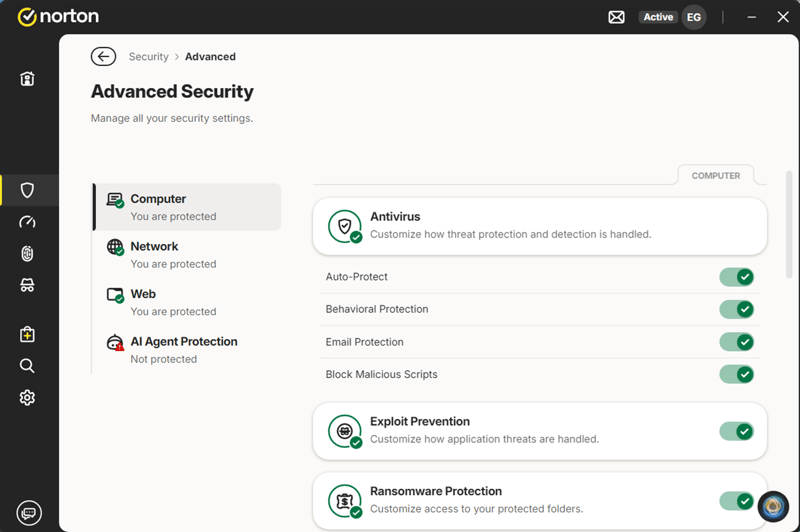
The advanced security settings show Norton 360’s full protection.
Performance Section
The “Performance” section includes system optimization tools. You’ll find a software updater, file cleanup, startup manager, and disk defragmentation.
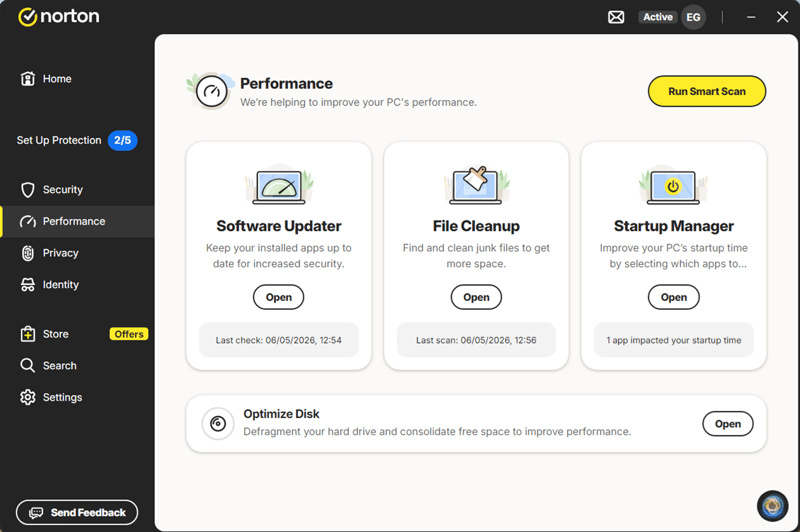
In the performance section, you can optimize your system.
Privacy section
The privacy section lets you manage Norton’s built-in VPN and SafeCam. SafeCam monitors access to your webcam and alerts you if any application tries to use it without permission.
Identity section
The identity section brings together Norton’s tools for protecting your personal data and online accounts. Depending on your plan, you’ll find features like password management, alerts for data leaks, and other tools to safeguard your digital identity.
General settings
You can also reach the settings from the main menu on the left. Click it to open a full overview of every feature in the Security, Performance, and Privacy sections.
Here, you can change the program’s language, manage notifications, and reset all settings to their defaults.
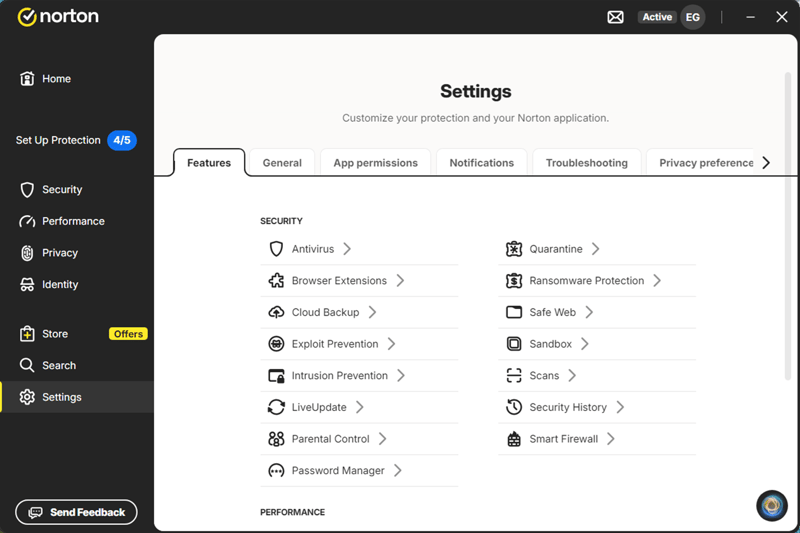
Norton 360 settings.
How to Disable Norton Temporarily
There are situations where you may need to temporarily disable Norton 360—for example, when troubleshooting installation issues, resolving error messages, or when the firewall is blocking a legitimate program.
On Windows, you can pause or turn off protection in seconds by right-clicking the Norton icon in the taskbar and selecting “Disable Auto-Protect” or “Disable Smart Firewall.”
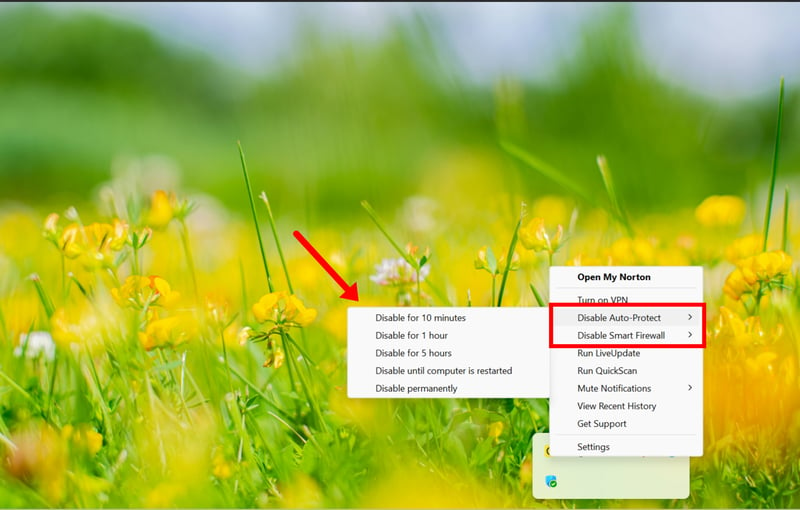
Turn off protection using the Norton icon in the taskbar.
Turning protection back on is just as easy, again from the taskbar icon.
Uninstall Norton
You can uninstall Norton in two ways: manually through Windows or with the official “Norton 360 Remover” tool.
Option 1: Uninstall Norton Manually
On Windows, go to Settings > Apps, find Norton in the list, and then select Uninstall.
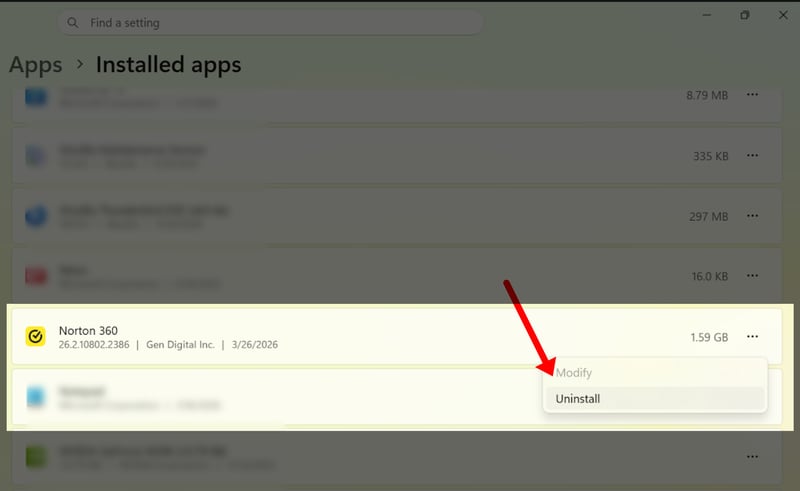
Find Norton under “Apps” on your PC.
Follow the on-screen instructions and click “Uninstall” when prompted.
Option 2: Uninstall Norton Using the Norton Tool
Norton provides its own uninstall utility, the “Norton 360 Remover,” which you can download from the support page. It removes any leftover files and settings completely.
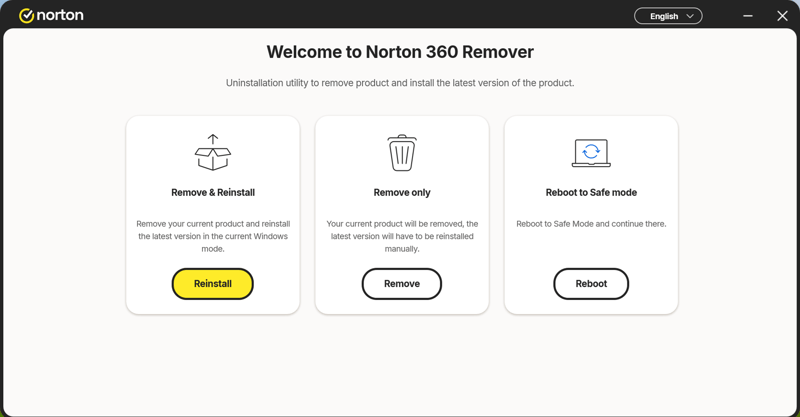
Norton offers its dedicated tool for a complete software uninstall.
The uninstall process may take a few minutes. When it's done, restart your computer.
Note: Uninstalling the software doesn't cancel your Norton subscription. You'll need to cancel that separately.
How to Cancel Your Norton Subscription
To cancel, log in to your account and click “My Subscriptions.” Scroll to “Subscription Details” and click “Manage Renewal”—the option is easy to miss.
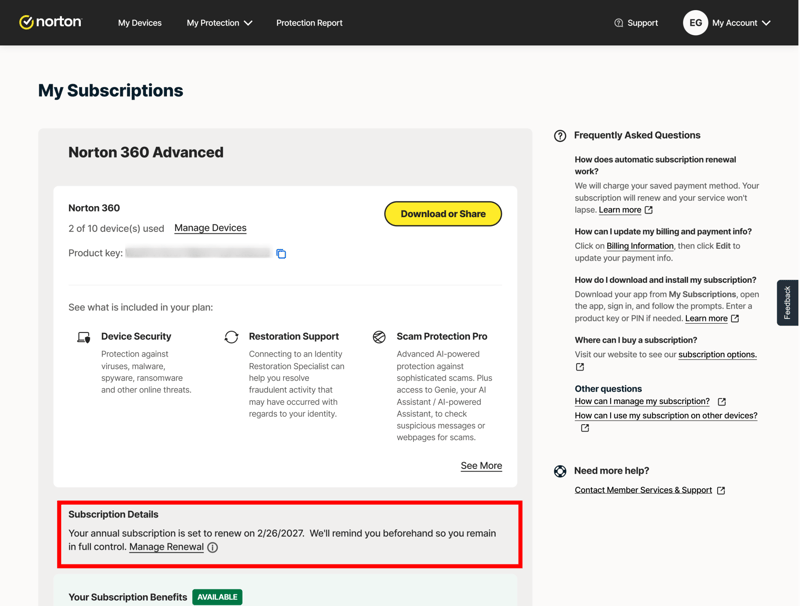
The cancellation option is located under “Manage renewal,” which can be easy to overlook.
In the pop-up window, click “Unsubscribe” next to “Plan renewal.”
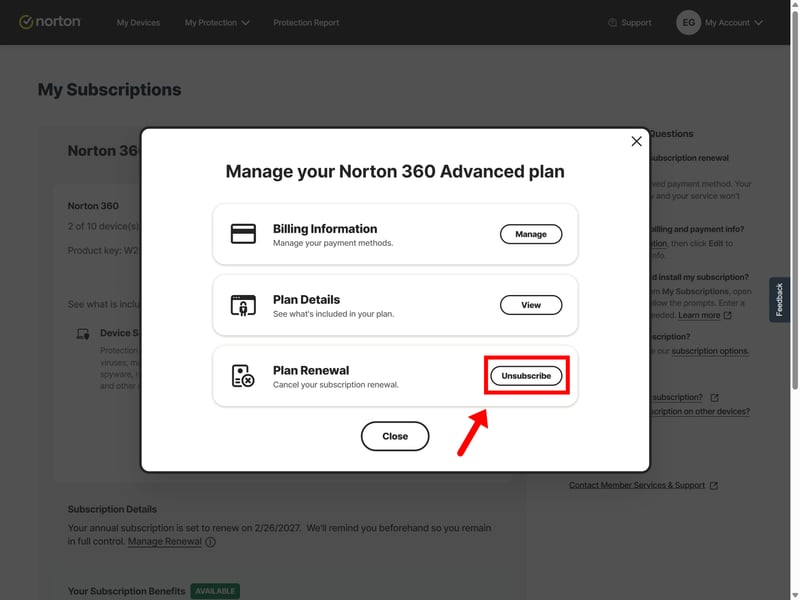
Cancel the renewal of your Norton subscription.
Your subscription stays active until the end of the current billing cycle. Once it ends, Norton confirms the cancellation and tells you how much time is left.
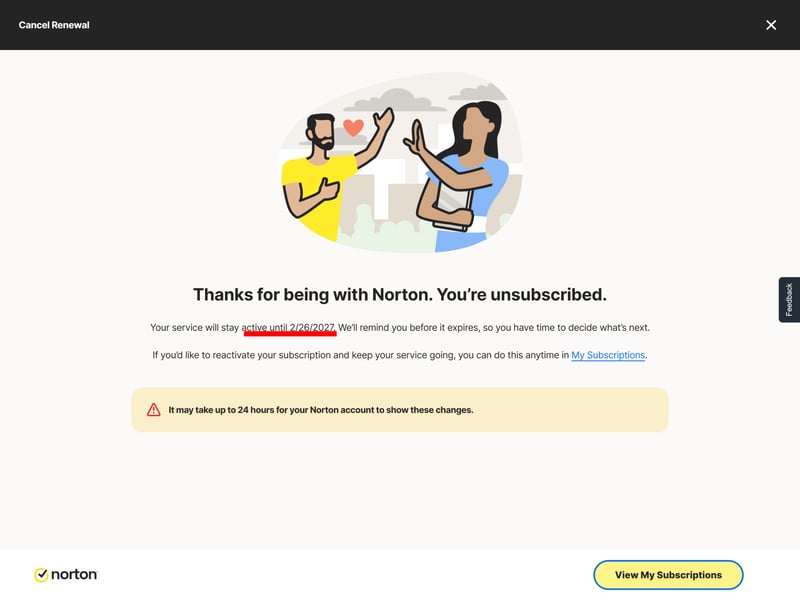
Norton confirms your cancellation.
Norton also offers cancellation windows beyond the standard one-month or one-year terms:
Annual plan: These plans come with a 60-day money-back guarantee.
Monthly plan: These subscriptions qualify for a refund within 14 days of purchase.