Macs have a reputation for being secure. Some users even take pride in dismissing the antivirus question with a confident “Nope, don’t need it.” But how effective is macOS’s built-in protection in everyday use? Or is there a case for adding third-party antivirus software?
We’ll break down the security features macOS includes, where they fall short, and who actually benefits from antivirus software. By the end, you’ll have a clearer idea of whether your Mac needs extra protection.


macOS comes with strong built-in protections like Gatekeeper, XProtect, and FileVault. But no system is 100% secure.
User behavior is the biggest risk. Phishing, fake websites, and accidental clicks are hard for any system to block.
For many users, macOS’s built-in security features may provide sufficient protection when combined with safe browsing habits and regular updates.
Antivirus software may provide additional protection if you face higher-risk scenarios—for example, if you download a high volume of files, share your Mac with others, or handle sensitive data.
What Security Features Does macOS Include?
macOS includes a range of security features enabled by default. It includes several independent layers of protection that work at different levels. Apple’s developers have put a lot of thought into stopping malware early and safeguarding critical parts of the system.
Here are the most important security features:
Gatekeeper
Gatekeeper checks where apps come from. By default, macOS only allows apps from the Mac App Store or verified developers. If software comes from an unknown source, macOS blocks it or asks you to approve it manually. This can help reduce the risk of accidentally running malicious software.XProtect
XProtect is Apple’s built-in malware protection. It uses signature-based detection to spot known malware when you open files or apps. Apple updates these signatures automatically, so you don’t have to do a thing.System Integrity Protection (SIP)
SIP protects core system files from being changed. Even users with admin rights can’t easily modify them. This helps limit the ability of malicious software to modify critical system components.FileVault
FileVault encrypts your data so that access generally requires the appropriate credentials.Sandboxing and Permissions
Apps run in isolated environments called sandboxes. macOS also asks for permission before an app can access your camera, microphone, or files. This keeps apps from reaching things they shouldn’t.
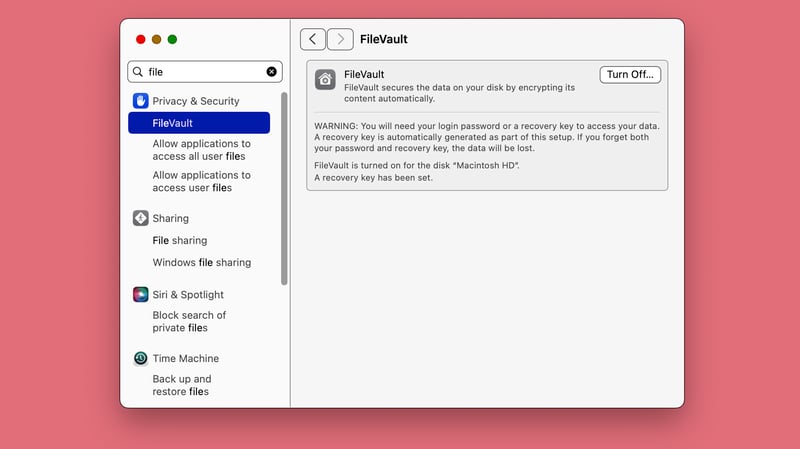
FileVault encrypts your entire hard drive. Without your password, your data stays safe even if your Mac is stolen.
But macOS’s built-in protections aren’t perfect. They mostly react to known threats. Zero-day threats can slip through until Apple updates its defenses.
No system can protect you from careless behavior. Phishing emails, malicious websites, and social engineering attacks are hard to block at the system level. Here, staying safe comes down to one thing: your own caution.
Who Can Rely on macOS’s Built-In Protection?
For many people, macOS’s built-in security features may be sufficient for everyday use. The real risk isn’t system flaws but how you use your Mac. Many security incidents are linked to risky downloads, malicious attachments, or deceptive online content.
Downloading software from the App Store or reputable developer websites can help reduce risk. Trouble usually starts when you download software from untrustworthy sources, ignore security warnings, or enable macros in unfamiliar documents (like Word or Excel files from unknown senders).
Key precautions to take
To keep macOS protection working smoothly, follow these basic steps. They’re simple but essential.
Turn on automatic system and security updates.
Updates fix known security holes that attackers exploit. Outdated browsers or system software are especially risky, since many threats target these weak spots.Set up regular, reliable backups.
Backups protect your data from loss, like after a ransomware attack or corrupted system files. Set up automatic backups and store copies on an external drive or network storage.Be careful with downloads, emails, and websites.
Many threats come from fake shipping notifications, malicious Office files, or phony software updates. Always double-check senders, file extensions, and download sources.
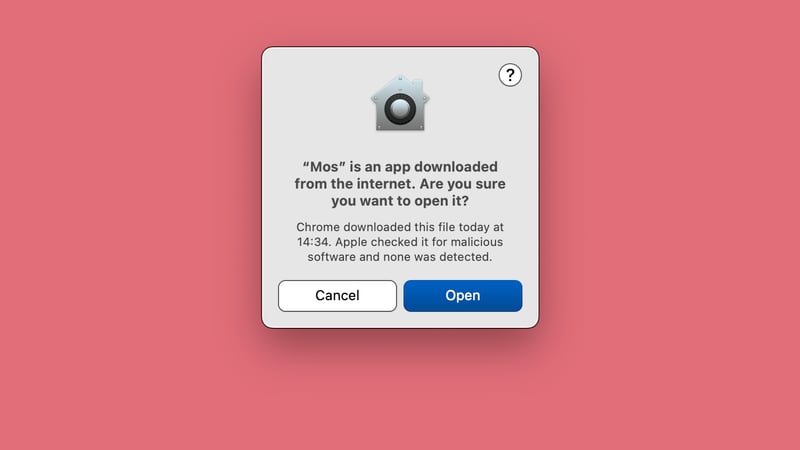
macOS warns you about apps from the internet. Gatekeeper blocks unknown programs before they can run.
When Should You Consider Antivirus for Mac?
Antivirus software can provide an additional layer of protection that may help detect certain threats before they cause harm. The key factor isn’t the device itself, but how and where you use it. Your habits and environment matter most.
When home users face higher risks
Higher risk comes when several factors pile up. Frequent downloads, multiple users, or limited tech know-how all raise the chance of mistakes. Antivirus software acts like a safety net, stepping in before a small slip-up turns into a bigger problem.
If you often install free tools or freeware, especially from unofficial sources, or if your Mac is shared with children or other household members, additional antivirus protection may be worth considering.
For work and sensitive data
Using your Mac for work or handling sensitive data raises the stakes. Think customer records, company documents, or login details for internal systems.
Organizations often set clear security rules. Some require specific antivirus software. More commonly, they define minimum standards, like real-time protection, regular updates, or centralized security management.
For company laptops or devices that access internal networks, IT departments usually set up or monitor security tools. Many employers also require remote work devices to meet these policies before granting access to company data.
What Real Threats Do Mac Users Face?
Yes, Macs face different threats than Windows PCs. But that doesn’t mean everything aimed at Macs is harmless.
Malware built for macOS
Some malware is built specifically for macOS. Most of it is adware, browser hijackers, or potentially unwanted programs. These can change your default search engine, flood you with ads, or collect your browsing data.
They are regularly distributed through software installers, fake updates, or misleading downloads and macOS doesn’t always block them right away.
Risks that affect all platforms
Many attacks today don’t target weaknesses in your operating system. They exploit how people behave online.
Think phishing emails, fake websites, and social engineering. Attackers use these to trick you into handing over sensitive information or login details. These attacks can affect users regardless of whether they use macOS or Windows.
Since these attacks target people, not systems, macOS’s built-in protections can only do so much. If you manually approve an action, many security features won’t kick in.
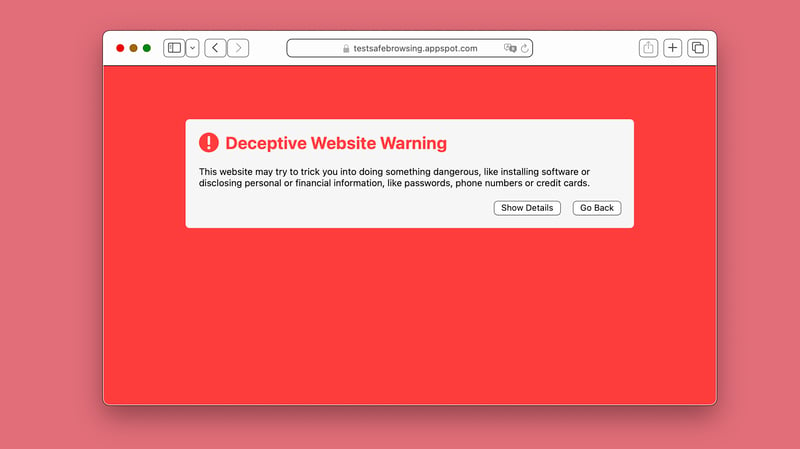
Safari includes features designed to identify certain fraudulent or deceptive websites.
These warnings can help reduce the risk of phishing attempts and credential theft.
What Are the Pros and Cons of Antivirus Software for Mac?
Modern antivirus software for macOS can offer more protection than what’s built into the system. But it comes with its own downsides.
Real-time protection
Antivirus software scans files, downloads, and programs the moment you open them. This can help detect and block certain threats before they execute.Detects new and unknown threats
Modern antivirus tools combine signature-based detection with behavioral analysis. This may improve their ability to detect both known threats and some previously unseen malware.Protection against phishing and dangerous websites
Many programs automatically check websites, links, and email attachments. This may help reduce exposure to phishing sites and malicious content.Enhanced ransomware protection
Some antivirus tools spot the unusual file changes that signal ransomware and identify suspicious activity that may be associated with ransomware attacks.Email monitoring
Attachments and links get scanned before you open them. That’s an extra layer of security, especially if you handle a lot of business email.Additional network and firewall features
Some programs strengthen the built-in firewall or watch your network traffic more closely. This may help identify suspicious network activity.
Possible system slowdown
Antivirus software may perform extensive system scans and constantly monitor files and processes. Depending on the program, this can slow down your Mac, especially during background scans or real-time checks.Ongoing costs
Most antivirus tools run on a subscription. Unlike macOS’s built-in protection, that means a recurring bill.Alert fatigue
Extra pop-ups and warnings can get annoying day to day. Sensitive settings often trigger frequent confirmations or notifications.More complexity
More features usually mean more settings. That can make the software harder to use, especially if you prefer a “set-it-and-forget-it” approach.Unnecessary extra features
Some antivirus suites bundle in tools you’ll likely never use, so you end up paying for more than you need.
Whether antivirus software is worth it depends on how you use your Mac: how frequently you download or share files and what your security needs are.
What Are the Best Antivirus Programs?
There is no universally best antivirus solution. The right choice depends on what it scans, how thorough the protection is, and how much it slows down your system. We tested some of the most popular programs. Here’s our ranking, with links to our full reviews:


Final Verdict: Do Macs Need Antivirus Software?
Macs come with strong built-in security. macOS includes multiple layers of protection like Gatekeeper, XProtect, SIP, and FileVault. But no system is 100% secure, and most risks come from user behavior, not system flaws.
If you use your Mac carefully, keep it updated, back up your data, and double-check downloads and email attachments, macOS’s built-in security features may be sufficient for many users. Antivirus software is not necessarily required for every Mac user.
But it can still help if your risk is higher: if you download files from many sources, share your Mac with others, or work with sensitive data. In those cases, extra security software adds another layer of protection. Security isn’t just about one program. It’s about how system protection, updates, backups, and smart online habits all work together.