What Is a Firewall? How It Works and Why You Need One 2026


Most people have heard the term “firewall.” If you connect a device to the internet, you should definitely use one. But what exactly is it? For many, it’s just that “security thing” running in the background.
This guide explains what a firewall is, how it works, and why you usually don’t need extra software to use one.


What Is a Firewall?
A firewall is a network security system that monitors and controls traffic based on predefined rules. Think of your home or office network as a building. Everyone who enters or leaves passes through a security checkpoint—if you’re on the list, you get through; if not, you’re turned away.
A firewall does the same thing for your network. The term comes from construction: a firewall is a barrier designed to stop flames from spreading. In IT, a firewall does the same job, but for unwanted data traffic instead of fire.
How Does a Firewall Work?
Technically, a firewall is a system made up of hardware, software, or both. It monitors traffic between networks and decides, based on set rules, whether to allow or block connections.
Checking Data Packets
Every network packet that enters or leaves your network carries specific information: Where is it coming from? Where is it going? What service is it trying to use? The firewall reads these details and compares them to its rules. If a rule matches, it decides:
Allow: The connection is permitted. Data packets can move between the internal and external network.
Block: The connection is denied.
Most firewalls can also log incoming and outgoing connections.
How Firewall Rules Work
To decide whether to allow a connection, the firewall checks each request against a set of rules (policies). Three factors matter here:
IP Address
An IP address is a device’s unique identifier on a network, much like a street address. It shows where a data packet comes from and where it’s headed. A firewall can allow or block connections from specific IP addresses.

Port
Every network service communicates through a specific channel called a port—think of it as a numbered doorway for a specific network service. Here are some common examples:
Port | Service |
|---|---|
80 | HTTP: unencrypted web traffic |
443 | HTTPS: encrypted web traffic |
22 | SSH: encrypted remote access |
3389 | RDP: Windows remote access |
25 | SMTP: email sending |
Protocol
A protocol defines how data is transmitted. The most common ones are:
TCP: Reliable because it verifies that data is delivered correctly and in the right order.
UDP: Faster because it sends data without verifying delivery.
A firewall rule can leverage a combination of protocol, port, and IP address to control traffic precisely.
Firewalls process rules in order, from top to bottom. The first rule that matches a data packet decides what happens. That’s why many security-focused firewall configurations end with a “deny all” rule—anything not explicitly allowed gets blocked.
Why Do You Need a Firewall?
Firewall protection is one of the most important layers of network security. It serves several important purposes:
Blocks unwanted access
Attackers scan the internet for unprotected ports. Without a firewall, they can reach your device directly. Malware can also attempt to transmit sensitive data (passwords, banking details, and more) without your knowledge.Monitors network traffic
A firewall shows you what’s happening on your network. You can see when connections are made and spot unusual activity, like traffic to unfamiliar countries or data transfers at odd hours.Reduces attack risks
Any service exposed to the internet can be targeted. If your accounting software, for example, is only used internally, it shouldn’t be reachable from the public internet. A firewall can block it.
Which Firewall Should You Use?
Operating systems like Windows and macOS come with built-in firewalls. Combined with your router’s firewall, they provide sufficient basic protection. In most cases, you won’t need an extra firewall.
For example, Windows includes the Windows Defender Firewall, which is on by default. It protects your system automatically, no setup required.
Apple’s security model relies heavily on features such as app sandboxing, application signing, and the protection provided by your network infrastructure. Its firewall is off by default, but you can turn it on for extra protection. These built-in tools are examples of software firewalls.
Windows Defender Firewall
The Windows firewall is on by default and blocks incoming traffic unless a rule explicitly allows it. By default, Windows Defender does not monitor outgoing traffic. This works fine for most users. But if you’d rather approve which programs can send data online yourself, you can change it in the settings.
How the Windows Defender Firewall Works
Access the interface through the Control Panel under System and Security > Windows Defender Firewall.
The Windows Defender interface isn’t the most user-friendly, and many settings are buried in submenus.
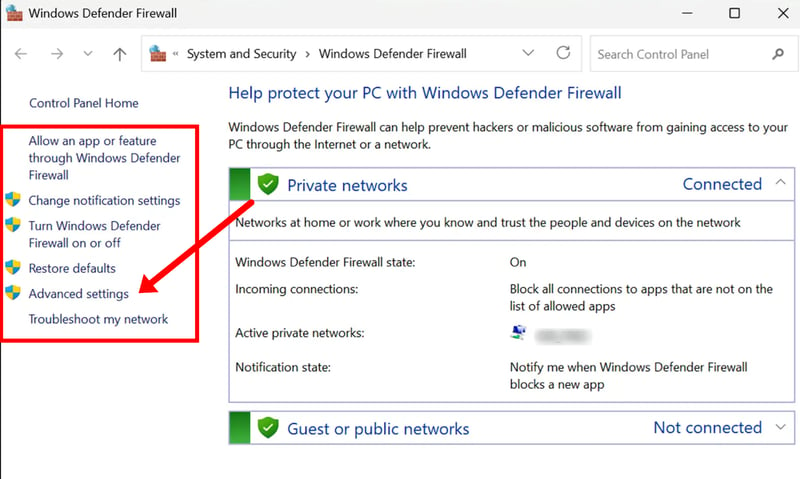
The Windows Defender Firewall interface from Microsoft.
The main interface shows your different networks and a small menu on the left. There you can adjust settings, like allowing specific apps, setting up notifications, or turning the firewall on or off.
The “Advanced settings” section is especially worth checking out:
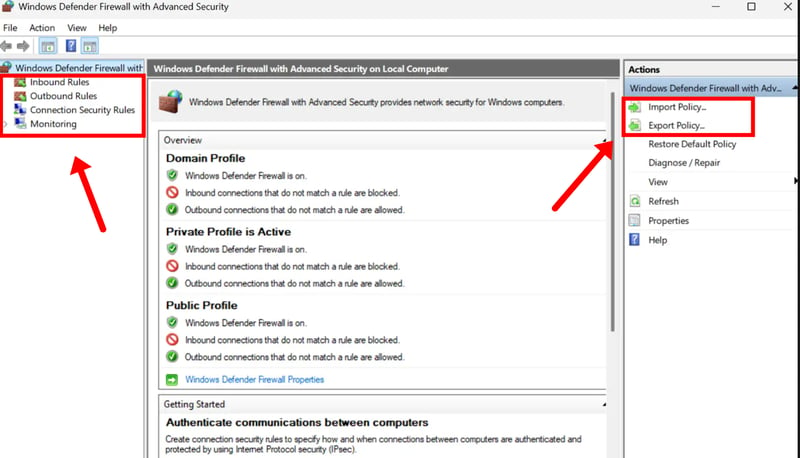
Windows Defender’s advanced settings are a little tucked away.
Advanced settings open a new window with extra submenus. On the left, you can set rules for incoming and outgoing traffic, add new rules, or delete existing ones.
On the right, you can import or export firewall policies, meaning the entire firewall configuration.
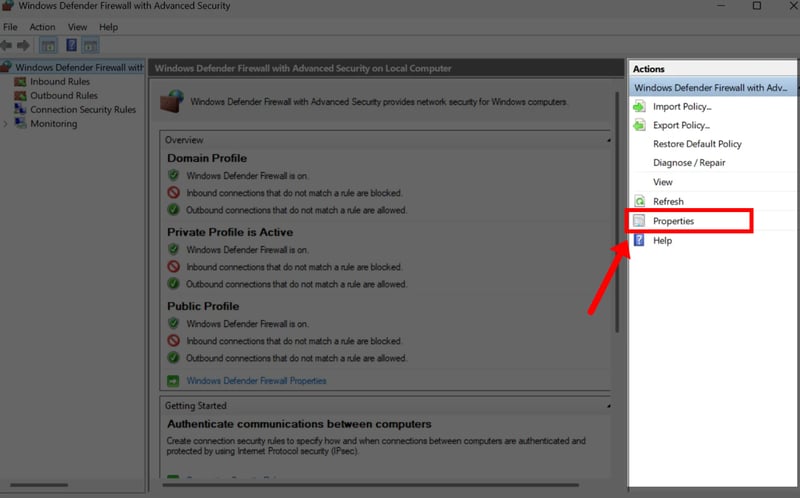
Further settings can be found behind the “Properties” menu.
Just below that, the “Properties” option lets you tweak even more firewall settings.
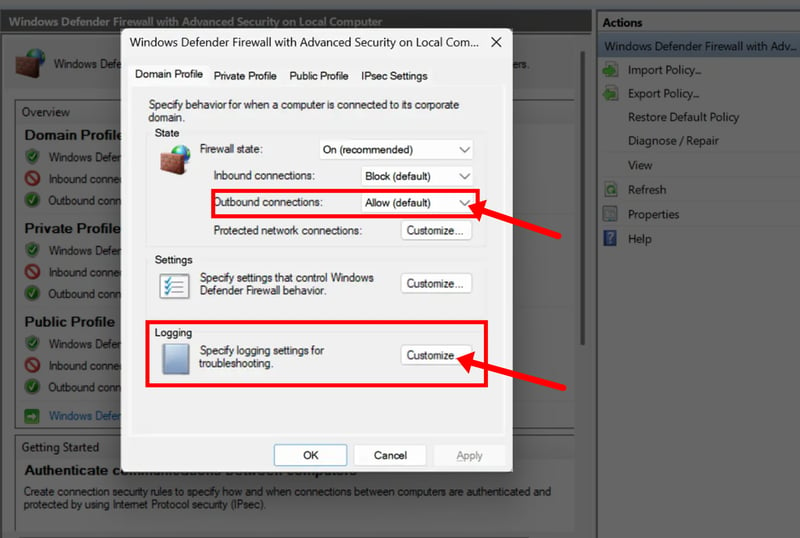
You can allow or block incoming as well as outgoing connections and turn on logging.
Here are two key features you should know about:
- 1.
Turn on logging
After clicking “Properties,” you can customize logging for each profile (Domain, Private, Public). Select “Customize” next to “Logging” to record all connections. - 2.
Filter outgoing connections (optional, for advanced users)
After clicking “Properties,” set “Outbound connections” to “Block.” This filters outgoing traffic too, allowing only programs you’ve explicitly approved.
macOS Firewall
macOS includes a built-in application firewall that can be enabled for additional protection. Apple doesn’t preinstall any inherently risky network services that could expose your system to attacks.
Apple relies on your router’s firewall and security features like app sandboxing. Even so, it’s a good idea to turn on the built-in macOS firewall, especially on public Wi-Fi.
You’ll find it under System Settings > Network > Firewall (macOS 13 Ventura or later) or System Preferences > Security & Privacy > Firewall (macOS 12 Monterey or earlier). Here’s what you can do:
Block all incoming connections, regardless of which app they’re for.
Automatically allow built-in software to receive incoming connections.
Automatically allow downloaded and signed software to receive incoming connections.
Allow or deny access for specific apps you choose.
Stop your Mac from responding to ICMP (Internet Control Message Protocol) probes and port scans.
Don’t Overlook Your Router’s Built-In Firewall
Most home users overlook that their router includes a basic hardware firewall that acts as the first line of defense, blocking threats before they even reach your devices.
Modern routers protect your network in two key ways:
- 1.
NAT (Network Address Translation)
NAT provides an additional layer of protection by hiding internal devices behind a single public IP address. Since all your devices are concealed behind a single public IP address, they’re not directly exposed to the internet. An attacker only sees your router, not your PC, Mac, smartphone, or smart home devices. - 2.
SPI (Stateful Packet Inspection)
SPI goes a step further. Your router tracks active connections and only lets through response packets that match an existing request. Any unsolicited incoming traffic gets blocked.
However, don’t rely on your router alone. Its firewall only watches traffic coming from outside; it can’t see what’s happening inside your network. The best approach is to use both your router’s firewall and the built-in protection on your devices.
Firewalls From Commercial Providers
If you would rather not rely entirely on your system’s built-in protections and your router’s firewall, you can install extra firewall software from well-known providers such as Avast, Bitdefender, or Comodo. Each has its pros and cons, so weigh them carefully.
Pros and Cons of Commercial Firewalls
Enhanced control over outgoing connections
Commercial firewalls alert you when a program tries to send data from your system to the internet. By default, Windows Defender only monitors incoming traffic.Block programs, not just ports
Windows Defender mainly regulates traffic through ports and protocols. Third-party firewalls can block individual programs directly.Advanced monitoring features
Commercial firewalls show you in real time which programs talk to which servers and how much data is being transferred.Enhanced protection on public Wi-Fi
Many of these programs switch to a stricter security mode automatically when they detect an unsecured network.
Potential data sharing with the provider
Some free firewall products may collect usage and diagnostic data in exchange for the service. Details about the programs you use, the websites you visit, and the connections your PC makes often end up fueling advertising.Increased system resource usage
An extra firewall integrates deeply into your system, right into the operating system’s network stack. This uses CPU and RAM, which can noticeably slow down older or weaker devices.Potential conflicts with Windows Defender
When two firewalls run at the same time, they can interfere with each other, for example, if both try to control the same network traffic. The result can be duplicate warnings and gaps in protection.False positives can overwhelm inexperienced users
If the firewall asks for permission every time a program tries to connect, users get frustrated fast. Many just click “Allow,” which defeats the purpose of the protection.Constant prompts to upgrade to the paid version
Free security software frequently pushes frequent reminders to buy the paid version. Some products use aggressive upgrade prompts that may create unnecessary concern.Limited support
If you run into problems, you’re often on your own. Some providers even discontinue free products with little notice.
For most home users, an extra firewall isn’t necessary as long as the built-in protections are set up correctly. For businesses, it can make sense when you need detailed control, centralized monitoring, or specific security policies.
What Can’t a Firewall Do?
Firewalls, whether built into your system or from a commercial provider, play a big role in security, but they can’t protect you from everything online. Here are some risks they can’t guard against:
Protection Against Phishing and Social Engineering
Phishing and social engineering don’t target systems. They target people to steal sensitive data. A firewall primarily protects against unauthorized network traffic.
For example, if an employee clicks a phishing link and willingly enters their password, the firewall sees a completely legitimate, encrypted HTTPS request.

Protection Against Weak Passwords
A firewall doesn’t know who is logging into a program or online service. Hackers can crack weak passwords like “123456” or “Summer2024” in seconds.
If an attacker knows your password, the firewall treats it as a normal login and will not intervene.
Use a strong, unique password for every service. The easiest way is with a password manager. Also enable multi-factor authentication (MFA) whenever possible. That way, even if your password leaks, attackers still can’t get in.

Protection Against Unpatched Systems
All software has flaws that attackers can exploit. Companies fix these vulnerabilities with updates. If you don’t patch your system, you leave the door wide open for hackers.
A firewall can only do so much here. It can block access to outdated services by closing certain ports, but it can’t block services that must remain online. So keep your system and apps up to date, and avoid postponing security updates.
Firewalls Are a Must-Have
A firewall is essential for any network. Combined with your router's built-in protection, it’s your first line of defense against online threats.
For home use, the firewall in your router or operating system is usually enough. Extra software isn’t necessary and often causes more problems, like slowing down your system or adding complexity.
But remember: a firewall alone isn’t enough. It blocks many threats, but real security comes from combining technology, regular updates, and smart habits.
Frequently Asked Questions
Yes, a firewall is essential for protecting your home network. It acts like a digital gatekeeper, checking incoming and outgoing data and blocking unauthorized access. Most modern routers include basic protection, and your operating system’s built-in firewall adds another layer.
Firewalls fall into two categories: software firewalls, which run on your device, and hardware firewalls, which are standalone devices on your network. Many home routers include a basic hardware firewall. Businesses regularly use both types together for stronger protection.
No. A firewall is an important part of security, but not a complete solution. It monitors network traffic, but it can’t detect phishing attacks, secure weak passwords, or prevent exploits in outdated software. For full protection, you also need antivirus and malware protection, regular updates, and strong passwords.
No, though NAT can have a similar effect. NAT (Network Address Translation) converts the private IP addresses on your home network into a single public address, which makes it harder for attackers to target your devices directly. A firewall, on the other hand, actively analyzes traffic and decides what’s allowed. Using both together protects you better than either one alone.