Proton Pass Review 2026: The Most Secure Password Manager?


Your password manager holds the keys to your digital life — from social media and email to your bank accounts. That kind of sensitive data should be handled by security experts. Proton has already built a strong reputation with its secure email and cloud services, so it makes sense that the company now offers its own password manager: Proton Pass. But how good is it, really?
We tried out Proton Pass to find out how it holds up in everyday use.


Proton Pass* is a password manager that lets you store, manage, and autofill passwords, payment details, and other sensitive information. It comes from the Swiss company Proton, which you might already know from services like Proton Mail, Proton VPN, and Proton Drive.
All Proton products are built with a strong focus on security and privacy, so a password manager is a natural addition to the lineup. With Proton Pass, the company promises enterprise-grade security, including end-to-end encryption, Swiss privacy standards, and regular independent audits.
But strong security isn’t a nice extra when it comes to password managers, it’s the bare minimum. A good password manager also needs to be easy to use and reliably autofill your logins. Our review reveals whether Proton Pass delivers on both fronts — and whether it truly lives up to its security promises.
Proton Pass Review
Strong security
With end-to-end encryption, open-source code, and regular independent audits, Proton offers solid protection — even from itself.Smart email aliases
With email aliases, you can create a unique address for each service. That means less spam and an extra layer of protection if one of your accounts is ever compromised.Generous free plan
The free plan might be enough for everyday use. You get unlimited logins, no device limits, and all the core features of the platform.Easy to use
Proton Pass feels modern and straightforward. The interface is clean and intuitive, whether you’re using it on the web, desktop, or mobile.
Autofill isn't always reliable
Autofill is decent, but not always reliable. It can struggle with multi-step logins, certain websites, or on mobile — so you’ll occasionally have to fill things in manually.Missing features
Proton covers the basics, but it’s missing some more advanced features. The vault filtering and organization options could be more extensive, for example.Weak support
There’s no live support, just a simple contact form without proper ticket tracking. Response times can be slow, and the help you get isn’t always very useful.
Setup & Ease of Use
A password manager isn't something you use once in a while. It’s part of your everyday routine, kicking in every time you log in — whether you’re on desktop or mobile. That means it needs to be reliable and easy to use. Proton Pass does a solid job on both fronts.
Creating an account and getting started
To use Proton Pass, you’ll first need a Proton account. If you’re already using Proton Mail, Proton VPN, or another Proton service, you can simply log in with your existing credentials, there’s no need to create a separate account.
If you’re new to Proton (or prefer to keep things separate), you can quickly set up a new account. Thanks to the free plan, you don’t need to enter any payment details. Once you've signed up, you can log in and get started right away.
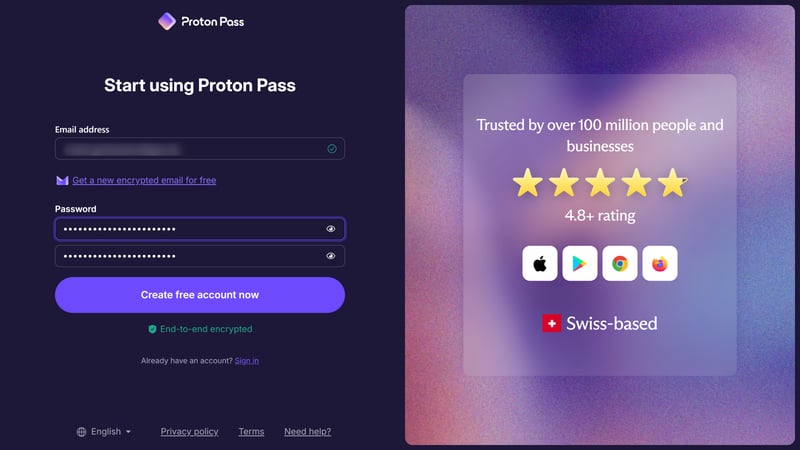
First, you'll need a Proton account.
Proton Pass web dashboard: a clean password hub
The web dashboard is your central place for managing logins, passwords, and other saved data. The interface is clean and modern, making it easy to navigate.
On the left, you’ll find your vaults. A vault is simply a collection of entries. You can use them to separate work and personal logins, or create a shared vault for family members, for example. The free plan includes two vaults, while paid plans support up to 50.
In the center, you’ll see your saved entries. When you’re just getting started, this section will be empty:
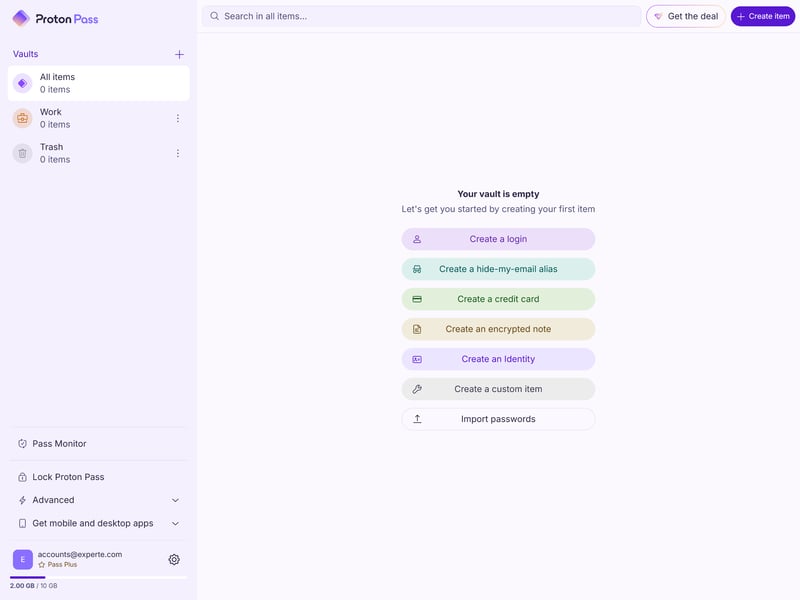
The Proton Pass web dashboard.
Now, you can start saving new logins right. Instead of entering everything manually, you can use the browser extension to save and autofill your credentials automatically (more on that shortly).
We tested this with an export from 1Password, and the import worked without any issues. Out of 700 entries, most were transferred correctly and were ready to use right away.
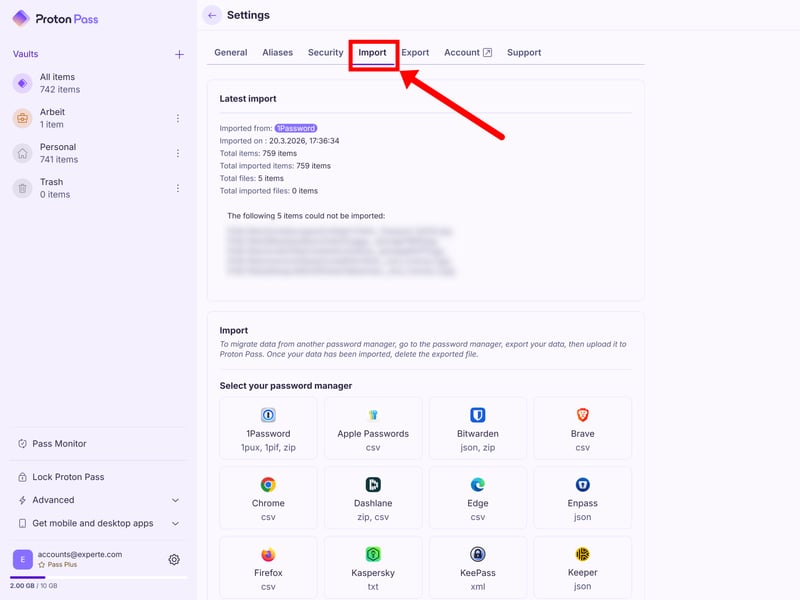
You can import your data from other password managers.
Overall, the web dashboard is a pleasure to use. Most of the downsides are minor and mostly cosmetic. One drawback, admittedly a bit of a nitpick, is the limited favicon support. Each entry in your vault shows a small icon, but Proton Pass tends not to pick them up reliably.
As a result, you’ll often see generic placeholder icons. It’s not a big deal, but it can make longer lists a bit harder to scan, and the interface feel slightly less polished. If you care about these visual details, it can get a little annoying — especially since there’s no way to set a favicon manually, unlike in 1Password.
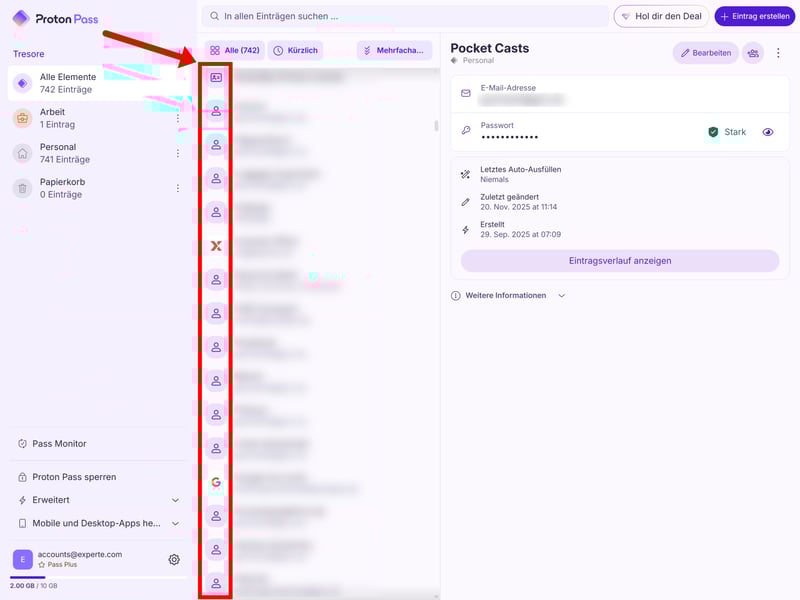
Proton Pass has room for improvement when it comes to recognizing favicons.
Browser extension: your everyday autofill companion
The browser extension is where you’ll interact with Proton Pass most of the time. It runs quietly in the background and steps in whenever you need it. When you log in to a site, it recognizes it and suggests the right credentials. When you create a new account, it saves your login details automatically.
The interface is clean and easy to use. Click the Proton Pass icon in your browser toolbar (it’s best to pin it, as Proton recommends), and a compact overview of your entries opens up. If you have already saved credentials for the site you’re on, they’ll show up automatically.
Click the plus button to create new entries or open the built-in password generator.
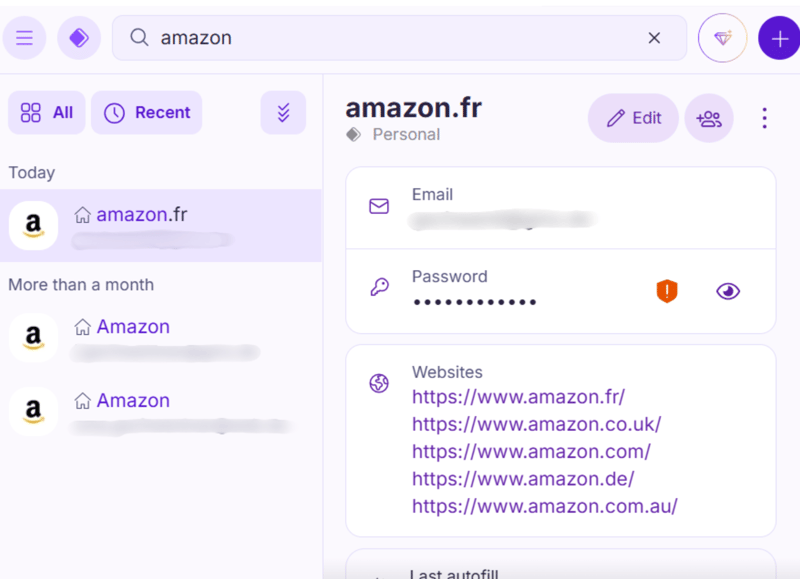
The browser extension is your password assistant for everyday use.
Once it’s installed, your saved logins show up directly in login fields on websites. That means you can sign in with just a couple of clicks, no need to copy and paste anything.
Proton Pass on desktop: offline access to your passwords
Proton Pass also comes with a desktop app that lets you manage your credentials outside the browser. Its biggest advantage is offline access, so you can still view your saved data even without an internet connection. Other than that, it’s not really necessary, since the browser and web apps do the job.
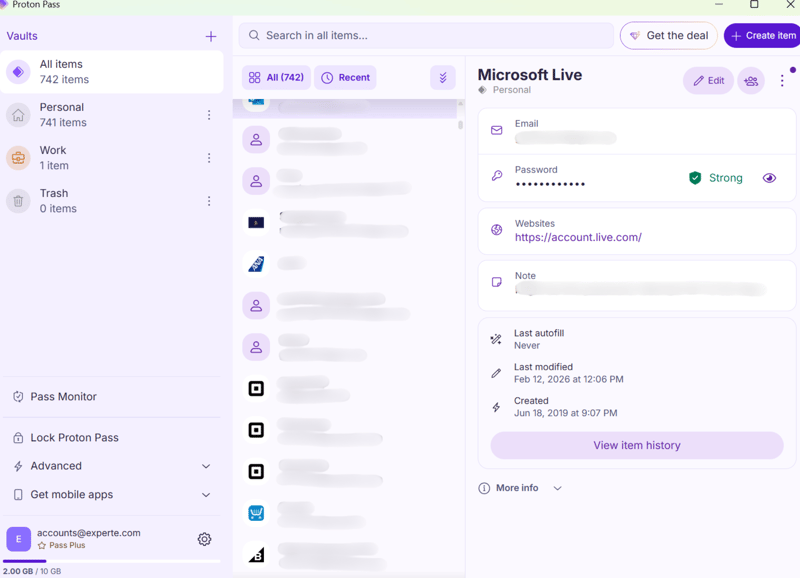
The desktop app gives you offline access to your data.
Of course, Proton Pass also has a smartphone app (more on that later).
As a new player in the password manager space, Proton Pass doesn’t need to reinvent the wheel. It just needs to copy what already works and do it well — which it does. Proton Pass builds on the strengths of established tools and combines them with clean, modern interfaces across browser and mobile.
Features
Proton Pass is still relatively new, so it hasn’t had as much time as more established password managers to catch up feature-wise. It covers all the basics and adds a few useful extras, like email aliases. Some core features, especially autofill, still don’t work as well as they should.
All your logins in one place
Proton Pass covers all the main item categories you’d expect. You can store login details, payment information, identities, and secure notes across all plans, including the free tier. You can also attach files to each entry, so everything related to an account stays in one place.
With the Pass Plus plan, you can add custom fields to your entries. These include text fields (for things like security questions), hidden fields for sensitive data, date fields, and TOTP keys for two-factor authentication.
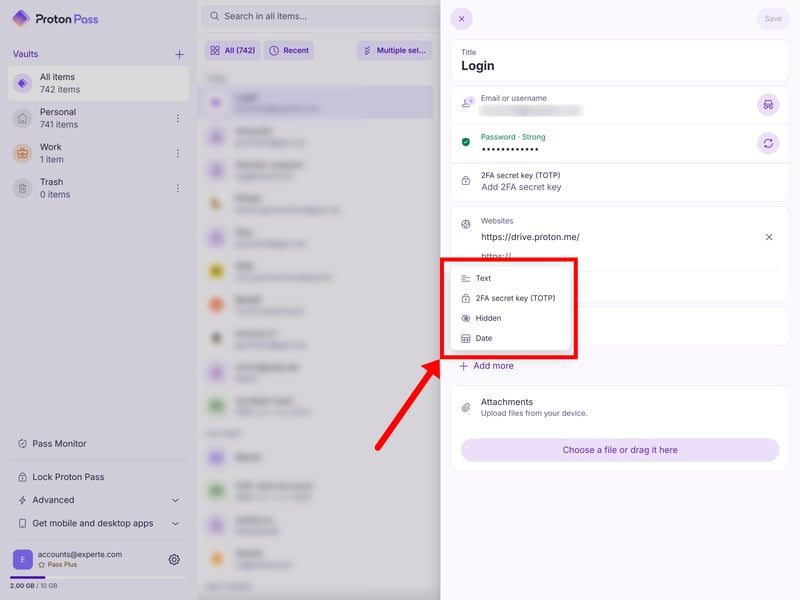
You can also add custom fields to your entries.
The Pass Plus plan also unlocks additional item types. These include technical entries like API credentials, databases, servers, and Wi-Fi networks, as well as financial data like crypto wallets and personal documents such as driver’s licenses, passports, or medical records. Overall, we didn’t feel like anything important was missing.
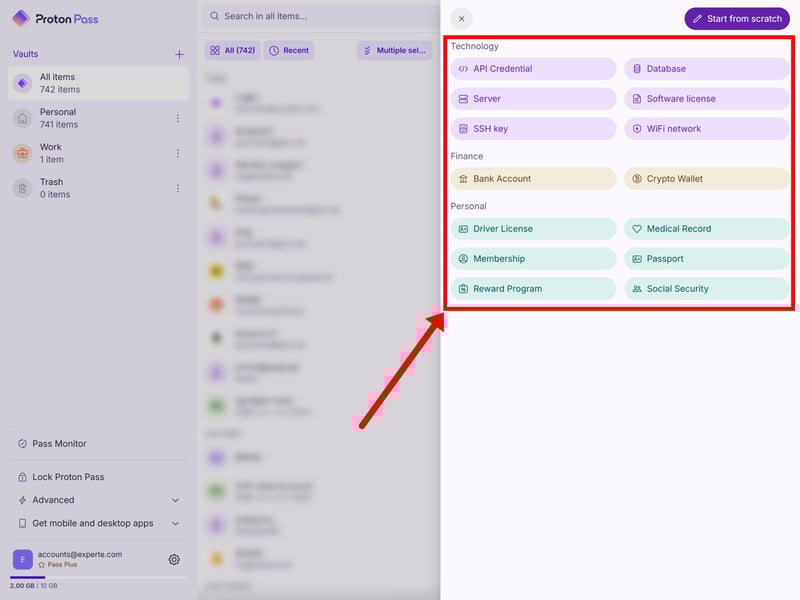
Proton Pass supports all the important data types.
Autofill: solid, but not top-tier
Autofill is one of the most important features in everyday use. How well it works depends on your browser and device. In our tests (Chrome and Firefox on desktop, Android), it worked fine overall, but not always reliably.
Sometimes saved logins just didn’t show up, even on major websites. Multi-step logins, with fields split across different pages, are another weak spot: sometimes Proton Pass doesn’t recognize the right field at all. And even when it does, you still have to click through each step yourself, picking the right entry if you have multiple accounts.
Competitors like 1Password do this better, handling the whole login flow automatically once you’ve chosen an account.
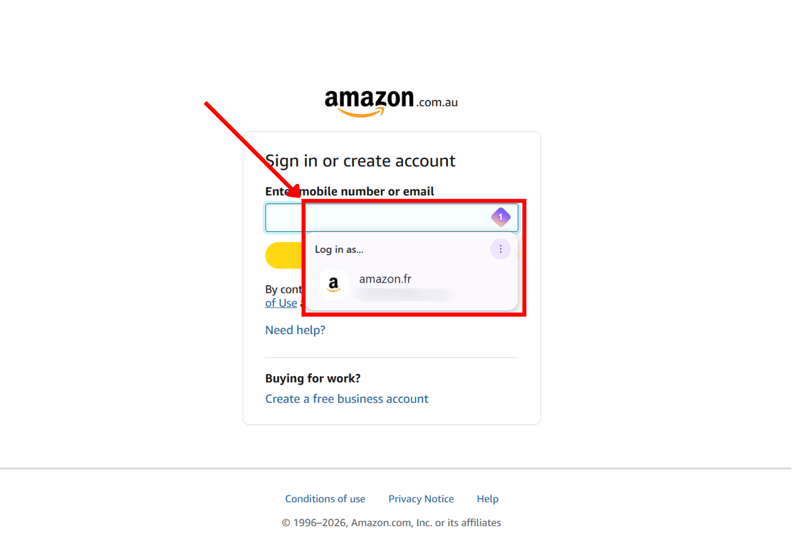
The browser extension detects logins automatically.
Proton Pass gets the job done, but its autofill feature still has some catching up to do. Be prepared to fall back on copy and paste every now and then.
Password generator: strong passwords and passphrases
Proton's built-in password generator is pretty good. You can choose between traditional passwords and memorable passphrases, set the length (up to 64 characters or 10 words), and decide which character types to include.
There’s also a password history. Every generated password is saved for two weeks, even if you don’t add it to an entry right away. That’s useful if you create a password but then cancel the process or reload the page.
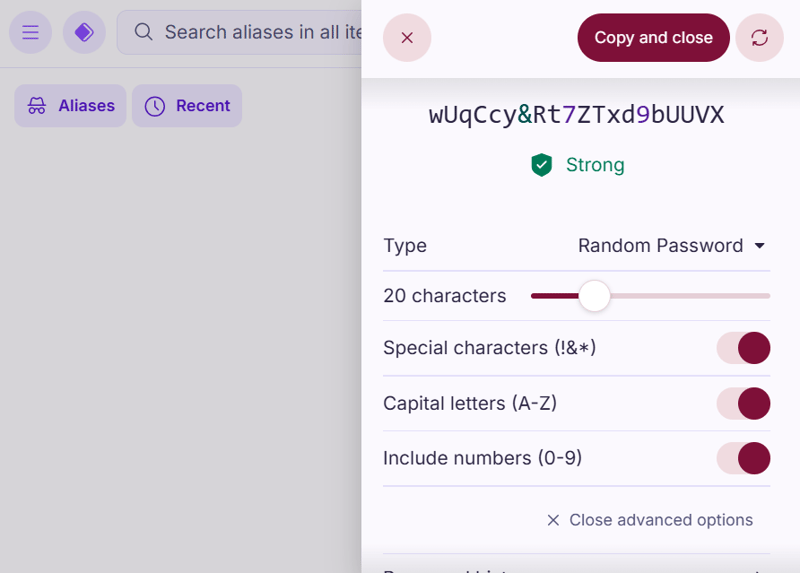
The password generator automatically generates secure passwords.
Pass Monitor: keep an eye on security risks
A password manager isn’t just about storing and creating new credentials. It should also help you keep your existing accounts secure. Like most providers, Proton Pass includes a security dashboard for this, called “Pass Monitor”:
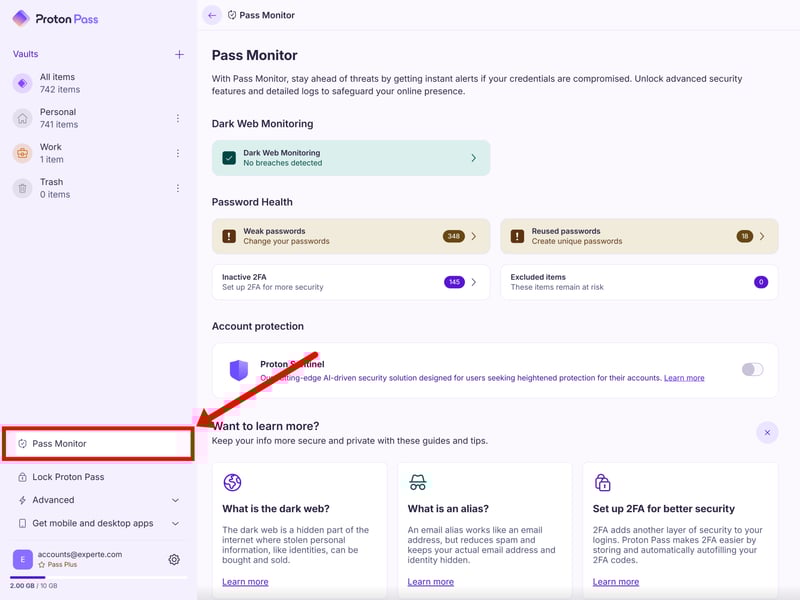
Pass Monitor helps you keep an eye on your password and account security.
Pass Monitor alerts you about potential security issues, including data breaches (dark web monitoring), weak or reused passwords, and accounts without two-factor authentication. You can quickly see how many entries are affected and browse the list.
Still, the overall experience feels a bit bare-bones. Other password managers assign an overall security score and do a better job of showing what needs your attention first.
And when a breach is detected, Proton Pass only shows the affected email address, not the specific accounts that may be compromised. Other tools handle this better by listing exactly which logins are at risk. Here, you’ll have to figure that out yourself.
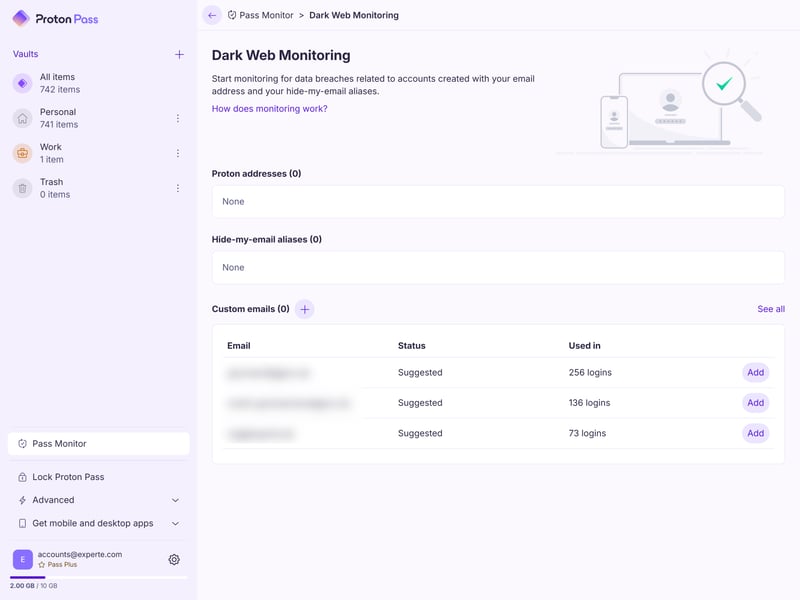
Dark Web Monitoring shows whether your accounts have been affected by data breaches.
Email aliases: more control over your email address
The more accounts you create, the more often your email address gets shared. That means more spam and a higher risk of breaches.
Proton Pass tackles this issue with a handy feature that’s still pretty rare among password managers: email aliases. Instead of using your real email address, you can generate a unique forwarding address for each service.
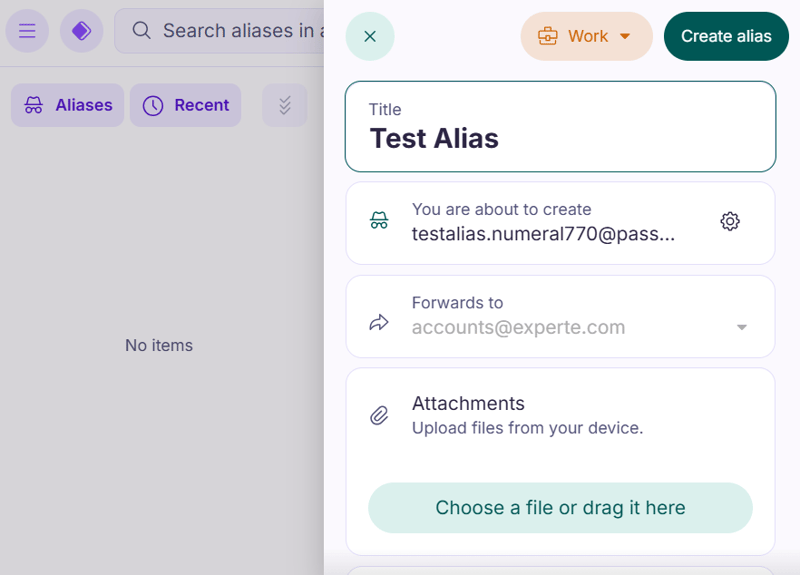
Instead of using your real email address, you can set up an alias.
The setup is easy and built directly into the signup flow. Proton Pass creates a random email address, forwards incoming messages to your inbox, and saves it with the entry. You can disable aliases at any time if a service becomes spammy or looks suspicious. Overall, it's a great feature we'd like to see from more password managers.
Secure password sharing
You can share logins and other data in Proton Pass with others. This works for both individual entries, which you can share with anyone via link, and entire vaults, which you can share with other Proton users.
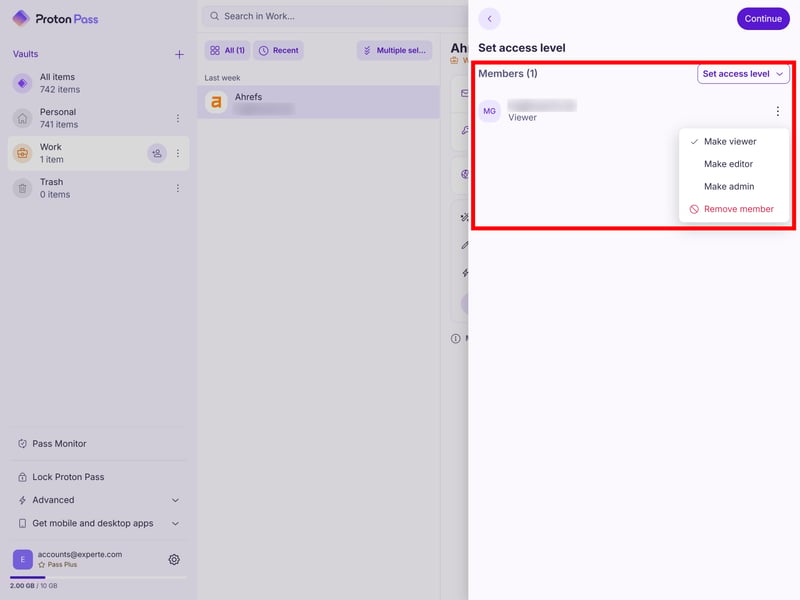
You can share entire vaults or individual entries with others.
For vaults, you can assign different access levels (Viewer, Editor, Administrator). For shared links, you can choose how long they stay active (from 1 hour to 30 days) and limit how many times they can be opened.
Proton's stand-out feature are email aliases: They are genuinely useful for protecting your real email address and keeping accounts separate.
Other than that, Proton Pass does most of what you’d expect from a password manager, but not always at the same level as the market leaders. Autofill is the clearest example. It works pretty well, but it’s not always reliable and sometimes needs a bit of manual input.
Security
Proton has a strong focus on security and privacy across its products, and Proton Pass is no different.
Consistent end-to-end encryption
Proton Pass uses full end-to-end encryption. Your data is encrypted on your device and can only be unlocked with your master password. Proton itself can’t access it. And it’s not just your passwords that are protected — metadata like usernames, URLs, and notes is encrypted too.
Behind the scenes, Proton Pass uses a layered key system. Each user has their own key derived from their password (using bcrypt). Each vault gets its own randomly generated key, and each individual entry within a vault gets yet another unique key. The data is then encrypted using AES-256-GCM, a widely used and trusted standard.
For authentication, Proton uses a hardened Secure Remote Password (SRP) protocol. This makes sure your password can’t be exposed, even if someone were to intercept the connection.
You can find more details about Proton Pass's security model on the Proton blog.
Open source: full transparency through public code
Unlike many other password managers, Proton Pass is open source, which means the code is publicly available and anyone can review it. This means you don’t just have to trust Proton’s claims: anyone can look under the hood and verify its security.
And even if you’re not going to read through the code yourself, others do. Proton even supports this with a bug bounty program that encourages security researchers to find and report issues.
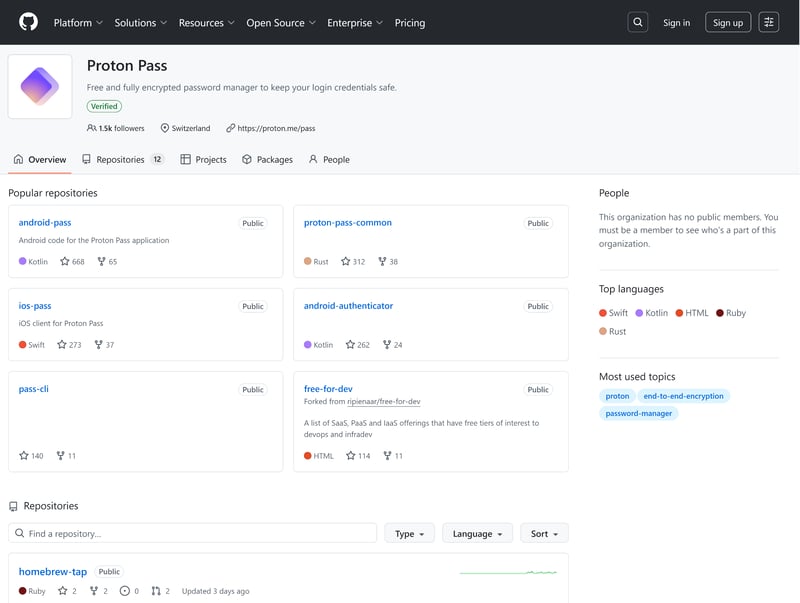
The source code of Proton Pass's apps is freely available on GitHub.
Proton also has its services audited by independent third parties. Unfortunately, it's been a few years since the last audit (conducted by the German security firm Cure53 in 2023). Some competitors are more consistent here. Bitwarden, for example, publishes audit reports every year.
Have there been any security incidents?
No system is perfect, and password managers are an obvious target because of the sensitive data they handle. Proton Pass hasn't been completely without issues either.
In 2024, for example, a clickjacking vulnerability was discovered in the web interface. Under certain conditions, attackers could trick users into unintended actions by overlaying elements in the browser. The issue was fixed quickly and communicated transparently. Beyond that, we’re not aware of any major or systemic security problems so far.
Overall, Proton Pass offers a strong level of security, which is what you’d expect from a Proton product. Your data is protected with end-to-end encryption, the code is open source and regularly audited, and security issues are handled quickly and openly. So far, there have been no major security incidents.
Mobile Use
Proton Pass is also available as a mobile app, so you can access your logins and sign in quickly from your phone. The app feels clean and easy to use, very similar to the web version. Your data syncs automatically and is available right away. You can also add and edit entries without any hassle.

Proton Pass on a smartphone.
Autofill suggests matching logins automatically, both in apps and in your mobile browser. In our experience (Android phone with Chrome), it worked about as well as on desktop: solid, but not perfect. Occasionally, we had to copy passwords manually, which is a bit more annoying on a phone.
Autofill also works inside apps, but it’s less reliable than in the browser. If no suggestions show up, you’ll need to open Proton Pass and copy the credentials yourself.
Note: To use autofill, you need to set Proton Pass as your default autofill service in your phone’s settings. The app should guide you through this during setup.

Proton Pass should automatically suggest the right logins.
Beyond that, the mobile app offers almost all the features from the web dashboard. You can use Pass Monitor, create email aliases, and share entries or vaults with others.
The Proton Pass mobile app works just as well as the web version. It’s easy to use and has almost all the same features. Unfortunately, it also shares the same weak spots: autofill can be a bit hit or miss.
Support
If you need help, you’ll need a bit of patience. There’s no live chat or phone support. The only option is a standard contact form, which you can access in the web app under Settings > Support.
The process isn’t very transparent. You don’t get a proper ticket with a status you can track. Instead, your request is just submitted, with no clear overview of what’s happening next. You’ll only hear back once a reply shows up in your inbox.
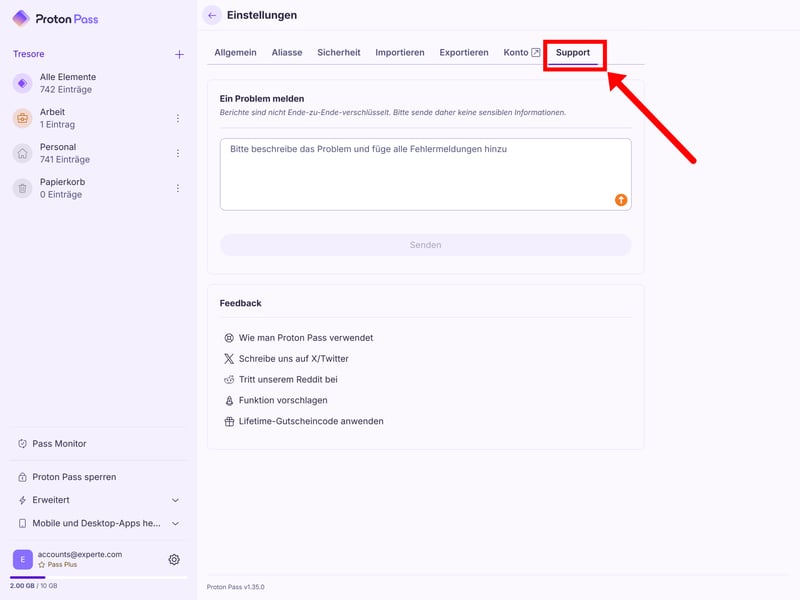
You can send messages to Proton directly from the dashboard.
One support interaction doesn’t tell the whole story, so it’s worth checking review platforms like Trustpilot. If you search for terms like “support” or “customer service,” you’ll find more complaints than praise. Many users report slow responses, if they get one at all, and say the replies often aren’t very helpful.
Solid help center with step-by-step instructions
If you'd rather find answers on your own, you can browse Proton's help center. It has a dedicated section for Proton Pass, complete with a search function. The articles are pretty good, and most of them include step-by-step instructions and screenshots.
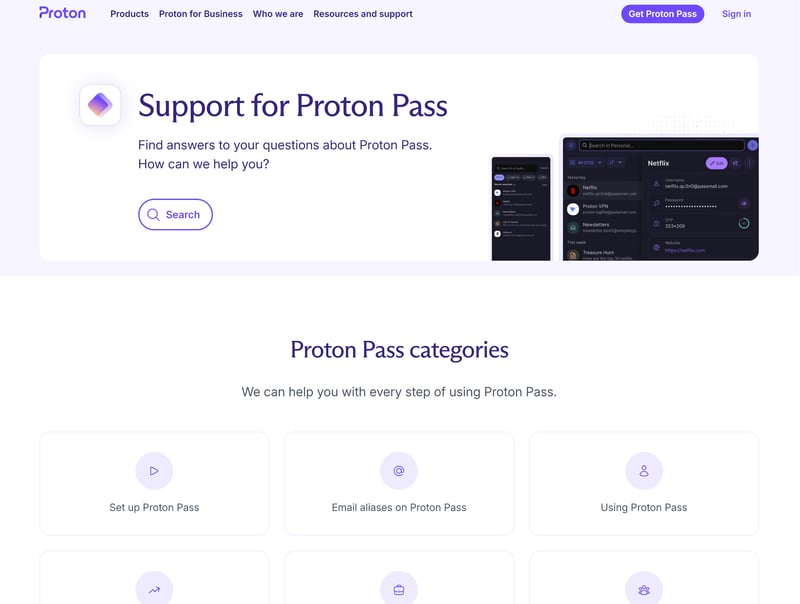
Proton's help center.
For a company focused on privacy and security, you’d expect better support. Proton's offering is a bit limited: There’s no live chat, responses can take a while, and feedback on review platforms skews negative.
Pricing
| Plus | Family | Business Essentials | |
|---|---|---|---|
| Monthly price | from $2.49 | from $4.99 | from $5.97 |
| Contract period (months) | 1 - 12 | 1 - 12 | 1 - 12 |
| Limits | |||
| Number of Users | 1 | 6 | unlimited |
| Passwords | unlimited | unlimited | unlimited |
| Devices | unlimited | unlimited | unlimited |
| Features | |||
| Sync Multiple Devices | ✓ | ✓ | ✓ |
| Password Sharing | ✓ | ✓ | ✓ |
| Teams | ✗ | ✗ | ✓ |
| Zero-knowledge Encryption | ✓ | ✓ | ✓ |
| Emergency Contacts | ✓ | ✓ | ✗ |
| Two Factor Authentication | ✓ | ✓ | ✓ |
| Local Storage | ✗ | ✗ | ✗ |
| Browser | Edge Chrome Firefox Safari Opera | Edge Chrome Firefox Safari Opera | Edge Chrome Firefox Safari Opera |
Proton Pass comes in several plans, both as a standalone product and as part of a bundle with other Proton services.
The free plan (Proton Free) is pretty generous. You get unlimited logins, notes, and credit cards with no device limits. Storage is capped at 1 GB, though, and you’re limited to two vaults. Email aliases are capped at 10, and features like dark web monitoring aren’t included.
The Pass Plus plan increases storage to 10 GB and lets you create up to 50 vaults, which you can share with up to ten people. It also adds features like emergency access, secure sharing, and built-in 2FA code storage.
Pass Family extends this to up to six users and adds simple management tools for families or small groups.
With Proton Unlimited, you get Proton Pass bundled with all other Proton services, including Mail, Calendar, VPN, and Drive.
An interesting option is the lifetime plan. You pay once and get permanent access to Proton Pass, with no ongoing subscription fees.
A word of caution about lifetime deals: There's no guarantee that a provider will stick around in its current form or keep supporting the product long-term. And there's also no way to know if you'll still be happy with the feature set years down the road.
There are also several business plans. In addition to two standalone Proton Pass tiers (Essentials and Professional), there’s a bundle with VPN, as well as the full Proton Business Suite, which includes all Proton services.
Here's an overview of all Proton Pass plans:
| Plus | Family | Business Essentials | |
|---|---|---|---|
| Monthly price | from $2.49 | from $4.99 | from $5.97 |
| Contract period (months) | 1 - 12 | 1 - 12 | 1 - 12 |
| Limits | |||
| Number of Users | 1 | 6 | unlimited |
| Passwords | unlimited | unlimited | unlimited |
| Devices | unlimited | unlimited | unlimited |
| Features | |||
| Sync Multiple Devices | ✓ | ✓ | ✓ |
| Password Sharing | ✓ | ✓ | ✓ |
| Teams | ✗ | ✗ | ✓ |
| Zero-knowledge Encryption | ✓ | ✓ | ✓ |
| Emergency Contacts | ✓ | ✓ | ✗ |
| Two Factor Authentication | ✓ | ✓ | ✓ |
| Local Storage | ✗ | ✗ | ✗ |
| Browser | Edge Chrome Firefox Safari Opera | Edge Chrome Firefox Safari Opera | Edge Chrome Firefox Safari Opera |
Proton offers a 30-day money-back guarantee on all paid plans. If you’re not satisfied, you can cancel and get a full refund.
Proton Pass offers a generous free plan without login or device limits, and a clear pricing structure with sensible upgrade options. If you’re already using Proton services and trust the company, the lifetime plan is also worth considering.
Final verdict: Proton can do passwords, too
Proton is best known for its secure email and cloud services, so a password manager is a natural fit. And as expected, Proton Pass is strongest on the security side: you get end-to-end encryption, open-source transparency, and regular audits, so your data is well protected.
But Proton Pass doesn't just deliver on security — the user experience is pretty good, too. The interface is clean and modern, and it feels consistent across web, desktop, and mobile. Features like email aliases are a nice bonus and genuinely useful for protecting your real email address.
That said, it’s not quite on the same level as the top password managers yet. Autofill can be a bit inconsistent, and some of the polish and smaller convenience features you get elsewhere are still missing. Still, Proton Pass is a relatively new product, and it’s already off to a strong start.

Customer Reviews
What do users actually think of Proton Pass? We looked at popular review platforms and forums to get a broader picture:
Easy to use
Many reviews describe the interface as intuitive. Users say they can find their way around quickly and manage passwords without a steep learning curve.Strong security
Users report feeling confident about the security of their data. They consider their passwords and other sensitive information to be in good hands.
Autofill isn't always reliable
In some cases, the tool doesn't correctly detect input fields, especially on certain websites or mobile devices.Slow support
Proton's customer support comes up frequently as a pain point in reviews. Users report missing or delayed responses and a lack of help with edge cases.
Alternatives
Proton Pass isn’t the right password manager for you? One of these alternatives might be a better fit: