Dropbox vs. Google Drive: Which Cloud Storage Wins?


Cloud storage isn't supposed to be flashy or exciting. In fact, the best cloud storage providers are the ones you barely notice. As long as your files are secure and available whenever you need them, they've done their job. Both Dropbox and Google Drive fit that description. But which one is the better choice?
We put Dropbox and Google Drive head to head to help you decide which service is right for you.


Dropbox vs. Google Drive
Google Drive and Dropbox are two of the most popular cloud storage solutions out there. They have a lot in common: both are developed by major U.S. tech companies, both offer free storage, and both include powerful collaboration tools, allowing you to work on documents with others in real time.
It's no surprise, then, that the two services are almost neck and neck in our overall ranking of the best cloud storage providers.
We evaluate every cloud storage service across five categories, awarding up to 100 points in total. Each category is weighted according to its importance:
- 1.
Interface & ease of use (15%)
- 2.
File storage & sync (15%)
- 3.
File sharing & collaboration (20%)
- 4.
Security & privacy (30%)
- 5.
Pricing (20%)
With 64.5 out of 100 points, Google Drive ranks fourth out of the 13 cloud storage providers we reviewed. Dropbox follows closely in fifth place with 63 out of 100 points.
The overall scores are almost identical, but they tell only part of the story. Here's how Dropbox and Google Drive compare in each category:
Interface and Ease of Use
A good cloud storage service should stay out of your way. Its main job is to keep your files safe, in sync, and available whenever you need them. Both Google Drive and Dropbox do that well, although they differ in a few areas.
 Google Drive |  Dropbox |
|---|
| Google Drive | Dropbox | |
|---|---|---|
User Interface & Ease of Use15% | ||
3/4 | 3.5/4 | |
3.5/4 | 3/4 | |
2/4 | 3/4 | |
2/3 | 2.5/3 | |
| 10.5 / 15 Points | 12 / 15 Points | |
Accessing your files from anywhere
Both Google Drive and Dropbox give you three ways to access your files: through a web browser, a desktop app, or a mobile app. That means you can view, edit, and sync your files from almost any device.
On your computer, your cloud storage appears as a regular folder in your file manager, so working with your files feels just like working with local files. The desktop app runs quietly in the background, keeping everything in sync across your devices.
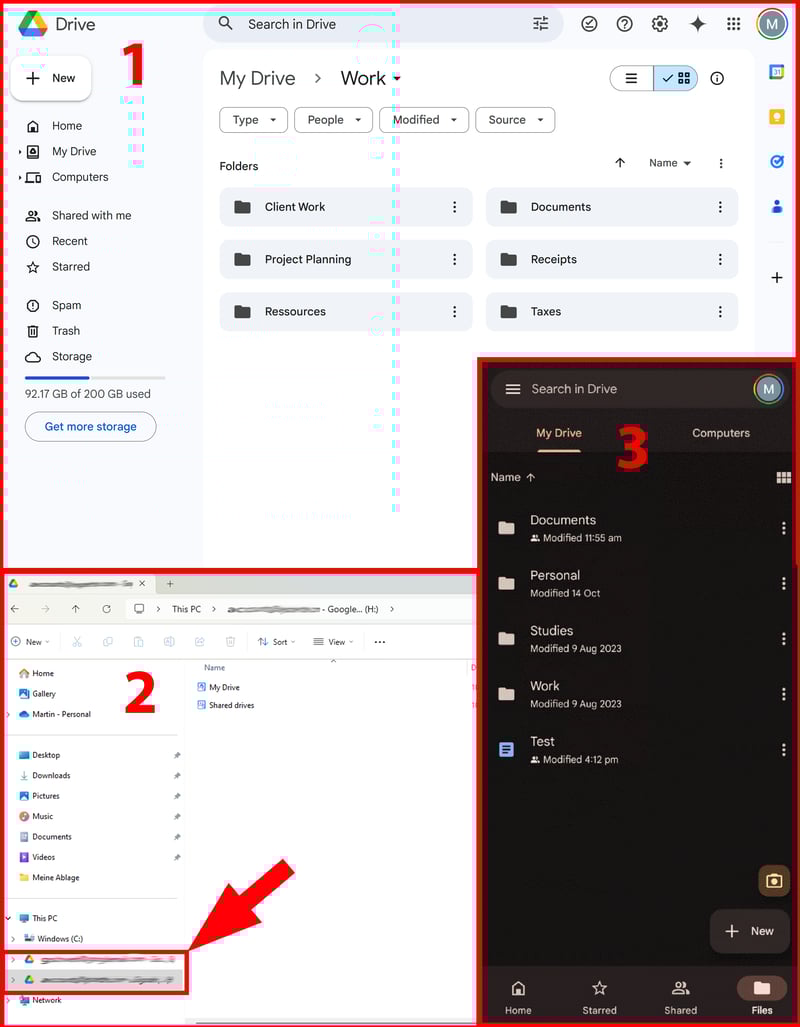
Whether you're on your computer, in a web browser, or using your phone, your files are always within easy reach.
Dropbox: Lots of features, but still easy to navigate
The Dropbox interface has gone through several redesigns over the years. The current version strikes a nice balance: it's modern, well organized, and straightforward to navigate despite its many settings and features.
The web app has a clean, intuitive layout that makes it easy to find your files. It also includes a built-in document editor called Dropbox Paper, which lets you create and edit documents directly in your browser (more on that later).
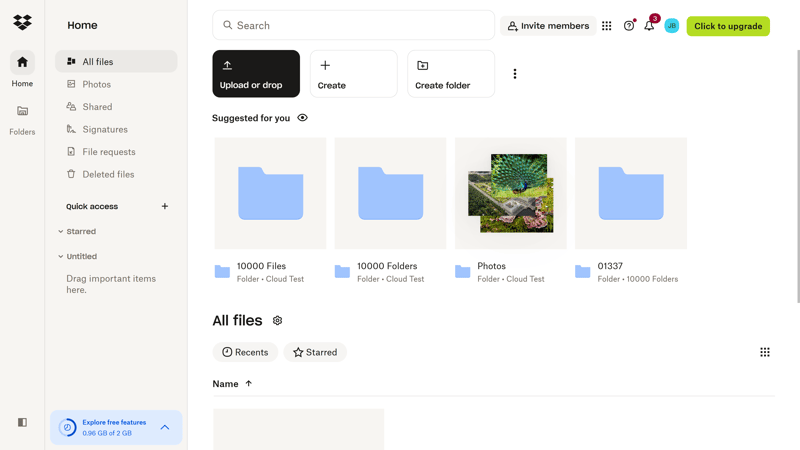
The Dropbox web interface.
The desktop app runs quietly in the background, automatically syncing your files between your computer and the cloud. Unlike Google Drive, Dropbox also offers a native Linux app.
The mobile app includes useful extras such as automatic photo uploads and a built-in document scanner.
Google Drive: Clean design with a focus on your files
Google is known for its clean, minimalist design, and Google Drive is no exception. Whether you're using the browser, the desktop app, or the mobile app, the interface is clean and uncluttered, putting your files front and center.
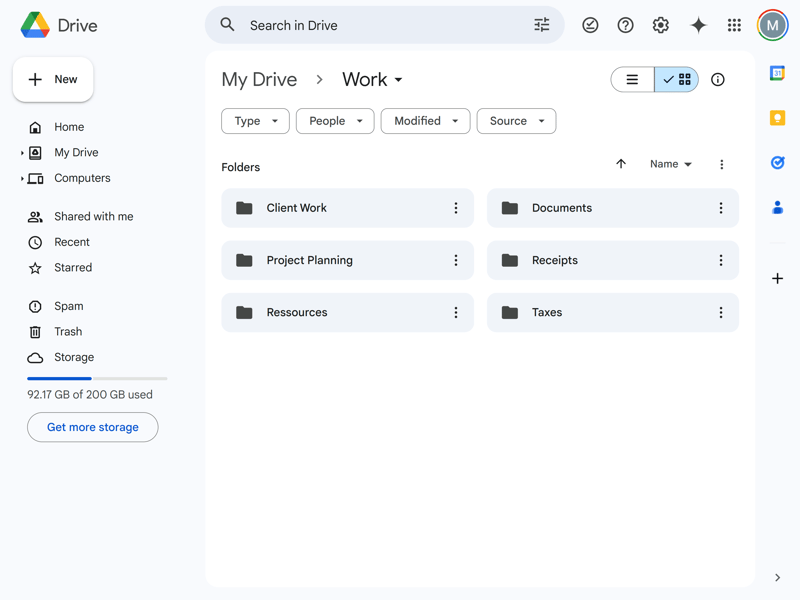
The Google Drive web interface.
One of Google Drive's biggest strengths is its integration with Google Workspace, Google's office and productivity suite. You can create and collaborate on documents, spreadsheets, and presentations directly from Drive. Changes sync in real time, so everyone is always working on the latest version.
Both Google Drive and Dropbox support full-text search. That means you can search not only file names but also the contents of your documents.
There's no clear winner in this category. Both services offer polished, well-designed interfaces and work reliably across desktop, web, and mobile devices. Which one you prefer largely comes down to personal preference.
If you already use Google Workspace, Google Drive is the more natural choice. Its tight integration with Docs, Sheets, and Slides makes working across Google's apps feel effortless. Dropbox, meanwhile, stands out with its native Linux app and slightly more flexible desktop app.
Storing & Syncing Files
Keeping your files in sync across all your devices is one of the most important jobs of any cloud storage service. Both Google Drive and Dropbox do this reliably, automatically updating changes so you always have access to the latest version. The differences come down to sync speed and extra features.
Google Drive | Dropbox |
|---|
| Google Drive | Dropbox | |
|---|---|---|
Storing & Syncing Files15% | ||
2/5 | 5/5 | |
7/10 | 6/10 | |
| 9 / 15 Points | 11 / 15 Points | |
Dropbox offers more sync features
Google Drive keeps things simple when it comes to file syncing. You can choose whether files are streamed or mirrored. With streaming, files stay in the cloud and are downloaded only when you open them, so they don't take up space on your computer until you need them.
Google Drive also lets you back up folders from your computer. Beyond that, though, there isn't much else to configure.

You can stream files from the cloud or keep a local copy on your computer.
Dropbox offers a few more advanced sync features. For example, Selective Sync lets you exclude individual folders from syncing to your computer.
Another useful feature is LAN sync, which transfers files directly between devices on the same local network instead of downloading them from the cloud. Dropbox also lets you limit upload and download speeds manually.
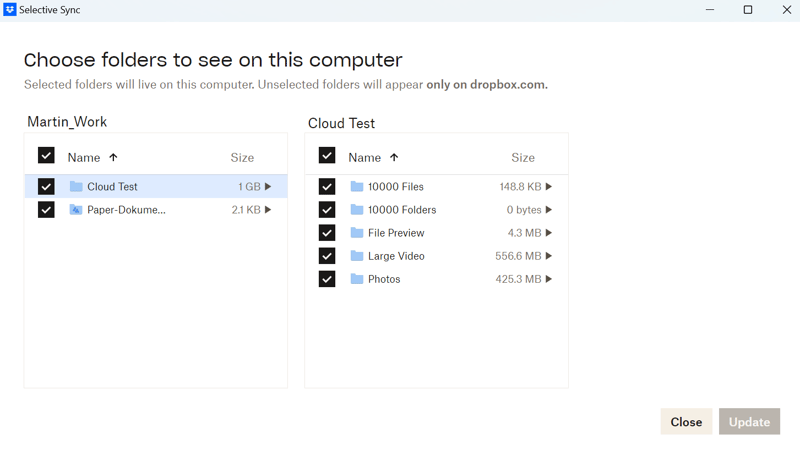
Dropbox supports selective sync.
Here's how Google Drive and Dropbox compare when it comes to sync features:
 Dropbox |  MEGA |  pCloud |  Icedrive |  Microsoft OneDrive |  Tresorit |  Google Drive |  Internxt |  Sync.com |  Proton Drive | |
|---|---|---|---|---|---|---|---|---|---|---|
Selective sync | ✓ | ✓ | ✓ | ✓ | ✗ | ✓ | ✗ | ✗ | ✓ | ✗ |
Online mode | ✓ | ✓ | ✓ | ✓ | ✓ | ✓ | ✓ | ✓ | ✓ | ✓ |
Back up system folders | ✓ | ✓ | ✗ | ✓ | ✓ | ✗ | ✓ | ✓ | ✗ | ✗ |
Sync over local network | ✓ | ✗ | ✓ | ✗ | ✗ | ✗ | ✗ | ✗ | ✗ | ✗ |
Limit transfer speed | ✓ | ✓ | ✓ | ✗ | ✓ | ✓ | ✗ | ✗ | ✗ | ✗ |
Total | 5 | 4 | 4 | 3 | 3 | 3 | 2 | 2 | 2 | 1 |
Performance: Google uploads faster, Dropbox downloads faster
Speed matters, too. The faster a cloud storage service syncs your files, the sooner they're available on all your devices.
To compare sync performance, we synced the same test folder with both services, measuring upload and download speeds as well as CPU usage. The folder contained 10,000 files, 10,000 folders, 100 photos (around 500 MB), and a 500 MB video.
Here are the results:
| Upload | Download | CPU usage | |
|---|---|---|---|
| 00:09:45 | 00:10:00 | 47 % |
| 00:10:00 | 00:04:30 | 31 % |
| 00:25:00 | 00:11:30 | 34 % |
| 00:27:30 | 00:18:45 | 43 % |
| 00:30:45 | 00:10:00 | 73 % |
| 00:37:00 | 00:13:00 | 31 % |
| 00:38:30 | 00:03:30 | 33 % |
| 00:41:15 | 00:11:45 | 81 % |
| 01:33:45 | 00:35:30 | 27 % |
| 01:37:00 | 00:43:00 | 93 % |
There's no clear winner here: Dropbox was faster at downloading files, while Google Drive uploaded files slightly faster and put less load on the CPU.
Both services keep your files in sync reliably, and overall performance is very similar. Dropbox downloads files faster, while Google Drive has a slight edge in upload speed and CPU usage.
What gives Dropbox the win is its broader set of sync features. While Google Drive sticks to the essentials, Dropbox also offers selective sync, LAN sync, bandwidth controls, and several other useful options.
File Sharing & Collaboration
Both platforms include powerful collaboration tools. You can not only share files and folders with others, but also create and edit documents together in real time.
Google Drive | Dropbox |
|---|
| Google Drive | Dropbox | |
|---|---|---|
Sharing Files & Collaboration20% | ||
2/5 | 4/5 | |
5/5 | 3/5 | |
2/2 | 2/2 | |
8/8 | 7/8 | |
| 17 / 20 Points | 16 / 20 Points | |
File sharing: Dropbox offers a bit more control
Sharing files and folders is straightforward with both services. You can share them by link or email and control whether recipients can view, comment on, or edit them.
Dropbox offers a few sharing options that Google Drive lacks. For example, you can protect shared links with a password or set an expiration date.
Dropbox also lets you create file requests with just a few clicks to collect files from others, even if they don't have a Dropbox account. Google Drive doesn't have a built-in feature for this. To collect files from others, you'll need to use a Google Form or create a shared folder where users can upload files themselves.
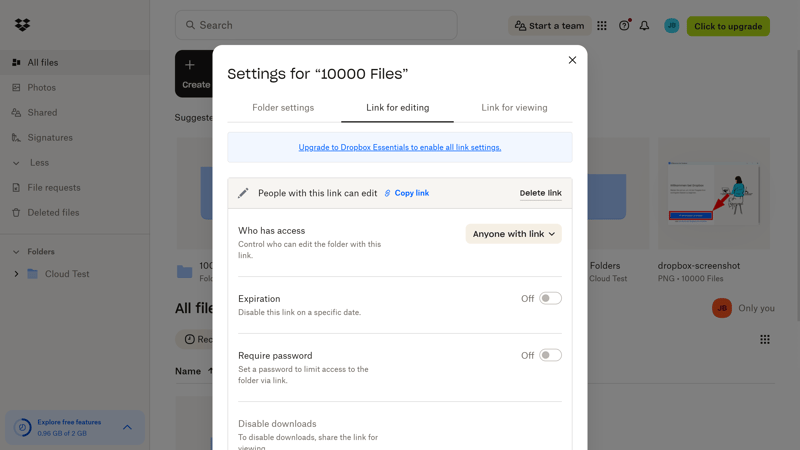
Dropbox offers more granular sharing controls.
Document collaboration: Google comes out on top
Both services let you create and edit documents directly in your browser. Dropbox uses its own document editor, Dropbox Paper, which combines collaborative editing with basic project management features.
Multiple people can edit the same document at the same time, leave comments, and track changes. Dropbox Paper also includes simple project management features such as to-do lists and due dates for tasks.
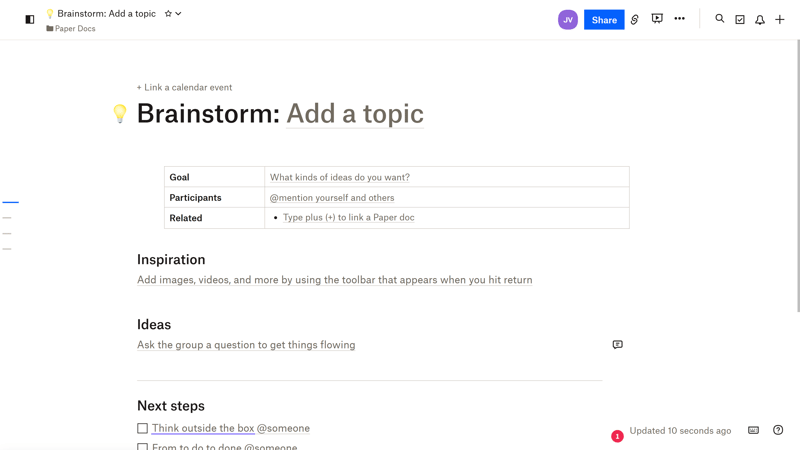
Dropbox Paper is Dropbox's built-in document editor.
Dropbox also offers Dropbox Replay, a separate collaboration tool for reviewing videos, images, and audio files. However, Replay is only available with a paid plan.
Dropbox Paper is a capable document editor and, in some areas, even more flexible than Google Docs. Still, collaboration feels like an additional feature here rather than the focus of the platform.
With Google Drive, it's the other way around. Collaboration is at the heart of the experience. Docs, Sheets, and Slides are fully integrated, making it easy to switch between them and work on files together in real time. You can even start a chat or video meeting directly from a document.
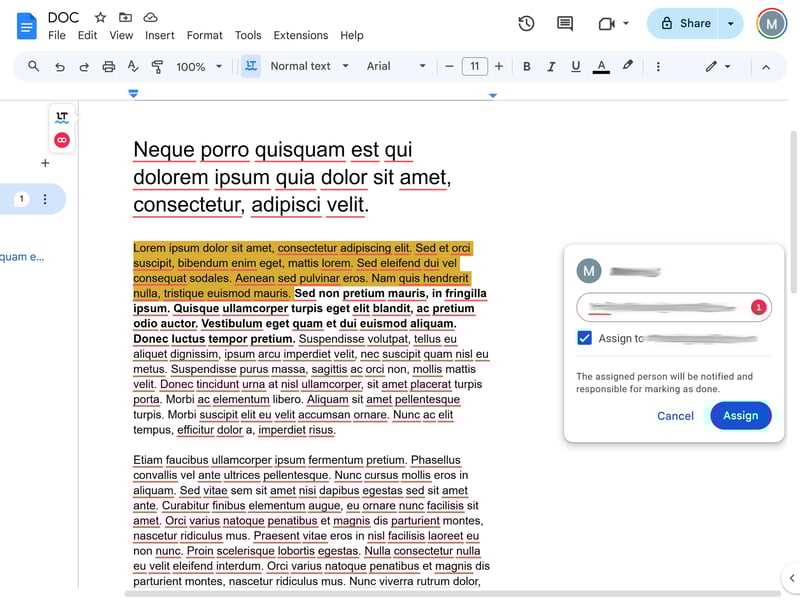
Google Drive is built for collaboration.
If collaboration is a priority and you're looking for a cloud storage service that doubles as a productivity suite, Google is the obvious choice.
Dropbox offers more advanced sharing options and a capable document editor with Dropbox Paper. But if collaboration is your priority, Google Drive is hard to beat. Thanks to its tight integration with Google Workspace, working together on documents feels seamless and intuitive, especially if you're already invested in Google's ecosystem.
Security & Privacy
Both Dropbox and Google Drive are pretty good at protecting your files from outside threats like hacking, malware, or hardware failures. Where they differ is privacy, particularly when it comes to end-to-end encryption: Dropbox has it (although only on its business plans), Google Drive doesn't.
Google Drive | Dropbox |
|---|
| Google Drive | Dropbox | |
|---|---|---|
Security & Privacy30% | ||
0/10 | 5/10 | |
3/3 | 3/3 | |
2/2 | 2/2 | |
1/2 | 1/2 | |
2/2 | 2/2 | |
2/2 | 2/2 | |
0/2 | 0/2 | |
2/5 | 3/5 | |
| 12 / 30 Points | 18 / 30 Points | |
Strong security standards overall
Both Dropbox and Google Drive offer a high level of security. Files are encrypted with AES-256 while stored, transferred securely via TLS, and kept in redundant data centers around the world. Both services also support two-factor authentication, which we strongly recommend enabling.

Privacy: Only Dropbox offers end-to-end encryption
Hackers aren't the only ones who might be interested in your data. Cloud storage providers have plenty of reasons to access your files, too. Many of these reasons are perfectly legitimate, but they also create a privacy risk. That's why some privacy-focused services have chosen to lock themselves out using end-to-end encryption. That means only you hold the encryption keys, so even the provider can't read your files.
This is one of the biggest differences between Dropbox and Google Drive. Since 2024, Dropbox has offered optional end-to-end encryption. Files are encrypted on your device, and the encryption keys never leave it. As a result, Dropbox can't access the contents of those folders.
The catch: End-to-end encryption is currently available only on Dropbox's Team and Business plans. Personal accounts continue to use standard server-side encryption.
This is still better than Google Drive, which doesn't offer end-to-end encryption at all. Google manages the encryption keys itself, meaning it can access your data if necessary.

Google keeps the key to your data.
That isn't necessarily a bad or nefarious thing. Features such as full-text search, file previews, and the tight integration with Gmail, Docs, and other Google services all depend on Google being able to process your files.
Still, from a privacy perspective, Google Drive is more problematic than services with end-to-end encryption. If you're looking for a place to store sensitive files, you might feel more comfortable with a privacy-focused provider. Alternatively, you can encrypt your files yourself before uploading them to Google Drive.
Both services offer strong protection against external threats. When it comes to privacy, Dropbox comes out on top: Unlike Google Drive, it offers end-to-end encryption — although it's currently limited to business plans.
Pricing
Which cloud storage is cheaper? This time, the answer is simple: Google Drive.
Google Drive: Generous free storage and affordable plans
Google Drive offers an inexpensive entry-level plan for users with modest storage needs. The cheapest plan includes 100 GB of storage for less than $2 per month and can be shared with up to five people. Larger plans are also competitively priced. The only notable gap is the lack of a mid-tier option between 100 GB and 2 TB.
Google is more generous with free storage, too. Every Google account includes 15 GB of free storage. Only MEGA offers more, with 20 GB.
| Free | One Basic | Business Starter | |
|---|---|---|---|
| Monthly price | $0.00 | from $1.67 | from $6.00 |
| Contract period (months) | 0 | 1 - 12 | 1 - 12 |
| Limits | |||
| Storage per user | 15 GB | 100 GB | 30 GB |
| Max users | 1 | 5 | unlimited |
| Max number of devices | unlimited | unlimited | unlimited |
| Maximum file size | 15 GB | 100 GB | 5,000 GB |
| End-to-end encryption | ✗ | ✗ | ✗ |
| File versioning period | 30 days | 30 days | 30 days |
Businesses can also choose one of Google Workspace's business plans, which include additional collaboration tools and security features.
Dropbox: Higher prices and less free storage
Dropbox is consistently more expensive than Google Drive. Its plans are geared toward users with larger storage needs, with even the cheapest plan including 2 TB. Higher-tier plans go up to 15 TB, but there's no inexpensive starter plan comparable to Google's 100 GB option.
Dropbox is also quite stingy when it comes to free storage. The free plan includes just 2 GB, less than most other cloud providers on the market and well below Google's 15 GB.
| Basic | Plus | Essentials | |
|---|---|---|---|
| Monthly price | $0.00 | from $9.99 | from $16.58 |
| Contract period (months) | 0 | 1 - 12 | 1 - 12 |
| Limits | |||
| Storage per user | 2 GB | 2,000 GB | 3,000 GB |
| Max users | 1 | 1 | 1 |
| Max number of devices | 3 | unlimited | unlimited |
| Maximum file size | 2 GB | 2,000 GB | 2,000 GB |
| End-to-end encryption | ✗ | ✗ | ✗ |
| File versioning period | 30 days | 30 days | 180 days |
Here's how Google Drive and Dropbox compare across different storage sizes and numbers of users:
Google Drive | Dropbox |
|---|
| Google Drive | Dropbox | |
|---|---|---|
Pricing20% | ||
8/8 | 2/8 | |
2/2 | 0/2 | |
1/2 | 1/2 | |
2/2 | 2/2 | |
0/2 | 0/2 | |
2/2 | 1/2 | |
1/2 | 0/2 | |
| 16 / 20 Points | 6 / 20 Points | |
Google Drive is the cheaper option overall. You get more free storage, lower entry-level pricing, and a straightforward pricing structure for users with modest storage needs. If you don't need terabytes of storage, it's the more budget-friendly choice. Dropbox, by contrast, is geared toward users with larger storage needs.
Final Verdict: A Narrow Win for Google
So, which is better: Google Drive or Dropbox? It's a close one, but Google Drive ultimately comes out ahead for us — but only slightly. In the end, though, the best choice comes down to your personal preferences, since both services have their own pros and cons.
Google Drive is the superior collaboration platform. Thanks to its tight integration with Google Workspace, creating, editing, and sharing files with others feels fast and effortless. It also offers more free storage and lower prices if you don't need several terabytes of space.
Dropbox is the better choice if you want more control over your cloud storage. It offers more advanced sync and sharing features, and business users also benefit from end-to-end encryption, which prevents even Dropbox from accessing encrypted files.
Alternatives to Google Drive and Dropbox
If neither Google Drive nor Dropbox is the right fit, one of these alternatives might suit you better:
Looking for more free storage?
Among the cloud providers we've tested, only MEGA is even more generous than Google Drive, with 20 GB included for all users.Privacy is your top priority?
Providers like MEGA, luckycloud, Tresorit, or Proton Drive include end-to-end encryption on all plans.Want to avoid a monthly subscription?
Providers such as pCloud, Icedrive, and Internxt offer lifetime plans, allowing you to pay once instead of subscribing.