How to Cancel Dropbox: How to End Your Dropbox Subscription


Dropbox helped cloud storage 'go mainstream', but today it’s just one option among many. If the service no longer fits your needs, it might be time to cancel your subscription and switch to another provider. But how do you go about it?
Here’s a clear, step-by-step guide to canceling your Dropbox subscription — and what you should watch out for along the way.


How to Cancel Dropbox: Step-by-Step Guide
Canceling Dropbox is straightforward, but how it works depends on where you signed up — in your browser or on your phone.
Canceling Dropbox via the Website
If you used the Dropbox website to sign up or start your free Dropbox trial, here’s how to cancel:
Step 1: Open your profile
Click your profile icon in the top-right corner of the Dropbox web dashboard. If you’re still on a trial, you might see how many days you have left right next to your initials.
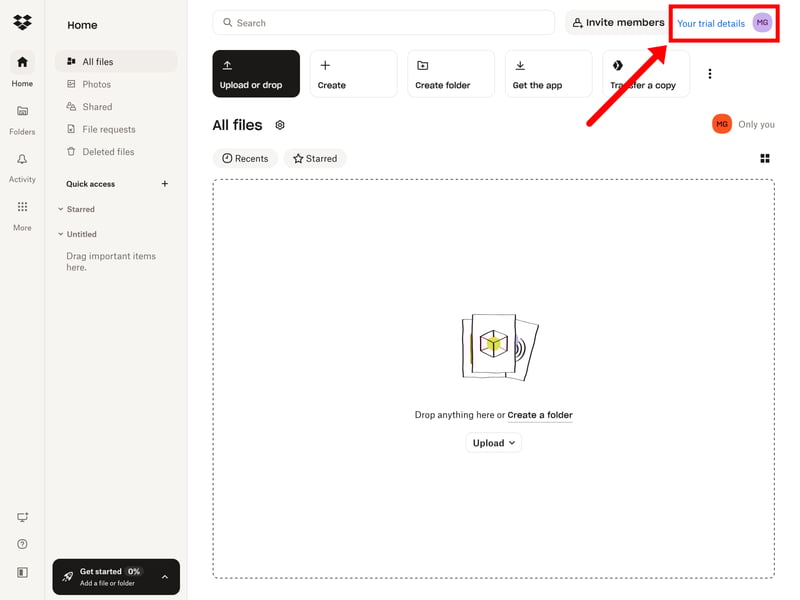
Open your profile.
Heads up: Canceling a trial stops it immediately. If you want to use the full trial period, wait until it’s almost over before canceling.
Step 2: Head to your account settings
From the dropdown menu, click Manage Account.
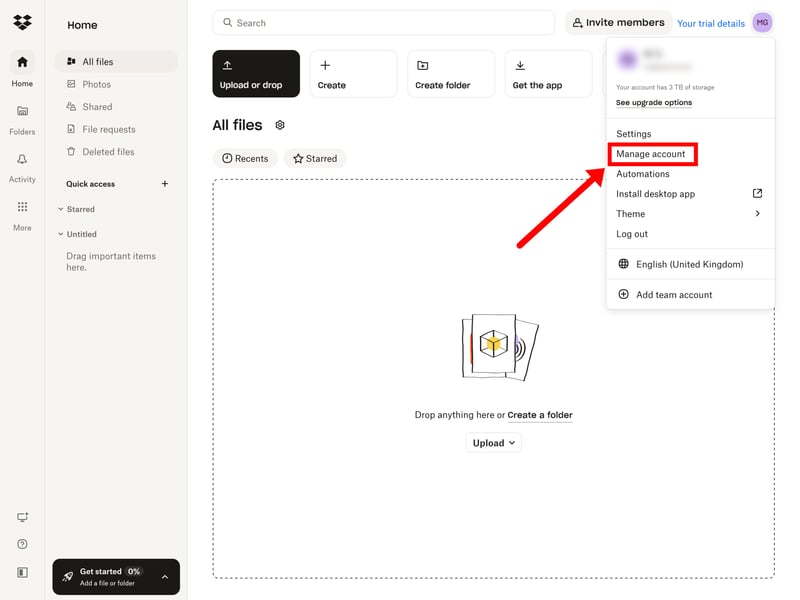
Open your account settings.
Step 3: Start the cancellation
On the subscriptions page, you’ll find a button labeled Cancel Subscription or Cancel Trial. Click it to start the cancellation process.

You're just a few clicks away from cancelling your subscription.
Step 4: Skip the survey if you want
Dropbox will ask why you’re leaving. You can answer — or just hit Skip.
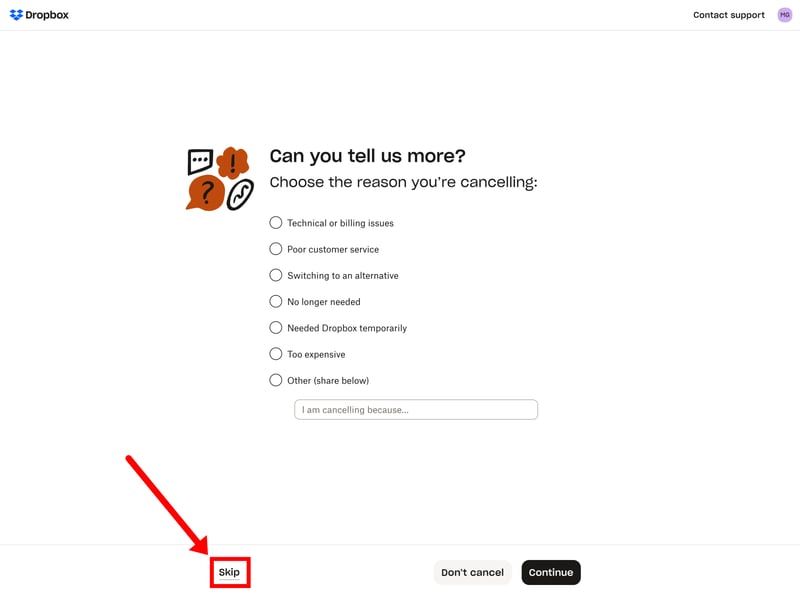
You can provide a reason for canceling, but you don't have to.
Step 5: Confirm it
Dropbox will show one last screen to try to change your mind. If you’re ready to move on, click Cancel Subscription to finalize everything.

Last step: cancel your Dropbox plan.
Your subscription or trial is now canceled, and you won’t be billed again. Dropbox will also send a confirmation email — keep it just in case.
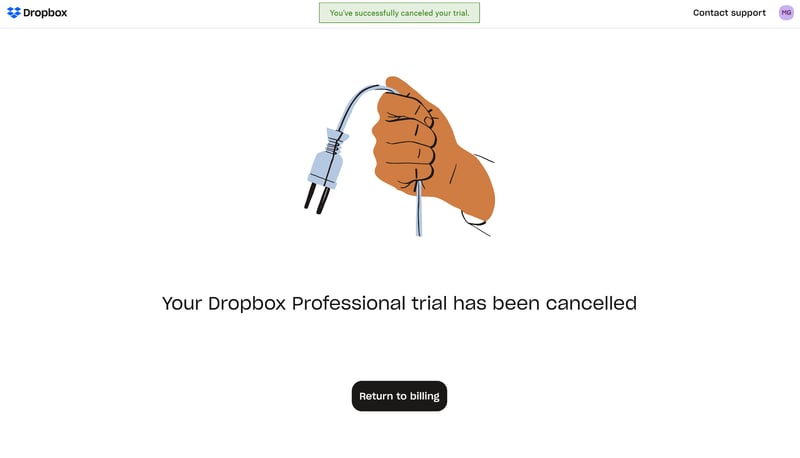
Your Dropbox subscription or trial has been cancelled.
If - for whatever reason - the online option doesn't work, you can cancel the old-fashioned way. Just print and fill out the cancellation form, then mail it to:
Dropbox International Unlimited Company
PO Box 13480
Dublin 2
Ireland
Cancelling Dropbox on Android
If you subscribed to Dropbox through the Android app, you’ll need to cancel it through the Play Store. Here’s how:
Step 1: Open the Google Play Store
Open the Play Store and tap your profile icon in the top-right corner.

Open your Google profile.
Step 2: Go to your payment settings
Tap Payments & subscriptions.

Open the payment and subscription settings.
Step 3: Open your subscriptions
Tap Subscriptions.

Tap Subscriptions.
Step 4: Find your Dropbox subscription
If you subscribed via Android, your Dropbox plan will appear here. Tap it to open the details.

Select your Dropbox subscription.
Step 5: Cancel your subscription
Scroll to the bottom and select Cancel subscription.

Tap Cancel subscription.
Step 6: Confirm the cancellation
A confirmation screen will pop up. Tap Cancel subscription again to finalize it.

Confirm the cancellation.
Your subscription will stay active until the end of your current billing period, after which you’ll drop back to the free Dropbox Basic plan. You can check how much time you have left in the same Subscriptions menu.

Your subscription has ended.
Cancelling Dropbox on iOS
If you signed up for Dropbox on an iPhone or iPad, you need to cancel it through Apple’s subscription settings:
Step 1: Open the Settings app on your iPhone or iPad.
Step 2: Tap on your name.
Step 3: Tap on Subscriptions.
Step 4: Select Dropbox.
Step 5: Tap Cancel Subscription.
Your paid plan will remain active until the end of the current billing cycle, then your account will automatically return to the free plan.
How to Request a Dropbox Refund
Depending on where you live, you might be entitled to a refund. In the EU, for example, you have a 14-day right to withdraw from most digital subscriptions.
However, you won't get a refund automatically just by canceling within 14 days. You need to request it manually. Once again, how this works depends on where you signed up for your subscription.
Requesting a Refund on the Web
Unfortunately, Dropbox doesn't have an automated refund process. To get your money back, you’ll need to contact Dropbox support directly.
Head to the Dropbox contact page and reach ask for your refund via live chat or the support form.
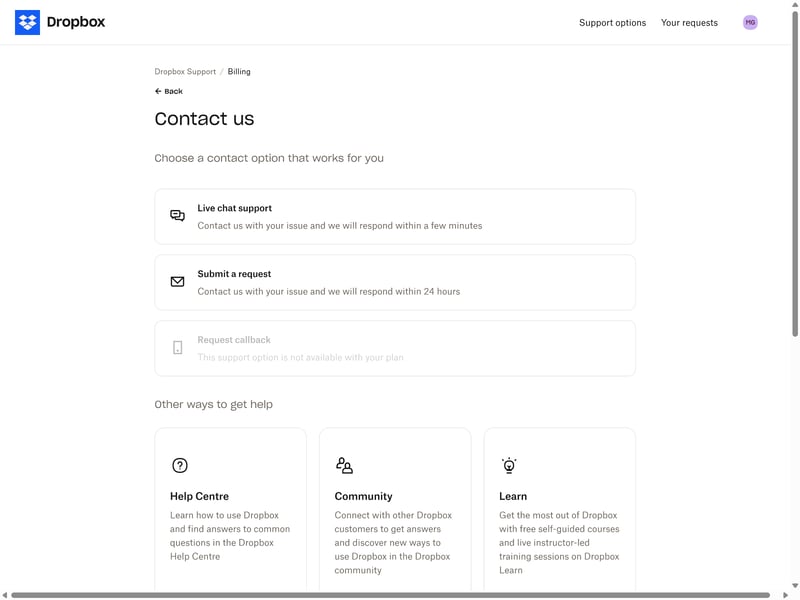
You need to manually request the refund through support.
Requesting a Refund on Android
If you subscribed through the Android app, refunds go through Google Play — not Dropbox. Luckily, Google has an automated refund process.
You can request a refund using Google’s refund assistant.
Just follow the instructions. Click Continue, confirm your account, and select the Dropbox subscription from the list.
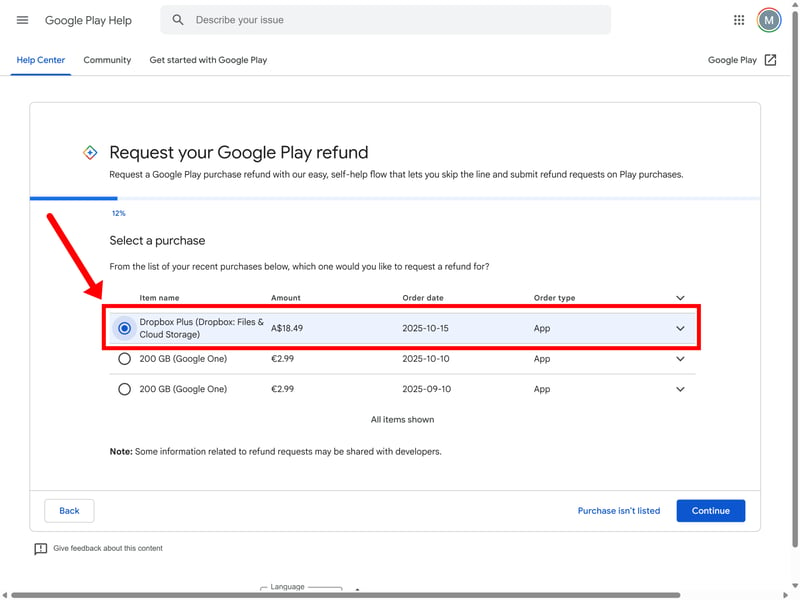
Google Play has an automated refund process.
Google will review your request and follow up. If you’re still within the EU’s 14-day refund period, you should have no trouble getting your money back.
Requesting a Refund on iOS
Apple also offers an automated refund system. Here's how it works:
Step 1: Go to reportaproblem.apple.com and sign in with your Apple ID.
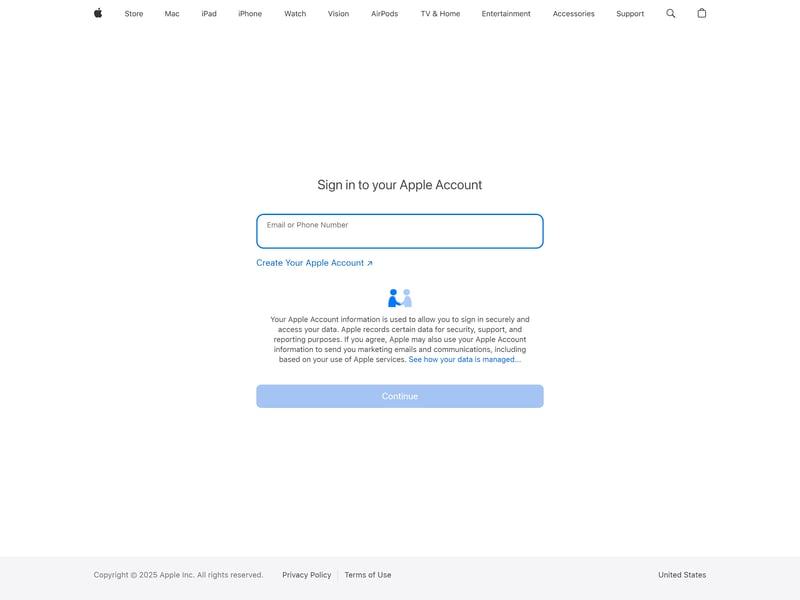
Apple also has an automated refund process.
Step 2: Select "Request a Refund."
Step 3: Provide a reason for the refund and select "Continue."
Step 4: Select the Dropbox subscription and click or tap "Submit."
Your refund request will now be reviewed, which can take between 24 and 48 hours.
Dropbox Alternatives: Which Cloud Storage Is Better?
Ready to move on from Dropbox but not sure which service to switch to? The right choice really depends on why you’re unhappy with Dropbox and what you need cloud storage for.
Is Dropbox too expensive?
Which provider is cheapest depends on how much storage you need. If 100 GB is enough, Google Drive, Microsoft OneDrive, IONOS or STRATO are all noticeably cheaper than Dropbox. For 500 GB, pCloud is another affordable option, alongside STRATO and IONOS. If you're looking for 5 TB, MEGA and Sync.com offer much cheaper plans.Not enough free storage?
Dropbox’s free tier is notoriously tight: the Basic plan gives you just 2 GB. Most competitors are more generous — MEGA offers 20 GB, while Google Drive starts you off with 15 GB.Dropbox is pretty stingy with free storage: The Basic plan only includes 2 GB for free. Almost all providers in our comparison are more generous here. MEGA (20 GB) and Google Drive (15 GB) offer particularly generous free storage.
Do you need end-to-end encryption?
Dropbox only offers true E2E encryption on its business plans. If you want encryption as standard on personal accounts, services like MEGA, Proton Drive and luckycloud are better suited.Need strong collaboration tools?
Dropbox offers its own tool, Dropbox Paper, but collaboration tends to be more seamless on Google Drive or Microsoft OneDrive, thanks to their tight integration with Docs/Sheets or Office apps.Don’t want another subscription?
Most cloud services use a subscription model, but a few offer lifetime plans— pay once, use forever. You’ll find these with pCloud, Icedrive, Filen, Koofr and Internxt.

You can find our full ranking of all tested cloud storage providers here:


Canceling Dropbox Is Straightforward
Canceling your Dropbox subscription is pretty simple. The only thing that really matters is where you originally signed up. If you subscribed on your computer, you can cancel right from your account settings on the Dropbox website. If you subscribed on your phone, you’ll need to go through Google Play or Apple’s subscription menu instead.
Depending on where you live, you might be entitled to a refund — but it isn’t automatic. You’ll need to request it manually through Dropbox support, or through Google or Apple if you signed up on mobile.
Looking for a good Dropbox alternative? We’ve put together a list of solid alternatives worth checking out.