OneDrive vs. Google Drive 2026: Which Cloud Storage Is Best?


Choosing between Google Drive and OneDrive isn't just about cloud storage. It's also a choice between Google's and Microsoft's wider ecosystems, which can influence how you work, collaborate, and manage your files every day. So, which one should you choose?
We compared the two cloud storage services across every major category, including pricing, syncing, collaboration, and security.


OneDrive vs. Google Drive
All cloud storage services work in much the same way. Google Drive and OneDrive are even more alike than most: both are part of larger software ecosystems, tightly integrated with their providers' productivity suites — Google Workspace and Microsoft 365.
The differences lie in the details. To compare them fairly, we tested both services using the same methodology we apply to every cloud storage provider, combining objective criteria with hands-on impressions.
We evaluate every cloud storage service across five categories, awarding up to 100 points in total. Here's how the categories are weighted:
- 1.
Interface & Ease of Use (15%)
- 2.
File Storage & Sync (15%)
- 3.
File Sharing & Collaboration (20%)
- 4.
Security & Privacy (30%)
- 5.
Pricing (20%)
Each category contributes to the overall score. Based on our testing, Google Drive scores 64.5 out of 100 points, placing fourth among the eleven cloud storage services we reviewed. OneDrive scores 58 points, ranking seventh overall.


Google Drive comes out ahead overall, but that doesn't necessarily make it the better choice for everyone. To help you decide, we'll take a closer look at how the two services compare in each of our five test categories.
Interface and Ease of Use
Since you'll likely use your cloud storage every day, it should be fast, intuitive, and stay out of your way. Fortunately, both Google Drive and OneDrive do a great job here. In fact, they have more in common than not.
 Google Drive |  Microsoft OneDrive |
|---|
| Google Drive | Microsoft OneDrive | |
|---|---|---|
User Interface & Ease of Use15% | ||
3/4 | 3/4 | |
3.5/4 | 3.5/4 | |
2/4 | 2.5/4 | |
2/3 | 2/3 | |
| 10.5 / 15 Points | 11 / 15 Points | |
Web, Desktop, Smartphone
Google Drive and OneDrive follow the same basic approach you'll find in most modern cloud storage services. You can access your files in three ways: through your web browser, a desktop app, or a mobile app.
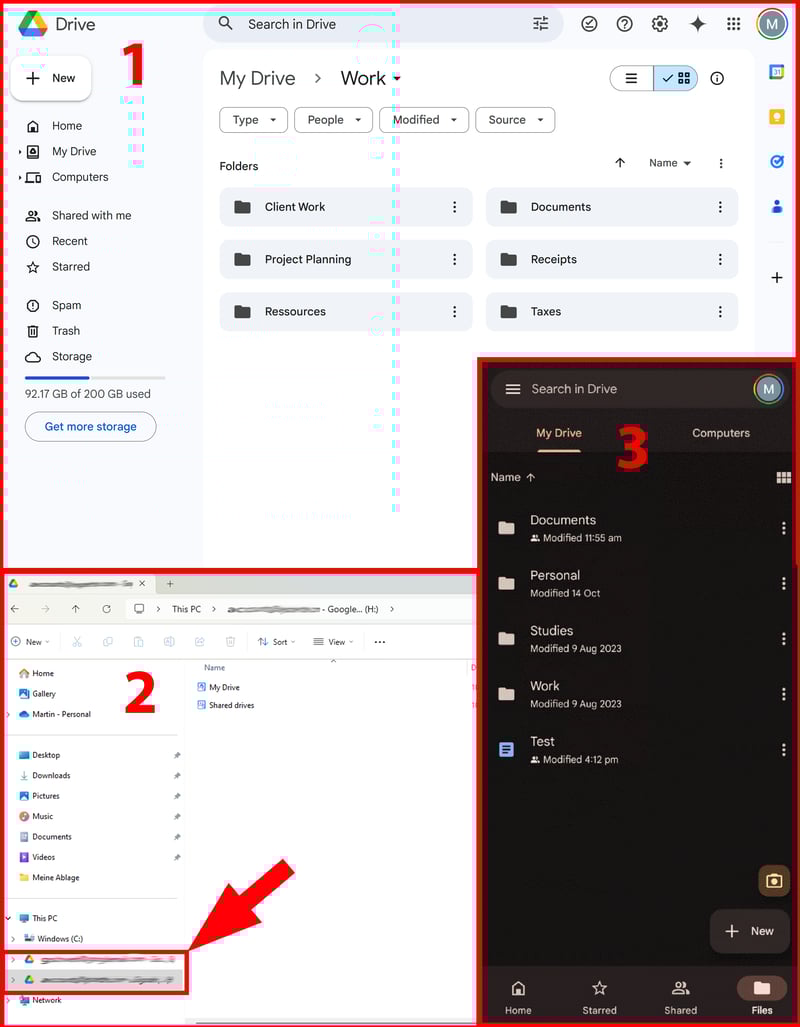
You can view your cloud files on desktop, in your browser, or on your smartphone.
This means your files are available on virtually any device. On desktop, both services integrate directly with your operating system, so your cloud folders appear in the file manager and behave just like any other folder on your computer.
Google Drive: Clean, minimal, and easy to use
As you'd expect from Google, Drive has a clean, minimalist interface. Whether you're using the web app, desktop app, or mobile app, everything feels clean, modern, and easy to navigate.
Google Drive is most useful as part of Google Workspace, the company's productivity suite. You can create, edit, and share Docs, Sheets, and Slides without leaving Drive, with changes syncing instantly so everyone is always working on the latest version.
The mobile app is equally polished. It gives you quick access to your files on the go and makes it easy to upload files, create folders, or start new documents. One standout feature is the built-in document scanner, which lets you scan paper documents with your phone's camera and save them directly to Drive.
Microsoft OneDrive: Deeply Integrated With Windows
OneDrive follows a similar approach but enjoys a home-field advantage on Windows. It comes pre-installed on Windows 10 and 11, integrates directly into File Explorer, and works like any other folder on your PC.
Like Google Drive, OneDrive is at its best as part of a larger productivity suite. It integrates seamlessly with Microsoft 365, letting you create, edit, and collaborate on Word, Excel, and PowerPoint documents directly from your browser, with changes syncing in real time.
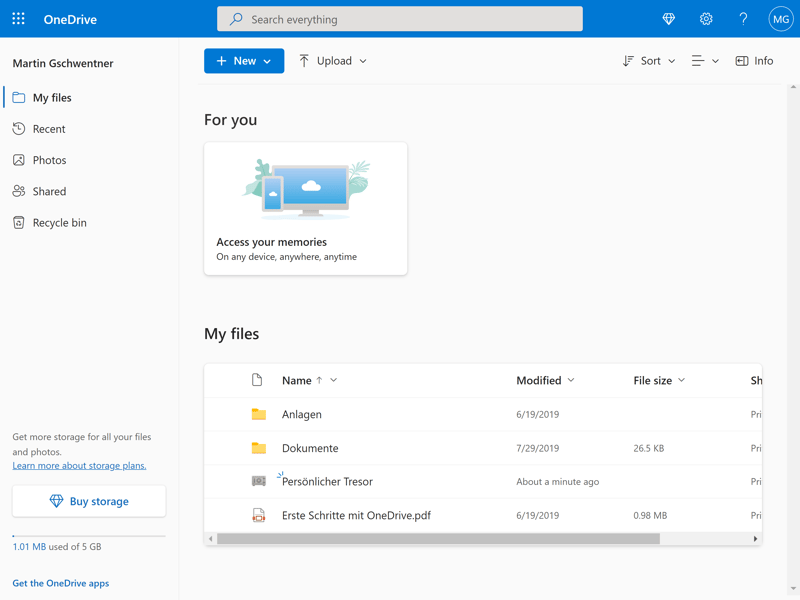
The web interface of Microsoft OneDrive.
The mobile app is just as polished, offering quick access to your files along with useful features like automatic photo backup and a built-in document scanner.
When it comes to ease of use, Google Drive and OneDrive are so similar that there's no clear winner. Much like choosing between iOS and Android, the better interface ultimately comes down to personal preference.
What's far more important is the ecosystem you're already invested in. If you primarily use Google Workspace, Google Drive is the more natural choice. If you rely on Microsoft 365 and Windows, OneDrive will fit more seamlessly into the way you work.
Storing & Syncing Files
File storage and syncing are at the heart of every cloud storage service. For this category, we evaluated both the available sync features and overall performance. Microsoft has a slight edge in both areas.
Google Drive | Microsoft OneDrive |
|---|
| Google Drive | Microsoft OneDrive | |
|---|---|---|
Storing & Syncing Files15% | ||
2/5 | 3/5 | |
7/10 | 7/10 | |
| 9 / 15 Points | 10 / 15 Points | |
Microsoft offers more sync features
Overall, OneDrive and Google Drive handle syncing in much the same way. Both create a dedicated cloud folder on your computer that automatically keeps your files up to date across devices. You can also make individual files or folders available offline, both on desktop and on mobile.
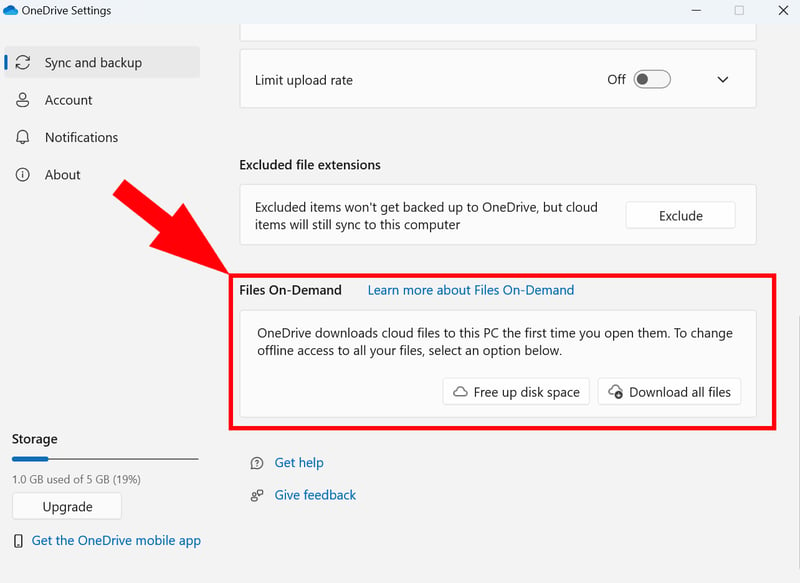
You can choose whether files should always be available offline or only download when needed.
Advanced sync settings are pretty limited on both services. Neither supports selective sync, which lets you exclude specific folders from syncing while keeping them in the cloud. They also lack LAN sync, which transfers files directly between devices on the same local network. Providers like Dropbox or pCloud have more to offer here.
OneDrive at least lets you limit upload and download speeds or pause syncing for a set period. That's useful if you're on a slow or metered internet connection.
 Microsoft OneDrive |  Dropbox |  MEGA |  pCloud |  Icedrive |  Tresorit |  Google Drive |  Internxt |  Sync.com |  Proton Drive | |
|---|---|---|---|---|---|---|---|---|---|---|
Selective sync | ✗ | ✓ | ✓ | ✓ | ✓ | ✓ | ✗ | ✗ | ✓ | ✗ |
Online mode | ✓ | ✓ | ✓ | ✓ | ✓ | ✓ | ✓ | ✓ | ✓ | ✓ |
Back up system folders | ✓ | ✓ | ✓ | ✗ | ✓ | ✗ | ✓ | ✓ | ✗ | ✗ |
Sync over local network | ✗ | ✓ | ✗ | ✓ | ✗ | ✗ | ✗ | ✗ | ✗ | ✗ |
Limit transfer speed | ✓ | ✓ | ✓ | ✓ | ✗ | ✓ | ✗ | ✗ | ✗ | ✗ |
Total | 3 | 5 | 4 | 4 | 3 | 3 | 2 | 2 | 2 | 1 |
OneDrive wins on speed
The faster your files sync, the sooner changes are available on all your devices. We tested both services under identical conditions, syncing the same test folder containing 10,000 files, 10,000 folders, 100 photos (around 500 MB), and a 500 MB video. We measured upload and download speeds as well as CPU usage during the process.
Both services synced our test files reliably, but OneDrive was noticeably faster. It completed the upload in around 25 minutes and the download in 11 minutes 30 seconds. Google Drive took about 27 minutes 30 seconds to upload the same data and 18 minutes 45 seconds to download it. It also used slightly more CPU resources during the test.
| Upload | Download | CPU usage | |
|---|---|---|---|
| 00:09:45 | 00:10:00 | 47 % |
| 00:10:00 | 00:04:30 | 31 % |
| 00:25:00 | 00:11:30 | 34 % |
| 00:27:30 | 00:18:45 | 43 % |
| 00:30:45 | 00:10:00 | 73 % |
| 00:37:00 | 00:13:00 | 31 % |
| 00:38:30 | 00:03:30 | 33 % |
| 00:41:15 | 00:11:45 | 81 % |
| 01:33:45 | 00:35:30 | 27 % |
| 01:37:00 | 00:43:00 | 93 % |
OneDrive takes this round, but only by a small margin. It performed slightly better in our speed tests and offers a few extra sync settings. Google Drive isn't far behind, though, and remains a reliable choice for everyday file syncing.
File Sharing & Collaboration
Collaboration is one of the biggest strengths of both Google Drive and OneDrive. Sharing files, editing documents together, and commenting in real time are all deeply integrated into the experience. While the differences are small, we slightly prefer Google Drive's approach overall.
Google Drive | Microsoft OneDrive |
|---|
| Google Drive | Microsoft OneDrive | |
|---|---|---|
Sharing Files & Collaboration20% | ||
2/5 | 4/5 | |
5/5 | 4/5 | |
2/2 | 2/2 | |
8/8 | 5/8 | |
| 17 / 20 Points | 15 / 20 Points | |
File sharing: Microsoft offers more control
Both Google Drive and OneDrive make it easy to share files and folders via a link or email. You can decide who has access and whether they can view, comment on, or edit your files.
OneDrive offers a few more sharing options, though. You can protect shared links with a password or set an expiration date, making it easier to share sensitive files for a limited time. Google Drive doesn't offer either feature, limiting you to controlling who can access a link.
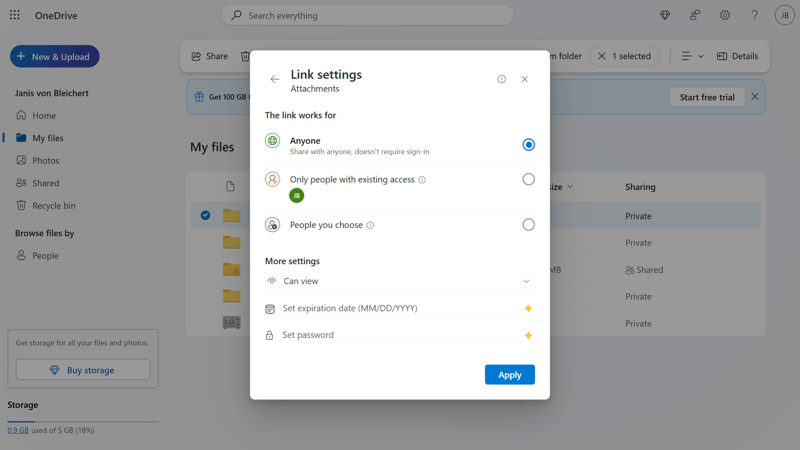
Microsoft gives you more control options for file sharing.
That said, Google Drive's sharing interface is cleaner and easier to navigate. OneDrive provides more options, but some of the advanced settings are harder to find.
Collaboration: Google feels more seamless
When it comes to real-time collaboration, Google's ecosystem feels more polished and intuitive. Google Docs, Sheets, and Slides were built for the cloud from the start, and it shows. Collaborating on documents feels fast, intuitive, and seamless.
You can leave comments, suggest edits, assign tasks, and even start a chat or video call directly from a document. Everything works together seamlessly, making collaboration feel effortless.
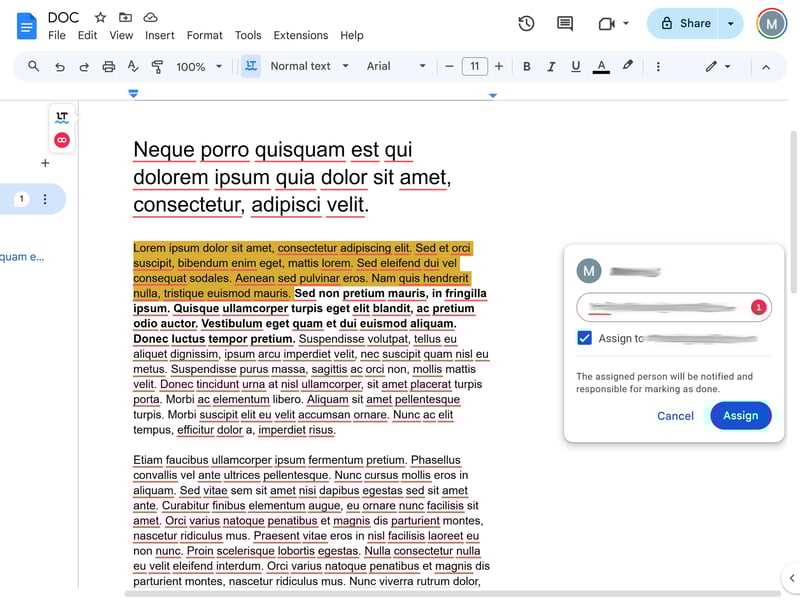
Google Drive is designed for collaboration.
OneDrive offers many of the same features through the web versions of Word, Excel, and PowerPoint. While they're powerful and familiar to Microsoft Office users, the experience doesn't feel quite as streamlined as Google's cloud-native apps.
SharePoint, Microsoft's enterprise collaboration platform that powers many of its advanced teamwork and document management features, is a bit clunky and complicated, too.
Google Drive is our preferred choice for collaboration. Docs, Sheets, and Slides work together seamlessly, creating a collaboration experience that feels more natural and cloud-native than Microsoft's.
Microsoft offers more advanced management features, making it a strong choice for larger organizations with complex workflows. For most small teams, though, Google Drive is the more intuitive option.
Security & Privacy
How secure is your data with Google Drive and OneDrive? That depends on who you're trying to protect it from.
When it comes to external threats such as hackers, data breaches, or hardware failures, both services offer excellent protection. The picture is different if you're concerned about the provider itself. Neither Google Drive nor OneDrive offers true end-to-end encryption, meaning Google and Microsoft can theoretically access your files under certain circumstances.
Google Drive | Microsoft OneDrive |
|---|
| Google Drive | Microsoft OneDrive | |
|---|---|---|
Security & Privacy30% | ||
0/10 | 0/10 | |
3/3 | 3/3 | |
2/2 | 2/2 | |
1/2 | 1/2 | |
2/2 | 2/2 | |
2/2 | 1/2 | |
0/2 | 0/2 | |
2/5 | 2/5 | |
| 12 / 30 Points | 11 / 30 Points | |
Strong protection overall
Both Google and Microsoft meet high security standards. They comply with internationally recognized certifications such as ISO 27001 and ISO 27018, encrypt stored data with AES-256, and protect data in transit using TLS.
Their data centers are distributed around the world and built with multiple layers of redundancy. This helps protect your files from hardware failures, outages, and other infrastructure-related incidents.
Strong security measures don't eliminate every risk. Like any online service, Google Drive and OneDrive can only do so much if an attacker gains access to your account. In practice, weak passwords, phishing emails, and malware are far more common causes of data loss than failures in the providers' infrastructure.
The good news is that you can greatly reduce those risks with a few simple precautions. Use a secure password, enable two-factor authentication, and be cautious when opening links or attachments.
Privacy & data protection: Your provider holds the keys
If privacy is your top priority, neither Google Drive nor OneDrive is the ideal choice. Neither service offers true end-to-end encryption for the files you store. That means Google and Microsoft manage the encryption keys, so they can technically access your data under certain circumstances (for example, to comply with legal requests or perform limited service-related operations).
Because both companies are based in the United States, they're also subject to US laws such as the Cloud Act. As members of the Five Eyes intelligence alliance, the US and its allies can also request data under certain legal frameworks. Users who need the highest level of privacy are therefore generally better off with cloud storage providers that offer end-to-end encryption by default.
With end-to-end encryption, your files are encrypted on your device before they're uploaded to the cloud. Only you hold the encryption key, which means the provider can't read your files, even if it wanted to.
Google Drive and OneDrive don't work this way. While your data is encrypted during transfer and while it's stored on the provider's servers, Google and Microsoft manage the encryption keys rather than you.
There are practical reasons for the lack of end-to-end encryption. Both Google Drive and OneDrive are deeply integrated into their respective ecosystems, supporting features like real-time collaboration, full-text search, and seamless integration with apps such as Gmail, Outlook, Docs, and Word. True end-to-end encryption would make many of these features much more difficult to implement.
That's just part of the story, though. Of course, Google and Microsoft also have a commercial interest in the data generated by their services. While they don't sell your files, they do collect metadata and usage information to improve their products, develop new features, and support personalized advertising across some of their services.
Like so often, you're paying for convenience by giving up some control over your data. Whether that's a trade-off you're willing to make, or whether you'd rather choose a privacy-focused provider with end-to-end encryption, depends on how much you value your privacy.
Both cloud storage services are secure, but not particularly private — at least not compared to providers with end-to-end encryption. Google and Microsoft do an excellent job protecting your data from external threats and meet high security standards. Unlike zero-knowledge cloud storage providers, though, they keep the keys to your data.
Pricing
Price-wise, Google Drive and OneDrive are very similar. Google offers more free storage and more straightforward pricing overall, though.
Google Drive: Generous free storage and straightforward plans
Google offers one of the most generous free plans available, with 15 GB of storage at no cost. Just keep in mind that this space is shared across Google Drive, Gmail, and Google Photos.
Paid plans start at 100 GB for around $1.99 per month and can be shared with up to five other people. The next tier jumps straight to 2 TB, which can also be shared with up to five people. Businesses can choose from Google Workspace plans, which add extra collaboration, management, and security features.
| Free | One Basic | Business Starter | |
|---|---|---|---|
| Monthly price | $0.00 | from $1.67 | from $6.00 |
| Contract period (months) | 0 | 1 - 12 | 1 - 12 |
| Limits | |||
| Storage per user | 15 GB | 100 GB | 30 GB |
| Max users | 1 | 5 | unlimited |
| Max number of devices | unlimited | unlimited | unlimited |
| Maximum file size | 15 GB | 100 GB | 5,000 GB |
| End-to-end encryption | ✗ | ✗ | ✗ |
| File versioning period | 30 days | 30 days | 30 days |
Overall, Google Drive is competitively priced. It's one of the most affordable options for both 100 GB and 2 TB plans, and only MEGA offers more free storage. The only real drawback is the huge jump between 100 GB and 2 TB, with no mid-tier plan in between.
Microsoft OneDrive: Good value with Microsoft 365
Like Google Drive, OneDrive is free to use. The difference is that Microsoft only includes 5 GB of free storage, compared to Google's 15 GB.
If you need more, you can either buy the standalone 100 GB plan or subscribe to Microsoft 365. That's where OneDrive becomes much more attractive. Microsoft 365 includes Office apps like Word, Excel, and PowerPoint, along with 1 TB of cloud storage per user. Family plans extend those benefits to multiple people, while business plans add advanced management and security features.
| Free | 365 Basic | Business | |
|---|---|---|---|
| Monthly price | $0.00 | from $1.67 | from $5.00 |
| Contract period (months) | 0 | 1 - 12 | 12 |
| Limits | |||
| Storage per user | 5 GB | 100 GB | 1,000 GB |
| Max users | 1 | 1 | unlimited |
| Max number of devices | 5 | 5 | 5 |
| Maximum file size | 5 GB | 100 GB | 250 GB |
| End-to-end encryption | ✗ | ✗ | ✗ |
| File versioning period | - | 30 days | 30 days |
OneDrive offers good value if 100 GB is too little but 1 TB is enough, especially if you already pay for Microsoft 365. Google doesn't offer a comparable mid-tier plan. On the other hand, if you need around 2 TB of storage, Google Drive is the more affordable option.
Here's how the two services compare across different storage tiers and user numbers:
Google Drive | Microsoft OneDrive |
|---|
| Google Drive | Microsoft OneDrive | |
|---|---|---|
Pricing20% | ||
8/8 | 4/8 | |
2/2 | 2/2 | |
1/2 | 1/2 | |
2/2 | 1/2 | |
0/2 | 0/2 | |
2/2 | 2/2 | |
1/2 | 1/2 | |
| 16 / 20 Points | 11 / 20 Points | |
Both services are competitively priced, but Google makes a stronger overall package. You get more free storage, and its larger storage plans are noticeably cheaper.
Final Verdict: Google Wins by a Narrow Margin
Google Drive and OneDrive are two of the best cloud storage services available. Both are easy to use, packed with features, and deeply integrated into their respective ecosystems.
Google Drive comes out slightly ahead overall for us. Its collaboration tools feel more intuitive, the Google Workspace apps are built from the ground up for the cloud, and the generous free plan offers excellent value.
OneDrive is still a good choice, though, especially if you're already invested in the Microsoft ecosystem. It also delivered faster sync speeds and offers a few extra sync controls.
Ultimately, there's no wrong decision here. The differences are relatively small, so your existing ecosystem will matter far more than a few minor differences here and there. If you work mainly with Word, Excel, and PowerPoint, choose OneDrive. If you prefer Docs, Sheets, and Slides, Google Drive is the way to go.
Alternatives to Google Drive and OneDrive
Google Drive and OneDrive aren't the right fit for everyone. Depending on what you're looking for, other cloud storage providers may be a better choice.
Need more free storage?
MEGA is the only provider in our test to offer more free storage than Google Drive, with 20 GB available at no cost.Want more privacy?
If privacy is your top priority, look for a provider with end-to-end encryption. MEGA, Tresorit, and Proton Drive include it by default, while providers like Dropbox or pCloud let you add it as an optional extra.Looking for a lifetime plan?
If you'd rather pay once than subscribe every month, pCloud and Icedrive both offer lifetime storage plans.

Google Beats Microsoft - Not Not By Much
In the end, the decision comes down to one question: do you prefer working with Google Workspace or Microsoft 365? That's what really determines which cloud storage service is the better fit. Both Google Drive and OneDrive offer reliable syncing, strong security, and excellent collaboration features.
Overall, we slightly prefer Google Drive. Its collaboration tools feel more polished, it offers more free storage, and its larger plans are better value. OneDrive, on the other hand, is a little faster, offers a few more sync controls, and feels like the obvious choice if you're already using Windows and Microsoft 365.
Ultimately, there's no wrong choice. The differences between the two aren't all that significant, and your existing ecosystem will have a much bigger impact on your day-to-day experience than any of the differences we found. If you already rely on Docs, Sheets, and Slides, go with Google Drive. If Word, Excel, and PowerPoint are your everyday tools, OneDrive will probably feel more at home.