How to Start a WordPress Blog in 2026: A 6-Step Guide


There are countless blogging platforms out there, but few match the flexibility and customization options of WordPress. With a self-hosted WordPress blog, you retain full control over your design, content, and technical infrastructure. So how do you get started?
Launching your own WordPress blog isn't as difficult as you might think. In this guide, we'll walk you through every step of getting your project online—from choosing the right hosting provider to installing WordPress and publishing your first post.


A self-hosted WordPress blog gives you full control over content, design, features, and extensions. You’re not locked into the rules of a blogging platform.
Setup is simple. Most hosting providers offer a 1-click installation that automatically sets up files, databases, SSL certificates, and basic configuration.
A lean setup pays off: Use a lightweight theme and only a few carefully chosen plugins. This improves loading speed, security, and ease of maintenance.
Long-term blogging success relies on consistency. Only those who publish high-quality content regularly will build lasting reach and trust over time.
How to Start a WordPress Blog
WordPress is a powerful platform that lets you build any kind of website—from personal blogs to large business sites or online stores. At its core, however, WordPress remains specialized blogging software, making it one of the best choices for bloggers today.
You don't need coding experience or special technical skills to create a clean, functional blog with WordPress. Here is how to do it step by step:
Choose a Hosting Plan
First, you need web hosting to make your blog accessible online. A hosting provider supplies the storage space and underlying technical foundation for your website.
You generally have two main options: standard web hosting or WordPress-optimized hosting plans.
With traditional web hosting, you manage the website yourself and install WordPress manually. This provides maximum flexibility, but it also requires a bit more technical know-how.
WordPress hosting is designed specifically for the platform. Your provider handles key technical tasks for you—such as installation, core updates, backups, and basic security—making it much easier to get started and reducing ongoing maintenance work.
Whichever option you choose, pick a provider that matches your needs. A reliable web host should offer fast load times, ample storage, high uptime, and dependable customer support.
Other essential features include automated backups, SSL certificates, and flexible scaling options, all of which ensure your blog stays fast and reliable even as traffic grows.
We’ve thoroughly tested the most popular WordPress hosting providers, and these are the ones that impressed us the most:


Note: The rest of this guide uses Hostinger as an example. While exact steps may vary slightly depending on your chosen provider, the overall process remains very similar.
Install WordPress on Your Web Space
Once you’ve chosen a hosting provider, you can install WordPress on your web space. Most hosting services today offer a quick, automated setup that walks you through the process in just a few minutes. Here's how it works with Hostinger:
Step 1: Log in to your Hostinger account and navigate to the "Websites" section. Click "Add website" and select WordPress as your installation option.
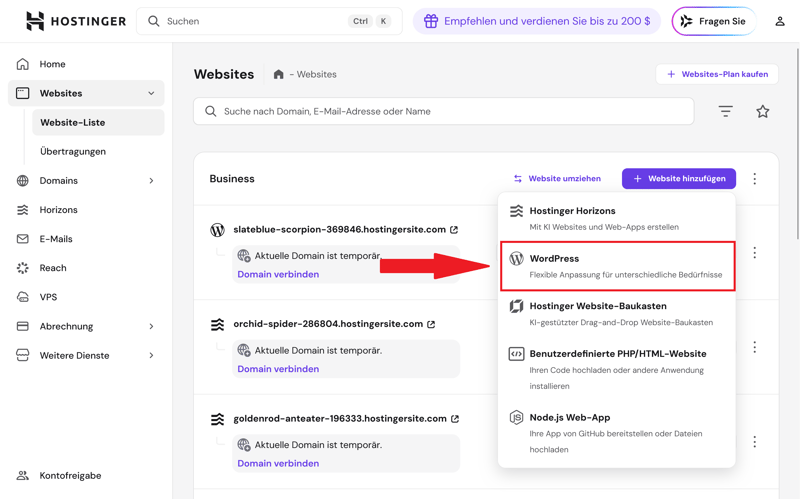
Next, select WordPress as your installation option.
Step 2: Set up your admin account. You'll need these credentials to log in to your WordPress dashboard later.
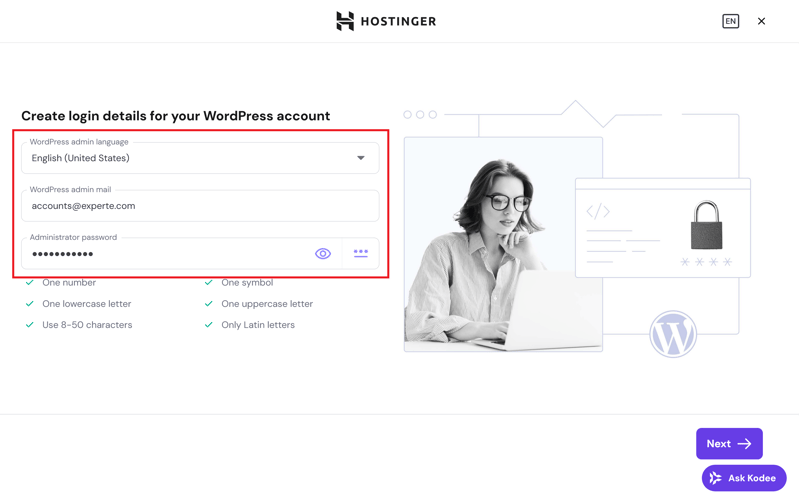
Here, you’ll set up your WordPress admin account credentials.
Step 3: Decide how you want to build your website. You have three options:
- 1.
AI-powered setup: The AI creates a basic website for you based on your input.
- 2.
Pre-made template: Start with a ready-made template as the foundation for your website.
- 3.
Blank WordPress installation: Start from scratch and set up your design and structure manually.
For this example, we'll choose a pre-made website option and continue without AI assistance.
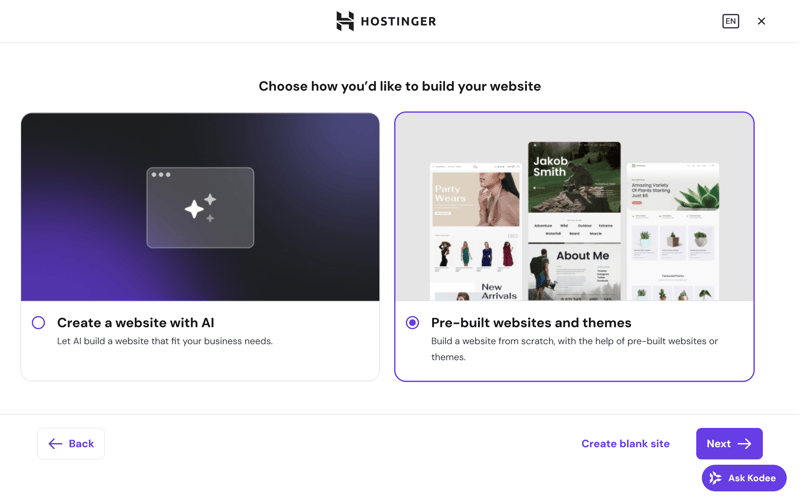
Choose how Hostinger sets up your website.
Step 4: If you'd like, pick a template to serve as the visual foundation for your project. Alternatively, you can select a WordPress theme now and switch it later if needed.
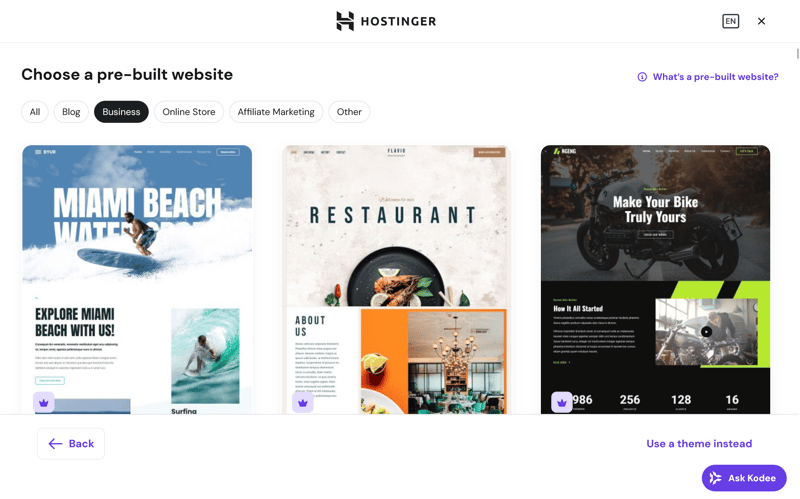
Hostinger provides design templates for your website.
Step 5: Decide which plugins to install, if any. You can always add or remove plugins later.
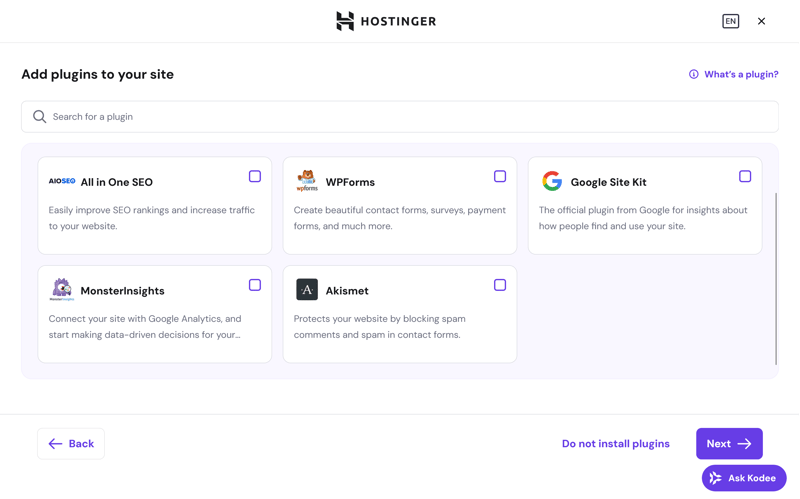
You can install these add-ons right away if you need them.
Step 6: Now choose the domain where visitors will find your website. You can register a new domain or use an existing one. Or, you can use a temporary domain from Hostinger.
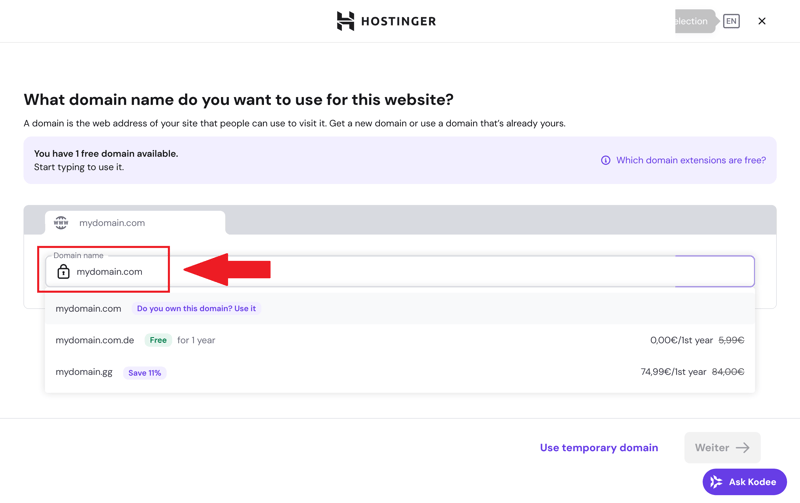
Enter your preferred domain here.
Step 7: Hostinger will now automatically handle the WordPress installation for you.
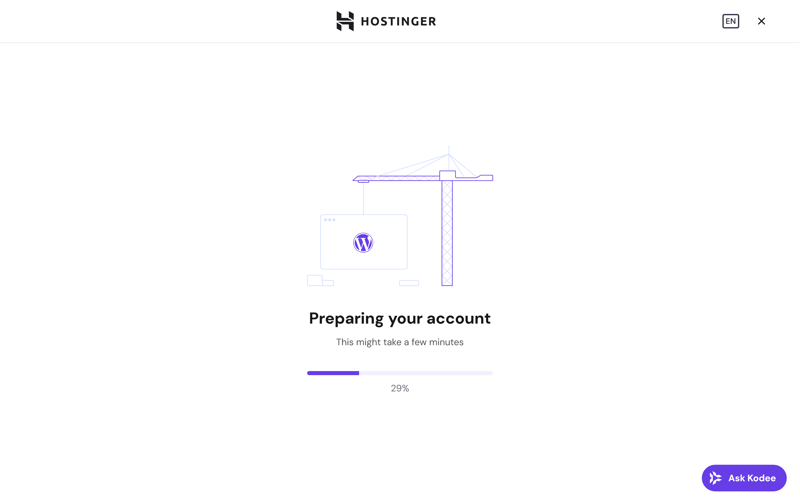
Hostinger handles the WordPress installation.
The process usually takes just a few minutes. Once it's finished, you'll land directly in your new WordPress dashboard.
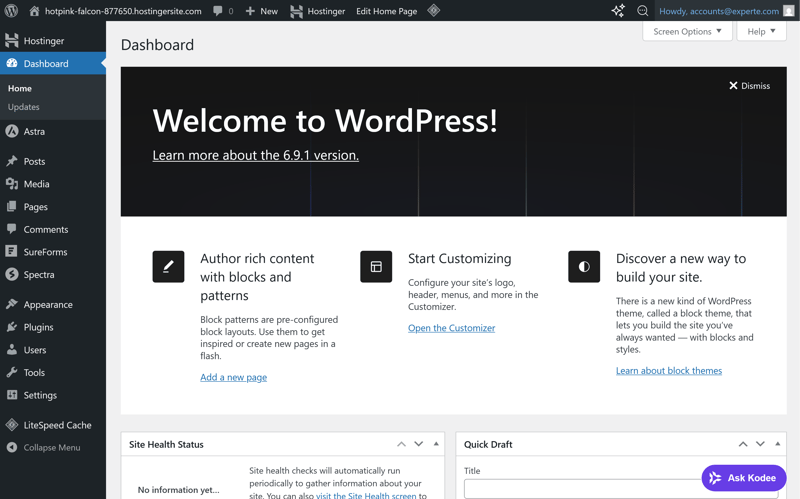
You’ve arrived at the WordPress dashboard.
Your WordPress installation is complete. Your website is live, your admin account is set up, and you have full access to the dashboard. Next, you'll adjust the WordPress settings to fit your needs.
Set Up Your WordPress Settings
WordPress is ready to use right after installation, but it’s not fully optimized yet. Before you dive into content or design, check a few key settings. These affect your blog’s structure, how easily people can find it, and your overall workflow.
You’ll find these key settings on the left side of your WordPress dashboard under "Settings."
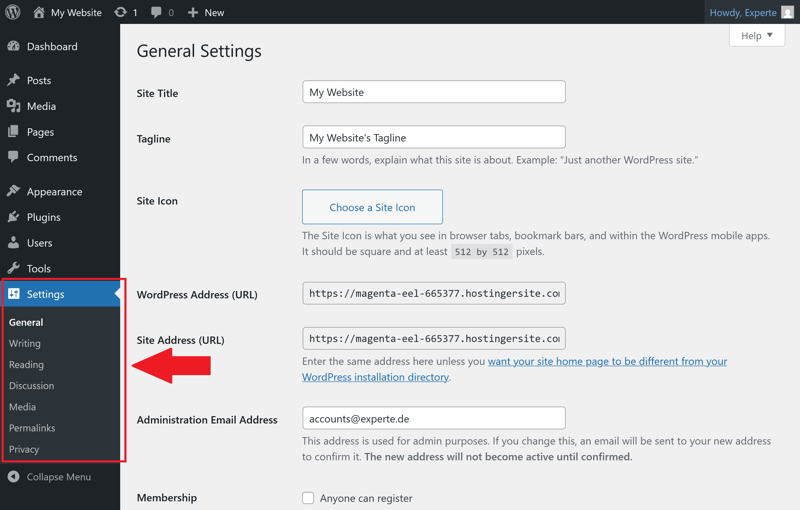
WordPress settings in the dashboard.
Permalinks, title, and tagline
Go to "Settings" > "General" to set your site’s title and tagline.
Your title should clearly state what your blog is about.
The tagline adds a short, precise description.
Both appear in your visitors’ browser tabs and also matter for search engines.
For better SEO, your permalink structure matters even more. You’ll find this under "Settings" > "Permalinks."
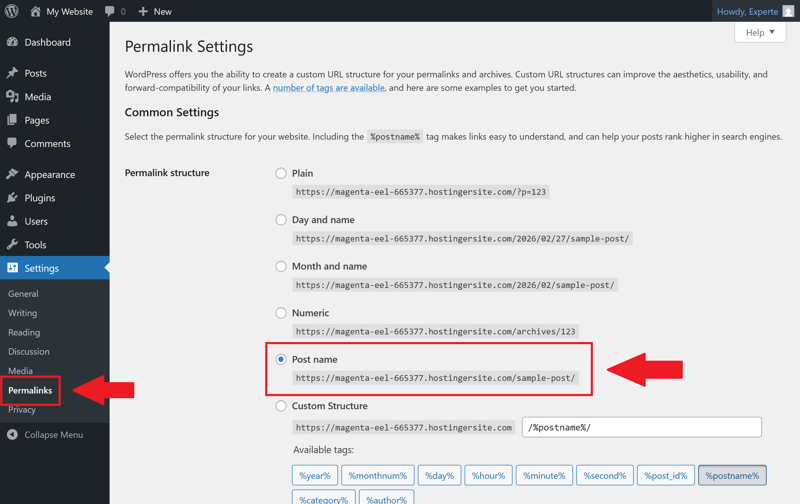
Your link structure is key for SEO.
For blogs, we recommend choosing "Post name." This creates clean, readable URLs like:
https://yourdomain.com/how-to-start-a-wordpress-blog
These URLs are easier to read and tend to rank better in search engines than random strings of numbers. There are two additional benefits:
The URL stays relevant even years later.
Search engines can instantly tell what the page is about just by looking at the link.
WordPress gives you a few different options for how your links can look:
Setting | Example URL | Best for |
|---|---|---|
Plain | yourdomain.com/?p=123 | No real meaning. Not a good choice for professional blogs. |
Day and name | yourdomain.com/2026/03/02/how-to-start-a-wordpress-blog | Good for news sites where the publish date matters. |
Month and name | yourdomain.com/2026/03/how-to-start-a-wordpress-blog | Also good for time-sensitive content. Not ideal for evergreen posts. |
Numeric | yourdomain.com/archives/123 | No meaningful information in the URL. Not recommended for blogs. |
Post name | yourdomain.com/how-to-start-a-wordpress-blog | Great for business blogs. Short, clear, and keyword-focused. |
Custom structure | yourdomain.com/seo/how-to-start-a-wordpress-blog | Useful if you want to include a category or other placeholders. |
Users and permissions
WordPress comes with a built-in permission system. If you're running your blog solo, a single administrator account is usually enough. However, if multiple people are working on content, you should assign specific user roles. You can do this under the "Users" menu:
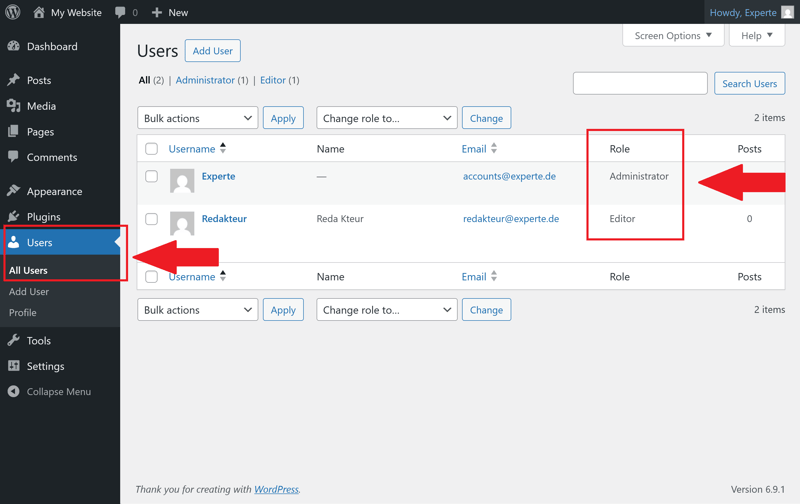
WordPress user management.
Here's a quick breakdown of the available roles:
Role | Write posts | Publish posts | Edit others' posts | Change settings |
|---|---|---|---|---|
Administrator | ✓ | ✓ | ✓ | ✓ |
Editor | ✓ | ✓ | ✓ | ✗ |
Author | ✓ | ✓ | ✗ | ✗ |
Contributor | ✓ | ✗ | ✗ | ✗ |
Subscriber | ✗ | ✗ | ✗ | ✗ |
For small teams, keep it simple: designate one person as the administrator, while others operate as editors or authors. This keeps technical control centralized while allowing your team to create content flexibly.
Time Zone and Language
Go to Settings > General to set your blog's regional preferences. These settings affect how WordPress displays publish dates and when scheduled posts go live.
Tip: Instead of selecting a UTC offset, choose a specific city for your time zone. This ensures WordPress automatically adjusts for daylight saving time.
The site language controls the language of your public-facing site (frontend) and, by default, your blog's admin area (backend). For English-language projects, set this to English:
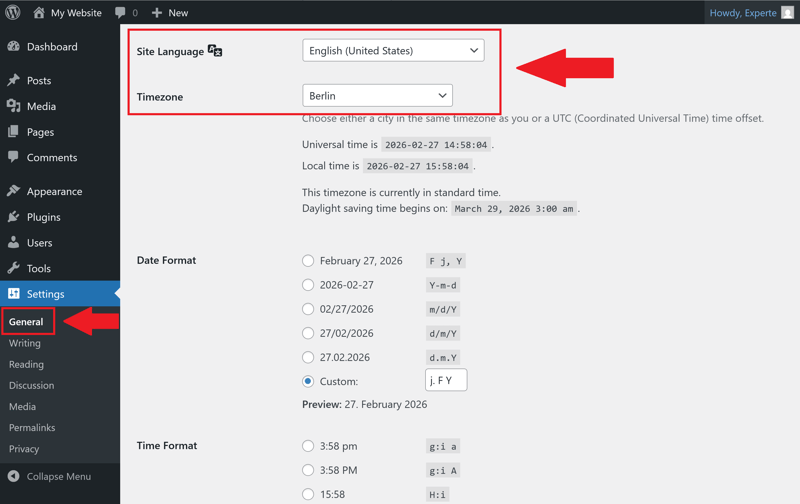
Site language and time zone settings
WordPress offers several preset date and time formats, such as:
February 27, 2026
2026-02-27
2:30 PM
14:30
For blogs in English, a written-out date format like "February 27, 2026" looks more professional and is easier to read. For time, the 12-hour format (e.g., "2:30 PM") is standard in the U.S..
Comments and Discussions
Go to Settings > Discussion to configure how WordPress handles comments on your blog posts.
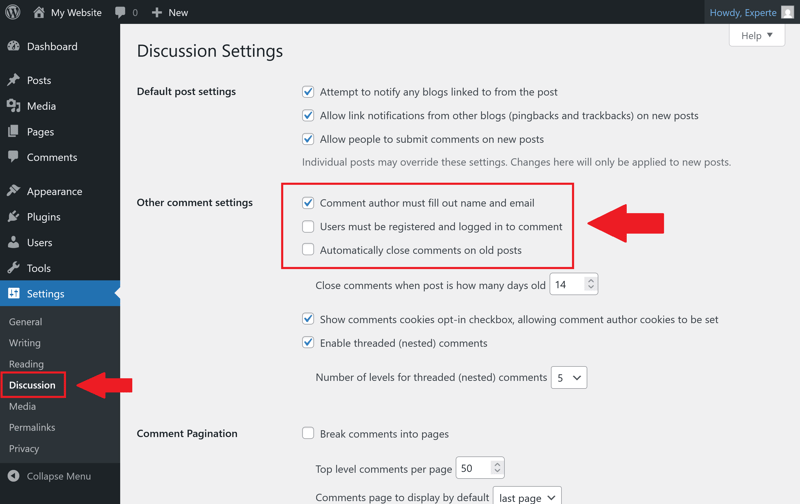
WordPress discussion settings.
Here, you can decide whether comments require manual approval or if authors should be notified when someone comments on their posts.
For business blogs, it’s usually best to manually approve comments. This gives you more control over spam and helps maintain quality.
Set your blog as the homepage
By default, WordPress displays your latest blog posts on the homepage. This works well for most blogs because visitors see fresh content right away.
If you prefer to use a static page instead, you can change this under Settings > Reading.
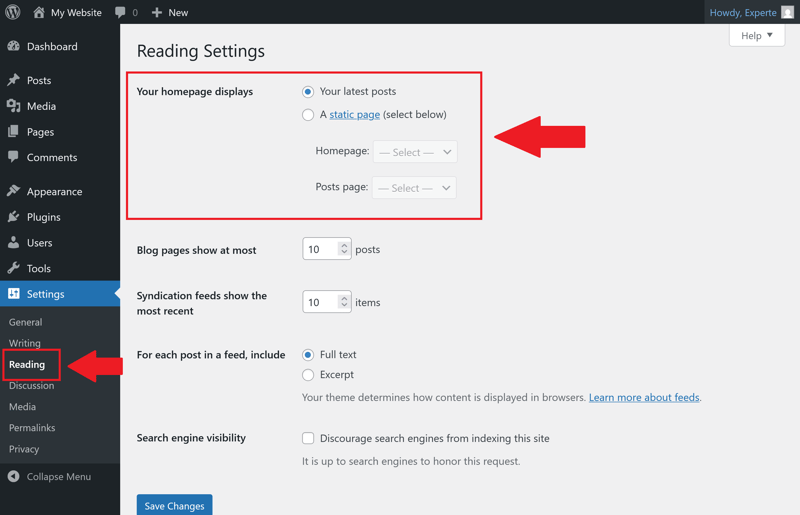
Set a homepage for your blog.
You have now set up the basic structure of your WordPress blog. Next, you'll customize its appearance by choosing a WordPress theme.
Change Your WordPress Theme
WordPress uses themes to control how your blog looks, determining everything from layout and fonts to colors, navigation, and overall page structure.
A good blog theme should check several boxes at once:
Mobile-friendly design
Most of your visitors will read your blog on their phones. Your theme should automatically adjust to different screen sizes. Text should be easy to read without zooming, and navigation should always be within easy reach.Clean, readable fonts
Choose a theme with fonts that are large enough, offer good contrast against the background, and feature clear heading styles. Tiny text or tight line spacing makes reading harder and can cause visitors to bounce faster.Fast performance
A theme should be lightweight. Too many animations or visual effects can slow your site down. Fast load times improve the user experience and support search engine optimization (SEO).Regular updates
Pick a theme that is well-maintained and updated frequently—you can check the last update date in the WordPress theme directory. Outdated themes pose security risks and can cause compatibility issues down the road.Easy customization
You should be able to change colors, logos, menus, and layouts without writing code. The easier it is to customize using the WordPress Customizer (more on that shortly), the faster you can shape your blog to match your vision.
How to install a WordPress theme
The official WordPress directory offers plenty of free themes that work great for blogs. You can find them under "Appearance" > "Themes" by clicking "Add New" at the top:
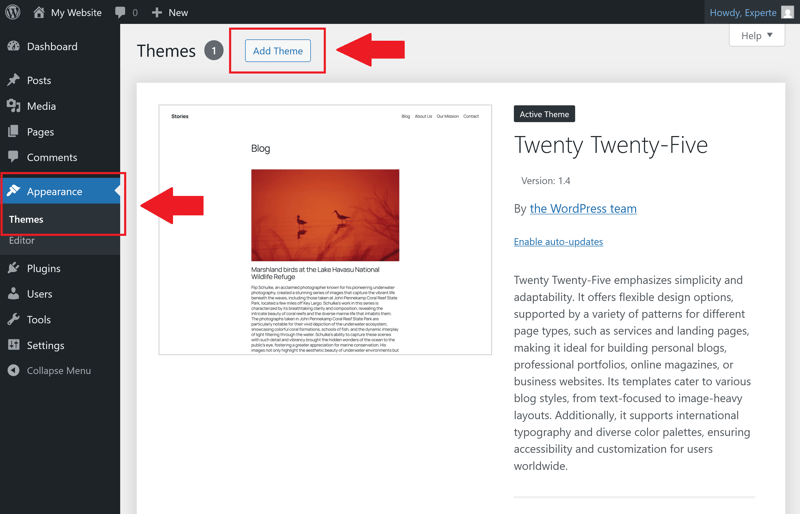
Adding a new theme is quick and easy
In this example, we'll search for the Astra theme and install it:
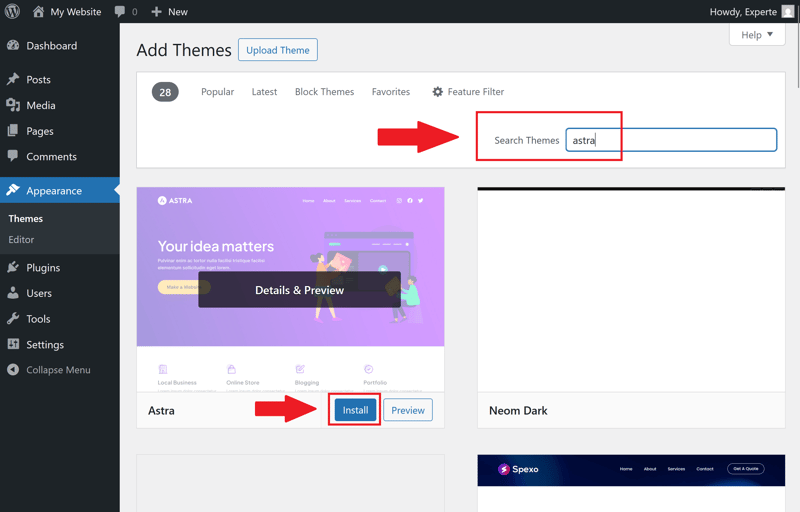
Installing the Astra theme
Customize your WordPress design with the Customizer
After installing and activating your theme, you'll see a new "Customizer" option under Appearance in your WordPress dashboard. This allows you to tweak the visual elements of your blog without touching any code.
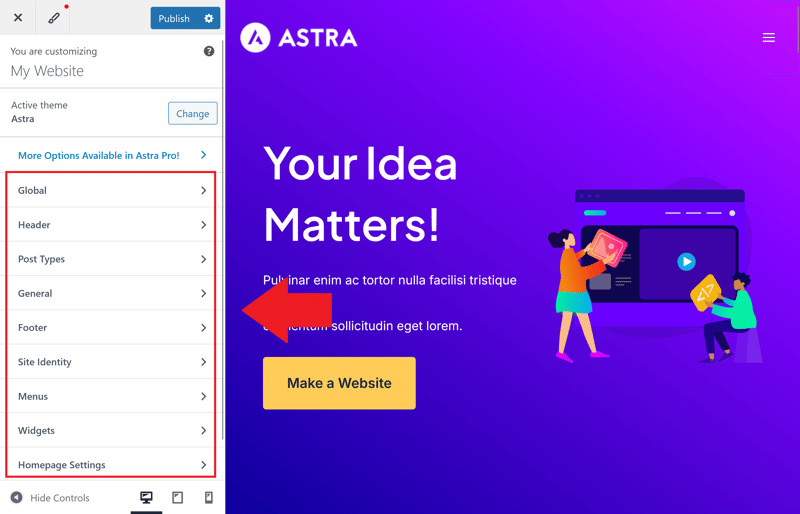
The Astra theme Customizer.
Here’s how to get started with the key settings:
Setting | What it does |
|---|---|
Upload your logo | Adds your brand logo to the header for instant recognition. |
Set your colors | Matches your blog’s primary and accent colors to your brand. |
Choose fonts | Sets the typography for headings and body text. |
Configure the header | Designs your navigation, logo placement, and optional call-to-action buttons. |
Design the footer | Adds your legal links, privacy policy, contact info, or extra navigation. |
With your theme selected and customized, you have built the visual foundation of your blog. Your layout and typography are set, and your design is fully optimized for both desktop and mobile devices.
Next, you'll expand your blog's features with the right plugins.
Install WordPress Plugins
One of WordPress’s biggest strengths is its massive plugin library. With WordPress plugins, you can add almost any feature to your blog, but every plugin should serve a clear, distinct purpose.
A common mistake is installing too many plugins. Keep it simple: the fewer plugins you use, the easier it is to maintain, secure, and keep your blog running smoothly. In most cases, a handful of well-chosen and properly configured plugins is all you need.
To add new plugins, go to the "Plugins" section in your WordPress dashboard.
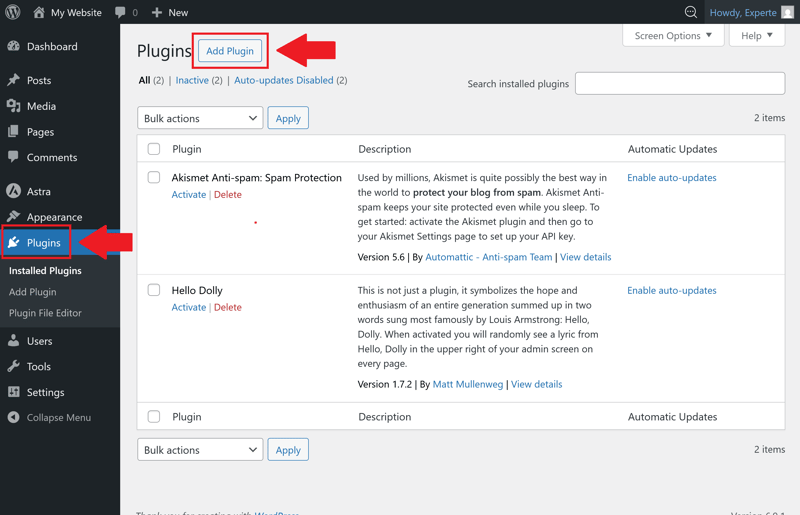
Adding plugins in WordPress is quick and easy.
There are thousands of plugins to choose from. No matter what you need—whether speed, security, SEO, privacy, or backups—you will find multiple reliable options.
To help you pick the right ones, we've put together a list of proven plugins for the most common needs:
Type | Feature | Examples |
|---|---|---|
Caching plugin | Speeds up your site by storing copies of pages | |
Security plugin | Protects your site with a firewall, login security, and malware scanning | |
Creates backups of your site so you can restore it if something goes wrong | ||
Spam protection | Blocks automated spam comments | |
SEO plugin | Optimizes meta data, sitemaps, and search engine visibility | |
Cookie plugin (GDPR) | Manages consent for tracking and external content |
That wraps up the technical setup. Your blog is now ready to go—it's time to start creating content. In the final step, you'll write and publish your very first blog post.
Write Your First Blog Post
WordPress organizes content into "Posts" and "Pages." This distinction matters because it directly affects how your site is structured and how content is archived.
Posts are for your main blog content—articles, news, or guides. They're displayed in reverse chronological order, so the newest post always appears first. You can assign categories and tags to posts to keep your content organized and easy to find.
Pages are for static content that doesn't change often. Think of your About page, Contact page, or legal disclaimers. Pages aren't part of your blog archive and typically do not use categories or tags.
Here's a quick rule of thumb: use posts for all your blog content, and save pages for permanent information like your bio or legal notices.
Create a Blog Post in the Gutenberg Editor
In WordPress, you create new content under Posts. Simply start a new article, add a title, and write your text in the block editor.
WordPress uses the Gutenberg editor, where every piece of content—such as paragraphs, headings, images, or videos—gets its own dedicated block.
Here’s what a blank post looks like in the Gutenberg editor:
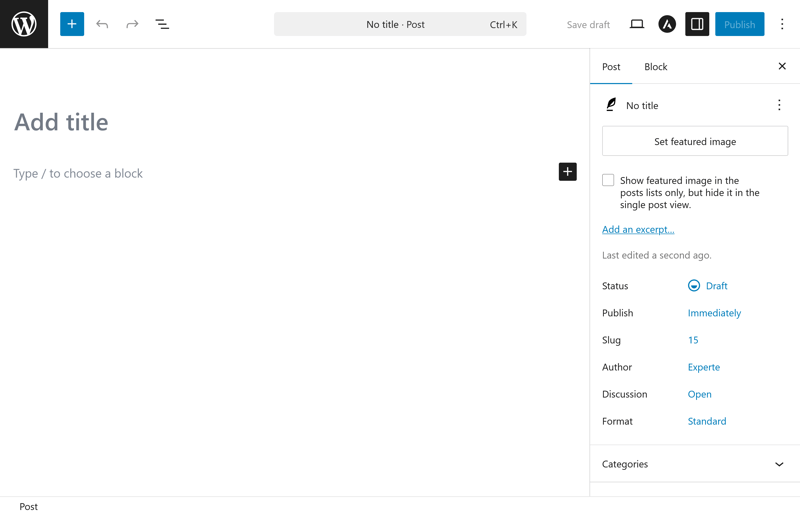
The WordPress Gutenberg editor.
Structure Your Article for Clarity
A well-written blog post follows a clear structure. Most readers scan content first before diving in, which is why it's important to organize your post logically and make it easy to follow.
Here’s a proven way to structure your post:
Always format headings as actual heading tags (H2, H3, etc.) rather than just bold text. This helps search engines properly understand the structure of your post.
Use Images and Media Effectively
Walls of text can feel overwhelming to readers. Images, graphics, or screenshots break up your content and make key points much easier to digest.
Before uploading an image, make sure to:
- 1.
Compress the file size
Large images should be optimized and compressed before uploading to keep page load times fast. - 2.
Use a descriptive filename
A name like "wordpress-dashboard-settings.jpg" is far more useful than a generic "image1.jpg." - 3.
Add alt text
Alt text describes the image for screen readers and improves both accessibility and search engine optimization.
Use Categories and Tags Wisely
WordPress makes a clear distinction between categories and tags:
Categories form the main structure of your blog. Think of them like folders that group your posts by broad topic.
Tags add detail to individual posts. They're more flexible and help connect related articles across different categories.
Categories can be organized in a hierarchy, whereas tags remain flat. That means you can create subcategories, but not subtags.
Here’s an example of hierarchical categories:
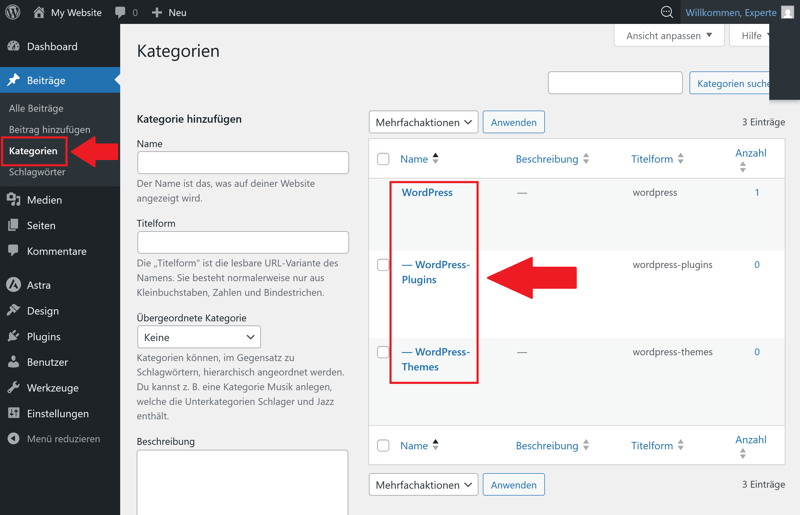
WordPress as a main category with two subcategories.
A post about "how to start a WordPress blog" might appear in the "WordPress Basics" category and include tags like "installation," "hosting," "permalinks," or "Gutenberg."
Publish Your First Blog Post
Once your post is ready, double-check the settings on the right-hand panel. Here, you can configure the category, tags, featured image, and visibility, or even schedule when the post goes live.
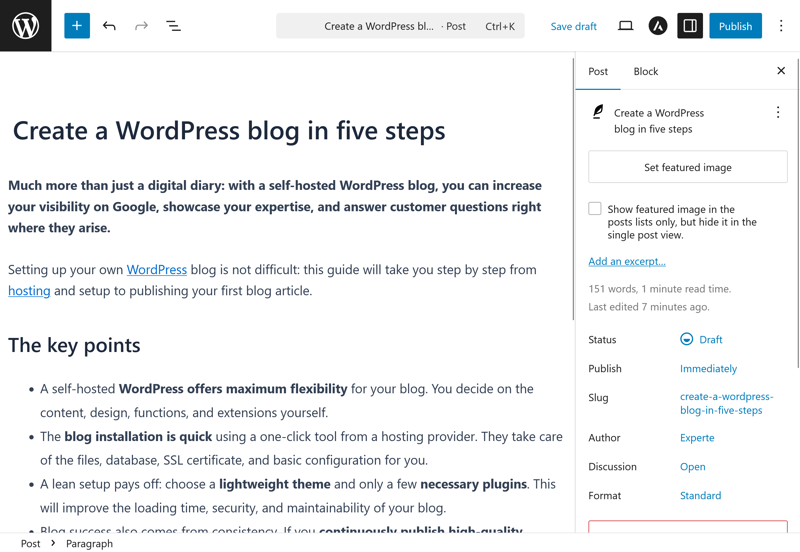
A finished blog post in the Gutenberg editor.
Click "Publish," and your article will go live on your website, automatically showing up in your blog feed. If you've set your blog as the homepage, the post will appear there as well.
Congratulations! Your blog is officially live with your first published post. But the real work starts now: keep publishing fresh content and grow your audience step by step.
Final Thoughts: WordPress Makes Starting a Blog Easy
Starting your own WordPress blog is straightforward, even if you don't have technical experience. Pick a reliable hosting plan, install WordPress, adjust the key settings, choose a theme, and add the essential plugins. That is all it takes to get your blog up and running so you can begin writing and publishing content.
The real work begins after the initial setup. A successful blog doesn't happen overnight; it grows steadily with every new piece of content. Stay consistent by publishing regularly and keeping older posts updated. WordPress gives you complete freedom to expand your blog over time, making it easy to introduce new features as your platform grows.