How to Add Google Analytics to WordPress: Step by Step

A successful website is no coincidence. To optimize your WordPress site and deliver a user experience that meets your visitors’ needs, you need analytics. The most widely used solution: Google Analytics.
Google Analytics shows how users engage with your site. Based on this data, you can improve performance and sharpen your marketing strategy. Here's how to connect it to WordPress.


Why Link Google Analytics to WordPress?
Google Analytics tracks how users find and interact with your WordPress site. You’ll see how many visited, how long they stayed, where they came from, and what they clicked. This helps you improve your content and grow traffic.
The best part: Google Analytics is free and easy to integrate into WordPress. If you want to truly understand your visitors, it’s a must-have tool.
First Step: Create Your Google Analytics Account
To use Google Analytics with WordPress, you need a Google account. If you already use Gmail or an Android device, you likely have one. Everything else is quick to set up:
Step 1: Sign in to Google Analytics using your Google account.

Use your existing Google login to access the dashboard.
Step 2: In the setup wizard, enter your account name, website details, and data-sharing preferences. Then choose which data streams you want to track.
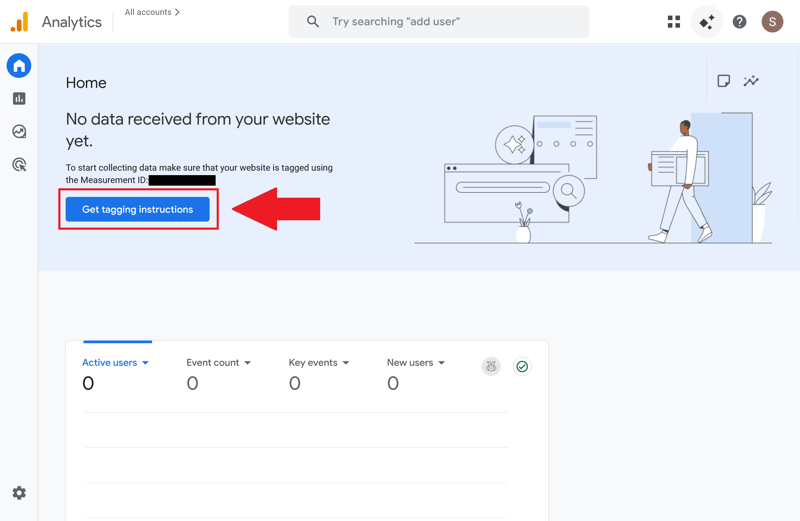
Set up Google Analytics first.
Step 3: Choose your platform—here, it's WordPress:
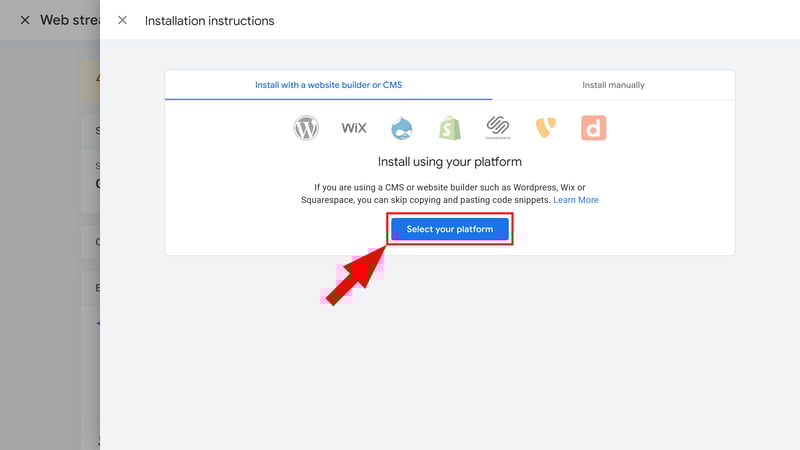
Platform selection in Google Analytics.
Once setup is complete, you’ll see your account details along with a unique Google tag. This tracking ID must be added to your site so Analytics can begin collecting data.
Four Ways to Add Google Analytics to WordPress
To connect your WordPress site with Google Analytics, you have four options:
- 1.
Insert the Google tag manually into your site’s code.
- 2.
Install a third-party plugin such as MonsterInsights.
- 3.
Use Site Kit, Google’s official WordPress plugin.
- 4.
Set up Google Tag Manager to manage tracking codes centrally.
Google offers detailed—and in some cases animated—setup instructions for both manual and plugin-based integration.
To access these instructions, scroll down on the setup screen, locate the Google tag section, and click “View tag instructions.”
Manually Add the Tracking Code
You can add Google Analytics manually to WordPress—but the process is a bit time-consuming. You’ll need to generate a code snippet and insert it into the source code of every page.
To get the snippet, open your preferred data stream in the admin area and click “View tag instructions.”
In the pop-up window, switch to the “Manual installation” tab. Google Analytics will then generate the relevant code based on your tag.
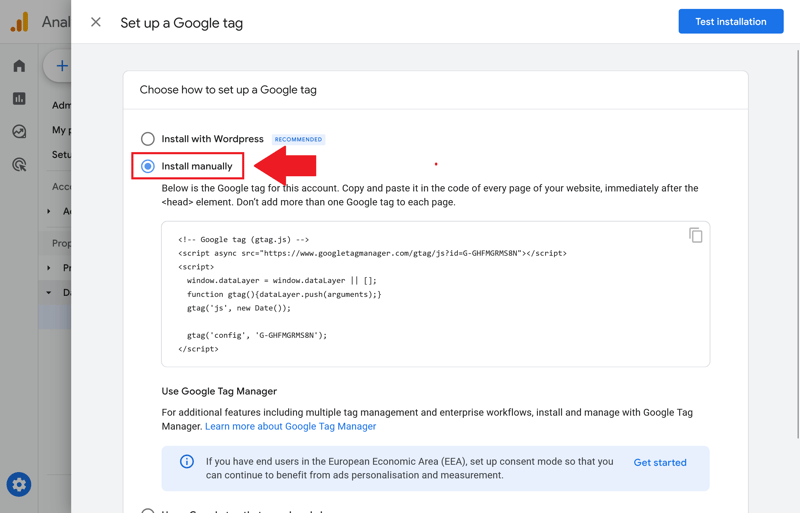
The code can be copied and pasted directly into your site’s HTML.
Click the clipboard icon to copy the snippet. Then open your site's source code and paste it directly after the opening <head> tag.
Be sure to include the snippet on every page—otherwise, Analytics won’t capture all your traffic.
Set Up Google Analytics With MonsterInsights
You can also integrate Google Analytics using the MonsterInsights WordPress plugin . Log in to your WordPress dashboard, then go to “Plugins” in the left-hand menu. You’ll see a list of currently installed plugins.
Click “Add New” at the top, then search for “MonsterInsights” using the field in the top right corner.
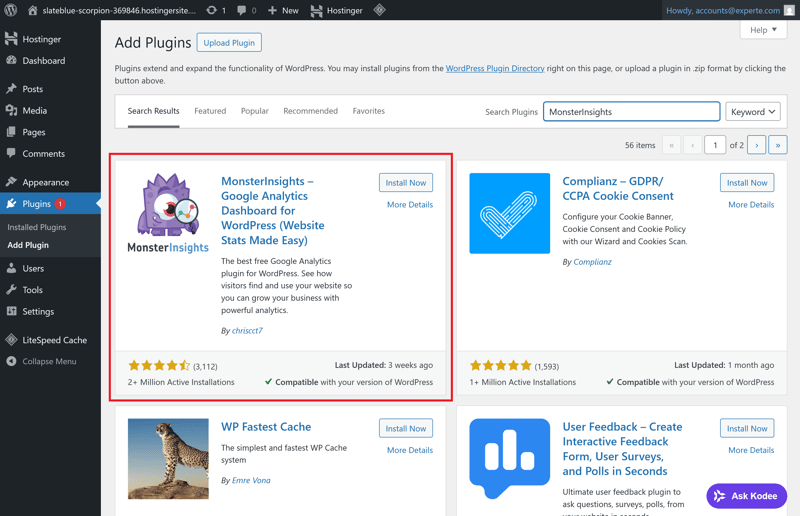
You can install and activate MonsterInsights with just a few clicks.
Click “Activate” on the plugin card to install it. The plugin will then be ready to use.
- 1.
In the setup guide, click “Connect MonsterInsights and Setup Website Analytics” to launch the wizard.
- 2.
Once setup is complete, go to “Insights” in the top navigation bar, then click “Settings” in the left sidebar.
- 3.
In the settings panel, open the “Publisher” tab and enter your Google ID in the Ads Tracking field.
- 4.
Click “Save Changes” to apply your settings.
Google Analytics is now connected—and your stats are visible directly in the WordPress dashboard.
Connect via Google Site Kit Plugin
Instead of MonsterInsights, you can use Google’s Site Kit plugin to connect Google Analytics to your WordPress site. Site Kit also supports other Google services, making it a versatile solution.
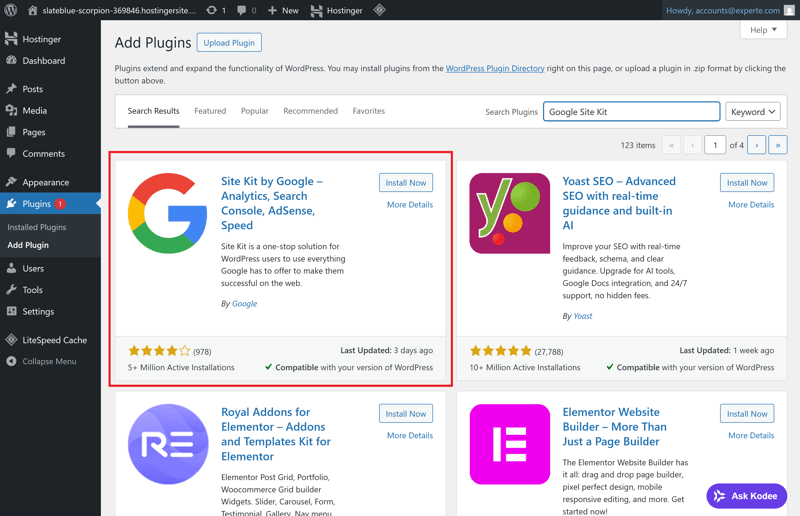
The Site Kit plugin from Google.
As with MonsterInsights, you install and activate Site Kit directly from the WordPress dashboard. After activation, a new “Site Kit” section appears in the left-hand menu.
- 1.
Click “Sign in with Google” to launch the Site Kit setup assistant.
- 2.
Verify site ownership, then click “Allow” to authorize access to your Google account.
- 3.
Next, connect your website to Google Search Console.
- 4.
Return to WordPress and open the Site Kit dashboard via the sidebar.
- 5.
To connect Google Analytics, click “Connect Service” in the Analytics tile.
- 6.
Log in again with your Google credentials. After authentication, click “Continue” to grant further permissions.
- 7.
In the final step, choose your Analytics Property and click “Configure Analytics.” The service is now active on your site.
Connect Google Analytics With Google Tag Manager
You can also add Google Analytics via Google Tag Manager. It manages all your tags in one place and simplifies updates to tracking code.
Start by visiting Google Tag Manager and creating a new account. Click “Create Account” and enter names for both the account and the container in the dialog.
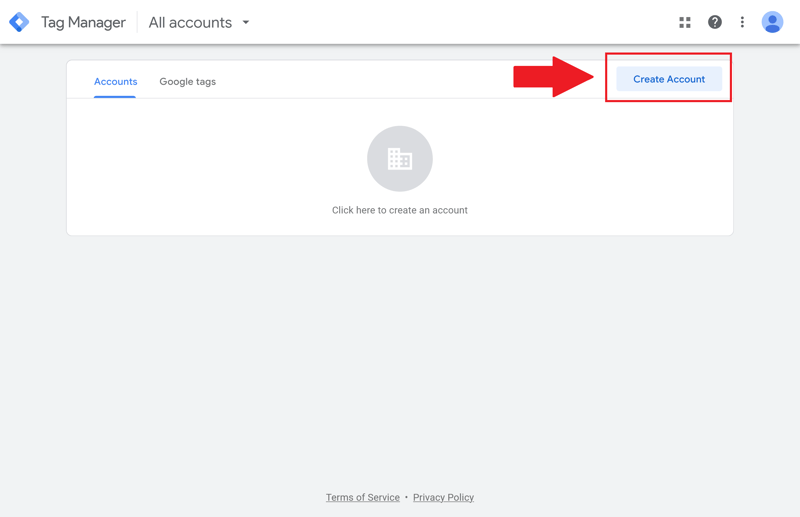
Creating an account in Google Tag Manager.
Next, install the container to enable tag tracking on your website. Click the container ID in the top-right corner (e.g., GTM-XXXXXX) to view the installation code.
You’ll receive two code snippets to insert into your site’s source code. Add the first snippet after the opening <head> tag, and the second one after the opening <body> tag.
Then click “New Tag” in the Tag Manager dashboard and choose “GA4 Configuration” from the tag types. All active tags are listed at the bottom of the dashboard.
Google Analytics and Privacy: How to Stay GDPR-Compliant
Analytics tools such as Google Analytics must comply with data protection laws. To use Google Analytics legally in the EU and the U.S., certain compliance rules must be observed.
Older Google Analytics versions are no longer GDPR-compliant under current regulations and court rulings. Ensure your setup relies solely on Google Analytics 4 (GA4) and doesn’t include outdated components.
Sign a Data Processing Agreement (DPA)—Google offers a pre-filled version within your Analytics account.
Limit your data retention period. The default setting is two months. To adjust this, open your GA settings, navigate to “Data Settings,” and modify the “Event Data Retention” value.
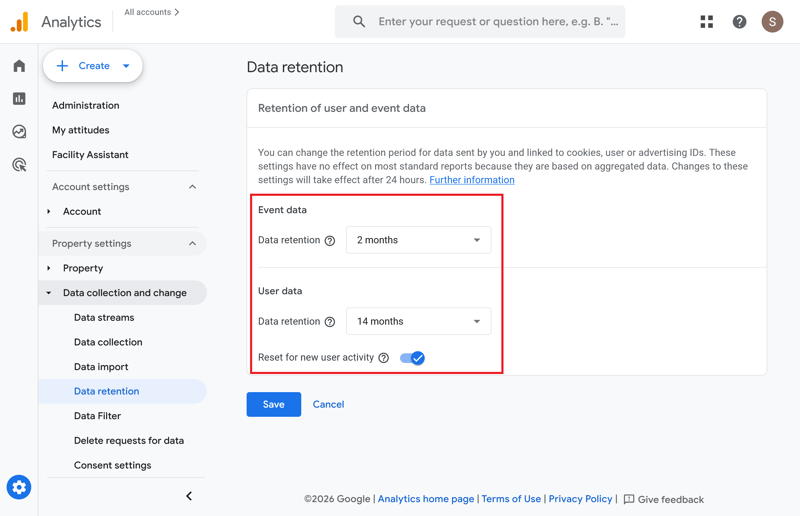
Retention period for event and user data.
Integrate a consent management tool to obtain explicit user consent for data collection. These so-called cookie tools are available as WordPress plugins and can often be customized.
Update your privacy policy whenever you add Google services to your site. To stay legally compliant, Google Analytics must be explicitly mentioned in your privacy policy.
Manual IP anonymization is no longer necessary. While older versions required manual configuration, GA4 now anonymizes IP addresses by default.
Conclusion
You can integrate Google Analytics into WordPress in several ways:
For occasional users, MonsterInsights is the simplest solution. It allows you to activate Google Analytics in just a few steps.
Professionals handling multiple websites or measurement IDs benefit most from Google Tag Manager.
If you rely on additional Google services, the Site Kit plugin offers an all-in-one integration.
Developers can add tracking manually by inserting the GA code directly into the site’s HTML.
Whichever method you choose, ensure your setup is fully GDPR-compliant. That way, you avoid legal issues and costly cease-and-desist letters.
Frequently Asked Questions
Google Analytics collects data about visitors to your website and helps you analyze it. It's a valuable tool for optimizing your site and making it more engaging. The analytics features let you see which content is most popular.
You can integrate Google Analytics into WordPress using plugins. If you manage multiple websites or use several Google services, Tag Manager and the Google Site Kit plugin are great options for organizing your tags and services.
Google Analytics is free to use—all you need is a Google account.
With the right setup and plugins, Google Analytics can be implemented in a privacy-compliant way. Important: Only Google Analytics 4 (GA4) meets the requirements of the GDPR—earlier versions are no longer compliant.