WooCommerce Review 2026: Is It Better Than Shopify?


Choosing an ecommerce platform is a bit like picking a physical storefront: you can either rent a fully equipped space or build everything yourself, from the floor plan to the checkout counter.
WooCommerce is the custom route: Instead of having the technical foundation handled for you, like with all-in-one providers such as Shopify, you're responsible for the entire setup from top to bottom. But is that level of control worth the extra maintenance? Let's find out.


WooCommerce* is the official ecommerce plugin for WordPress. It allows you to transform a regular WordPress site into an online store.
While it was originally developed by a company called WooThemes, it is now owned by Automattic, the same company behind WordPress.com. This makes it the native, go-to solution for anyone looking to sell within the WordPress ecosystem.
Since its launch in 2011, WooCommerce has grown into one of the most popular ecommerce platforms on the market. Today, it powers millions of stores, ranging from small niche projects to large international businesses with complex requirements.
The main thing that sets WooCommerce apart from “all-in-one” platforms like Shopify is that it's open-source. It isn’t a closed system where everything is managed for you. Instead, you have to handle the hosting, security, and software updates yourself. In exchange for that extra effort, you get total flexibility and access to thousands of specialized themes and plugins to customize your site.
WooCommerce Review
Open-source flexibility
WooCommerce is open-source. Instead of being locked into a specific ecosystem, you have full control over your choice of hosting, design, and site architecture.Unlimited customization
You can customize almost everything, using the entire WordPress toolkit. Between themes, page builders, and custom code, you can build exactly the store you want without platform limits getting in the way.No subscription fees
WooCommerce itself is free. Unlike other platforms, there are no monthly subscription fees. You “only” pay for hosting, payment processing, and extras like themes or apps.Massive plugin library
If you need a specific feature that isn’t built-in, there's almost always a plugin for it.
Technical setup
WooCommerce isn't plug-and-play like Shopify. You have to get hosting, install WordPress, and configure the backend yourself. There's a bit of a learning curve.Hands-on maintenance
You're responsible for keeping the store running. This means regularly updating WordPress and your plugins, as well as handling your own security and backups.Plugins required, often at a cost
While WooCommerce itself is free, many standard features require paid plugins. These costs can add up quickly.
Setup & Ease of Use
| Setup |
| 2.5/4 |
| User interface |
| 5/8 |
| Performance |
| 2.5/3 |
WooCommerce is a WordPress plugin, not a standalone platform. That's the fundamental difference to ecommerce systems like Shopify. Instead of getting a fully hosted, all-in-one solution, you're responsible for building and managing your store's infrastructure yourself.
Setting up WordPress and WooCommerce
To get a WooCommerce store off the ground, you need three core components:
- 1.
- 2.
Web hosting
- 3.
When it comes to hosting, there are plenty of options to choose from. You can go with a standard web host or a specialized WordPress host. Some providers even offer hosting plans specifically tailored to WooCommerce. These store-specific plans often come with the software pre-installed and optimized for performance.

The exact setup process varies by provider, but most follow a similar logic. We went with a WordPress hosting plan from IONOS, which allowed us to install WordPress with just a few clicks.
Once the installation is complete, you can access your site’s backend directly from your hosting dashboard.
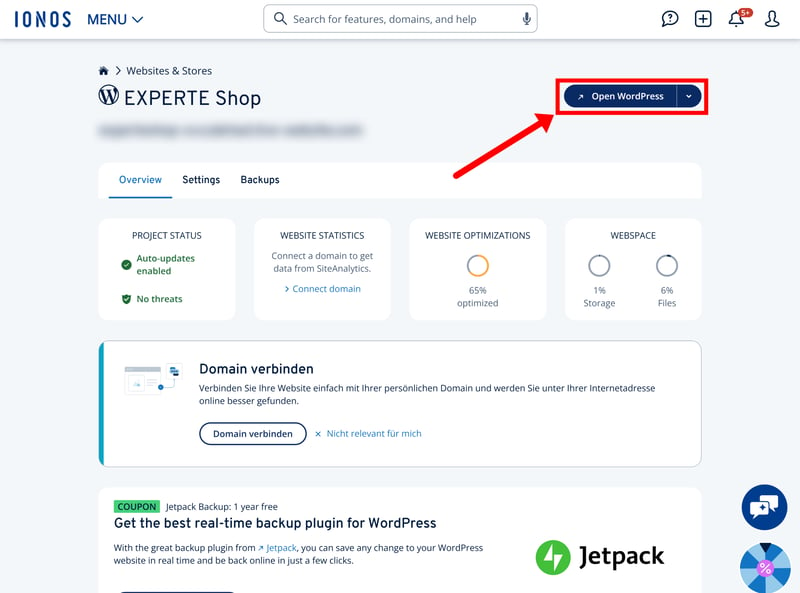
You can open your site's WordPress dashboard from your hosting provider's control panel.
Next, you'll have to install WooCommerce itself. It's a standard WordPress plugin, so you'll find it in the WordPress plugin directory. If you use a “WooCommerce-ready” theme, the plugin might even be installed automatically.
After it's installed and activated, a setup wizard walks you through the initial configuration, including your store’s location, currency, shipping methods, and payment gateways.
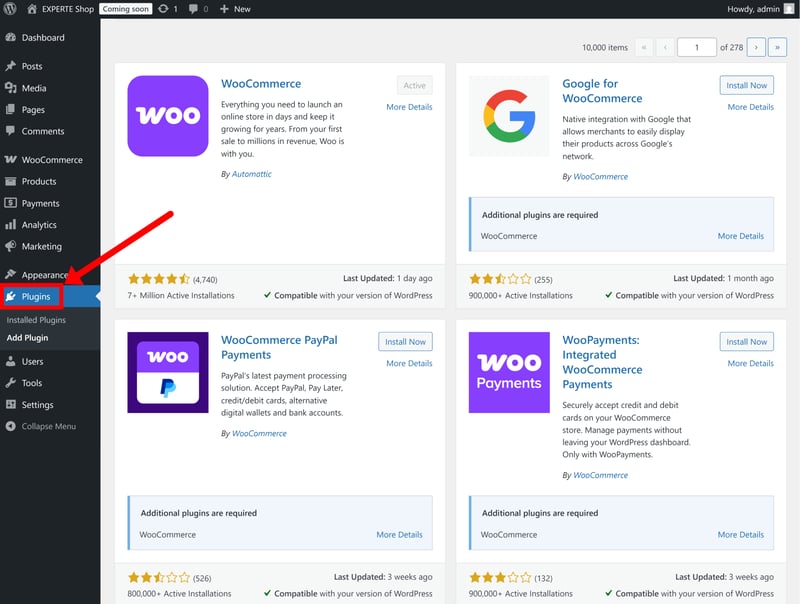
You'll find WooCommerce along with all the other plugins in WordPress's plugin directory.
Getting started with WooCommerce certainly requires more effort than using an all-in-one builder like Shopify. You have to navigate multiple third-party services and make a few technical decisions before you can even begin designing your store.
That extra work comes with a major long-term advantage, though. Since you aren't tied to a single provider's ecosystem, you have more control over your hosting environment, your costs, and your technical setup from day one.
Managing your store with WordPress
Once WooCommerce is activated, everything is managed directly inside the WordPress dashboard. Ecommerce features like products, orders, payments, and customers are added to the sidebar as separate menu sections.
The WooCommerce dashboard acts as your central hub, displaying high-level stats, recent orders, and system alerts. When you first start out, a checklist guides you through the essentials: adding your first products, configuring payments, and handling basic customization.
The user interface — well, it’s WordPress. The dashboard isn't exactly sleek or modern, but it’s functional, neatly organized, and gets the job done. There's reason why it's still the world’s most popular content management system, after all.
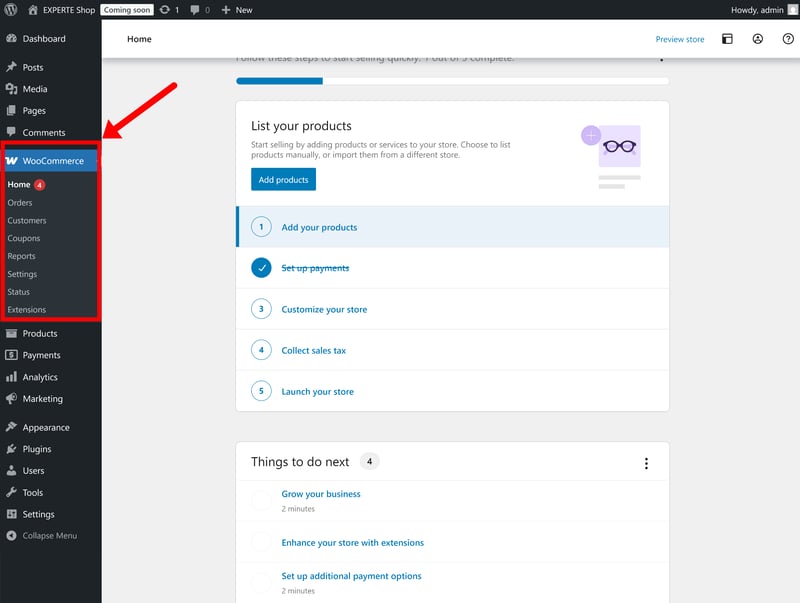
WooCommerce integrates directly with WordPress.
The sidebar on the left gives you access to both the website and ecommerce parts of WordPress. At the top, you'll find your website content: posts, media, and pages. Below that are the WooCommerce shop sections. Further down, you can manage themes, plugins, users, tools, and general settings.
If you're already familiar with WordPress, you’ll feel right at home. For absolute beginners, however, the learning curve is a bit steeper than it is with a platform like Shopify. The interface feels more technical and offers less “hand-holding” than modern builders, which are designed specifically for beginners and non-techies.
One dashboard for everything
Most ecommerce platforms draw a hard line between admin and design tasks. You handle your products, orders, and customer data in one dashboard, then switch to an entirely separate editor to change your site’s look.
With WordPress, everything is a bit more intertwined. Since WooCommerce is built directly into the CMS, your products are managed just like your blog posts or pages.
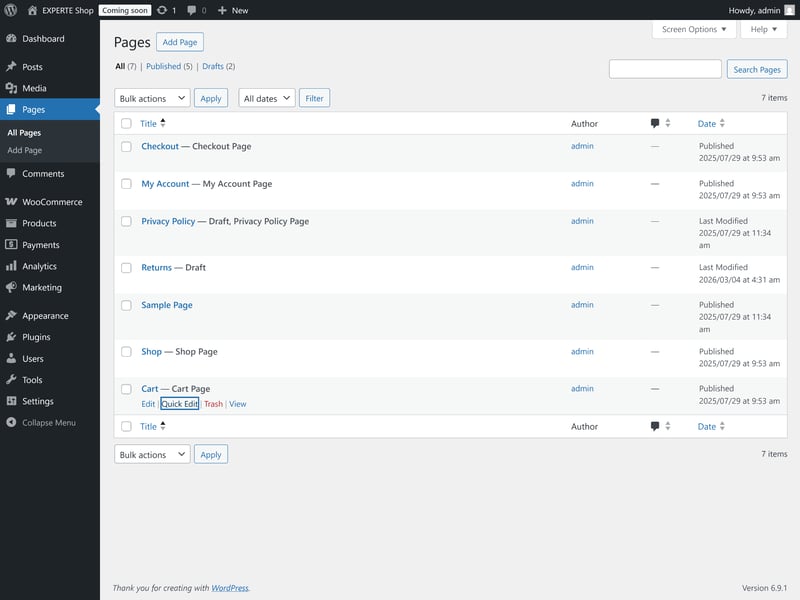
Managing pages in the WordPress backend.
This gives you a lot more freedom to customize your shop exactly how you want it. It does make the backend feel a bit more cluttered, though, as your shop tools, design settings, and other features all end up fighting for space in the same dashboard.
Backend performance: It all comes down to your setup
Unlike closed SaaS platforms where the server environment is managed for you, the performance of WooCommerce depends on your specific technical setup. That holds true both for the shop website's loading times and the backend interface.
In our tests with IONOS WordPress hosting, the dashboard felt reliable and snappy overall. We did notice some minor lag when jumping between menu items, which is fairly common with WordPress, but the interface never felt sluggish or unresponsive.
The key to keeping things fast and stable is avoiding plugin bloat. Every extension adds more processing overhead to the backend, so keeping your setup lean is the best way to ensure the interface stays fast as your store grows. If you invest in quality hosting and only use the plugins you actually need, the day-to-day management experience should be fine.
WooCommerce isn’t a turnkey solution that gives you a ready-made store out of the box. Setup and maintenance require more involvement, since you’re responsible for managing the hosting, WordPress installation, and overall infrastructure yourself.
Once you’re up and running, it’s classic WordPress. Products, orders, and website content are all managed from the same dashboard, and the huge plugin ecosystem makes it possible to extend the store in almost any direction.
The learning curve is steeper than with platforms like Shopify, and WooCommerce generally requires more technical oversight than all-in-one ecommerce builders. In return, though, you get far more control, flexibility, and ownership over your store.
Templates & Design
| Number of templates | 3,000 | 2/2 |
| Template quality |
| 3/3 |
| Website builder |
| 3/4 |
| Customizing shop pages |
| 4/4 |
| Custom code |
| 2/2 |
WooCommerce mainly takes care of the ecommerce side of things. Your store’s design, on the other hand, is handled through WordPress itself, which means your customization options are basically wide open.
You have the entire WordPress ecosystem at your disposal. This includes thousands of dedicated themes, the native Block Editor, and third-party page builders like Elementor or Divi. And if off-the-shelf tools aren't enough, you can always build custom solutions yourself — provided you've got the coding skills (or the budget for developers).
3,000+ themes to choose from
Your theme acts as the visual foundation for the store, setting the baseline for everything from the layout and typography to the general styling. The selection is massive: you can find more than 3,000 ecommerce-ready themes in the official WordPress directory alone.
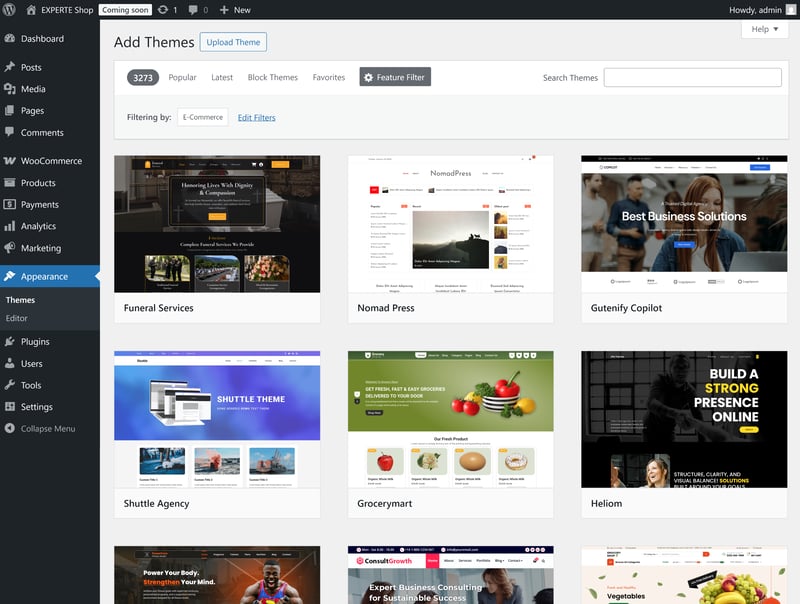
WordPress comes with more than 3,000 ecommerce-ready templates.
Since WordPress is an open platform, you don't have to source your theme from its official directory either. WooCommerce comes with its own theme marketplace (though nearly all designs there are paid). You can also buy themes on third-party marketplaces like ThemeForest.
Plugins add even more choice. Page builders like Elementor or Divi provide their own extensive template libraries, while plugins like “Starter Templates” can add pre-built layouts and entire store structures to a theme you already have.
Between the official directory and the wider market, there are well over 10,000 themes available, even if many of the better options come with a price tag. The sheer number of options is impressive, though, and dwarfs that of most other ecommerce platforms:
| Number of templates | |
|---|---|
 | 3,000 |
 | 1,000 |
 | 500 |
 | 225 |
 | 190 |
 | 170 |
 | 70 |
 | 47 |
 | 34 |
 | 12 |
 | 11 |
Customizing your design
Thanks to the open-source nature of WordPress, the customization options go far beyond what you’d get with most ecommerce platforms. You’re not limited to a fixed set of design tools or templates, but can shape your store almost any way you want.
Generally, you have three main options: you can use WordPress’s built-in block editor, install a third-party page builder, or build a fully custom design from scratch.
Designing with the block editor (Gutenberg)
WordPress comes with a page builder called Gutenberg. It's a block-based system: You put together pages by stacking “blocks” for things like text and images, as well as WooCommerce-specific elements like product grids or featured category displays.
If your theme is WooCommerce-ready, this control extends to your shop-specific pages. You aren’t just limited to standard posts; you can also tweak your category pages, product layouts, and even the shopping cart, as well as global styles like colors and typography.
The interface is fairly typical for a visual page builder: a live preview of your page sits in the center, with a sidebar on the left for adding blocks. On the right, you’ll find settings to adjust the selected block or the page as a whole.
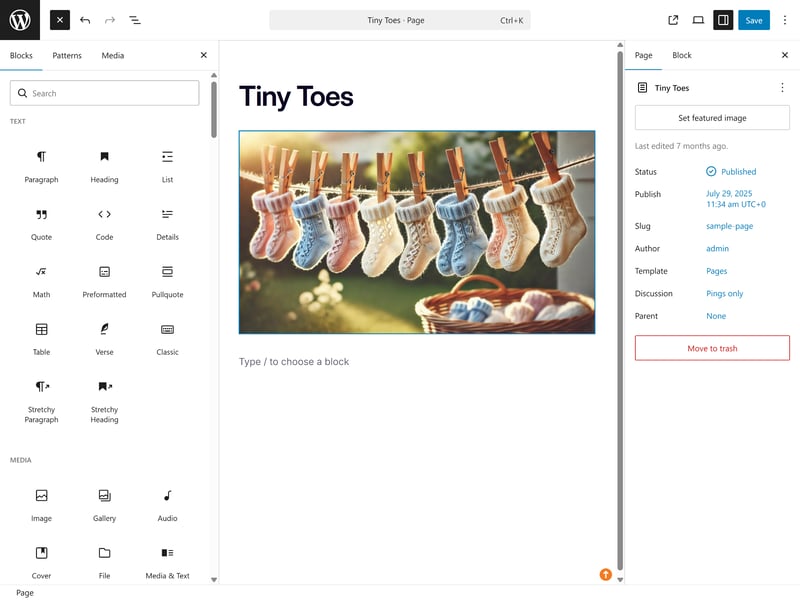
The block editor (Gutenberg) is included by default.
WordPress actually comes with two separate editors: the block editor and the site editor.
The block editor is where you create and edit individual pages and posts, such as your homepage, landing pages, or product descriptions.
The site editor (found under “Appearance” > “Editor” in your dashboard) controls your entire website, including global layouts and templates. It essentially extends the block editor across your whole site. In addition to pages and posts, it also covers headers, footers, shop templates, and archive pages — WordPress calls this “Full Site Editing”.
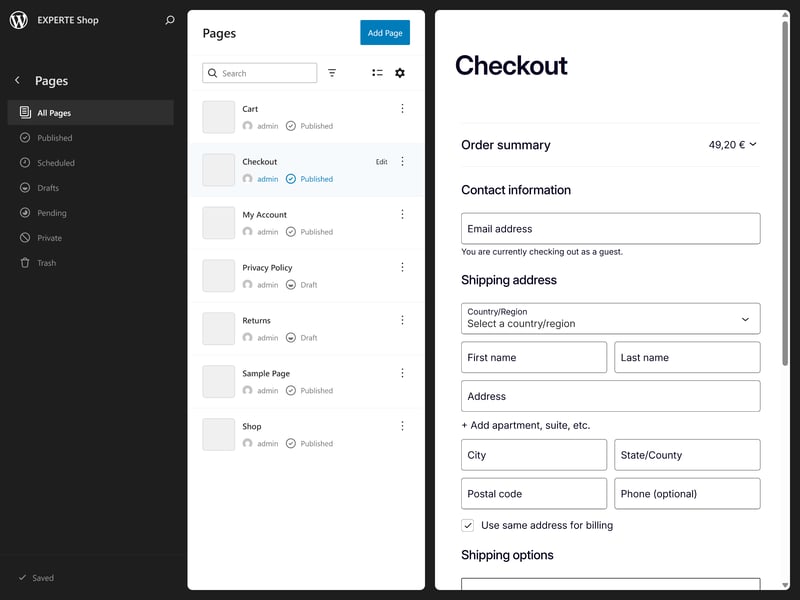
The site editor lets you customize your entire WordPress website.
At the end of the day, Gutenberg is a typical block-based page builder. It’s not quite as streamlined and polished as the editors from Wix or Squarespace, though. You can arrange content and build pages visually, but the overall experience is less intuitive and more technical.
It’s also more fragmented, since design, themes, and plugins are handled separately rather than in one unified system. For beginners, the learning curve is a bit steeper.
Designing with third-party page builders
Don't like Gutenberg? Thankfully, you're not stuck with it: WordPress offers a wide range of third-party page builders as plugins, such as Elementor, Divi, and Beaver Builder.
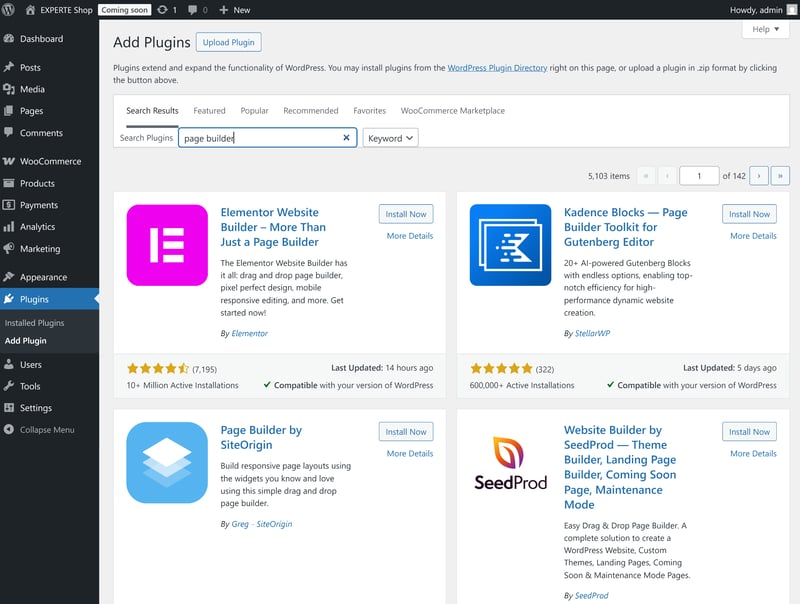
Third-party page builders are more powerful than Gutenberg.
Like Gutenberg, these tools use blocks or modules, but they put much more emphasis on visual editing. They also come with features Gutenberg lacks, such as animations, advanced styling options, and ready-made templates.
As a result, many of them feel closer to traditional website builders, similar to what you’d get with platforms like Wix, but combined with the flexibility of WordPress. They aim to offer the best of both worlds, though each tool comes with pros and cons, of course.
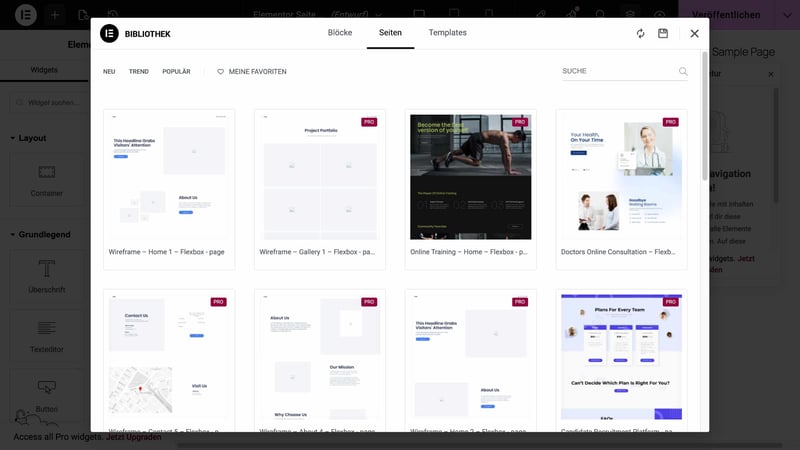
Elementor is a popular choice.
Still looking for a page builder? We've put together our top 5 here:

Designing with custom code
You can also go the custom route. The open-source nature of WordPress means you aren't restricted by anyone else’s design rules; you can build pretty much whatever you can dream up.
Since you have full access to the underlying code, you can override default settings, add your own CSS and JavaScript, or build your own theme from the ground up. Of course, this requires some serious coding chops (or the budget to hire a professional).
WooCommerce is highly customizable. Since it's built on WordPress, it lets you control most aspects of your store through themes, plugins, or custom code. If you can imagine it, there's likely a way to build it.
But that flexibility comes at a cost: making the most of it often requires technical know-how, and in many cases, paid plugins or developer support.
Product Management
| Product types |
| 1.5/4 |
| Product features |
| 3/3 |
| Product variants |
| 6/6 |
| Product pricing |
| 2/3 |
| Product organization |
| 2/2 |
| Inventory |
| 2/2 |
WooCommerce isn't just for small side-projects; it’s built to support serious sellers with complex needs. Its flexibility is one of its greatest strengths, though managing products works a bit differently than with “all-in-one” platforms like Shopify or BigCommerce.
Adding new products in the WordPress backend
Like all other WooCommerce features, the product module is baked right into WordPress. WooCommerce uses what’s known as a “custom post type” for products, which opens up a ton of possibilities for customization.
To add a product, just head over to your dashboard, go to "Products," and hit “Add New.”
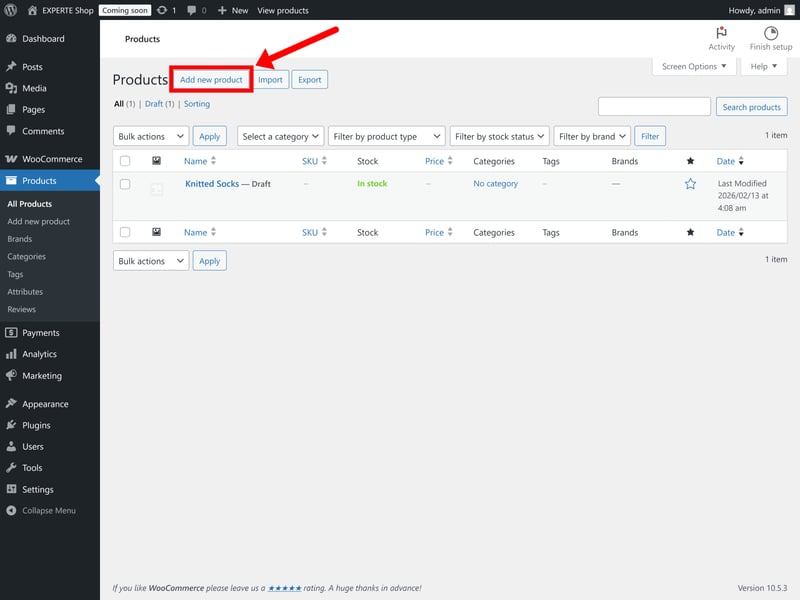
You can add new products directly in the WordPress dashboard.
The product form is based on the familiar WordPress post editor. The product name goes at the top, the description goes in the main field, and you’ll find all your organizational tools, like categories, tags, and images, neatly organized on the right-hand side.
Setting up physical and digital products
In the “Product Data” meta-box, you can define what type of product you’re selling. Out of the box, WooCommerce supports standard physical products, virtual products, and product bundles. This also includes full support for digital downloads.
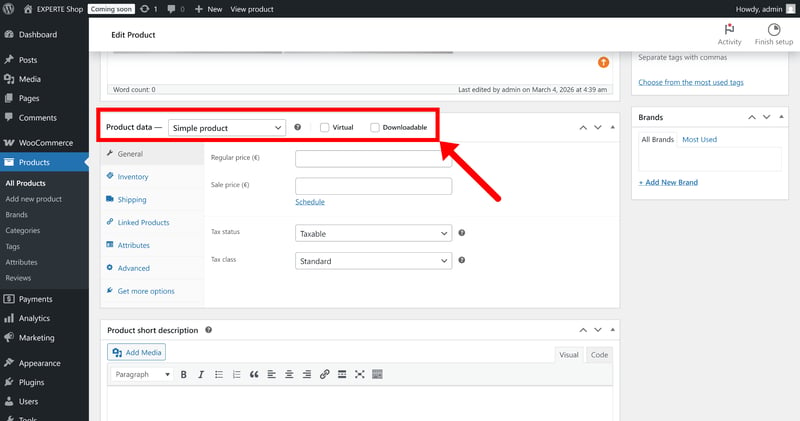
You can sell digital products, too.
If you want to sell a product type that's not supported out-of-the-box, you'll need a plugin. Some are official WooCommerce extensions, such as:
Gift Cards for WooCommerce for gift cards
WooCommerce Subscriptions for subscriptions
Product Add-Ons for customizable products and extras like engravings or gift wrapping
On top of WooCommerce’s official plugins, there are countless third-party options as well. Just keep in mind that many of them require paid subscriptions if you want the full feature set.
That flexibility is both a strength and a weakness of WooCommerce. The core platform is relatively lean, but many advanced features only become available through additional plugins, and those extra costs can quickly add up.
WooCommerce | Wix | Shopify | Squarespace | Ecwid | Hostinger | IONOS | BigCommerce | Jimdo | Sellfy | Square | |
|---|---|---|---|---|---|---|---|---|---|---|---|
✓ | ✓ | ✓ | ✓ | ✓ | ✓ | ✓ | ✓ | ✓ | ✓ | ✓ | |
✓ | ✓ | ✓ | ✓ | ✓ | ✓ | ✓ | ✓ | ✗ | ✓ | ✓ | |
✗ | ✓ | ✗ | ✓ | ✗ | ✓ | ✓ | ✗ | ✓ | ✗ | ✗ | |
✗ | ✓ | ✓ | ✓ | ✗ | ✗ | ✗ | ✗ | ✗ | ✗ | ✗ | |
✗ | ✓ | ✓ | ✓ | ✓ | ✓ | ✓ | ✓ | ✗ | ✗ | ✗ | |
✗ | ✓ | ✗ | ✗ | ✓ | ✓ | ✓ | ✓ | ✓ | ✗ | ✗ | |
✗ | ✓ | ✓ | ✓ | ✓ | ✗ | ✗ | ✗ | ✗ | ✓ | ✗ | |
✓ | ✓ | ✓ | ✗ | ✗ | ✗ | ✗ | ✗ | ✗ | ✗ | ✓ | |
Total | 3 | 8 | 6 | 6 | 5 | 5 | 5 | 4 | 3 | 3 | 3 |
Adding product details
The product editor is pretty straightforward and intuitive. You have the main description area (for text and media) and a separate “short description” field at the top of the product page.
Everything else, like pricing, inventory, and shipping, lives in the “Product data” meta box, where settings are organized into tabs.
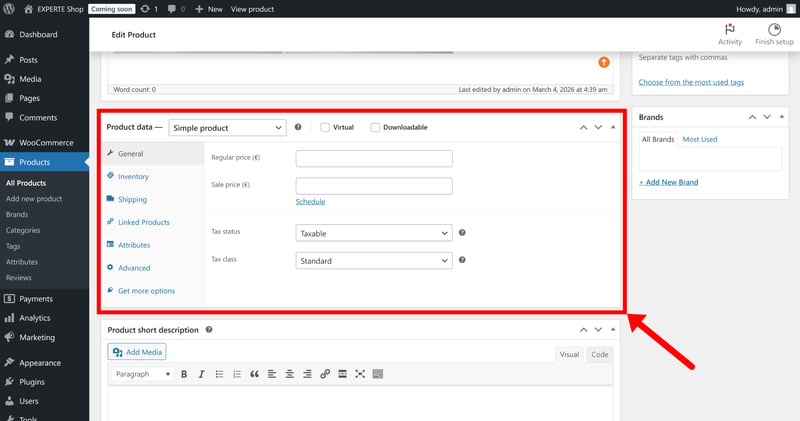
Entering your product details in the “Product data” section.
As is often the case with WooCommerce, the built-in features cover the basics but stay fairly lean. Quite a few settings that come standard on other platforms actually require a plugin or custom code here.
Pricing is a good example. Out of the box, WooCommerce lets you set a regular price, a sale price, and schedule promotions in advance. But if you need more advanced pricing features, like bulk discounts, tiered pricing, or automatic unit pricing, you’ll need to start looking for an appropriate plugin.
Setting up product variants
To create products with multiple options, simply select the “Variable product” type. In the “Attributes” section, you can define your criteria (such as size, color, or material) and their corresponding values (like S/M/L, Green/Blue, or Cotton/Polyester).
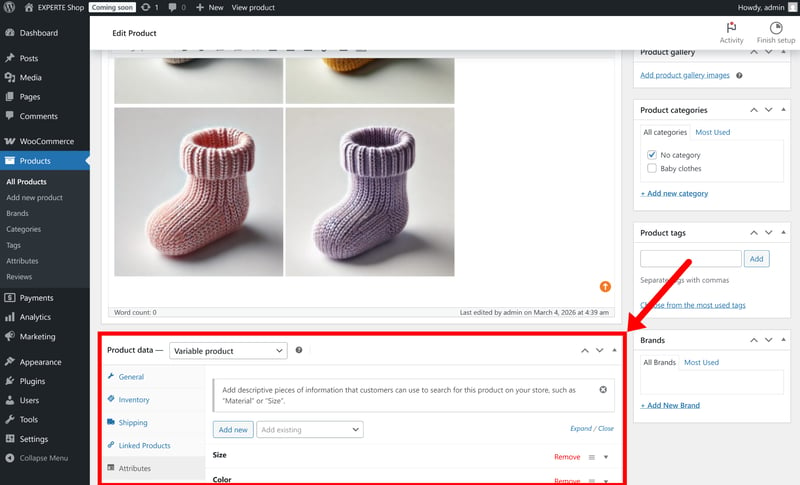
Offer your product in different variations.
Once your attributes are defined, the “Variations” tab allows you to manage each version of the product. You can generate every possible combination automatically or add them manually one by one.
Each individual variation can have its own price, SKU, stock level, shipping dimensions, and unique product image. While this system is highly flexible, it can become a bit overwhelming if you have a massive number of attributes.
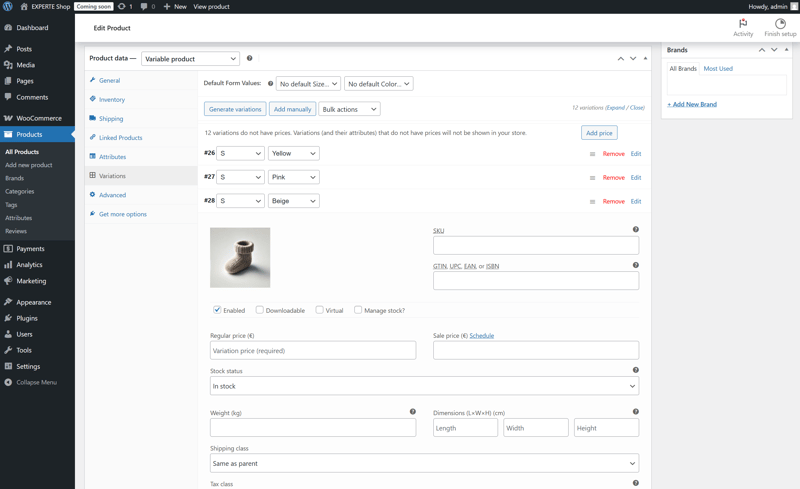
Variations can be generated automatically or created manually.
WooCommerce doesn't impose a hard cap on the number of variations you can create. Still, for highly complex setups or thousands of combinations, you might want to look into a custom solution or specialized plugins like Custom Product Variants.
WooCommerce | BigCommerce | Ecwid | Hostinger | IONOS | Shopify | Square | Squarespace | Sellfy | Wix | Jimdo | |
|---|---|---|---|---|---|---|---|---|---|---|---|
Max. number of options | unlimited | unlimited | unlimited | unlimited | unlimited | 3 | 6 | 6 | unlimited | 6 | 2 |
Max. number of variants | unlimited | 600 | unlimited | 100 | unlimited | 2048 | 250 | 250 | unlimited | 1000 | 36 |
Variant-specific images | ✓ | ✓ | ✓ | ✓ | ✓ | ✓ | ✓ | ✓ | ✓ | ✗ | ✗ |
Variant-specific pricing | ✓ | ✓ | ✓ | ✓ | ✓ | ✓ | ✓ | ✓ | ✓ | ✓ | ✗ |
Variant-specific SKU | ✓ | ✓ | ✓ | ✓ | ✓ | ✓ | ✓ | ✓ | ✗ | ✓ | ✗ |
Variant-specific inventory | ✓ | ✓ | ✓ | ✓ | ✓ | ✓ | ✓ | ✓ | ✓ | ✓ | ✗ |
Total | 4 | 4 | 4 | 4 | 4 | 4 | 4 | 4 | 3 | 3 | 0 |
Organizing products with categories, tags, and attributes
When it comes to organizing your product catalogue, WooCommerce builds on familiar WordPress concepts like categories and tags, and adds another layer: attributes.
Product categories work just like blog categories in WordPress. They allow for a hierarchical structure, meaning you can have a top-level category like “Clothing” with nested subcategories such as “T-Shirts”, “Pants”, or “Jackets”. This is the primary way to organize your catalogue and help customers navigate your store.
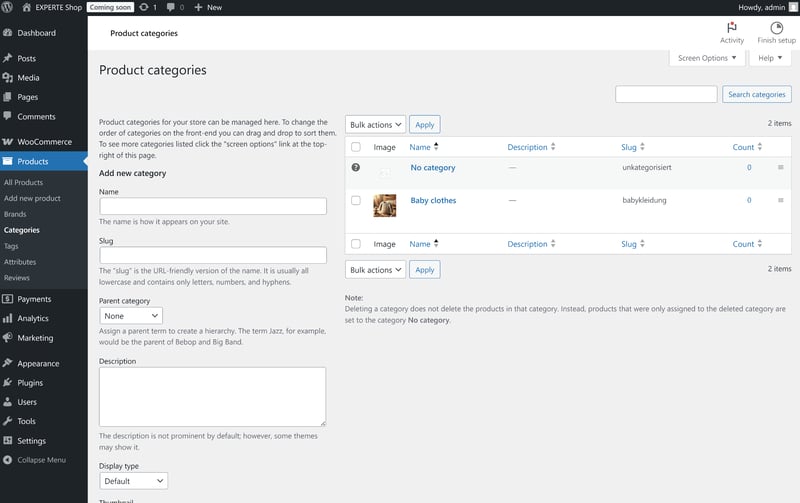
Assign categories to your products to keep them organized.
Tags offer a more flexible way to label products. They are handy for grouping items by specific traits or collections that don't fit into a hierarchy, such as “Summer Collection”, “Eco-Friendly”, or “Sale”. Tags are particularly useful for helping customers find specific types of items across different categories.
Product Attributes serve a dual purpose. First, they are the engine behind product variations (as discussed earlier). Second, they enable customers to filter your shop by specific data points like size, color, or material.
Out of the box, WooCommerce provides basic filtering widgets for price and attributes, which is usually sufficient for smaller shops.
If you need advanced features, like multi-level filtering or real-time updates, you'll likely need a dedicated plugin to handle the heavy lifting.
Managing your inventory
WooCommerce handles all the basics of inventory tracking right out of the box. You can set stock levels at both the product and variation level, and quantities are updated automatically as orders come in. It also supports low-stock notifications, automatically labeling items as “out of stock”.
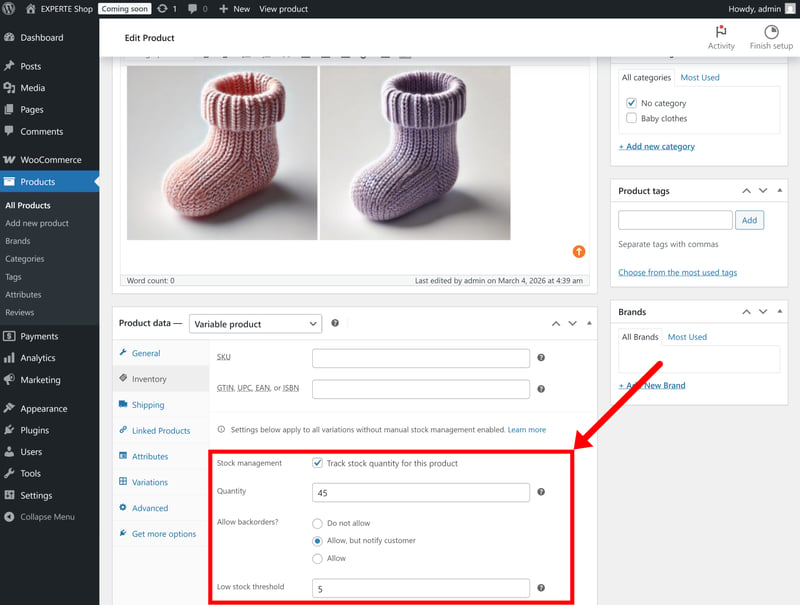
Stock management in WooCommerce.
The built-in features are fine for a single location, but they aren't really designed for multi-warehouse or multichannel selling. If you need to sync stock with marketplaces like Amazon or a physical POS system, you’ll probably need a third-party integration or a custom build to keep your counts accurate.
WooCommerce is a great choice for both small shops and serious sellers with large inventories. It includes all the basics you need to run a professional store, even if it lacks the “out-of-the-box” polish of a platform like Shopify.
The core platform is pretty lean, though, and many advanced settings require plugins or custom work. The upside is that there are very few actual limits. WooCommerce can handle even the most complex setups with thousands of variations, provided you have the budget and the technical expertise to set it up correctly.
Sales Features
| Taxes |
| 2/3 |
| Shipping options |
| 2/3 |
| Discounts |
| 2/3 |
| Payment providers |
| 2.75/3 |
| Order management |
| 2/2 |
| Advanced features |
| 6/6 |
WooCommerce covers all the most important core selling features out of the box and lets you add almost everything else through plugins.
Picking a payment provider
The quickest way to take payments is WooPayments. It’s a native extension that’s free to install and carries no monthly fees. You only pay a percentage per transaction (starting at 2.9% + $0.30 in the US). It handles all the standard options like credit cards and “express” buttons for Apple Pay and Google Pay.
You're not restricted Woo's in-house gateway, though. If you prefer to use Stripe, PayPal, Mollie, or Klarna, you can integrate them easily. Unlike Shopify, Woo doesn't punish you with transaction fees for going third-party either.
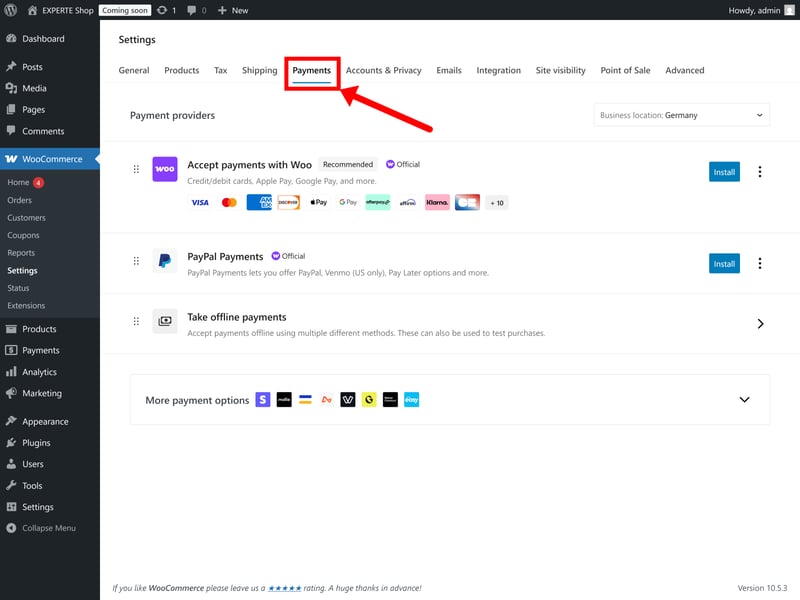
Payment settings in WooCommerce.
WooCommerce also includes several core offline methods by default, such as Direct Bank Transfer (BACS), Cash on Delivery, and Check payments.
WooCommerce | Shopify | Ecwid | IONOS | Wix | BigCommerce | Squarespace | Hostinger | Jimdo | Sellfy | Square | |
|---|---|---|---|---|---|---|---|---|---|---|---|
Number of payment providers | 19 | 100 | 120 | 120 | 80 | 65 | 5 | 4 | 2 | 2 | 1 |
Paypal | ✓ | ✓ | ✓ | ✓ | ✓ | ✓ | ✓ | ✓ | ✓ | ✓ | ✗ |
Stripe | ✓ | ✓ | ✓ | ✓ | ✓ | ✓ | ✓ | ✓ | ✓ | ✓ | ✗ |
Square | ✓ | ✗ | ✗ | ✗ | ✗ | ✗ | ✓ | ✗ | ✗ | ✗ | ✓ |
Amazon Pay | ✓ | ✓ | ✓ | ✓ | ✗ | ✓ | ✗ | ✗ | ✗ | ✗ | ✗ |
Klarna | ✓ | ✓ | ✓ | ✓ | ✓ | ✓ | ✓ | ✗ | ✗ | ✗ | ✗ |
Mollie | ✓ | ✓ | ✓ | ✓ | ✓ | ✗ | ✗ | ✗ | ✗ | ✗ | ✗ |
Native payment solution | ✓ | ✓ | ✗ | ✗ | ✓ | ✗ | ✓ | ✗ | ✗ | ✗ | ✗ |
Manual payment methods | ✓ | ✓ | ✓ | ✓ | ✓ | ✓ | ✗ | ✓ | ✗ | ✗ | ✗ |
Total | 8 | 7 | 6 | 6 | 6 | 5 | 5 | 3 | 2 | 2 | 1 |
Setting up taxes
WooCommerce takes a self-managed approach to taxes. The features aren't active by default; you have to manually toggle them in the “General Settings” before the configuration tab even appears.
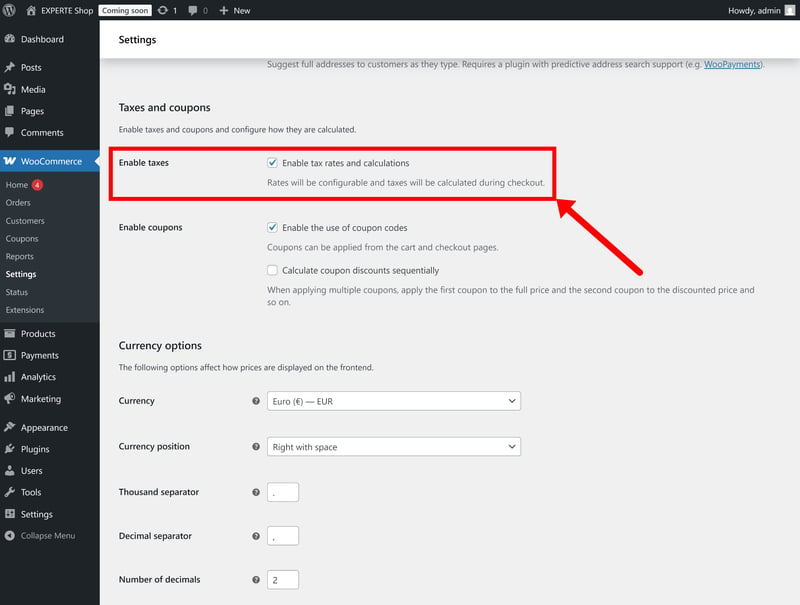
You'll need to enable the tax feature manually.
Once enabled, the platform offers a high degree of control. You can decide whether to enter prices inclusive or exclusive of tax, choose which address to use for calculations (shipping, billing, or store base), and define how shipping is taxed.
The system is essentially a blank slate, though. Unlike SaaS platforms that often have pre-configured regional rates, WooCommerce requires you to manually populate your own tax tables with country codes, zip codes, and specific percentages.
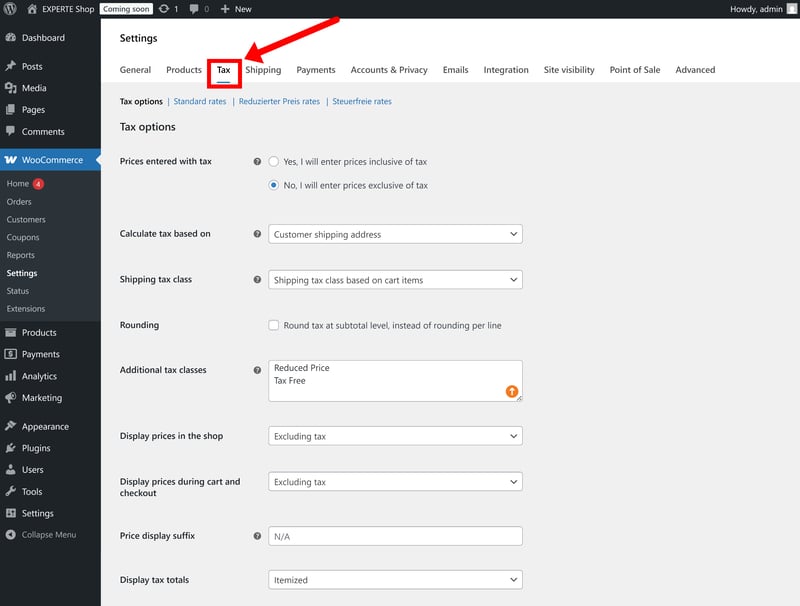
Tax settings in WooCommerce.
While this gives you the flexibility to handle complex tax priorities or “reduced rate” classes, it also creates significant room for error. You are responsible for sourcing the correct rates and keeping them updated as laws change.
If you’re dealing with multiple jurisdictions or want to avoid the manual overhead, you might want to integrate a service like Avalara or the WooCommerce Tax extension to automate the process and ensure compliance. As usual with plugins, these come with additional subscription costs, though.
Shipping and fulfillment
WooCommerce uses a flexible, zone-based shipping system. You can define specific geographical areas, ranging from entire continents down to individual zip codes, and assign unique shipping methods to each one.
The most important thing to understand is the hierarchy. WooCommerce checks your zones from top to bottom and stops as soon as it finds a match for the customer’s address. Because of this, you should always list your smallest, most specific zones (like local zip codes) at the top of the list and broader areas (like “Europe” or “Rest of the World”) at the bottom.
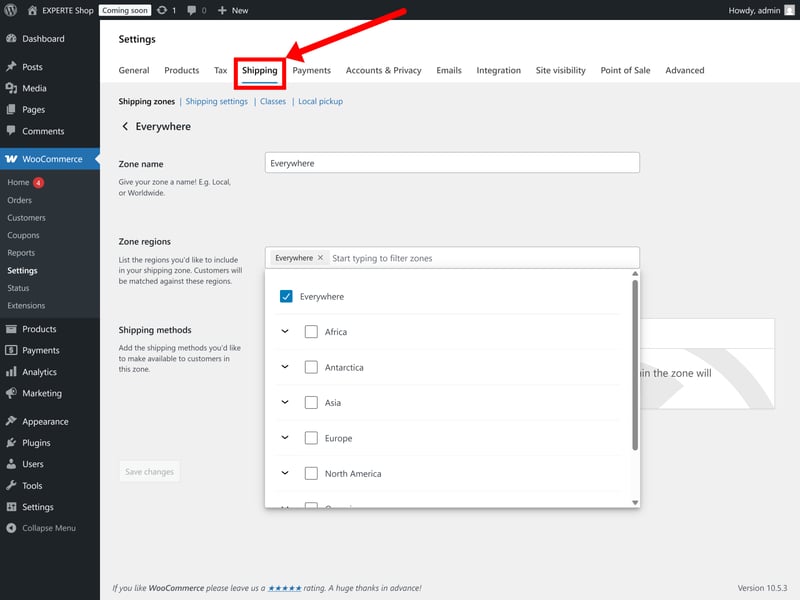
Shipping options in WooCommerce.
Out of the box, WooCommerce only includes three basic shipping methods:
Flat Rate: A fixed charge per order or item.
Free Shipping: Triggered by coupons or minimum spend.
Local Pickup: Allows customers to collect orders themselves.
While these cover the basics, the core system is fairly limited. For example, weight-based shipping isn’t built-in. To handle it without a plugin, you have to use “shipping classes” as a workaround, which can be tedious to manage. Plugins like Weight Based Shipping can make this much easier.
If you need real-time rate calculations from carriers like DHL, UPS, or FedEx, you’ll need to look into third-party extensions as well. These plugins also handle the heavy lifting of fulfillment, such as printing shipping labels directly from your dashboard and automatically sending tracking info to your customers.
Coupons and promotions
WooCommerce has a built-in coupon engine located in the “Marketing” section. It covers the essentials, allowing you to create percentage or fixed-amount discounts and set basic restrictions like minimum spend, usage limits, or product exclusions.
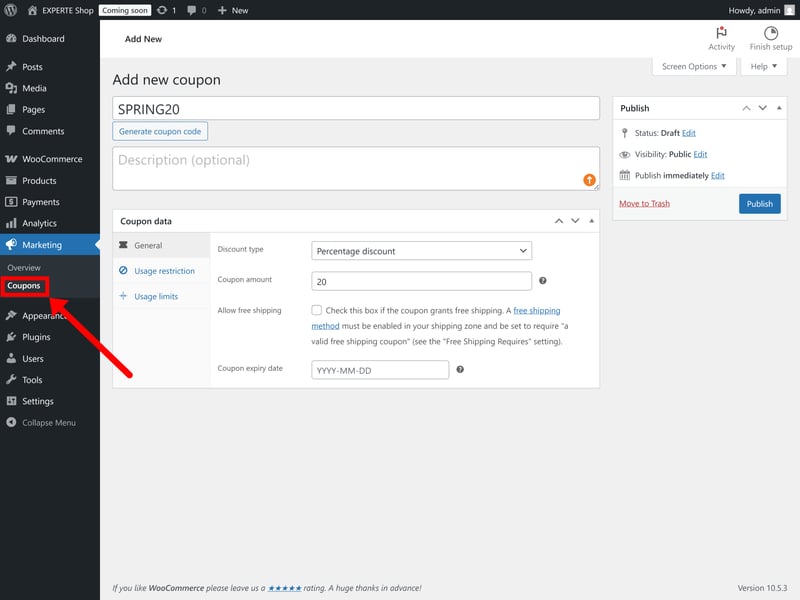
Encourage purchases with coupons.
But once again, the native system is rather limited. It's built almost entirely around manual coupon codes that customers have to enter themselves.
If you want to run more advanced promotions, like “Buy One, Get One Free” deals or automatic discounts that apply as soon as a customer hits a certain spending threshold, you'll need to upgrade to a plugin (such as “WooCommerce Dynamic Pricing”) or use a custom solution.
Managing your orders
All your incoming sales are managed under “WooCommerce” > “Orders”. The overview shows all the essentials at a glance, including order number, customer name, date, and current status. You can filter orders by date or by status, such as Pending payment, Processing, or Completed.
Clicking on an individual order opens up a more detailed view. From here, you can handle the specific logistics of the sale, like updating the status, manually editing items in the cart, or processing refunds.
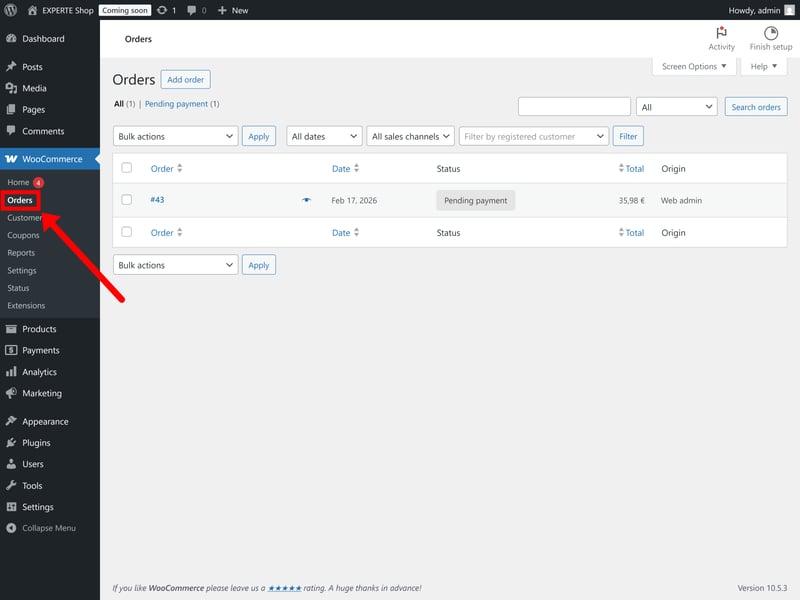
WooCommerce's order dashboard.
There's a plugin for everything
Just like with WordPress, if you’re wondering whether WooCommerce can handle a specific task, the answer is almost always “yes” — you just need the right plugin.
That’s one of the platform’s biggest strengths. Instead of forcing you into a fixed set of features, WooCommerce gives you a solid base and lets you build on top of it. You add what you need, when you need it, which helps keep things flexible without overloading the system from the start.
The sheer variety of plugins is unmatched. Whether you need support for multi-currency stores, dropshipping, POS systems, or complex B2B tools, there's likely a well-supported integration ready to go. This ecosystem is significantly larger and more diverse than anything you’ll find on a more closed platform like Shopify or Wix.
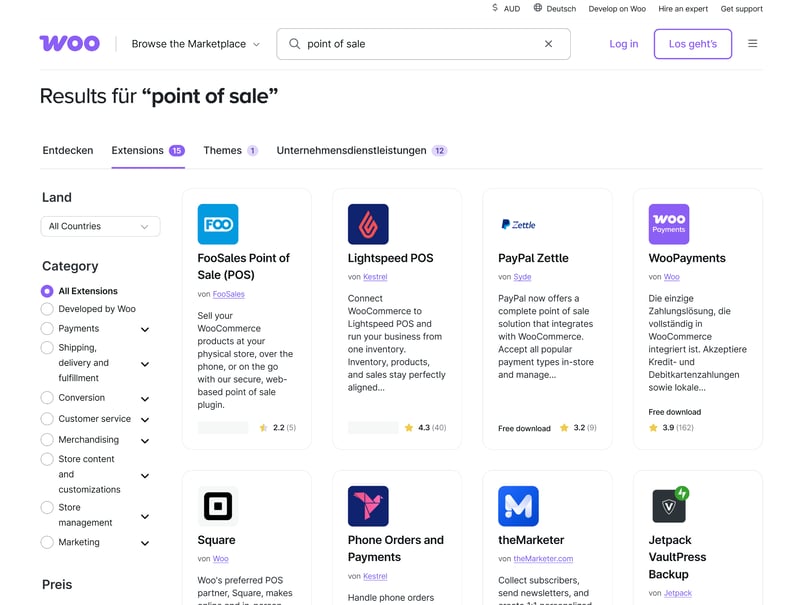
If you need it, there's a plugin for it.
WooCommerce is also highly developer-friendly. It includes a REST API for connecting to external tools like an ERP or CRM. Developers can also use hooks and filters to tweak almost any part of the software’s behavior.
Beware of plugin bloat, though. Every plugin adds another layer of complexity. More plugins mean more potential for software conflicts, slower load times, and a higher maintenance burden. To keep your store stable and fast, it’s important to be selective and only install what's absolutely necessary for your operations.
Products, payments, taxes, shipping, order management: the core ecommerce features are all there and highly customizable. WooCommerce covers the essentials well, but the platform’s real strength is how much you can build on top of that foundation.
The built-in feature set is fairly lean, though. More advanced functionality often requires extra plugins or custom development, and many of those extensions come with additional costs. WooCommerce can be expanded almost endlessly, but that flexibility also brings more technical complexity and maintenance overhead.
Customer Support
| Documentation and tutorials |
| 2/2 |
| Support channels |
| 0.5/2 |
| Speed and quality |
| 0/3 |
| Customer reviews |
| 0/3 |
WooCommerce doesn’t really offer traditional customer support, at least not in the way SaaS platforms like Shopify do. Since the core platform is free, it doesn’t come with dedicated customer service. Human help is only available for paid products purchased through WooCommerce.com, such as certain official extensions.
For general questions about the plugin, there’s no central support channel. Instead, the company points you to the WordPress forums, where you can ask questions and get help from the community.
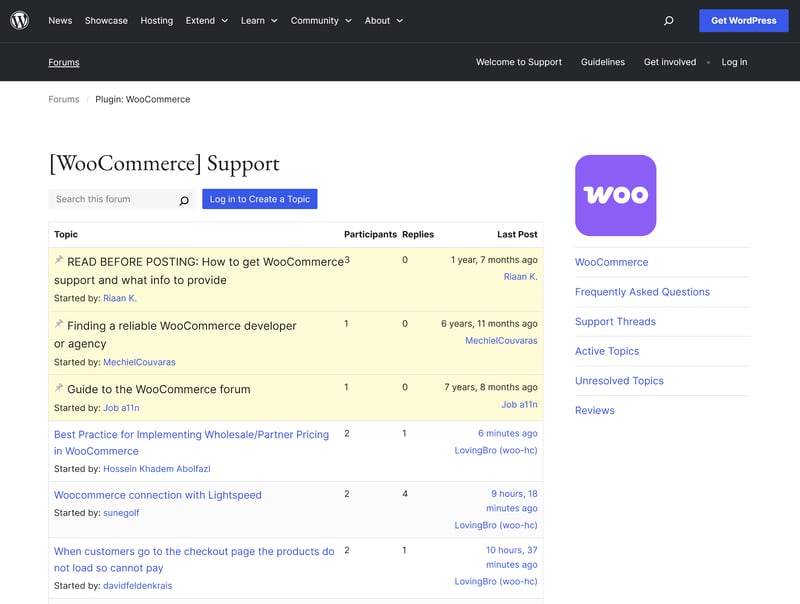
You can ask the Woo community for help.
Plenty of learning resources
That said, you’re not really on your own. Not only does WooCommerce offer extensive documentation, there’s also a huge amount of additional content created by the community. You’ll find guides, tutorials, videos, and walkthroughs for almost every feature and use case.
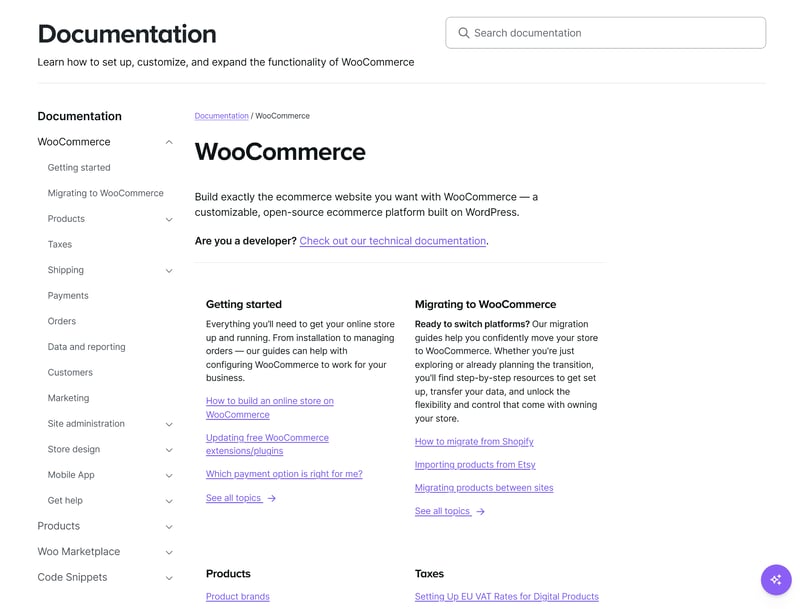
WooCommerce documentation.
Because WooCommerce powers millions of websites, chances are someone has already run into the same issue — and shared a solution somewhere in the web. There are also plenty of courses and step-by-step-guides to help you get started.
WooCommerce doesn't come with a dedicated support team. As an open-source tool, it requires a bit more initiative and a “learn-as-you-go” mindset. You won’t have one specific person to email for help, but you will have access to a wealth of knowledge via forums, tutorials, and a global community that is absolutely massive.
Pricing
| Costs for a small shop | $10.00 | 4/6 |
| Costs for medium-sized shop | $10.00 | 6/6 |
| Costs for large shop | $19.93 | 3/3 |
| Pricing model |
| 2.5/3 |
| Trial version |
| 2/2 |
The WooCommerce plugin itself is completely free to download and use. That doesn't mean that running a WooCommerce store doesn't cost anything. At a minimum, you’ll need to pay for a domain name and web hosting.
We went with a WordPress hosting plan from IONOS, but that's just one option among many.
| Hosting | Hosting & MultilingualPress | ||
|---|---|---|---|
| Monthly price | from $10.00 | from $19.93 | |
| Contract period (months) | 1 - 36 | 1 - 36 | |
| Product management | |||
| Number of products | unlimited | unlimited | |
| Product filters | ✓ | ✓ | |
| Product variants | ✓ | ✓ | |
| Product inventory | ✓ | ✓ | |
| Product reviews | ✓ | ✓ | |
| Internationalization | |||
| Multiple languages | ✗ | ✓ | |
| Multiple currencies | ✗ | ✗ | |
| Automatic tax calculation | ✓ | ✓ | |
Hosting isn't your only potential expense. One of the best things about WooCommerce is its huge library of plugins, but many of these cost extra. You might also decide to pay for a premium theme or plugin.
Finally, don’t forget about transaction fees. Every time a customer buys something, your payment provider will take a small cut. For example, WooPayments typically charges 1.5% plus $0.30 per card transaction.
Comparing WooCommerce to the competition
To compare the platforms somewhat fairly, we estimated the base monthly costs for three different store scenarios:
Small store: 10 products, up to $10,000 in annual sales, with a custom domain
Medium store: 500 products, up to $200,000 in annual sales, with product variations
Large store: 10,000 products, up to $2 million in annual sales, with variations, product filters, and multilingual support
It’s difficult to fit WooCommerce into this comparison, since the pricing model works very differently. Because WooCommerce doesn’t have its own subscription tiers, we based our calculations on our managed WordPress hosting setup from IONOS. Of course, the actual costs can vary quite a bit depending on your hosting provider, choice of plugins, and technical requirements.
| Small shop | Mid-size shop | Large shop | |
|---|---|---|---|
| $2.75 | $2.75 | |
| $10.00 | $10.00 | $19.93 |
| $10.00 | $10.00 | $19.93 |
| $11.75 | $11.75 | $11.75 |
| $12.60 | $22.00 | |
| $14.00 | $14.00 | $68.00 |
| $22.00 | $119.00 | |
| $23.00 | $23.00 | |
| $25.00 | $45.00 | $105.00 |
| $29.00 | $299.00 | |
| $29.00 | $29.00 | $29.00 |
Looking purely at the cost of hosting and the core store setup, WooCommerce looks pretty affordable. But as you add more features and need more resources, the costs can start to climb. Even so, WooCommerce is often the cheaper choice in the long run, since you only pay for the features and services you actually need.
Another big advantage is the lack of vendor-lock-in. If Shopify decides to raise its monthly fees or transaction costs, you’ll need to pay up (or move your store to a whole new platform). With WooCommerce, you can just switch to a different hosting provider.
It’s hard to say for sure if WooCommerce is cheaper or more expensive than other platforms. It really depends on your specific setup, from the choice of hosting provider to your themes, plugins, and extra features. Just like with the rest of the platform, the main benefit is control: it's largely up to you to decide exactly what you spend your money on.
Final Verdict: Woocommerce Gives You Full Control — If You Can Handle It
WooCommerce has become the default ecommerce solution for WordPress for a reason. It integrates seamlessly into the WordPress ecosystem and gives you far more control over your store than most hosted ecommerce platforms.
That freedom comes with added responsibility, though. Unlike all-in-one platforms like Shopify, you’re responsible for things like hosting, security, backups, and updates yourself. That means a steeper learning curve, especially for beginners or less technical users, and more ongoing maintenance overall.
In return, you get a level of flexibility that closed platforms simply can’t match. WooCommerce can grow as big as you need it to, really. You also aren't tied down to one company's pricing or infrastructure: you have the freedom to switch hosts, payment processors, or tools whenever you want.
In short, WooCommerce is much more powerful and flexible than closed platforms, but to really unlock its full potential, you’ll need some technical know-how (or the budget to hire a developer).

WooCommerce User Feedback
What do users actually think about WooCommerce? We looked at reviews on sites like Trustpilot to see what real customers are saying. Here are some of the pros and cons that came up most often:
Perfect fit for WordPress
WordPress users describe WooCommerce as a natural extension. It’s the easiest way to add a store to an existing WordPress site.Endless flexibility
Reviewers love that you can build almost any type of business with it. With so many plugins available, you can customize your store exactly how you want.Easy to get started
Many users found it quick and easy to get their first shop up and running. It helps that the plugin itself is free to use.
Too much reliance on plugins
Some users complain that you need extra plugins for almost everything. The costs can add up fast.Too technical
Beginners often feel overwhelmed by the interface. Without some technical experience (or a developer to help), it can be a struggle to set up certain features.Updates & performance issues
Some users run into plugin conflicts or bugs after an update. As a store gets bigger and more complex, keeping everything running smoothly can be a challenge.
Top WooCommerce Alternatives
If WooCommerce doesn't feel like the right fit for you, here are a few alternatives to consider:
Shopify: The no-fuss, all-in-one choice
If you want to skip the technical setup entirely, you're better off with a closed “all-in-one” system, and Shopify is the best of the bunch. You won’t have to deal with hosting, security updates, or plugin conflicts because everything is handled for you.Wix or Squarespace: Design-focused website builders
If you just want to build a nice-looking website to sell a few products, a website builder like Wix or Squarespace might be enough. They don't have the ecommerce capabilities of a dedicated platform, but they're decent enough for smaller stores.
Find the best WooCommerce alternatives here: