WordPress.com Review 2026: Hosting by the Creators of WordPress


Want to use WordPress but skip the hosting and technical maintenance? Managed WordPress hosting might be the right choice. The team behind WordPress even offers its own managed hosting service. But how does WordPress.com stack up against the many alternatives from other hosting providers?
We put WordPress.com’s managed WordPress hosting to the test to see how well it holds up in everyday use.


WordPress.com* is a specialized web hosting service from Automattic, the company founded by Matt Mullenweg, the co-founder of WordPress itself. Since the term “WordPress” can mean different things, let’s clarify:
WordPress is a free, open-source CMS that lets you build websites.
WordPress.org is the online hub where you can download the WordPress software, contribute to its development, and access resources.
WordPress.com is a hosting service that handles the technical side of your WordPress projects. It works much like hosting providers such as Kinsta, Raidboxes, or SiteGround. The key difference? It’s run by the WordPress team itself.
If you’re looking for professional hosting for your WordPress site, WordPress.com is a natural choice. But is it a good one? That’s what we’re here to find out.
WordPress.com Review: WordPress Hosting Put to the Test
Quick WordPress setup
WordPress.com sets up your first WordPress site automatically. Additional sites take just a few minutes to create.Modern technology
The platform supports NGINX, HTTP/3, multiple caching layers, and includes a built-in CDN.Perfect uptime, solid performance
In our performance test, WordPress.com achieved 100% uptime. Strong Pagespeed scores also mean fast loading times.Strong security features
The host protects your sites with SSL, a firewall, DDoS protection, and brute-force login prevention. It detects malware and removes it for free.
Automatic backups not always included
Automatic backups are only available starting with the Business plan. That’s surprising for a managed WordPress host, since regular backups are one of the most important security features.Two dashboards create confusion
The hosting panel and WordPress dashboard overlap in places. Some features are duplicated or tucked away in unexpected spots.
Setup & Ease of Use
| Installation & setup |
| 3/3 |
| Migration |
| 1.5/2 |
| Control Panel |
| 4/10 |
With WordPress.com, your choices are simple: pick a managed hosting plan and, if you like, add a domain right away. That’s all it takes to get started.
Every paid plan includes a free domain for the first twelve months if you commit to at least a one-year term. Not ready to decide? WordPress.com gives you a free subdomain to use instead.
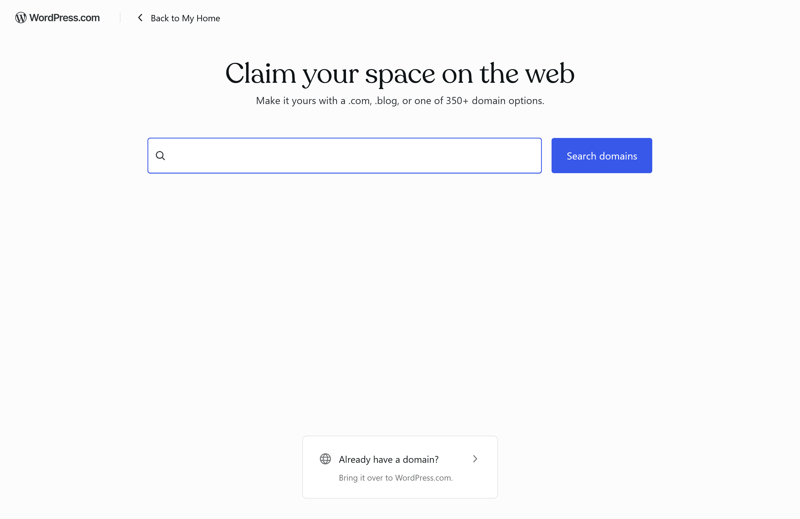
Domain selection on WordPress.com.
Once you sign up with your personal details, you get instant access to the hosting dashboard. There’s no waiting for approval—something not all hosts offer even today.
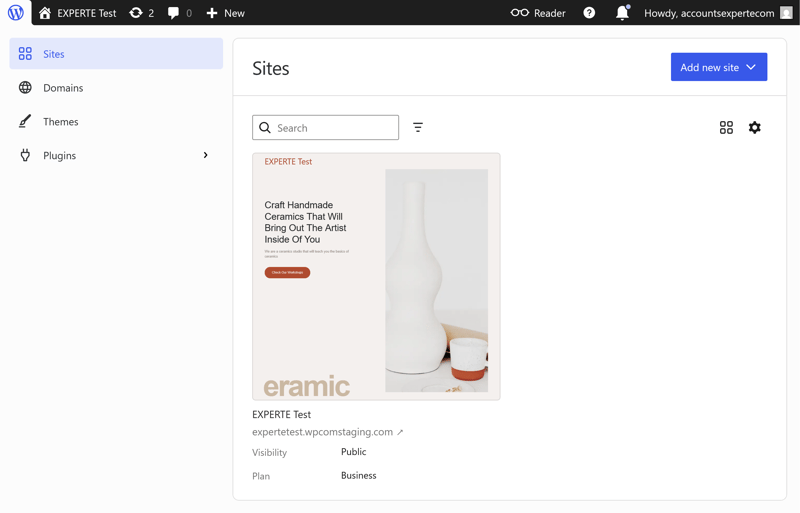
The websites view in the WordPress.com hosting dashboard.
Get started fast with pre-installed WordPress
WordPress.com saves you time by setting up your first WordPress site automatically when you sign up for a plan. You also get full access to the WordPress admin area right away.
The admin area looks a little different from a self-hosted WordPress site. One giveaway is the “My Home” section WordPress.com adds to the navigation menu:
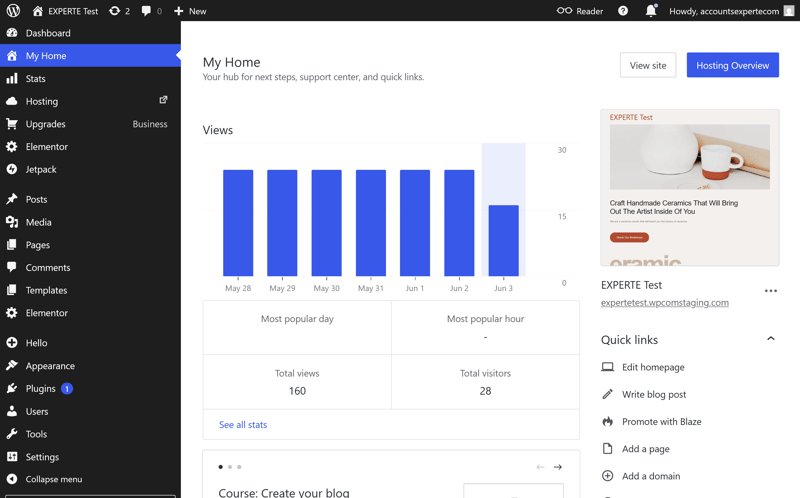
The “My Home” section in the WordPress.com admin area.
Get a new WordPress site up fast
Don't like the pre-built site, or want to create another one? You can do it through the separate hosting panel. You have two options: set up a blank WordPress installation or let AI help you build your site.
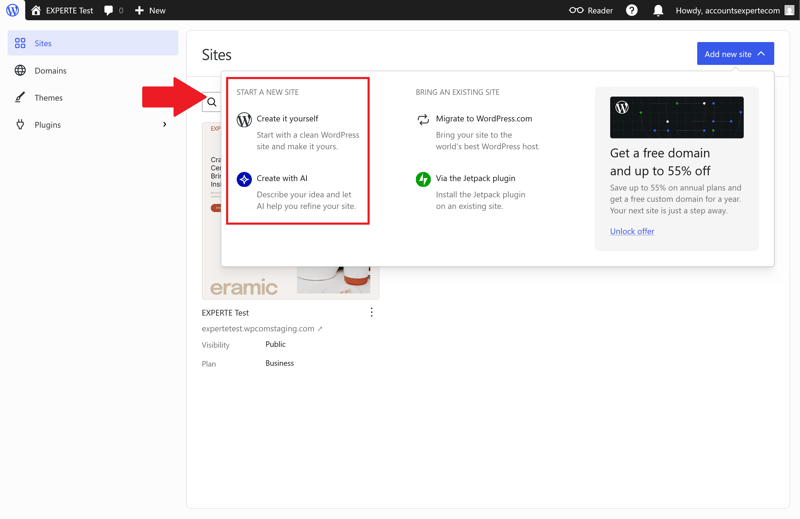
Choose between a classic setup or AI-powered assistance.
The classic setup is simple. Pick a domain, name your site, and WordPress.com handles the rest. No extra settings are needed to get started.
In our test, the setup took about a minute. After that, you land in the WordPress dashboard, where you can pick themes, add plugins, and start creating content. This option works best for users who already know WordPress or want full control over their site.
Paid plans no longer include a wordpress.com subdomain. Instead, the provider only offers wpcomstaging.com addresses.
The AI builder creates a basic site structure based on your input. Just describe what you need in plain language, like a portfolio or a small business website.
After a few follow-up questions, the AI generates a layout, color scheme, and sample content.
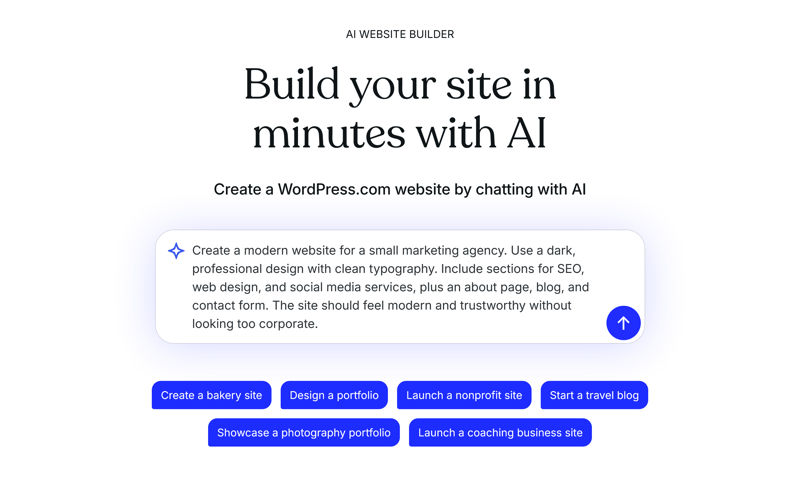
The AI builder works with natural language input.
The AI builder can save time, but it won't do all the work for you. The results feel pretty generic at first, so if you want a unique site, you'll need to tweak it yourself.
Migrate your WordPress site to WordPress.com
Already have a WordPress website? You don’t have to rebuild it from scratch. WordPress.com offers free tools to move your existing site with minimal hassle.
You can either let the WordPress.com team handle the move or use a plugin to do it yourself. The best option depends on how much work you want to take on.
The guided migration is for users who want to skip the technical details. The WordPress.com team handles most of the process for you.
Here’s how the guided migration works step by step.
First, enter the address of your current website. WordPress.com will then check your setup.
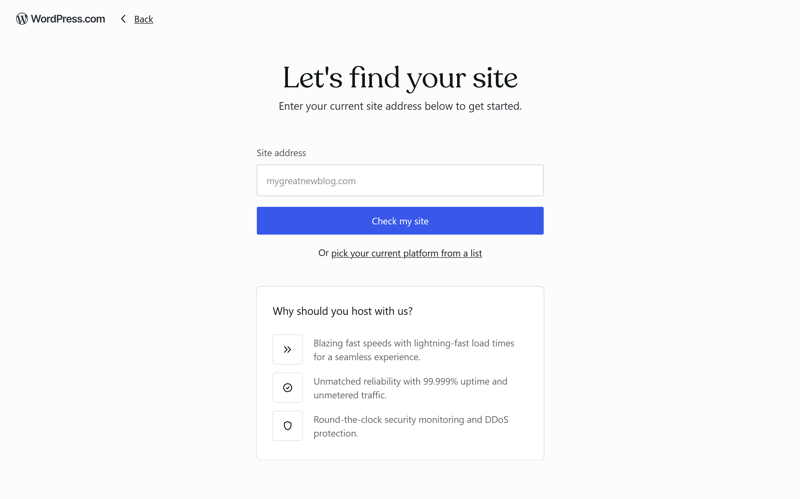
Enter the URL of your existing website.
Next, pick the destination site on WordPress.com. This can be a new site or an existing one. If you choose an existing site, the system warns you that current content will be overwritten.
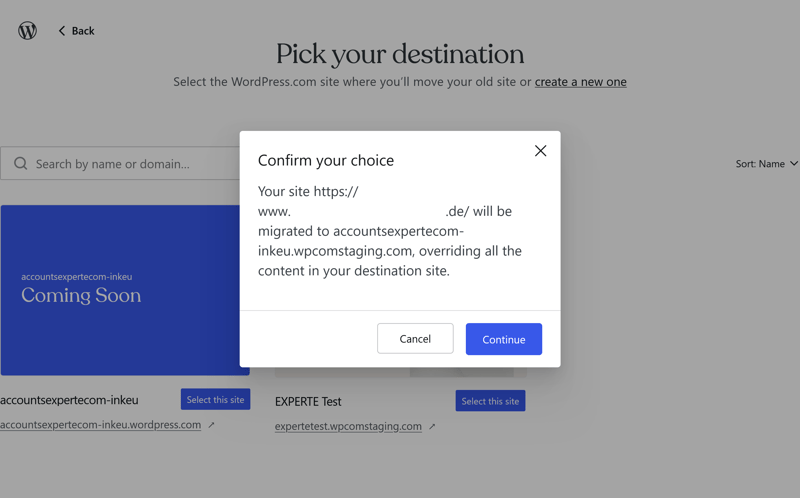
Select the destination site for your migration.
Then decide whether to move everything, including themes, plugins, and settings, or just your content, like posts, pages, comments, and media files.
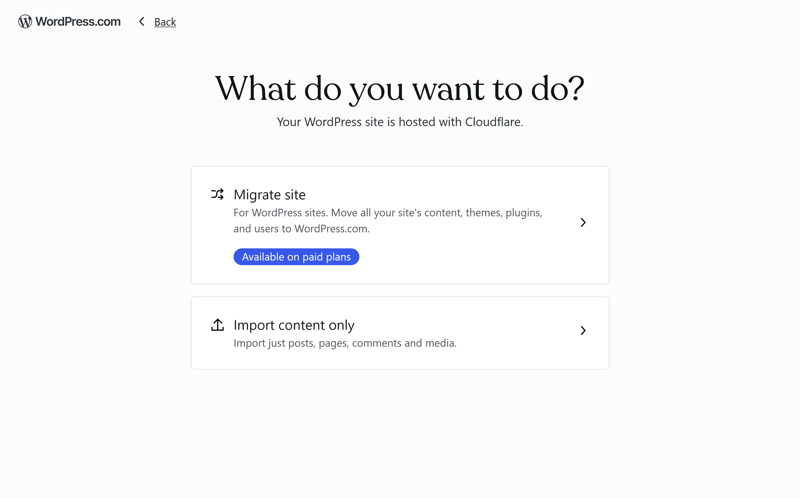
Choose which content WordPress.com should transfer.
The migration team at WordPress.com handles the actual move. To achieve this, they need access to your existing website.
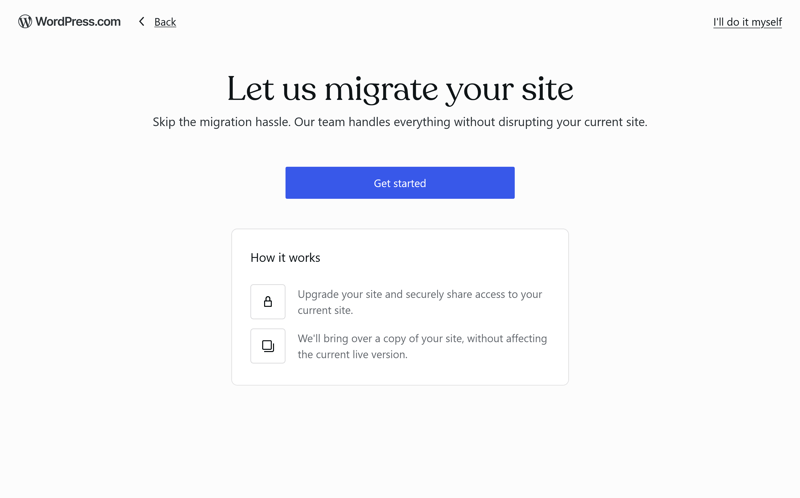
Let the WordPress.com team migrate your website.
You can either grant them access to your WordPress backend or provide an existing backup. A shared link to a service like Google Drive or Dropbox works just fine.
According to WordPress.com, migrations typically take two to three days. In our test, it was much faster: our 170 MB demo site, complete with numerous plugins, was transferred fully and flawlessly in about six hours.
That’s a great result, but other hosting providers can handle similar migrations in just minutes. Their process is fully automated, with no manual intervention needed.
WordPress.com does offer a manual alternative with its Migrate-to-WordPress.com plugin. But when it comes to its assisted migration service, it isn’t the fastest option out there.
Two dashboards – and some annoying overlap
WordPress.com separates the WordPress admin area from the main hosting panel, where you manage website and domain settings.
The hosting panel is modern, responsive, and available in many languages. The interface looks like a major cloud platform: clean, with large buttons, plenty of white space, and an overall uncluttered design.
The interface is generally clean, but some features are buried too deep in submenus. To find certain settings, you might have to click through multiple layers.
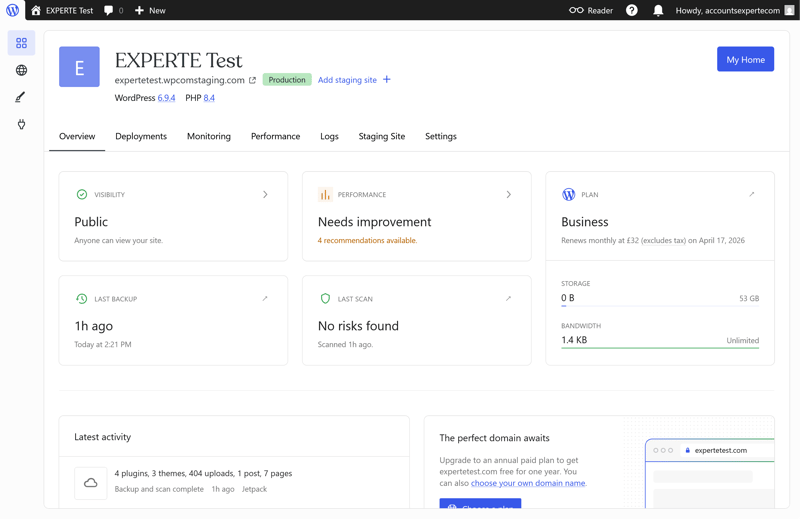
The hosting panel gives you a quick overview of all your key website data.
The monitoring section shows stats on server load, request volume, and response times. It’s not as detailed as dedicated monitoring tools, but it gives you enough data to spot performance issues or unusual traffic spikes.
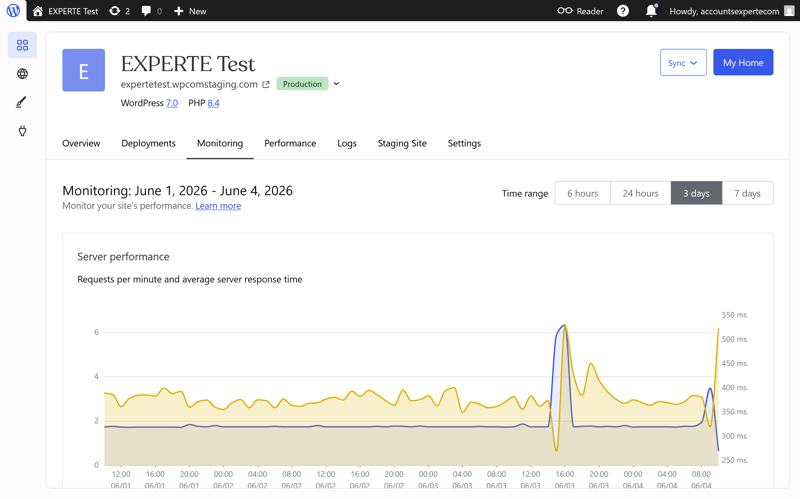
The monitoring dashboard includes response time data, among other metrics.
You also get access to the WordPress admin area. It’s based on the familiar WordPress.org dashboard but adds extra features.
For beginners, two separate dashboards can be confusing, especially since some features appear in both the hosting panel and the WordPress backend.
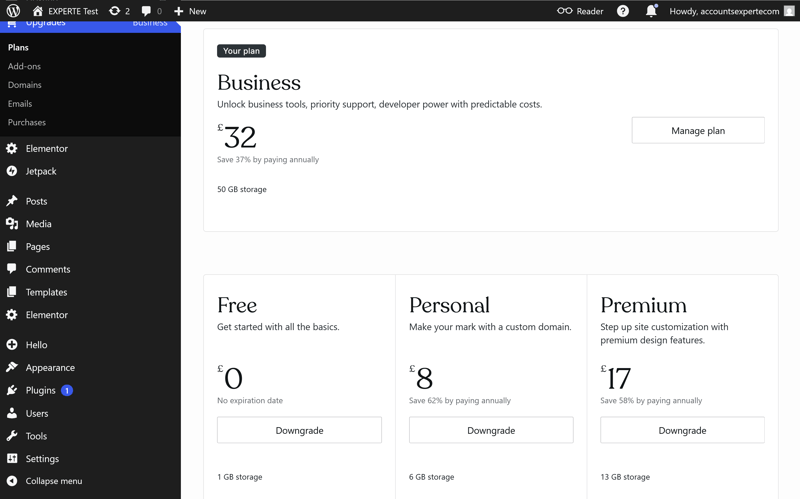
It’s not always clear which dashboard handles which task. To upgrade or downgrade your plan, for example, you use the WordPress admin area, though we’d expect this option in the hosting panel instead.
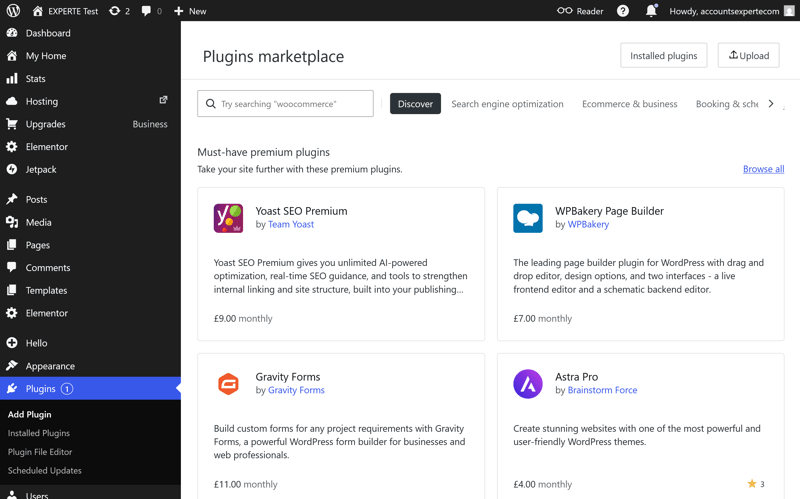
Plan management is built right into the WordPress admin area.
The plugin marketplace also appears in both places. The content is nearly identical, which just makes navigation more complicated than it needs to be.
The plugin marketplace appears in two places.
Still, WordPress.com stays easy to use overall. If you’re already familiar with WordPress, you’ll feel right at home.

WordPress.com makes getting started a breeze. From your first login and initial setup to migrating an existing website, the whole process runs smoothly. Not every hosting provider pulls this off so consistently.
The management system works well overall, but splitting the hosting panel and WordPress dashboard adds unnecessary complexity. Some features overlap, which can make navigation a bit confusing.
Technology & Features
| Server stack & protocols |
| 1.5/2 |
| PHP |
| 6/8 |
| Caching & CDN |
| 4.5/5 |
| Features |
| 4/5 |
A hosting provider’s tech works behind the scenes, but it determines how fast your website loads, how efficiently data is processed, and how future-proof the platform is.
Solid technical foundation
WordPress.com uses modern, industry-standard tech. The web server runs on NGINX, one of the most widely used solutions in professional hosting. For databases, it relies on MariaDB, a proven system that’s been around for years.
 WordPress.com |  Bluehost |  Cloudways |  DreamHost |  GoDaddy |  Hostinger |  IONOS |  Kinsta |  SiteGround |  WP Engine | |
|---|---|---|---|---|---|---|---|---|---|---|
Server locations | 19 countries | 9 countries | 8 countries | 3 countries | 3 countries | 11 countries | 2 countries | 21 countries | 7 countries | 12 countries |
Web server | NGINX | Apache | NGINX | NGINX | NGINX | LiteSpeed | Apache | NGINX | NGINX | NGINX |
Control Panel | Custom | cPanel | Custom | Custom | Custom | Custom | Custom | Custom | Custom | Custom |
Database | MariaDB | MySQL | MariaDB | MySQL | MySQL | MariaDB | MariaDB | MariaDB | MySQL | MySQL |
Storage type | SSD | NVMe | SSD | NVMe | NVMe | NVMe | NVMe | SSD | SSD | SSD |
| Protocols | ||||||||||
HTTP/2 | ✓ | ✓ | ✓ | ✓ | ✓ | ✓ | ✓ | ✓ | ✓ | ✓ |
HTTP/3 | ✓ | ✗ | ✗ | ✗ | ✗ | ✓ | ✗ | ✓ | ✗ | ✓ |
HTTP/2 and HTTP/3 are also supported. These protocols make communication between your browser and the server more efficient, which can help speed up load times.
Paired with SSD storage, the setup is up-to-date and reliable. NVMe storage would be even faster, but WordPress.com’s tech stack has no real weaknesses. That said, it doesn’t stand out from the crowd either.
Server locations aren’t transparent
For many users, it matters where their website is hosted. Location affects not just loading speeds but also legal and privacy concerns.
WordPress.com shares surprisingly little detail here. The company mentions a global infrastructure but names only a few specific locations. Known data centers include several in the U.S. and one in "EU West". Customers pick one of these main hubs for their site.
Automattic, the company behind WordPress.com, has published a map of its server locations. But it’s still unclear which of these actually power WordPress.com.
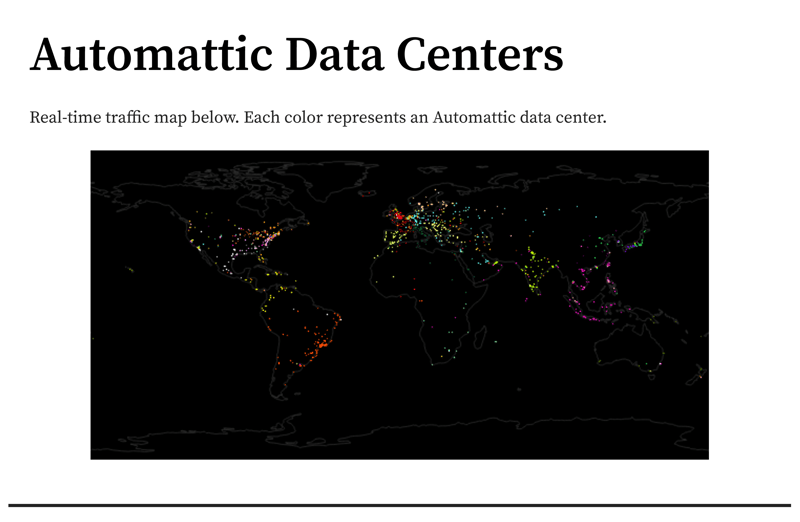
Server locations of WordPress.com’s parent company, Automattic.
When we asked, support told us WordPress.com runs four main data centers plus over 20 additional locations across six continents. Third-party research even suggests data centers in 19 countries.
Still, a little more transparency would be nice.
Up-to-date PHP with no configuration options
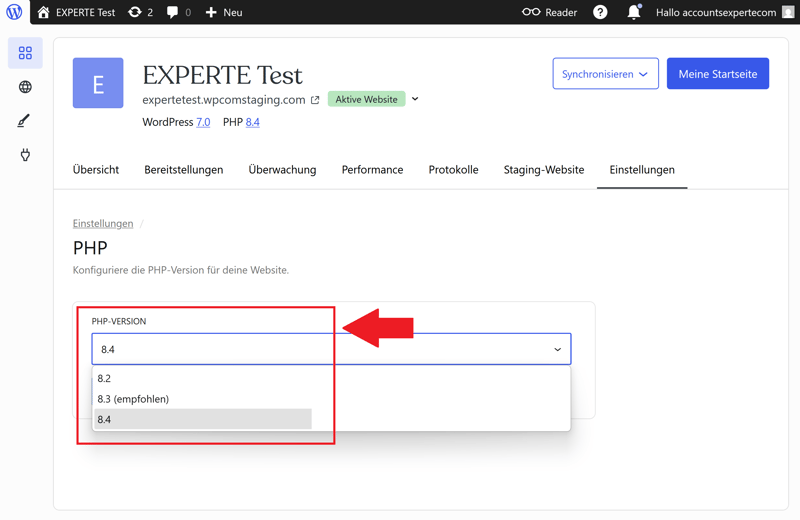
PHP is the backbone of WordPress. It processes nearly all content and features on your site. WordPress.com supports PHP 8.4, the latest version.
You can access your databases through phpMyAdmin.
The service is less flexible when it comes to PHP settings, since you can’t tweak them yourself. But for most users, this won’t be an issue. The default settings are generous: 512 MB of memory, a max execution time of 850 seconds, and uploads up to 2 GB. That’s plenty for even large WordPress projects.
WordPress.com | Bluehost | Cloudways | DreamHost | GoDaddy | Hostinger | IONOS | Kinsta | SiteGround | WP Engine | |
|---|---|---|---|---|---|---|---|---|---|---|
PHP version configurable | ✓ | ✓ | ✓ | ✓ | ✓ | ✓ | ✓ | ✓ | ✓ | ✓ |
PHP settings configurable | ✗ | ✓ | ✓ | ✓ | ✗ | ✓ | ✗ | ✗ | ✓ | ✗ |
Max PHP version | 8.4 | 8.5 | 8.4 | 8.5 | 8.3 | 8.5 | 8.4 | 8.5 | 8.5 | 8.4 |
Max memory limit | 512 MB | unlimited | unlimited | 768 MB | 512 MB | 3072 MB | 512 MB | 512 MB | 768 MB | 512 MB |
Max execution time | 850s | unlimited | unlimited | unlimited | 180s | unlimited | 360s | 300s | 120s | 43300s |
Max upload size | 2048 MB | unlimited | unlimited | 1028 MB | 1024 MB | 3072 MB | 128 MB | 128 MB | 256 MB | 50 MB |
Automatic performance boost with caching and CDN
Caching is one of the most important technologies for fast websites. It stores content temporarily so your web server doesn’t have to process every request from scratch. WordPress.com uses multiple layers of caching to speed things up.
WordPress.com combines several caching layers. In the hosting panel, you can see which technologies are active and clear the cache manually if needed.
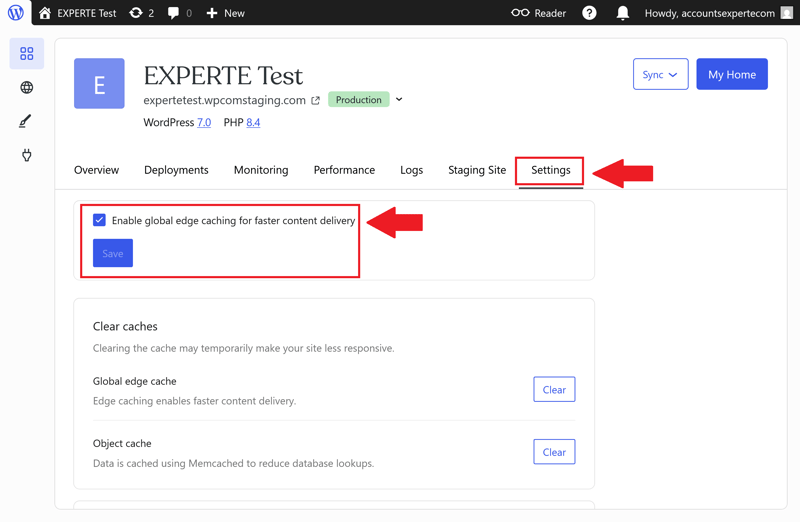
Simple cache management in the hosting panel.
Server-side caching ("Global Edge Cache") stores already-generated pages, so they don’t have to be rebuilt for every visitor. The Object Cache keeps frequent database queries in memory. Together, they improve your website’s response time without any effort on your part.
You can’t set custom cache rules on WordPress.com, though. For example, you can’t exclude specific pages or sections from caching. This keeps things simple, but it limits what advanced users can do.
Caching is paired with a built-in content delivery network (CDN). Instead of serving everything from a single server, a CDN distributes static files across multiple locations. Visitors load these files from the nearest one, which can speed up load times.
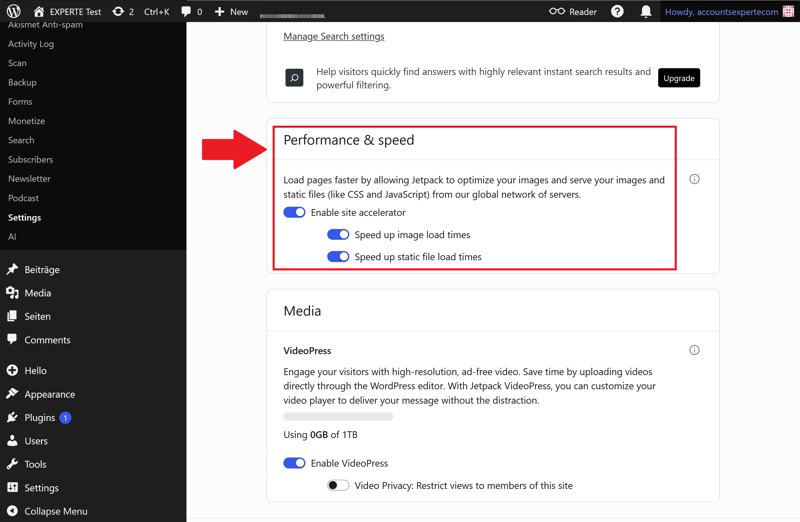
The "Site Accelerator" CDN is enabled by default through the Jetpack plugin.
WordPress.com includes a CDN called "Site Accelerator" in all plans. It’s part of the pre-installed Jetpack plugin, enabled by default, and requires no setup or configuration.
Here’s a breakdown of WordPress.com’s performance and caching features:
WordPress.com | Bluehost | Cloudways | DreamHost | GoDaddy | Hostinger | IONOS | Kinsta | SiteGround | WP Engine | |
|---|---|---|---|---|---|---|---|---|---|---|
Server side caching | ✓ | ✓ | ✓ | ✓ | ✓ | ✓ | ✓ | ✓ | ✓ | ✓ |
Object Caching | ✓ | ✓ | ✓ | ✓ | ✓ | ✓ | ✗ | ✗ | ✓ | ✓ |
CDN | ✓ | ✓ | ✗ | ✓ | ✓ | ✓ | ✗ | ✓ | ✓ | ✓ |
Cache exclusions | ✗ | ✓ | ✓ | ✗ | ✗ | ✓ | ✗ | ✓ | ✓ | ✓ |
Automatic cache purge | ✓ | ✓ | ✓ | ✓ | ✓ | ✓ | ✓ | ✓ | ✓ | ✓ |
But what really matters is how fast a WordPress.com site actually loads. We’ll cover that in the performance section.
More features from WordPress.com
That’s not the full picture. Here are some of the key features we haven’t covered yet:
Staging: Starting with the Business plan, you can set up a private staging site to test changes before pushing them live.
Stats: All plans include built-in visitor stats so you can track your site’s growth.
Domains and email: Every paid plan includes a free domain for the first year (unless you choose monthly billing). If you need email hosting for your domain, you can add it as an extra.
SFTP, SSH, WP-CLI, Git tools, Cron jobs: The Business plan and above provide you with access to developer tools, including the ability to edit your wp-config.php file.
Smart redirects: WordPress.com automatically sets up redirects so visitors land on the right pages, even after you change your URLs.
More tools: Depending on your plan, you’ll also get design tools, ecommerce features, and growth or monetization tools.
No multisite support: WordPress.com doesn’t support multisite setups, which let you run multiple sites from a single WordPress installation. This feature is only available if you host WordPress yourself.
Long list of blocked WordPress plugins
WordPress.com gives you some plugin freedom, but the limits are strict. The platform supports plenty of plugins, yet entire categories are off-limits. The official blocklist includes nearly 150 plugins.
Most of these either duplicate features WordPress.com already offers or could hurt the platform’s stability, security, or performance. Here’s what’s blocked:
Caching: Plugins like WP Super Cache, W3 Total Cache, or WP Fastest Cache are banned because WordPress.com already has its own caching system.
Backup: Plugins like BackWPup, Duplicator, or Backup Guard won’t work because WordPress.com handles backups automatically.
SQL-heavy plugins: Some analytics and stats plugins are blocked because they put too much strain on the database. This includes plugins like WP Statistics or WordPress Popular Posts.
File and database management: Plugins that directly access files or databases, like File Manager or WP-DBManager, can’t be installed.
Email sending: Plugins for bulk email sending are blocked to prevent spam. This includes plugins like E-Mail Broadcasting, Mailit, and Send Email from Admin.
Automated content imports: Tools that automatically import and publish content are also banned. Examples include WP Automatic, WPeMatico RSS Feed Fetcher, WPRobot5, and RSS Feed to Post.
Security and optimization: Some security and optimization plugins are also blocked, including Wordfence, Really Simple SSL, and CDN Enabler.
WordPress.com comes with just about everything a modern WordPress site needs. But at times, it feels like the platform doesn’t fully trust its users. It makes many decisions for you and intentionally limits how much you can customize.
The long list of blocked plugins and limited configuration options don’t quite match the openness and flexibility WordPress is known for. That said, most users won’t mind. They get a polished platform that handles a lot of the technical work behind the scenes.
Security
| Free SSL | Yes | 2/2 |
| Server protection |
| 4/4 |
| WordPress updates |
| 2/2 |
| Backups | Daily backups aren't included in every plan | 0/2 |
One of the biggest perks of managed WordPress hosting is that the provider handles your site’s security. Ideally, they take care of as much as possible, so you don’t have to worry about it yourself.
WordPress.com does this well, though not all security features are available in every plan.
SSL and malware protection included
Every site hosted on WordPress.com automatically gets an SSL certificate. HTTPS encryption is standard from the start, with no setup required.
WordPress.com also protects your site with built-in anti-malware measures. Real-time monitoring automatically detects and blocks brute-force, DDoS, and other attacks.
Extra security with Jetpack
The pre-installed Jetpack plugin adds several security features. For example, its built-in spam protection keeps unwanted comments off your site.
The activity log keeps things transparent: it records all key events on your website, so you can always track what changes were made.
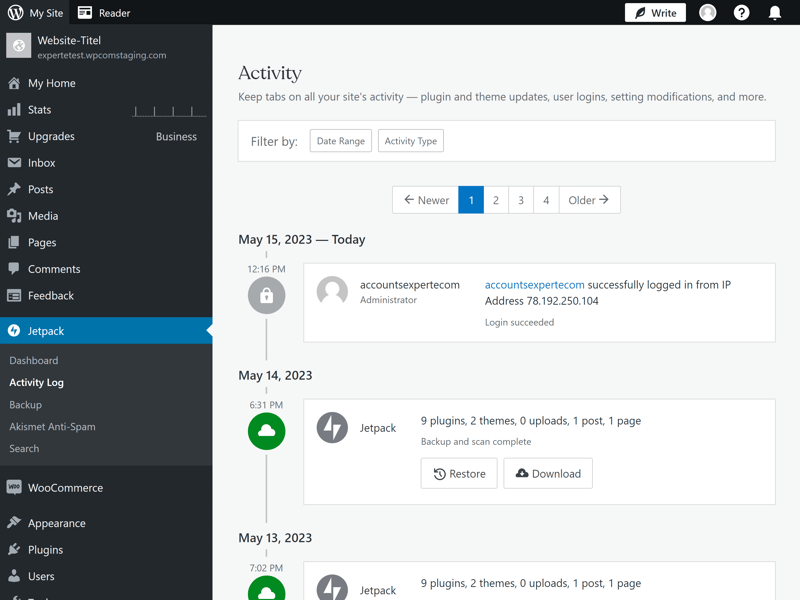
Use the activity log to stay on top of everything happening on your website.
Malware protection for all, but premium features cost extra
WordPress.com now includes key security features in its lower-cost plans. One of these is an automatically enabled web application firewall (WAF), which detects and blocks common attacks before they reach WordPress.
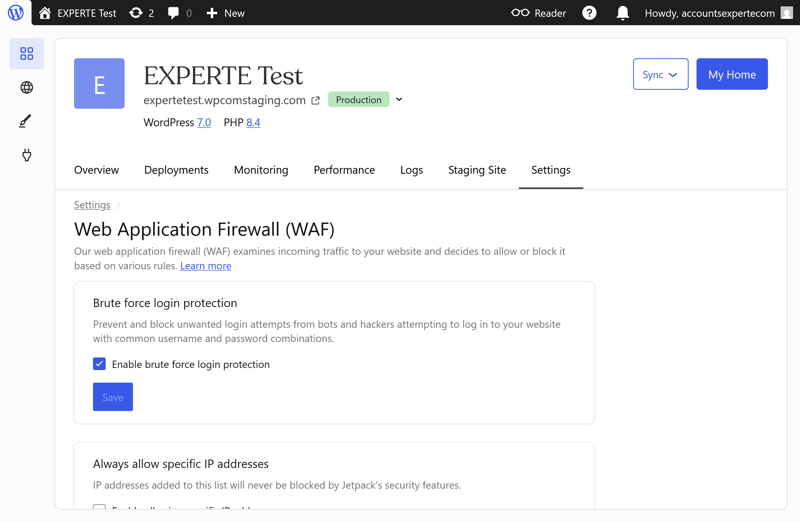
The web application firewall is available in all plans.
It’s also backed by brute-force protection for the login area and malware detection with automatic cleanup. These aren’t fancy extras—they're basic must-haves for keeping a website secure.
Unfortunately, not all security features are available in every plan. Isolated website infrastructure only comes with the Business plan. Your website then runs separately from other projects, without sharing its environment with other customers. This lowers the risk from compromised neighboring sites and improves stability.
Automatic backups start with the Business plan
Backups are one of the most important security measures. They let you restore a website to an earlier version after mistakes, hacks, or accidental deletions. That’s why it’s surprising that WordPress.com only offers automatic backups starting with the Business plan.
The pre-installed Jetpack plugin handles backups. It automatically creates restore points daily and after any changes. WordPress.com keeps these backups for six months, as long as your plan stays active. Many hosting providers delete older backups after just a few weeks.
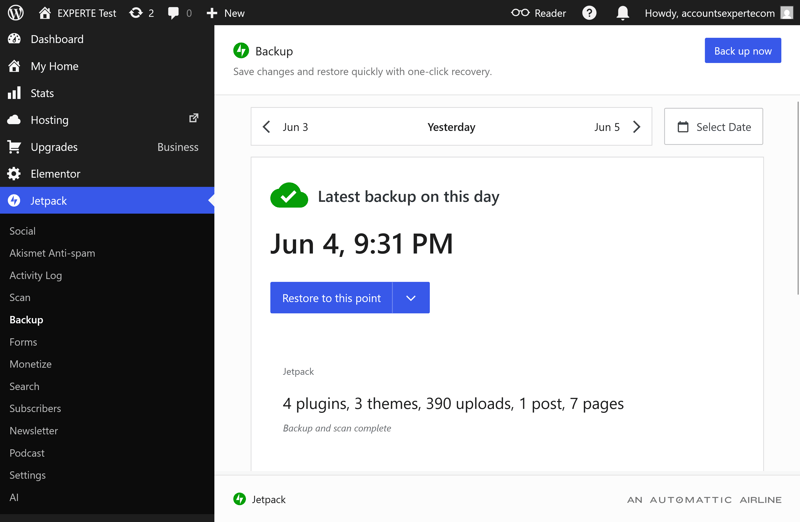
Jetpack automatically backs up your website every day.
You can view existing backups, create new ones manually, and restore your website to an earlier version through the backup management panel.
WordPress.com also lets you restore specific parts of your site, not just the whole thing. You can roll back just the database, plugins, themes, or uploads. We like this flexibility.
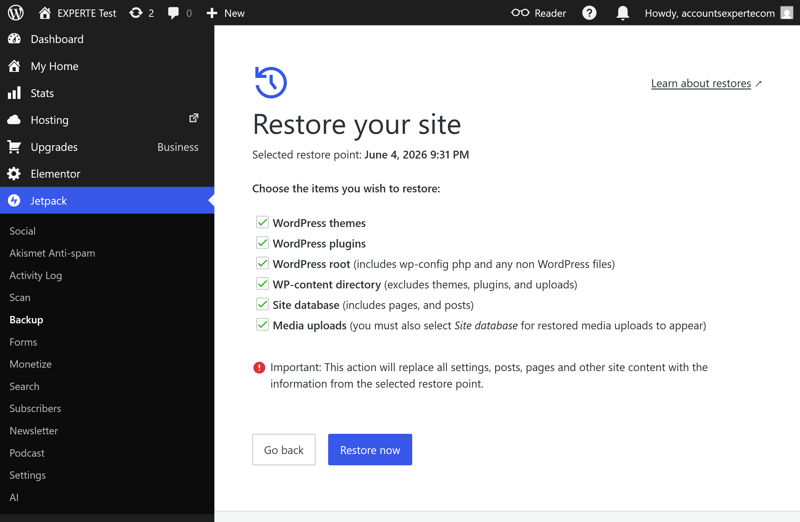
Restore your entire website or just parts of it.
Unfortunately, these features aren’t available in the cheaper plans. If you’re on one of those, you’ll need to handle backups yourself or use a third-party solution.

There’s a small silver lining, though: all plans include automatic data center failover. If one data center goes down, another takes over automatically. This doesn’t replace a real backup, but it does improve uptime.
Automatic updates for WordPress, plugins, and themes
Outdated plugins or an old WordPress version rank among the most common security risks. That’s why we’re glad WordPress.com includes automatic updates for the WordPress core, plugins, and themes in every plan. Since Automattic runs WordPress.com, that’s only what you’d expect.
WordPress.com goes even further with plugins. You can turn automatic updates on or off for each plugin individually, and you can schedule when they run: daily or weekly, at a specific time.
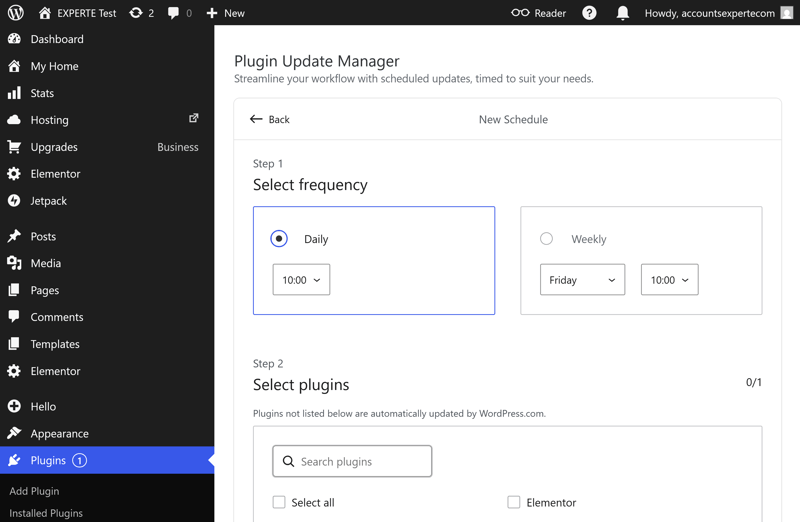
Optional scheduler for plugin updates.
Here’s how WordPress.com’s key security features stack up against other providers:
WordPress.com | Bluehost | Cloudways | DreamHost | GoDaddy | Hostinger | IONOS | Kinsta | SiteGround | WP Engine | |
|---|---|---|---|---|---|---|---|---|---|---|
Unlimited free SSL certificates (on all plans) | ✓ | ✓ | ✓ | ✓ | ✗ | ✓ | ✗ | ✓ | ✓ | ✓ |
Firewall | ✓ | ✓ | ✓ | ✓ | ✓ | ✓ | ✓ | ✓ | ✓ | ✓ |
DDoS protection | ✓ | ✓ | ✓ | ✓ | ✓ | ✓ | ✓ | ✓ | ✓ | ✓ |
Login protection | ✓ | ✓ | ✓ | ✗ | ✓ | ✗ | ✗ | ✓ | ✓ | ✗ |
Malware scanning | ✓ | ✓ | ✓ | ✓ | ✓ | ✓ | ✓ | ✓ | ✗ | ✓ |
Auto updates WordPress core | ✓ | ✓ | ✗ | ✓ | ✓ | ✓ | ✓ | ✗ | ✓ | ✓ |
Auto updates WordPress plugins/themes | ✓ | ✓ | ✗ | ✓ | ✓ | ✓ | ✓ | ✗ | ✓ | ✗ |
Daily automated backups (on all plans) | ✗ | ✗ | ✓ | ✓ | ✗ | ✗ | ✓ | ✓ | ✓ | ✓ |
Min. 14 day backup retention (on all plans) | ✗ | ✗ | ✓ | ✓ | ✓ | ✓ | ✗ | ✓ | ✓ | ✓ |
WordPress.com delivers solid security. The platform handles most protections automatically and reliably guards against common threats. If it detects malware, it removes it at no extra cost.
But it’s hard to understand why automatic backups are locked behind the Business plan. Charging for such an essential security feature feels unnecessarily restrictive, and customers on cheaper plans have to handle backups themselves.
Other than that, there’s little to criticize. Security is where WordPress.com really shines.
Performance
| Response speed (TTFB) | 0.63 s | 4/10 |
| TTFB outliers | 0.41 % | 4/5 |
| Pagespeed (LCP) | 0.52 s | 8/10 |
| Uptime | 100.00 % | 5/5 |
For our six-week stress test, we signed up for a managed hosting plan at around $20 and built a WordPress site using the resource-heavy Elementor page builder. This let us test performance under realistic conditions and compare it to other managed WordPress hosts in the same price range.
We ran tests with and without caching to get a clear picture of server performance. You can find our full testing methodology and criteria in our fastest WordPress hosting comparison.
The results show how fast WordPress.com delivers websites and how reliably it performs in everyday use. We measured these key metrics:
- 1.
Response speed (TTFB): How quickly does the server respond to the first request for a page?
- 2.
Slow responses (outliers): How much does server speed vary during unusually slow requests?
- 3.
Pagespeed (Largest Contentful Paint): How fast does the most important visible content appear on the page?
- 4.
Uptime: How reliably is the website available without interruptions?
Weak server response
Time to First Byte (TTFB) measures how long the server takes to send its first response to the browser. The faster this happens, the snappier a website feels to visitors.
WordPress.com clocked in at 0.631 seconds. That puts it in 12th place out of 14, one of the slower hosts in our comparison.
| Response time (TTFB) | |
|---|---|
| 0.186 s |
| 0.23 s |
| 0.232 s |
| 0.264 s |
| 0.266 s |
| 0.271 s |
| 0.305 s |
| 0.387 s |
| 0.631 s |
| 0.819 s |
Few slow responses
Things look better when it comes to the amount of slow responses. We track how often the server takes an unusually long time to reply. On WordPress.com, 0.41% of requests took over a second to respond, good for 6th place out of 14. In other words, just over four out of every thousand requests are slow to start.
This is a solid result, though not the best. Slow responses happen a bit more often than with the top five hosts, but they remain rare. Overall, the servers are stable and reliable.
| TTFB outlier | |
|---|---|
| 0.09 % |
| 0.1 % |
| 0.2 % |
| 0.28 % |
| 0.41 % |
| 0.51 % |
| 0.54 % |
| 1.02 % |
| 1.07 % |
| 2.22 % |
Excellent Pagespeed
Largest Contentful Paint (LCP) measures how quickly the most important visible content (like a large image or heading) appears on the page. It’s a key factor in how fast visitors perceive your website.
WordPress.com performs much better here. With a load time of 0.519 seconds, it ranks second out of 14 providers, earning a spot on the podium. Only Hostinger was faster in our test.
| Pagespeed (LCP) | |
|---|---|
| 0.46 s |
| 0.519 s |
| 0.573 s |
| 0.612 s |
| 0.683 s |
| 0.683 s |
| 0.782 s |
| 0.792 s |
| 0.949 s |
| 1.282 s |
Maximum uptime
Uptime measures how reliably a website stays online. When it goes down, visitors see an error message or a blank page. Anyone trying to submit a request, book an appointment, or make a purchase at that moment is out of luck.
WordPress.com delivers a perfect result here. Over the six-week test period, we recorded 100% uptime.
| Uptime | |
|---|---|
| 100 % |
| 100 % |
| 100 % |
| 100 % |
| 100 % |
| 99.992 % |
| 99.977 % |
| 99.976 % |
| 99.932 % |
| 98.92 % |
We didn’t record a single outage during the entire test, which speaks to a highly reliable infrastructure.
WordPress.com shines where it matters most to visitors. Its load speed ranks among the best in our comparison, so key content appears quickly. Uptime is flawless, too.
The only weak spot is Time to First Byte, where WordPress.com’s server response time doesn’t stand out. In practice, though, this barely matters because the actual page load speed remains among the fastest in our test.
Support
| Documentation |
| 2/2 |
| Support channels |
| 1.5/2 |
| Speed and quality |
| 3/3 |
| Ratings on review platforms |
| 2/3 |
If you have questions or run into issues, WordPress.com offers several ways to get help. You can browse a detailed support center, chat with an AI assistant, or connect with a live agent via chat or email. There’s also a large community forum where users help each other out.
Exemplary support center
This is how a knowledge base should work: guides are well-organized, easy to understand, and packed with screenshots, links, and step-by-step instructions. Many articles are also available in other languages, and the translations are top-notch.
WordPress.com explains topics in depth, so even beginners can find answers without contacting support.
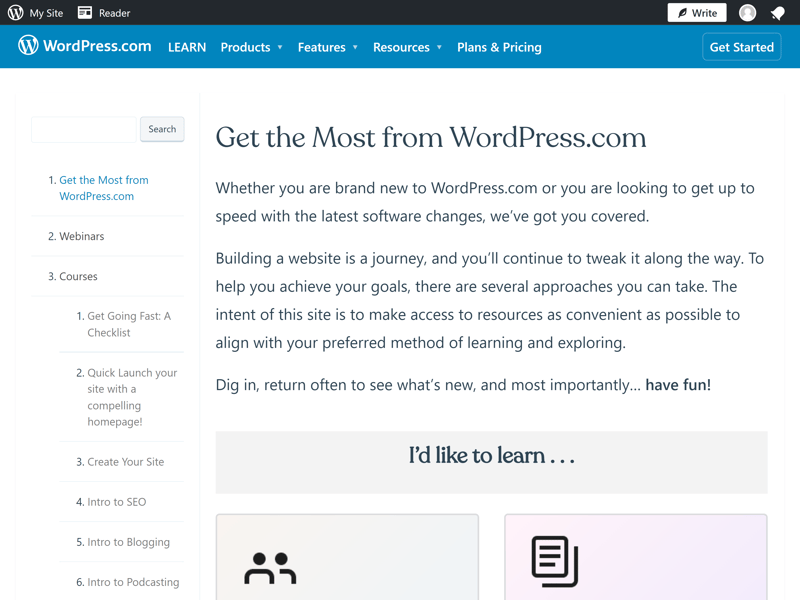
The WordPress.com support center.
WordPress.com also offers free courses, mostly hour-long YouTube videos on topics like starting a blog or monetizing a website. Experienced users won’t find much new here, but the courses are a nice introduction to the WordPress system.
Quick answers from the AI chat
If you don’t want to search the support center yourself, you can use the AI chat instead. The chatbot pulls from the knowledge base and often links directly to relevant articles. In our tests, it handled even complex or unusual questions surprisingly well.
Refreshingly, WordPress.com doesn’t use the AI chat as a barrier to human support. If the bot’s answers fall short or you’d rather talk to a person, you easily escalate the issue.
Live chat isn’t always "live"
WordPress.com officially offers live chat with support agents. But in our test, we never got a direct reply in the chat window, even after following up. Instead, support emailed us back about two and a half hours later.
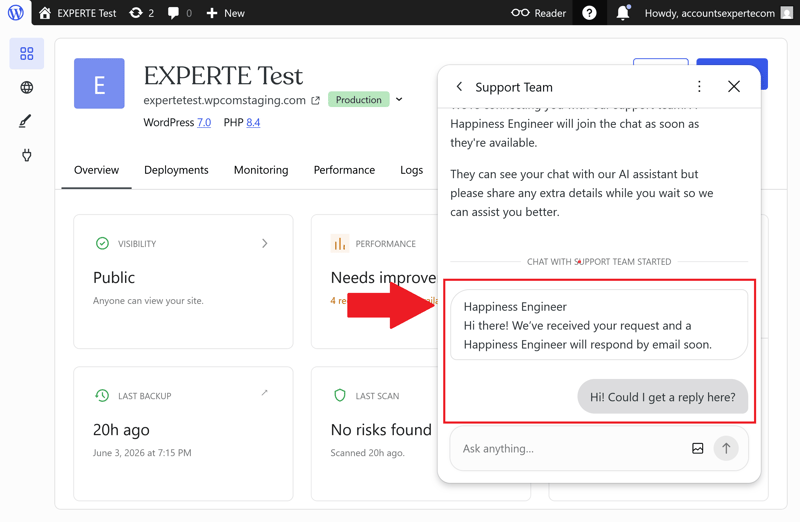
Support says in the chat that they’ll reply by email.
The answer itself was helpful, but the delay made the live chat far less convenient than what most other hosting providers offer. That’s surprising, since our plan includes priority support.
No phone support, but a community forum
WordPress.com doesn’t offer phone support. Instead, the company points users to its large community forum, where both staff and other users answer questions. Thanks to WordPress’s huge user base, many common issues already have discussions and solutions.
What do customers say about WordPress.com support?
Reviews of WordPress.com support are mixed. Many customers praise the quick help and say agents take even complex issues seriously. They also appreciate that support often provides custom solutions instead of just linking to help articles.
But there’s plenty of criticism too. Some users find support difficult to reach or say that in-depth help is mostly reserved for higher-tier plans. Others report vague answers or long wait times for more complicated requests.
WordPress.com shines when it comes to helping users help themselves. Its documentation is excellent and often eliminates the need to contact support. The AI chat delivers reliable answers and can point you directly to the right help articles.
But the personal support experience is hit or miss. In our test, the live chat worked more like a ticket system: we got our answer hours later by email. And WordPress.com doesn’t offer phone support at all.
Costs
| 1 project, 10 GB storage | $6.50 | 2/3 |
| 10 projects | $65.00 | 0/3 |
| 50 GB of storage | $20.00 | 1/3 |
| Fair pricing |
| 5/6 |
Besides a free plan, WordPress.com offers four paid plans. They differ in storage space and in the range of security, developer, and hosting features. One thing all plans share: each includes only a single public WordPress website.
Free: The free plan includes 1 GB of storage and the basic WordPress features. It doesn't support custom domains, plugins, or professional hosting tools, though. This plan works fine for a first taste of WordPress.com, but not for running a live website.
Personal: This entry-level plan offers 6 GB of storage, a free domain for the first year, and visitor stats. It's a solid fit for personal or small business websites, as long as you can do without staging, priority support, and other premium features.
Premium: Storage grows to 13 GB. You also get more detailed stats, Google Analytics integration, and the ability to host videos directly through WordPress.com. This plan mainly targets users who want more profound insight into their site's performance or regularly publish media content.
Business: With 50 GB of storage, this is the first plan built for serious professional use. It's also the first tier to include automatic backups, staging, SFTP and SSH access, WP-CLI, and Git deployments. Many of the features you'd expect from a managed WordPress host are reserved for this plan.
Commerce: The largest regular plan builds on the Business plan with additional WooCommerce features and extra store extensions for running a professional online shop.
Here's an overview of WordPress.com's plans:
| Free | Personal | Premium | |
|---|---|---|---|
| Monthly price | $0.00 | from $2.75 | from $5.50 |
| Contract period (months) | 0 | 1 - 36 | 1 - 36 |
| Included | |||
| WordPress projects | 1 | 1 | 1 |
| Storage | 1 GB | 6 GB | 13 GB |
| Storage type | SSD | SSD | SSD |
| Domains | 0 | 1 | 1 |
| Email accounts | 0 | 0 | 0 |
| Databases | 1 | 1 | 1 |
| Bandwith | unlimited | unlimited | unlimited |
| SSL certificates | unlimited | unlimited | unlimited |
| Backups | |||
| Backup interval | Daily | ||
| Backup retention | - | - | 180 days |
| Manual backups | ✓ | ✓ | ✓ |
| Features | |||
| External domains | ✗ | ✓ | ✓ |
| SSH access | ✗ | ✗ | ✗ |
| CDN | ✓ | ✓ | ✓ |
| Cronjobs | ✗ | ✗ | ✗ |
| Staging environment | ✗ | ✗ | ✗ |
WordPress.com price comparison
Comparing prices between managed WordPress hosts is tricky. Providers often differ significantly in technology, features, and plan structures.
To make the comparison fair, we looked at the effective monthly prices of the providers in our test across three typical scenarios:
1 WordPress project with 10 GB of storage
10 WordPress projects
50 GB of storage
Here are the monthly prices for each provider across the three comparison scenarios:
| 1 project, 10 GB storage | 10 projects | 50 GB storage | |
|---|---|---|---|
| $3.49 | $4.49 | $4.49 |
| $5.50 | $55.00 | $6.00 |
| $6.49 | $64.90 | $14.47 |
| $6.50 | $65.00 | $20.00 |
| $7.49 | $12.49 | $12.49 |
| $8.49 | $8.49 | $8.49 |
| $17.99 | $179.90 | $24.99 |
| $24.00 | $24.00 | $24.00 |
| $32.08 | $119.17 | $302.50 |
| $41.67 | $187.50 | $283.33 |
For a single website, WordPress.com's pricing is reasonable. It isn't the cheapest option, but it's far from the most expensive either. The same holds true in the 50 GB scenario.
WordPress.com gets less attractive once you run multiple websites. Even then, the same rule applies: it doesn't compete with the cheapest providers, but it's nowhere near as expensive as some premium hosts.
The fine print on WordPress.com
WordPress.com keeps many things refreshingly simple. Still, before you sign up, a few details are worth a closer look.
Just one website per plan: Even on higher-tier plans, WordPress.com only allows one public WordPress website.
No multisite projects: WordPress.com doesn't support the multisite feature (running one WordPress installation across multiple sites). This is only available for self-hosted WordPress installations.
No fixed visitor limits: WordPress.com doesn't set hard limits on traffic or visitor numbers. Instead, it explicitly advertises "unlimited bandwidth".
No renewal price increases: Unlike many hosts, the price stays the same after your first contract term ends. There are no hidden price jumps.
Free domain included: If you sign up for at least 12 months, you get a free domain for the first year.
Free backup restores: You can restore existing backups at no extra cost.
Monthly billing available: You don't have to commit long-term. You can also pay month to month.
No hidden extra costs: WordPress.com doesn't charge any hidden fees. You pay exactly what the plan costs.
Money-back guarantee: Annual and two-year plans come with a 14-day money-back guarantee. Monthly plans can be refunded within seven days.
There’s little to criticize about WordPress.com's pricing, but it won't blow you away either. Across every comparison scenario we tested, the provider lands squarely in the middle. You won't pay a steep premium just for the name, but you won't find aggressive discounts either.
It's a shame that many of the features that make WordPress.com appealing to professional users sit behind higher-tier plans. This takes some of the shine off the affordable entry-level pricing, since many use cases require at least the Business plan.
Final Verdict: Solid Hosting, Best for Single Projects
No host knows WordPress better than WordPress.com itself, and that pays off in many ways. Setup is fast and hassle-free, the host automatically handles plenty of technical tasks, and integration with the Automattic ecosystem is excellent.
Still, WordPress.com isn’t the best fit for every project. Many features you’d expect from professionally managed WordPress hosting only kick in with the Business plan. The convenience also comes with trade-offs in technical control. And each plan covers just a single website.
For a single WordPress site that needs to run reliably with minimal upkeep, WordPress.com is one of the best options out there. But if you run multiple websites or want more control over your hosting, other managed WordPress hosts offer a better overall package.

Customer Reviews
What do current and former customers say about WordPress.com? We’ve gathered reviews from some of the top review sites:
Easy website upkeep
Customers love how simple it is to manage content, pages, and images. Once the site is set up, many find ongoing maintenance a breeze.All-in-one solution
WordPress.com handles a lot of the technical work for you: hosting, security, updates, and basic management all run through one platform. This appeals to users who don’t want to set up their own server environment.Helpful support for specific issues
Positive reviews describe the support team as friendly, personal, and solution-focused. Many customers feel well-supported, especially during setup, migration, or when dealing with specific issues.Great for growing websites
Customers appreciate that WordPress.com isn’t just for simple sites. If you later need more content, features, or a more professional design, you can expand your site further.
Missing features in lower-tier plans
Many users complain that key features are locked behind higher-tier plans. This makes WordPress.com pricier than expected for more advanced projects.Support depends on your plan
Not all customers feel well-supported. Users on cheaper plans often wish for faster or more direct help.Switching providers can be tricky
Some users report trouble switching to another provider. Moving domains and content isn’t always as straightforward as beginners expect.Confusion with WordPress.org
A common complaint is the confusion between WordPress.com and WordPress.org. Some users expect the freedom of a self-hosted WordPress installation and are surprised by the restrictions on WordPress.com.
Here’s an overview of WordPress.com customer reviews:
Alternatives to WordPress.com
WordPress.com didn’t win you over? One of these alternatives might be a better fit:
More affordable than WordPress.com
Bluehost is a better deal if you run multiple WordPress sites. WordPress.com charges per site, but Bluehost lets you host several under one plan.More powerful than WordPress.com
SiteGround is ideal if you want high-performance managed WordPress hosting with premium features. Many pro-level tools are available even in lower-tier plans.More flexible than WordPress.com
Cloudways is a great pick if WordPress.com feels too restrictive. You choose your own cloud infrastructure and get full control over your server and hosting setup.
Want more WordPress.com alternatives? Check them out here: