What Is a VPS (Virtual Private Server)? Definition and Simple Explanation


Is your web hosting plan no longer cutting it? Then it might be time to consider whether a virtual server is the better solution for your project. But what do terms like VPS or vServer actually mean, and when does switching really make sense?
In this guide, we explain step by step what a VPS is, what its pros and cons are, and how it differs from standard web hosting or a dedicated server. We also cover common real-world mistakes and what to look for when choosing a provider. By the end, you'll be able to make an informed decision about whether a virtual server is right for your needs.


A VPS (or vServer) is a virtual server with root access, allowing you to decide what software runs on it. This gives you significantly more control and flexibility than standard web hosting plans.
While the physical server is shared with other customers, your allocated resources are dedicated to you and the systems are cleanly isolated. A VPS sits between shared hosting and a dedicated server.
A VPS can be well suited for online stores, more demanding websites, APIs, small SaaS projects, and many other use cases. Depending on your requirements, though, a cloud or dedicated server might be the better choice.
Properly sizing your VPS resources is critical for performance. If you allocate too few resources, your server slows down under load; if you allocate too many, you pay for capacity you do not use.
What Is a VPS or vServer?
A Virtual Private Server (VPS), also known as a vServer, is a hosting product you can purchase from a provider. Technically, it is a virtual machine running on a powerful physical server.
A VPS sits between shared hosting (standard web hosting) and dedicated servers. That applies to features, flexibility, administrative effort, and costs.
Typical Features of a VPS
Here are the key characteristics of a VPS:
Dedicated resources such as vCPUs, RAM, disk space, and a defined amount of network bandwidth.
Root access, allowing you to manage the system configuration yourself.
Your own operating system, such as Ubuntu Server, Debian, AlmaLinux, or Windows Server.
A dedicated IP address, often with the option for multiple addresses.
Professional operation by a hosting provider such as Hostinger DigitalOcean, or Hetzner.
With a VPS, you don't get an entire physical machine from a host. Instead, you get a virtual machine running on a larger server that behaves like a standalone system.
In practice, this means you install an operating system, configure services, set up users, and run everything your project needs. To your applications, the VPS behaves like a regular server, even though the underlying hardware is shared with other customers.
Think of a VPS like an apartment in a multi-unit building. The building is the physical host server, and the apartments are the individual VPS instances.
You use your apartment, have your own keys, your own furniture, and your own rules. Your neighbors live in the same building but have no access to your space.
Because your VPS runs separately from other instances, processes, memory, and files are isolated. Attacks or errors on another VPS on the same server do not directly affect your system.
Your applications generally do not depend on whether they run on a VPS or a physical server. Anything that runs on a dedicated server will usually run on a VPS as long as the allocated resources are sufficient.
How a VPS Differs From Other Hosting Types
To understand when a VPS makes sense, it helps to compare it with other common hosting models.
Shared Hosting: Lower Costs, Less Control
With shared hosting, your website sits alongside many others on one shared system. The provider manages the operating system, server services, and most of the configuration. You only access your site through an admin panel, a database interface, and protocols like FTP.
That makes shared hosting affordable and easy to use. You can get started quickly without worrying about technical details. At the same time, it is limited: custom server software, individual configurations, and guaranteed resources are not available.
Dedicated Server: Exclusive and Powerful, but Expensive
A dedicated server sits at the opposite end of the spectrum. You rent an entire physical server with all its CPUs, RAM, and storage exclusively for yourself. This provides maximum performance and control but comes with significantly higher costs and full responsibility for system management.
VPS: The Practical Middle Ground
A VPS combines elements of both models. You get dedicated resources, root access, and flexibility without the cost and effort of managing a physical server, making it a practical compromise for many projects.
Here’s a side-by-side comparison of the three hosting types:
Feature | Shared Hosting | VPS | Dedicated Server |
|---|---|---|---|
Root access | No | Yes | Yes |
Dedicated hardware | No | No | Yes |
Resources | Heavily shared | Allocated per VPS | All yours |
Software flexibility | Low | High | Very high |
Admin effort | Low | Medium | High |
Price level | Low | Medium | High |
Typical VPS Specs
When you sign up for a VPS with a hosting provider, you typically choose a predefined plan or configure your resources yourself. A typical setup might include 4 vCPUs, 8 GB of RAM, and 250 GB of SSD storage.
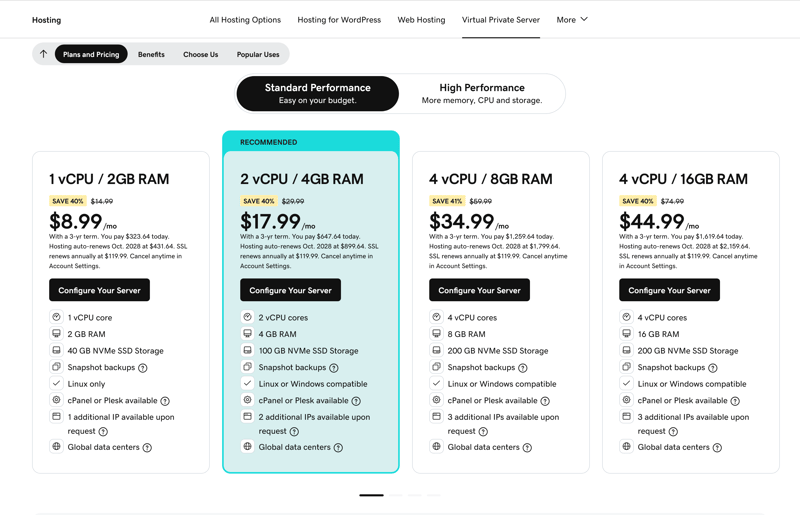
GoDaddy’s VPS plans.
The following overview outlines the most important VPS resources and explains what they mean in practice.
vCPUs stand for virtual CPU units. Each vCPU represents at least one thread, typically corresponding to a core on the physical processor. The more vCPUs your VPS has, the more threads the server can handle at the same time.
RAM provides a guaranteed amount of memory, determining how many processes can run smoothly at the same time and how large caches or in-memory databases can be. When RAM runs low, the operating system starts swapping data to disk, causing noticeable performance drops.
With storage, it is not just about capacity; speed and reliability matter just as much. HDDs are slower, SSDs are significantly faster, and modern NVMe drives offer the highest speeds. IOPS (input/output operations per second) indicates how many read and write operations a drive can handle per second, while latency describes the delay when accessing data.
Heads up: Some providers cap IOPS per VPS to prevent individual customers from overloading the storage system. Check out our VPS benchmark comparison to see how the eleven providers from our VPS comparison performed.
The hosting provider connects your VPS to the network through virtual network adapters. Your VPS receives one or more virtual interfaces linked to virtual switches and ultimately to physical network cards. Key things to look at for networking:
- 1.
Maximum bandwidth per VPS, such as 100 Mbit/s, 1 Gbit/s, or more
- 2.
Included traffic and potential overage charges
- 3.
Latency and routing to the regions where most of your users are located
The right resource allocation depends on your use case:
Scenario | vCPUs | RAM | Storage |
|---|---|---|---|
Simple business website | 1 | 1–2 GB | 20–40 GB SSD |
Small online store | 2 | 4 GB | 40–80 GB SSD |
Mid-sized store or SaaS app | 4 | 8 GB | 80+ GB SSD |
Resource-heavy applications | 4+ | 8–16 GB | 100+ GB SSD or NVMe |
How to Find the Right VPS
Do not just compare prices. First, consider your specific use case, your technical expertise, and how important the server is for your business.
There are three common categories: entry-level VPS plans for basic needs, premium VPS for demanding applications, and managed VPS for businesses that want the provider to handle server administration.
Entry-Level VPS for Simple Projects
A budget-friendly VPS is the natural next step when shared hosting is no longer sufficient, but you do not yet need a full dedicated server.

IONOS offers VPS plans starting at just $1.
Even at a low price point, you typically get 1 to 2 vCPUs, several gigabytes of RAM, and a reasonable amount of SSD storage. That's enough for most smaller websites, online stores, personal projects, or testing environments.
These plans are a good fit if you:
An entry-level VPS gives you the flexibility to configure your setup while keeping costs manageable.
Here's a list of the most affordable VPS options from our comparison:


Scalable Premium VPS for More Power
High-performance VPS plans are designed for projects where speed, uptime, and flexibility are critical to the business. They provide significantly more resources than entry-level plans and allow you to fine-tune CPU, RAM, and storage individually, enabling step-by-step scaling as your project grows.
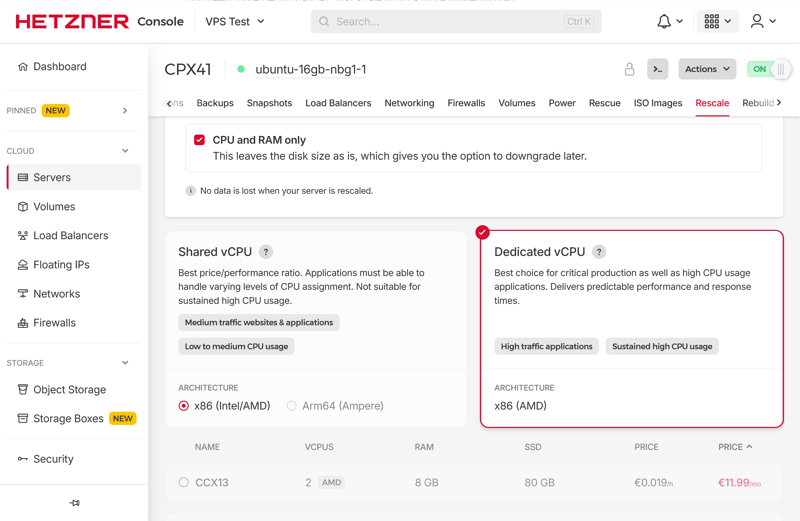
Providers like Hetzner make it easy to scale your resources up or down.
Common use cases include larger online stores, SaaS platforms, or high-traffic websites. In these scenarios, the server cannot become a bottleneck, as downtime or performance issues directly impact revenue and trust.
Here are the typical features of a high-performance VPS:
More vCPUs, increased RAM, and fast SSD or NVMe storage
Flexible plans that allow independent upgrades of CPU, RAM, and storage
Improved network connectivity, often with higher bandwidth and more stable latency
Here's a selection of powerful yet affordable VPS options:
Managed VPS for Businesses
Managed VPS plans are designed for businesses that want their own VPS but do not have a dedicated admin team. You get a VPS while the hosting provider handles part of the system maintenance.
Depending on the provider, a managed VPS typically includes:
regular operating system updates
basic security configuration
monitoring of core services and automated restarts
support for common tasks like web server or database setup
This allows your team to focus on applications, content, and business operations while the provider handles the technical foundation.
A managed VPS is a good fit if:
When comparing managed VPS offers, pay close attention to what is actually included. Some providers only manage the operating system, while others also support application-level issues. Clear agreements upfront help prevent misunderstandings later on.
Which Is Better: a Linux or Windows VPS?
When ordering a VPS, most hosting companies let you choose between a Linux distribution or Windows Server as the operating system. The best choice depends on the applications you plan to run and the expertise available on your team.
Linux is the standard in the server world, as most web servers and databases run natively on it or perform best there.
Windows is the better choice when you rely on Microsoft technologies or need software that is only available for Microsoft systems.
Pros and Cons of Linux
Linux is often the right choice for typical web applications, APIs, or developer stacks. Many tools are available for free, and there is a suitable distribution for almost any use case.
Broad support for web servers, databases, and programming languages
Efficient resource usage, often delivering solid performance even with relatively little RAM
Wide selection of distributions like Ubuntu Server, Debian, or AlmaLinux (depending on the host)
No or significantly lower licensing costs
Strong community support and extensive documentation
That said, Linux requires a willingness to work with the command line. Once you learn the key commands, you can manage a Linux VPS with a high degree of precision and flexibility.
The learning curve can feel steep for Windows users
Many tasks are handled via the terminal, and graphical tools are less common
Some proprietary applications are unavailable or only run through workarounds
Pros and Cons of Windows
A Windows VPS is suitable when Microsoft technologies are central to your setup. If you run applications built on .NET, classic ASP, or other Windows-only software, Windows Server is usually your only option.
Strong integration with Microsoft ecosystems like Active Directory or Exchange
Support for applications that only run on Windows
Management through familiar graphical tools like Server Manager or MMC
Remote desktop access with a full desktop environment
A Windows VPS is especially useful if your company already relies heavily on Microsoft products and has the in-house expertise to match. Keep in mind, though, that both the price and the resource requirements for the operating system itself are usually higher than for most Linux distributions.
License fees are added on top of the VPS price
Higher baseline requirements for RAM and storage
Most VPS tutorials and examples focus on Linux
Here's a quick overview of the key differences between a Linux VPS and a Windows VPS:
Criteria | Linux VPS | Windows VPS |
|---|---|---|
Typical use cases | Web servers, APIs, containers, open-source stacks | .NET applications, traditional Windows software |
Cost structure | Usually no additional license fees | Additional license fees for the operating system |
Resource requirements | Relatively lightweight | Higher baseline requirements for RAM and storage |
Management | Primarily command line and SSH | Graphical tools and Remote Desktop available |
Popularity in web hosting | Very high | Significantly lower |
In-house expertise | Common among developers | Common among traditional Windows admin teams |
How to Set Up a VPS in 4 Steps
Once you have chosen and ordered your VPS and selected either Linux or Windows, it is time for the hands-on setup. The first steps determine whether your server runs securely, reliably, and remains easy to maintain.
The setup process usually follows the same pattern: secure access, configure the system, install applications, and organize ongoing operations.
Step: Secure Server Access
After your VPS is provisioned, you will receive your login credentials. This is where you establish the foundation for security:
- 1.
Create a separate user account for day-to-day work. Keep the root account reserved for administrative tasks only.
- 2.
Whenever possible, use SSH key authentication instead of password-based login.
- 3.
Set up a firewall that only opens the ports you actually need. For a typical web server, these are port 22 for SSH, 80 for HTTP, and 443 for HTTPS. Only open additional ports intentionally and document each one.
- 4.
Update the operating system to patch security vulnerabilities and keep your VPS stable.
- 5.
Back up your data regularly to a separate location, such as another server, so you can fully restore your VPS in case of an emergency.
Here's an overview of common security measures, how much effort they require, and what they protect:
Measure | Effort | Security benefit | Most important for |
|---|---|---|---|
SSH key authentication | Low | Very high | All VPS users |
Disable root password login | Low | High | Production systems with internet access |
Set up firewall rules | Low to medium | High | All servers, especially publicly accessible ones |
OS updates | Medium | Very high | All production VPS instances |
Offsite backups | Medium | Very high | Online stores, SaaS, anything with business-critical data |
Step: Basic Server Environment Configuration
Once your server is secured, it's time for the basic configuration. This includes:
- 1.
Update all packages to the latest version
- 2.
Set the correct timezone and locale
- 3.
Configure log rotation to prevent log files from growing uncontrollably
- 4.
Install essential tools such as a text editor, monitoring agents, or backup scripts
After that, install the main components of your environment. For a standard web server, this typically includes a web server, a database, and the required runtime environments.
Important: Do not rely on default settings. Adjust them to match your actual usage. For example, PHP and database limits that work for a small demo page may be too restrictive for an active online store.
Step: Install Web Server or Applications
NNext, install the applications your VPS is intended to run, such as a web server with PHP and a database or a Node.js application. Game servers, mail servers, VPN solutions, and many other setups are also possible.
The key is to keep everything well organized:
- 1.
Separate configuration files, code, and data
- 2.
Set up dedicated directories for logs
- 3.
Document important file paths and settings
For production environments, automated deployment is recommended. Instead of copying files via FTP, use Git, CI/CD pipelines, or configuration management tools to enable version control and quick rollbacks if needed.
Step: Monitoring, Updates, and Automation
Once the initial setup is complete, ongoing maintenance begins. A VPS only remains fast and secure with regular upkeep.
- 1.
Monitoring tracks metrics such as CPU load, RAM usage, disk space, and network activity. If your web server stops responding, an alert should be triggered immediately.
- 2.
Updates keep your system current. Security vulnerabilities in the operating system or applications must be patched quickly. Many administrators enable automatic security updates while handling major upgrades manually, as these require more planning.
- 3.
Automation saves time and reduces errors. Recurring tasks such as backups, log cleanup, or service restarts can be handled through cron jobs or tools like systemd timers.
Conclusion: A VPS Is a Great Middle Ground for Many Use Cases
A VPS combines a high degree of freedom with predictable costs. If you're ready to take responsibility for your own server, it provides a flexible foundation for your web projects, applications, and services.
A VPS is especially worth it when:
You've outgrown standard shared hosting plans
You need custom configurations, specialized software, or background processes
Performance and stability have become a priority
You're willing to learn at least the basics of server administration
Compared to shared hosting, you gain significantly more control, performance, and security. Compared to a dedicated server, costs remain lower while still allowing flexible scaling.
What matters most is choosing the right resource allocation, building a solid security strategy, setting up reliable backups, and keeping your system well maintained over time.