RAID 10 in Practice: Setup, Features, and Benefits


Speed or security? RAID 10 delivers both. The storage method is ideal for situations where data needs to be both fast and well protected at the same time.
This guide explains how RAID 10 works, its requirements, strengths and weaknesses, and when it is worth using.


RAID 10 is a storage method that protects you from data loss caused by hard drive failures. It combines the high speed of RAID 0 with the data security of RAID 1.
If a hard drive fails, RAID 10 restores the data. This happens quickly and puts little strain on the system.
Because RAID 10 stores all data twice, only half of the total storage is available for your actual data.
You need at least four hard drives. RAID 10 only works with an even number of drives because of the mirroring process.
Compared to RAID 5, RAID 10 is faster and more robust. However, it requires more drives to achieve the same usable capacity.
What Is RAID 10?
RAID stands for "Redundant Array of Independent Disks." It's a special way of organizing storage. Multiple hard drives are combined into a single logical drive to improve data security, boost speed, or achieve both at once.
RAID systems distribute data across multiple drives, mirror it, or store additional checksum information to compensate for failures. There are different RAID levels, each with its own characteristics.
RAID 10 combines two key RAID strategies: RAID 0 for speed and RAID 1 for security. This makes it a great fit for servers, databases, or other systems where performance and availability are equally important.
Because RAID 10 stores all data twice, only half of the total capacity is available for your actual data. For example: Four 2 TB hard drives add up to 8 TB of raw capacity, but only 4 TB is usable. The rest is used for mirroring.
In RAID 10, two hard drives form a mirror pair that stores the same data. If one fails, the other takes over seamlessly. The system distributes data in blocks across the pairs. This is called striping. The result is a storage array that is fast (because of striping) and resilient against failures (because of mirroring).
How RAID 10 Works
The structure of RAID 10 follows a simple principle: first, RAID 1 mirror pairs are created. Then, these pairs are connected using RAID 0 (striping):
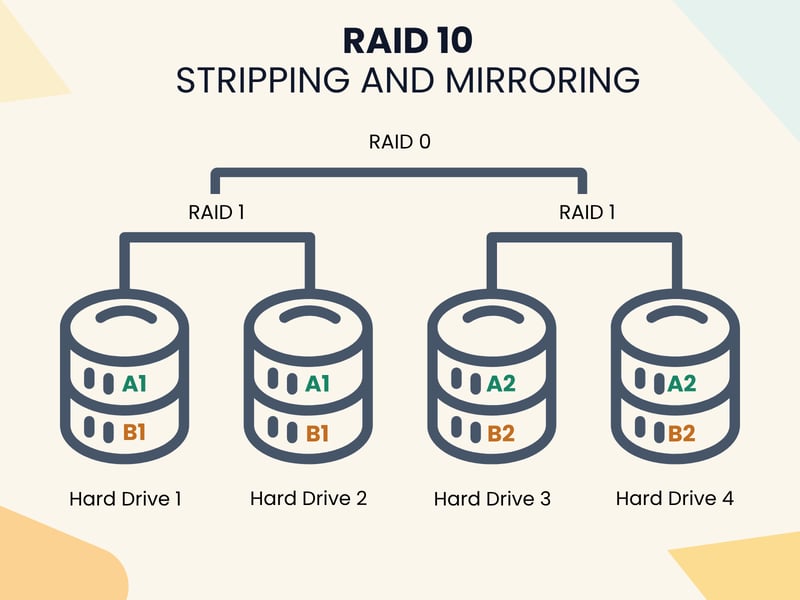
Four hard drives form two RAID 1 mirror pairs.
A typical RAID 10 array consists of four drives, and the setup happens in two steps:
- 1.
Mirroring (RAID 1):
Hard drives 1 and 2 store the same data.
Hard drives 3 and 4 do the same.
This creates two mirrored pairs.
- 2.
Striping (RAID 0):
The system then distributes data in blocks, alternating between the two RAID 1 mirror pairs.
Read and write speeds increase because the system accesses multiple hard drives at the same time.
RAID 10 With Six Hard Drives
A RAID 10 array with six hard drives expands on this concept:
Three mirror pairs are created (1+2, 3+4, 5+6).
These pairs are combined into a single RAID 0 array.
Data blocks are distributed across all three pairs.
With more mirror pairs, the data load spreads across more drives. This boosts performance even further.
The downside: You still only get 50% usable storage, because every bit is written twice.
Let's say you work at an architecture firm that handles massive CAD files. These files are regularly opened, edited, saved, and reloaded, sometimes by multiple people at the same time. With a RAID 10 setup using six hard drives, these read and write operations can be distributed across multiple mirror pairs simultaneously.
If a hard drive fails, your data remains immediately available without interrupting your workflow. Rebuilding the failed drive runs in the background without putting heavy strain on the system.
RAID 10: Rebuild Advantage When a Drive Fails
When a hard drive fails in a RAID 10 array, only one mirror pair is affected. During the rebuild, only that single pair needs to be resynchronized. The remaining mirror pairs stay fully functional.
For comparison: With RAID 5 or RAID 6, a rebuild requires reading all remaining drives and recalculating the data using parity. This process often takes many hours and puts strain on the entire array. RAID 10 avoids this weakness and allows a faster return to normal operation.
RAID 10 can also fail. This happens when both hard drives in a mirror pair fail at the same time or because of configuration errors. In these cases, data recovery is possible but technically challenging.
Specialized service providers analyze the RAID structure and piece together data from the remaining drive blocks. This requires at least one hard drive from each mirror pair to still be intact.
Important: If you suspect data loss, don't attempt to fix it yourself. Any additional write operation can make recovery attempts harder or even impossible.
Pros and Cons of RAID 10
RAID 10 offers a strong combination of performance and failure protection, but these benefits come at a price:
High read and write speeds
When reading, the system accesses both hard drives in a mirror at the same time. This allows data to be delivered faster. Write operations are also quick because no additional calculations are needed, unlike with parity-based RAIDs.High failure protection
As long as both drives in the same mirror pair don't fail at the same time, all data remains fully intact. In a RAID 10 with multiple mirror pairs, several hard drives can fail simultaneously as long as they belong to different pairs.Fast rebuild after a failure
When a hard drive is replaced, only its mirror needs to be restored. This happens by simply copying the data from the remaining partner drive. As a result, RAID 10 returns to full operation much faster than RAID 5, which requires complex parity calculations to reconstruct the entire array.Simple design
Unlike RAID levels with parity (RAID 5/6), RAID 10 uses easy-to-understand concepts. The combination of striping and mirroring is straightforward and easy to monitor. This simplifies not only the setup but also troubleshooting and maintenance during operation.Lower risk of additional drive failure during rebuild
Since only one side of a mirror pair is rebuilt, the other drives experience less stress. The chance of another drive failing during the rebuild is significantly lower with RAID 10. This makes RAID 10 especially suitable for scenarios where fast recovery and continuous operation are critical.
Reduced usable capacity
RAID 10 mirrors all data, which means only 50% of the total capacity is usable. Six 2 TB hard drives give you 12 TB of raw capacity, but only 6 TB is available for actual data.Higher hardware requirements and costs
To achieve the desired capacity, you need twice as many hard drives as with RAID 0 or RAID 5. This increases not only the purchase costs but also the space required in the server case or NAS.Depends on proper configuration
The failure protection of RAID 10 depends heavily on which hard drives are affected. It becomes critical when both drives in a mirror pair fail at the same time, for example, because of power issues or manufacturing defects. In this case, the data stored on them cannot be recovered.Large arrays waste a lot of potential storage
RAID 10 can be expanded to many hard drives, but the usable storage remains limited to 50% of the total capacity. Additional drives mainly add more redundancy, not better storage utilization. With huge arrays, this creates significantly higher overhead compared to RAID 5 or RAID 6.RAID is not a backup
Like all RAID systems, RAID 10 only protects against hardware failures. Deleted files, data corrupted by faulty software, or ransomware are also transferred to all mirrored drives. If you use RAID 10, you absolutely need a separate backup.
Typical Use Cases for RAID 10
RAID 10 shines wherever IT systems need to be both fast and reliable. Here are some typical use cases with real-world examples:
Database servers
Database systems like MySQL, PostgreSQL, or Microsoft SQL Server generate a high number of random read and write operations. RAID 10 is well-suited here because it can handle this I/O load quickly while still providing redundancy.Example: An online store with constant access to product data, customer information, and orders needs an extremely reliable and responsive database. RAID 10 helps ensure that no transactions are lost if a hard drive fails and that availability remains high.
Virtualization environments
VMware ESXi or Microsoft Hyper-V often manage multiple virtual machines at the same time, each with its own read and write operations. RAID 10 can distribute and protect this parallel load particularly well without sacrificing performance or redundancy.Example: A mid-sized company runs ten virtual servers on one host, including email systems, CRM, ERP, and internal tools. RAID 10 provides stability along with high speed.
File and email servers
Servers that many users rely on every day to store, edit, or send files need consistent performance and protection against failures. RAID 10 keeps access speeds high, even when individual drives fail.Example: An agency with 30 employees stores project files centrally on a file server. RAID 10 enables fast access while also protecting against data loss when a hard drive fails.
Media production and CAD applications
Large files like videos, audio tracks, or complex construction drawings create heavy sequential data loads, especially when saving and editing. RAID 10 offers both high transfer rates and protection against data loss from sudden hardware failures.Example: At an architecture firm, multiple designers work on large CAD files at the same time. RAID 10 speeds up access and prevents interruptions caused by failed drives.
Financial and trading systems
In stock exchange and trading systems, real-time processing and constant availability are essential. RAID 10 delivers the necessary speed and redundancy because write operations aren't slowed down by parity calculations.Example: A trading company processes hundreds of transactions per second during peak times. RAID 10 ensures the system doesn't stall due to slow disk access or failures.
Setting Up a RAID 10
You can set up RAID 10 in two ways: either through a dedicated RAID controller (hardware RAID) or directly in the operating system (software RAID). These approaches differ significantly in terms of cost, performance, and flexibility:
Hardware RAID
With a hardware RAID, a dedicated controller handles all management of the RAID array. This controller is either installed as a separate expansion card (PCIe) in the server or already integrated into the motherboard. The operating system sees the RAID as a single physical drive.
Reduces CPU load
RAID calculations happen directly on the controller. This keeps the main CPU free for other tasks, which is especially beneficial for servers with high utilization and many concurrent I/O operations.Dedicated cache with battery backup
High-quality controllers have their own memory as cache plus a battery backup unit. This buffers data even during power outages. Write operations are completed safely, which prevents data loss.Hot-swapping is possible
You can replace failed hard drives while the system is running. This reduces downtime and increases availability, especially in production server environments or data centers.Works independently of the operating system
Since RAID management happens at the hardware level, it's largely independent of the operating system you use. The configuration remains intact even when switching systems and works across platforms.
High upfront costs
Professional controllers with cache and BBU can be expensive. A professional RAID controller, including cache and BBU, costs up to $600. High-end models with large cache and modern features cost over $1,000. For smaller systems or home users, the investment often isn't worth it.Vendor dependency
If the controller fails, RAID information can often only be restored with the same model. Incompatible replacement devices can lead to data loss.Limited flexibility
Settings and monitoring usually happen through vendor-specific software or BIOS interfaces. This makes expansions or migrations to other systems more difficult.
Software RAID
With software RAID, your operating system handles the management of the array. You don't need any additional hardware. Well-known software solutions include mdadm on Linux or the built-in RAID feature in Windows Storage Spaces.
Lower costs
You don't need to buy specialized hardware. This reduces costs, especially for smaller servers, workstations, or home NAS systems.High flexibility and good portability
RAID configurations are usually easy to transfer to other systems. You can often reuse individual drives in different computers without losing data, as long as the software is compatible.Convenient management
You can set up and manage the RAID directly in your operating system. Many tools offer clear monitoring and automatic error alerts.
CPU load
All RAID-related calculations run through the main processor. Under very heavy data loads, this can cause noticeable slowdowns.No power failure protection
Without a battery-backed hardware cache, a sudden power outage can lead to data loss. Only an uninterruptible power supply (UPS) provides real protection.Operating system dependency
System updates, driver issues, or incompatible kernel versions can cause problems or data loss. Booting a system with software RAID also requires extra configuration.
Software or Hardware: Which Is the Better Fit?
Here's a side-by-side comparison of the key differences between hardware and software RAID:
Criteria | Hardware RAID | Software RAID |
|---|---|---|
Costs | High (controller required) | Low (no extra hardware) |
Performance under heavy load | Very good (dedicated hardware) | Good (depends on CPU and RAM) |
Power failure protection | Yes (with BBU) | No (only with external UPS) |
Flexibility & portability | Limited (proprietary) | High (works across systems) |
Setup & maintenance | Complex (special tools required) | Simple (OS tools) |
Setting Up a RAID 10 on Windows
On Windows, you can set up a RAID 10 using the built-in "Storage Spaces" feature. This lets you combine multiple physical drives into a logical array that both mirrors and stripes data. You'll need at least four unformatted hard drives.
Here's how to do it:
Step 1: Go to the Control Panel and select "Manage Storage Spaces" under "Storage." Click "Add" to create a new drive pool.
Step 2: Select all the drives you want to include, give your storage pool a name, and confirm your selection.
Step 3: Next, click "Create new storage space." For resiliency, select "Two-way mirror."
Step 4: Set the storage space size. This should be no more than 50 percent of the total capacity, since all data is mirrored. Also choose a drive letter and file system (such as NTFS) to format the new drive.
Setting Up RAID 10 on Linux
Linux offers a powerful way to set up RAID 10 directly in the operating system using the mdadm tool. You'll also need at least four empty hard drives.
Step 1: First, install the mdadm package. On Debian or Ubuntu systems, enter the following command in the terminal:
Step 2: Define the new RAID device (e.g., /dev/md0), the RAID level 10, and the four drives involved. For example, the command looks like this:
Step 3: Make sure to adjust the device names (/dev/sdX) to match your actual drives. Then format the new RAID volume with a file system, such as EXT4:
Step 4: Next, create a mount point. This is a directory where the new volume will be mounted.
Then mount the RAID:
Step 5: To make sure the RAID mounts automatically on the next system boot, you need to find the device's UUID:
Step 6: Add this UUID to the /etc/fstab file like this:
Step 7: Finally, save the RAID configuration permanently so the system can correctly recognize the array:
4 Common RAID 10 Mistakes and How to Avoid Them
RAID 10 is known for being very reliable, but it can still fail. This often happens when the array is poorly configured or when maintenance and monitoring are neglected. Here are four common mistakes you should avoid:
- 1.
Using an odd number of hard drives
RAID 10 always requires an even number of hard drives because all data is mirrored. Plan your array in pairs: 4, 6, 8, or 10 drives. - 2.
Using mirror pairs from the same production batch
It's tempting to use hard drives from the same series or shipment. However, this can be risky. Manufacturing defects or aging often affect multiple drives from the same batch.If one drive fails, there's a good chance its mirror will fail shortly after. In the worst case, you'll lose all data from that pair. It's better to deliberately combine pairs from different batches or series.
- 3.
No RAID monitoring
If a hard drive fails, the system keeps running but without redundancy. If you don't notice the failure in time, the next error will cause data loss. Solutions include automatic notifications via email or SMS, regular visual checks of the RAID status, and SMART monitoring tools. - 4.
Mixing different hard drives in the array
A RAID 10 technically works with hard drives of different speeds or sizes. However, performance is always limited by the slowest component. To avoid bottlenecks, use identical drives (same manufacturer, model, size, and RPM).
Comparing Other RAID Levels
RAID 10 isn't the only way to combine multiple hard drives into a single storage array. Here's a quick overview of the main alternatives to RAID 10:
RAID 0 offers maximum speed but is quite risky. A single failure destroys all data. RAID 10 delivers nearly the same performance while providing much better data protection.
RAID 1 provides high data security through mirroring but doesn't scale well. With multiple hard drives, RAID 10 delivers significantly better performance.
RAID 5 offers a good balance of security and storage utilization. It protects against a single drive failure and uses more capacity than mirrored systems. The downsides are slower write speeds and a long, risky rebuild process after a failure.
RAID 6 works similarly to RAID 5 but still protects your data even if two drives fail at the same time. However, it requires more processing power. RAID 10 is faster but can only survive multiple failures if they occur in different mirror pairs. If two drives in the same pair fail, the data is lost.
Here are the key differences between RAID levels:
RAID level | Redundancy | Usable storage | Key feature |
|---|---|---|---|
RAID 0 | None | 100% | Maximum speed, but no protection |
Mirroring (1:1) | 50% | Fault tolerance through mirroring | |
1 hard drive | approx. 67–80% | Good balance of security and capacity | |
RAID 6 | 2 hard drives | approx. 60–75% | Higher fault tolerance for large arrays |
RAID 10 | Mirroring + striping | 50% | Combination of performance and security |
Not sure which RAID is right for your system? Use our RAID calculator to quickly find the optimal setup for your needs.
RAID 10 vs. RAID 5
RAID 10 and RAID 5 are two of the most popular RAID configurations with redundancy, but they take different approaches. RAID 5 distributes parity information across all drives. If one drive fails, the data can be mathematically reconstructed from this parity.
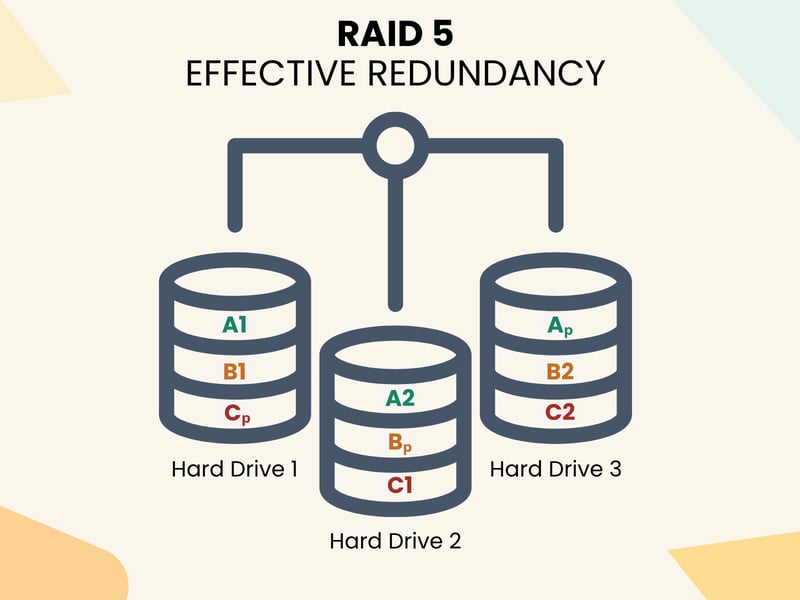
With RAID 5, one hard drive can fail without losing any data.
Performance: RAID 10 has a clear advantage, especially with many small write operations or high simultaneous loads. RAID 5 has to recalculate parity with every write, which takes time and reduces I/O performance.
Failure recovery: RAID 10 is also more robust. With RAID 5, the entire array must be read and recalculated for rebuilding. This is a slow and error-prone process.
RAID 10 also offers better fault tolerance. If a single drive fails in RAID 5, the data remains intact. However, if a second drive fails, the entire array becomes unrecoverable. RAID 10 can handle multiple failures as long as both drives in the same mirror pair aren't affected. This significantly reduces the risk of total data loss.
On the other hand, RAID 5 excels at storage utilization: The more drives you use, the greater the usable capacity. With RAID 10, mirroring means only half of the total capacity is available for user data.
RAID 5 is a good choice for less critical environments where storage efficiency is the main priority. If you need maximum performance and fault tolerance for data-intensive applications, RAID 10 is the better option.
Conclusion
RAID 10 is a disk array that offers two key benefits: data is distributed across multiple drives (striping) and simultaneously mirrored. This creates a system that delivers fast read and write speeds and can easily handle individual drive failures..
RAID 10 requires a minimum of four hard drives. Two of these drives store identical data, forming a mirror pair. Data is then distributed in blocks across these pairs. This increases both access speed and availability.
RAID 10 is ideal for environments with many simultaneous accesses and high data security requirements. Examples include database servers, virtualization platforms, and media production. However, half of the total capacity is unavailable for user data, and the hardware requirements are higher than with other RAID levels.
Not sure if RAID 10 is the best option for you? Check out our RAID level overview to compare alternatives.