RAID 6 Overview: Setup, Benefits, and Common Mistakes


Two hard drives fail at the same time, and you still don't lose any data? That's precisely what RAID 6 makes possible. This system cleverly distributes your data across multiple drives and backs it up twice.
In this guide, you will discover the operational principles of RAID 6, the target users, and a comprehensive step-by-step setup procedure.


RAID 6 is a storage system that distributes data across multiple hard drives and stores two sets of backup copies (parities).
You need at least four hard drives. Two are automatically reserved for parity. This keeps your data safe even if two hard drives fail at the same time.
RAID 6 is well-suited for network-attached storage (NAS), servers in small businesses, and large archive systems where data security is the top priority.
The read performance is high since multiple hard drives are read simultaneously. Write speeds are somewhat slower since two parity values must be calculated.
RAID 6 only protects against hard drive failures, not accidental deletion, viruses, or fire damage. It does not replace a backup.
What Is RAID 6?
RAID stands for Redundant Array of Independent Disks. In this setup, multiple drives work together to either boost performance, increase data security, or both.
Instead of storing all data on a single hard drive, a RAID system distributes it across several drives. This increases reliability and makes it possible to recover lost information.
A RAID 6 array consists of at least four hard drives. Two of them are used for parity. Parity refers to additional check values that allow the system to calculate missing data if one or two hard drives fail. The remaining drives are available for your data.
RAID 6 does not store your data twice. Instead, it distributes data with built-in error correction. This sets it apart from simple backup solutions or traditional mirroring.
There are different RAID levels with different priorities. RAID 0 increases speed but offers no protection against data loss. RAID 1 mirrors data one-to-one onto a second hard drive. RAID 5 combines data distribution with a single parity check.
RAID 6 takes it a step further: it stores not one but two parity values per data block. Even if two hard drives fail at the same time, all your data can be fully reconstructed.
RAID 6 is the right choice if you want to reliably store large amounts of data while being protected against the failure of two hard drives. Typical use cases include network-attached storage (NAS), servers in small businesses, or archive systems that need to be available around the clock.
RAID 6 is not a good fit for small setups with only two or three hard drives or for systems that constantly write large amounts of data. In those cases, RAID 1 or RAID 10 delivers better results. Check out our overview of the most important RAID levels to find the right solution for your needs.
How RAID 6 Works
RAID 6 breaks your files into small data blocks and distributes them evenly across multiple hard drives. It also stores two special check values called parities. These parities work like a mathematical emergency backup. If one or even two hard drives fail, the missing data can be precisely reconstructed from the remaining drives and these parity values.
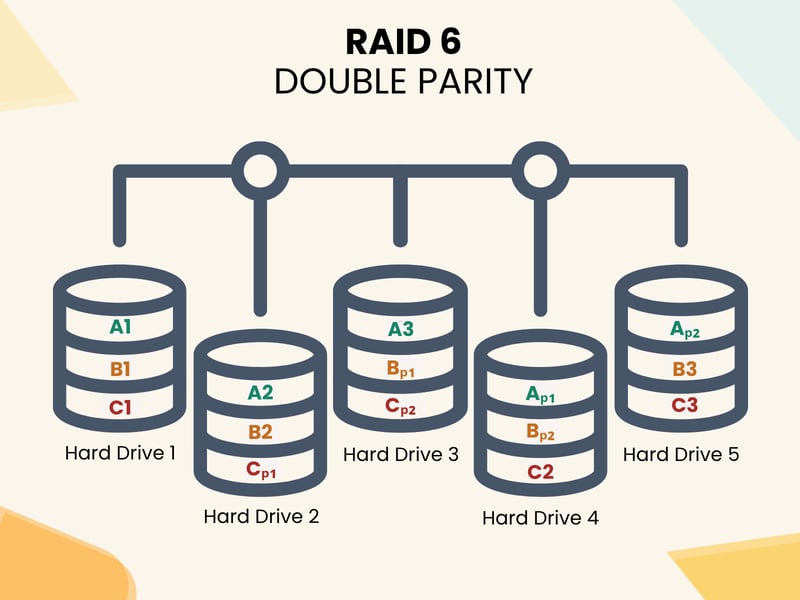
How RAID 6 works.
No matter which two hard drives fail, RAID 6 can restore all data thanks to its dual parity. The system accesses the remaining hard drives and calculates the missing content from the stored check values. This keeps your data fully intact even during a double failure.
An example: You use six hard drives with 4 TB each. RAID 6 uses two of these drives exclusively for parity calculations. That leaves four drives for your data, giving you 16 TB of usable capacity.
If one hard drive fails, everything keeps running normally. Even if a second drive fails, your data stays safe. Only when three drives fail simultaneously does the system enter a critical state.
A parity block is a type of mathematical checksum calculated from multiple data blocks. If a data block is lost, it can be restored using the parity information.
RAID 6 uses two parity blocks per stripe. A stripe is a row of data distributed across all hard drives. This allows data recovery even when two hard drives fail at the same time. The second parity calculation is more complex than the first, but it provides an additional layer of security.
Pros and Cons of RAID 6
RAID 6 offers a very high level of data protection and is widely used in professional storage systems. Like any RAID level, it also has its limitations.
High fault tolerance
Two drives can fail at the same time without losing any data. This level of protection is only available with RAID 6 and higher RAID levels.Strong read performance
Since all drives can be read simultaneously, RAID 6 delivers fast read speeds when handling multiple requests.Better storage use in large arrays
Compared to RAID 1 or RAID 10, RAID 6 offers better storage efficiency when you're using many drives.Stable during recovery
The system stays stable during a rebuild after a drive failure. Even a second drive failure won't cause a total loss. This is a major advantage over RAID 5.Ideal for large storage systems
RAID 6 is perfect for arrays with six, eight, or more drives, where the risk of multiple failures is non-negligible.
Slower write performance
The double parity calculation puts extra load on the system. RAID 6 writes data more slowly than RAID 5 or RAID 10.Reduced usable capacity
Two drives are used for parity. In smaller arrays, this means a relatively high loss of usable storage.Long rebuild times
After a failure, the rebuild process can take a very long time, especially with large multi-terabyte drives.Not suitable for small setups
RAID 6 requires at least four drives. Systems with three or fewer drives can use RAID 1 or RAID 5 instead.More complex setup
RAID 6 requires more technical knowledge, both for hardware configuration and software-based solutions.
Common Use Cases for RAID 6
RAID 6 is a great fit for any scenario where large amounts of data need to be stored securely and remain available at all times. Its combination of high fault tolerance and smart use of available storage makes it well suited for the following use cases:
Network-attached storage (NAS) in business environments
RAID 6 is especially useful for centralized file storage solutions used by multiple people at the same time, such as in small offices, agencies, or law firms.Long-term archives for large data volumes
Businesses and institutions that need to store large amounts of data long-term, such as video footage or image databases, benefit from RAID 6's fast read speeds and protection against drive failures. Since this data is rarely modified, RAID 6 is an excellent choice for archive systems.Server applications in mid-sized businesses and education
RAID 6 can provide a stable foundation for classic server services like email servers, document management, or centralized user directories.In schools, government offices, or smaller companies that often lack a dedicated IT department, RAID 6 delivers solid fault tolerance with manageable maintenance.
Media production and creative workspaces
Recording studios, video production companies, and professional photographers often generate many gigabytes of data every day that need permanent storage.RAID 6 allows parallel access to large files and protects against data loss, even when archiving extensive raw data. The double parity provides extra security for unpredictable workloads.
Home users with technical experience
RAID 6 can also be a suitable option at home, for example, for a self-managed home server or a high-performance NAS system. Families who want shared access to photos, movies, or music, or who want to set up a local cloud backup, benefit from the added fault tolerance.
Setting Up RAID 6
You can set up a RAID 6 system in two ways: with a dedicated hardware RAID controller or with software solutions like mdadm on Linux or Storage Spaces on Windows. Each option has its own pros and cons, which are detailed below.
Hardware RAID
A hardware RAID uses a dedicated RAID controller, either as an expansion card (such as PCIe) or as a built-in component on the motherboard.
This controller handles all aspects of managing the RAID array: it controls how data is distributed across the drives, automatically calculates parity information, and monitors the health of each drive.
The operating system sees the entire RAID array as a single logical drive, regardless of how many physical drives are actually connected.
An Example: A server with eight 4 TB drives uses an LSI hardware RAID controller with 1 GB cache. The administrator creates a RAID 6 array through the controller BIOS with six data drives and two parity drives. The operating system then recognizes a single 24 TB drive. The entire process takes less than ten minutes.
The RAID system is available as soon as the computer starts, even before the operating system loads. This makes hardware RAID especially suitable for professional server environments where stability and performance are top priorities.
Low system load
The controller handles all RAID management. This frees up the main CPU and improves overall performance.Available early during boot
The RAID is available in the BIOS and can be used as a boot drive without issues. This is ideal for servers and production systems.Built-in extra features
Many controllers offer their own caches, hot-spare support, monitoring tools, and alerts. This adds convenience and reliability.High compatibility with operating systems
Since the RAID appears as a single drive to the system, it works seamlessly with Windows, Linux, and other platforms without driver conflicts.
Higher upfront costs
High-performance RAID controllers with processing power and cache are expensive, especially for larger RAID 6 arrays.Dependency on the controller model
If the controller fails, the RAID can often only be restored with the same model. This makes replacement and maintenance more difficult.Less flexible when switching systems
A RAID array can't simply be moved to another device. The configuration is tied to the specific hardware.Proprietary management
Many manufacturers use their own management interfaces and firmware. This can make things harder to manage and create long-term vendor lock-in.
Software RAID
A software RAID is fully managed by the operating system, without any special hardware components. All RAID logic, including data distribution, parity calculation, and error correction, is handled by the system software. This makes software RAID much more affordable: you don't need any additional controllers or expansion cards.
The big advantage is flexibility: software RAIDs are often easier to migrate to new systems since they aren't tied to specific hardware. The downside is the heavier load on the main processor, especially with RAID 6, where two parity blocks need to be calculated.
Cost-effective
You don't need any additional hardware. This saves money and makes setup easier.Flexible and hardware-independent
Software RAID isn't tied to a specific controller. You can transfer the array to another system as long as the operating system recognizes the RAID configuration.Easy to manage
Tools like mdadm on Linux or the storage settings in Windows let you set up and monitor a RAID directly in the operating system. No BIOS access or separate management interfaces required.Great for advanced users and smaller server setups
If you have technical knowledge, you can run a stable RAID 6 system with minimal effort. This works even on older hardware.
Higher CPU load
All parity calculations run through the main CPU. This can noticeably reduce system performance during heavy write operations, especially with RAID 6.RAID is only available after system startup
Since the operating system manages the RAID, it's not available in the BIOS. This makes it less suitable as a boot drive.More complex troubleshooting
When problems occur with the array, you often need to fix them manually. Working with tools like mdadm or PowerShell requires experience.Operating system dependency
A RAID created under one system (like Linux) won't work easily with a different operating system.
Setting Up a RAID 6 on Windows
Windows offers a built-in way to create a RAID 6-like system with dual parity through Storage Spaces. This solution is designed for users who prefer a graphical interface and don't want to rely on external RAID tools. The feature is available in Windows 10 and 11 and in Windows Server.
Here's how to set it up:
- 1.
Open Storage Spaces: Go to Windows Settings and navigate to "System" > "Storage" > "Storage Spaces." You can also type "Storage Spaces" in the Windows search bar.
- 2.
Create a new storage pool: Click "Add" and select the physical drives you want to use. Important: All data on these drives will be erased. Make sure to back up your files first.
- 3.
Configure the storage space: In the next step, create a new storage space. Give the new volume a name, choose a drive letter, and select the file system format (usually NTFS).
- 4.
Select dual parity: Choose "Dual parity" as the resiliency type. This is equivalent to RAID 6. Windows will distribute your data across all drives and create two independent parity copies.
- 5.
Set the size: Enter a maximum size. You can also choose a size larger than the actual physical capacity. Windows will then manage the available storage dynamically.
- 6.
Create and format the volume: Finally, the new volume is created, formatted, and displayed as a new drive in File Explorer. You can then use it like any other drive.
Setting Up a RAID 6 on Linux
Linux provides a stable, high-performance way to manage RAID 6 entirely in software using the mdadm tool. No additional hardware is required. This method is especially suited for experienced users who need full control over their system.
Step 1: Install the package
Open a terminal and install mdadm if it's not already installed. On Debian and Ubuntu systems, use this command:
Step 2: Identify the drives
Check which devices are available using this command:
or:
to see which drives are available for your RAID.
Step 3: Create the RAID 6 array
Use mdadm to create the RAID. The following command sets up a RAID 6 with four hard drives (assuming your drives are named /dev/sdb, /dev/sdc, /dev/sdd, and /dev/sde):
The array is created, and the synchronization process starts in the background.
Step 4: Check the build status
You can view the status of the RAID array with:
This shows whether the RAID is properly set up and synchronized.
Step 5: Save the configuration
To make sure the system automatically recognizes the RAID after a reboot, save the configuration:
Step 6: Create a file system
Format the new RAID drive with a file system, such as ext4:
Step 7: Create a mount point and mount the drive
Create a folder as a mount point and mount the RAID drive:
Step 8: Set up automatic mounting
To mount the drive automatically at every startup, first get the UUID:
Add the UUID you just retrieved to the /etc/fstab file:
Common RAID 6 Mistakes
Despite its high fault tolerance, a RAID 6 system can become unreliable if it's set up incorrectly or not monitored regularly. Many problems stem from incompatible components, incomplete planning, or unrealistic expectations. Here are some common pitfalls you can avoid with a little care:
- 1.
No backup in addition to RAID
RAID only protects against hardware failures. It can't prevent data loss from accidental deletion, ransomware, software errors, or theft. An external or cloud-based backup is still essential, even with RAID 6. - 2.
Wrong hard drive types in the RAID array
Desktop hard drives often aren't designed for continuous operation in RAID arrays. They lack important features like TLER (Time-Limited Error Recovery). When read errors occur, these drives behave unpredictably and can destabilize the entire array. RAID-optimized models like WD Red or Seagate IronWolf are built for RAID systems. - 3.
Mixing up drives during replacement
If you accidentally remove the wrong hard drive during a swap, the RAID can lose its integrity. Label all drives clearly, keep slot documentation, and only replace one drive at a time. Let the rebuild complete fully before taking any further action. - 4.
Neglecting monitoring
Many RAID controllers and NAS systems offer tools to monitor RAID health. These features are often ignored. If you don't take warnings seriously or replace defective drives too late, you risk data loss. Set up email notifications and check the status regularly. - 5.
Untested recovery procedures
Every minute counts in an emergency. Many admins have no protocol or experience with restoring a RAID 6. Practice the process, document the steps, and store access credentials for RAID management securely. This is the only way to act quickly and safely in an emergency.
Comparing Other RAID Levels
Not every RAID system offers the same protection or performance. Here are the key differences between the various RAID levels:
RAID level | Redundancy | Usable storage | Key feature |
|---|---|---|---|
RAID 0 | None | 100% | Maximum speed, but no protection |
Mirroring (1:1) | 50% | Fault tolerance through mirroring | |
1 hard drive | Approx. 67–80% | Good balance between security and capacity | |
RAID 6 | 2 hard drives | Approx. 60–75% | Higher fault tolerance for large arrays |
Mirroring + striping | 50% | Combination of performance and security |
Not sure which RAID is right for your system? Use our RAID calculator to quickly find the optimal setup for your needs.
RAID 6 vs. RAID 5
RAID 6 and RAID 5 are among the most popular RAID configurations in enterprise environments.
Both offer a good balance of redundancy and storage utilization, but they differ in one key area: RAID 6 can tolerate the failure of two drives at the same time, while RAID 5 can only tolerate one. This difference is critical, especially for large arrays with many drives.
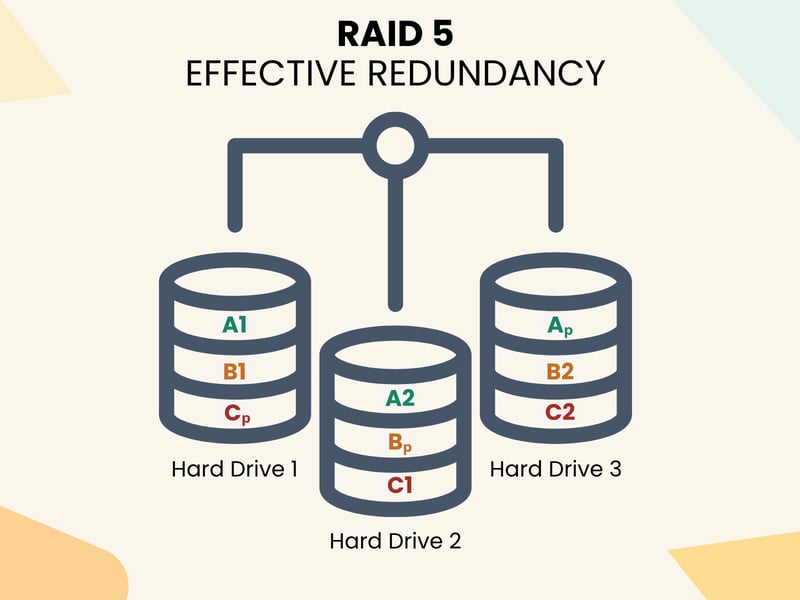
RAID 5 can tolerate the failure of one drive.
The biggest weakness of RAID 5 shows up during a rebuild after a drive failure. While the rebuild is in progress, the system is extremely vulnerable: if another drive fails during this time, all data is lost. RAID 6 avoids this risk by storing a second set of parity information. This allows the system to survive another failure even while rebuilding.
An Example: A backup server with six 8 TB drives in a RAID 5 array loses one drive. The system starts rebuilding, a process that takes over 30 hours under heavy load. During this time, a second drive fails. The result is total data loss. With RAID 6, all data would still have been accessible.
Both systems offer similar read performance, especially for sequential access. RAID 6 is slower for writes because it has to calculate two parity values. In practice, though, this difference is usually only noticeable in write-heavy applications like databases or log servers.
The more drives you use, the smaller the percentage of capacity lost to parity. RAID 5 loses one drive's worth of capacity; RAID 6 loses two. With eight drives, RAID 5 gives you about 87.5% of total capacity, while RAID 6 gives you about 75%. This trade-off is acceptable when security is the priority.
RAID 5 is a viable option for smaller systems with three to five drives, particularly when fast rebuild times are possible and regular backups are in place.
RAID 6 is the better option for systems with more than five drives or for storing large amounts of data that need to be accessible at all times.
RAID 6 is the preferred solution for critical systems with many drives. RAID 5 uses less storage space and is faster, but offers significantly less fault tolerance.
Conclusion
RAID 6 is a mature, secure storage solution that has proven its worth in professional environments. Thanks to dual parity, your data remains protected even if two drives fail simultaneously. This is a significant advantage over RAID 5.
RAID 6 offers better long-term security for business-critical data on central file servers, NAS systems, or archive solutions. Admittedly, write performance is somewhat lower, and usable storage capacity is reduced compared to other options. However, the extra safety margin often outweighs these drawbacks, especially in the event of a disaster.
If you're looking for a reliable long-term storage solution, RAID 6 is one of the safest options available. Provided it is set up correctly and monitored regularly, it provides a solid foundation for modern data infrastructure.