30 Essential Linux Commands You Need to Know


On Linux, you can handle many everyday tasks much faster from the command line. Instead of clicking through menus, a quick command in the terminal often does the trick, if you know the right one.
This article walks you through the 30 most important Linux commands for common distributions and explains them in plain terms, so you can work more efficiently and avoid unnecessary detours.


Commands help you navigate Linux faster. The terminal is your main interface for entering them.
In practice, you only need a handful of useful commands. They cover most everyday tasks.
Commands for files, software, processes, and users matter most. Master these, and daily work gets much easier.
What Are Linux Commands?
Linux commands are text-based instructions that let you control your system through the terminal. Instead of clicking through menus, you enter commands that tell the system exactly what to do.
This saves time. For repetitive tasks, commands are usually much faster than a graphical interface. They are also precise: you tell the system exactly what to do, whether it is switching to a directory or analyzing running processes in detail.
For beginners, Linux commands can feel overwhelming. The terminal often seems abstract and technical, and you have to remember many different commands. There is no visual guidance like in traditional menus.
Linux commands are powerful, but they require care. One wrong move can delete important files or set user permissions incorrectly.
How Are Linux Commands Structured?
Linux commands usually follow the same structure: the command itself, optional parameters, and additional details such as filenames or paths.
Here's what a typical command line looks like:
This command consists of three parts:
ls is the command. It lists the contents of a directory.
-l is a parameter. It makes the output more detailed. Parameters typically start with a hyphen.
/home is the target. It specifies which directory the command should operate on.
Here's how the command and its output look in the terminal:
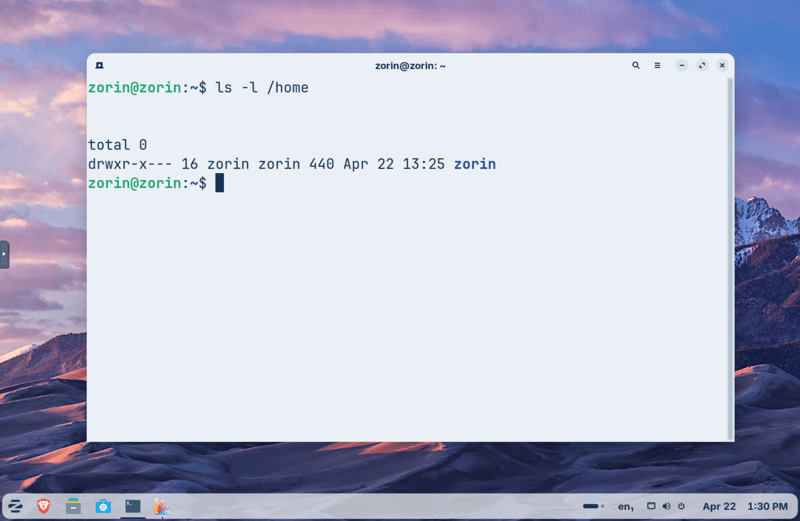
Command and output in the terminal.
Do All Linux Commands Work Everywhere?
Most basic Linux commands work across nearly all distributions. This is especially true for standard tools that have been included in almost every Linux distribution for decades.
Things get more complex with tools tied to specific distributions. Package management is a good example, as the commands vary between distributions.
Distribution (selection) | Package manager |
|---|---|
Debian, Ubuntu, Linux Mint | apt |
Fedora, RHEL, CentOS Stream | dnf |
Arch Linux, Manjaro | pacman |
openSUSE | zypper |
Alpine Linux | apk |
Preinstalled programs also vary. A minimal Linux server might not include an editor like nano, even though it is standard on most desktop systems.
The 30 Most Essential Linux Commands
There are hundreds, if not thousands, of Linux commands. You don’t need to know them all, but a small set can make daily work much easier.
We’ve put together 30 of the most essential ones. Before diving into the details, here’s a quick overview:
# | Command | Purpose |
|---|---|---|
1 | pwd | show current directory |
2 | cd | change directory |
3 | ls | list folder contents |
4 | touch | create a file |
5 | mkdir | create a folder |
6 | cp | copy files or folders |
7 | mv | move or rename files |
8 | rm | delete files or folders |
9 | cat | view file contents |
10 | nano, vim | edit files |
11 | apt | install and manage software |
12 | adduser | create a new user |
13 | passwd | change password |
14 | chmod | change access permissions |
15 | chown | change owner and group |
16 | sudo | run a command as admin |
17 | find | search for files in the system |
18 | locate | find files quickly |
19 | grep | search file contents |
20 | tail | show the last lines of a file |
21 | ping | test network connection |
22 | curl | fetch data from the web |
23 | wget | download files |
24 | uname | show system information |
25 | df | check free disk space |
26 | du | check folder storage usage |
27 | top | show running processes in real time |
28 | ps | list processes |
29 | kill | end a process by ID |
30 | killall | end processes by name |
File and Directory Management
Managing files and folders is one of the most basic and important tasks in Linux. With just a few commands, you can tell the system exactly where to go and what to do with a file.
Navigating the system
First, you need to know where you are in the terminal. This command helps:
pwd shows your current directory. That sounds basic, but it matters because in the terminal, you can’t always tell at a glance where you are in the file system.
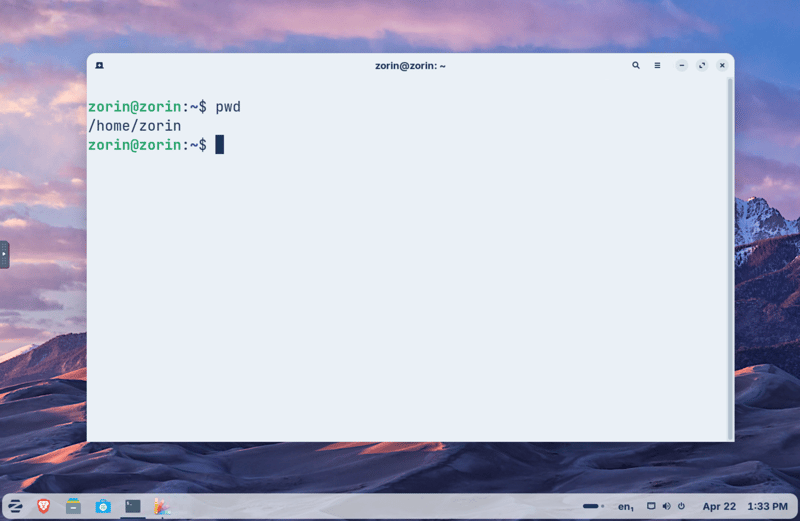
The simple pwd command only shows the current directory.
To switch directories, use cd, short for "change directory." It lets you move around the file system.
With cd, you can jump to your home directory, another folder, or the parent directory:
Running cd without a path takes you directly to your home directory:
To see what files and folders are in a directory, use ls. On its own, it gives you a simple list, but you’ll often want more detail. Here are the most common variations:
With ls -l, you’ll see additional details like file size, last modified date, and permissions. ls -la also shows hidden files, which in Linux usually start with a dot.
Create files and folders
To create a new file, use the touch command followed by the filename:
This creates the file directly in the terminal, with no editor needed. You won’t get a confirmation message, but the file will be there.
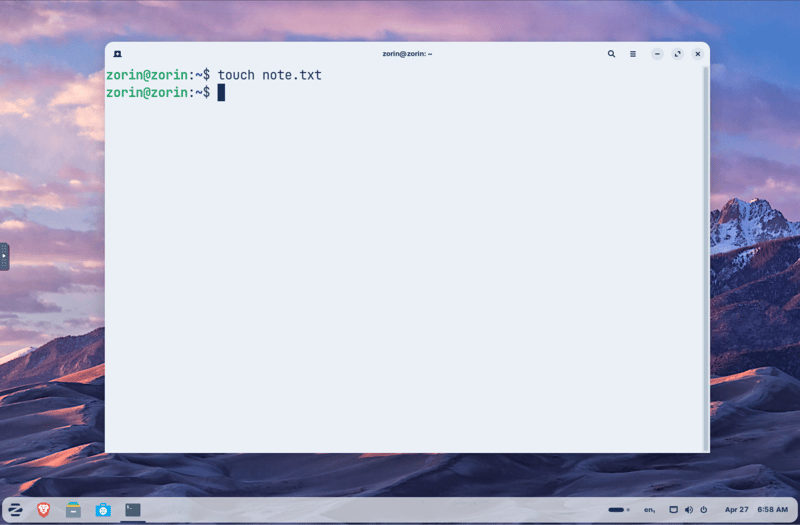
Creating the file note.txt is quick and easy.
To create a new folder, use the mkdir command (short for "make directory"):
To create several folder levels at once, add the -p option. Linux creates any missing parent folders automatically:
Manage and Delete
Use cp to copy files or folders. Specify the source first, then the destination:
Add the -r option to copy entire folders, including all subfolders:
To move or rename files, use mv. It’s one of the most useful commands because it handles both tasks. If the source and destination are in different folders, it moves the file:
If you only change the name, it renames the file:
To delete files, use rm.
Be careful with this command. Deleted files don’t go to a trash folder – they’re gone for good.
For folders, add the -r option. This tells rm to delete the folder and everything inside it. Without -r, rm won't delete folders at all.
Experienced users also rely on rm -rf. It deletes files and folders recursively without asking for confirmation. For beginners, it’s risky, as a single typo can wipe out important data.
Viewing and editing files
To quickly check what's inside a file, use cat. Short for "concatenate,"it prints the file’s contents directly in the terminal. This is useful for short text files.
To edit text files in Linux, use a terminal-based editor. Beginners usually find nano the easiest to learn.
This opens note.txt in nano:
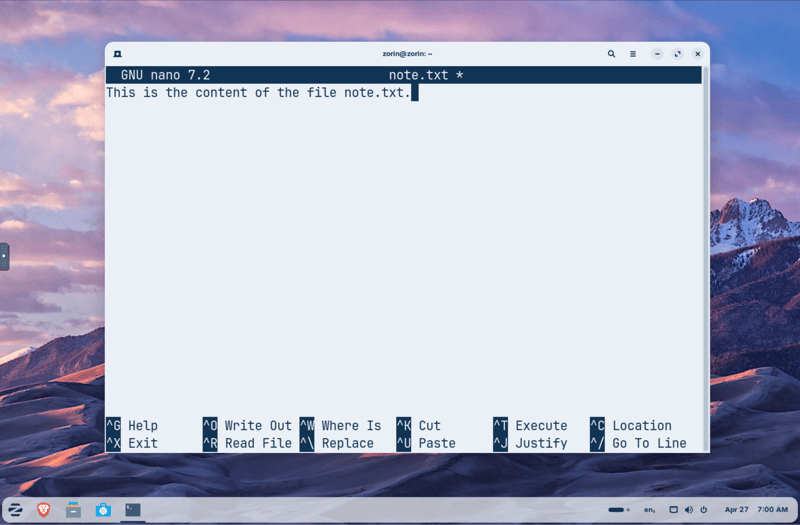
The nano editor.
A more advanced option is vim. It takes some getting used to but is a favorite among power users.
Package Management and Software Installation
Linux usually doesn’t install programs from downloaded setup files. Instead, it uses package managers. These tools handle software in one place, install dependencies automatically, and make it easier to keep programs up to date.
Package manager (Debian/Ubuntu)
On Debian and Ubuntu systems, you use the Advanced Package Tool (apt). With it, you can update package lists, install updates, add new software, or remove programs you no longer need.
Before installing new programs or updates, refresh the package lists with apt update. This tells your system which software is available in your configured repositories.
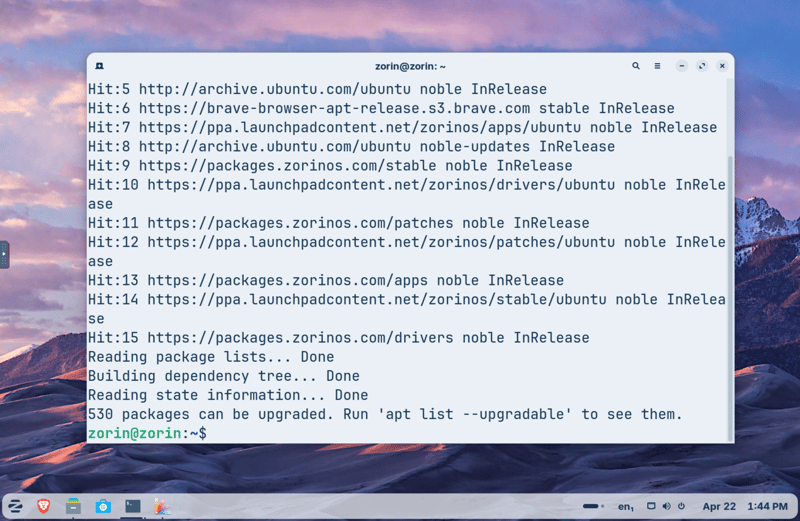
apt update refreshes the package lists.
Then update the programs already installed on your system with apt upgrade.
These commands sound similar but do very different things: apt update doesn’t change anything on your system, while apt upgrade actually installs the updates.
sudo stands for "superuser do." It runs commands with elevated permissions. By default, regular Linux users can’t make system changes like installing software or editing system files. sudo temporarily grants admin rights for a single command (more on this later).
To install a new program, use apt install.
To remove a program, use apt remove. Be careful not to remove the wrong one.
To clean up dependencies you no longer need, run apt autoremove.
When you install programs, Linux often pulls in additional packages they depend on. If you later remove the original program, these dependencies often remain even though nothing uses them. apt autoremove cleans up these leftovers.
apt on other Linux distributions
The apt package manager only works on Debian-based systems like Ubuntu or Linux Mint. On other distributions, apt commands are not available.
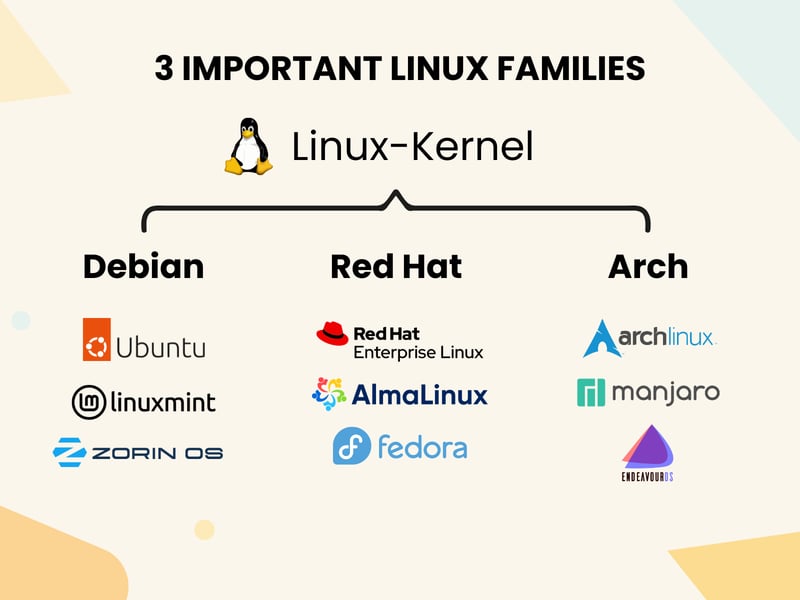
Key Linux families at a glance.
That doesn’t mean software management works completely differently. Every distribution includes its own package manager that handles the same tasks. Fedora uses dnf, and Arch Linux uses pacman. The underlying logic remains the same.
Users and Permissions
Linux keeps users, ownership, and access rights strictly separate, which can confuse beginners. If a command fails, it’s often because you don’t have the right permissions.
Managing users
To add a new user, use adduser. This is useful when multiple people share a system or when you want to separate services.
The command then prompts you to set a password for the new user.
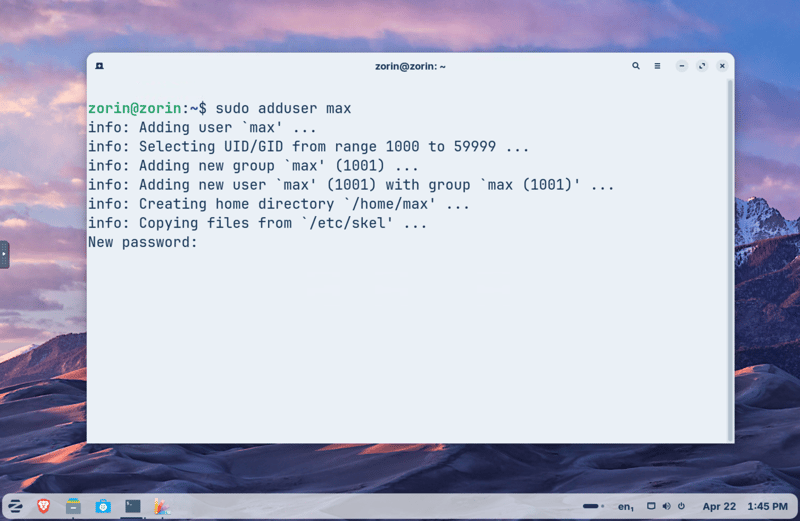
Creating a new user with adduser.
To change a password, use passwd. For your own password, just type the command on its own.
If you’re an admin changing another user’s password, add their username.
File permissions
Every file in Linux has permissions that determine who can read, modify, or execute it. Use chmod to change them.
For example, this command makes a script executable:
Use chown to change file ownership. This helps when a file belongs to the wrong user or was accidentally created with elevated permissions.
The first part is the user, the second is the group. A group is a collection of users who share the same access rights, and a user can belong to multiple groups.
Working with admin rights
Not every user can run every command in Linux. Some commands affect the entire system, so they are intentionally restricted.
That’s where sudo comes in. It lets you run a command with admin rights, as long as your account has permission.
For example, you can delete a file you wouldn't normally have access to:
Or change the owner of a file, which also requires admin rights:
In Linux, you don’t work as admin all the time. You only use elevated permissions when a task actually requires them, which helps protect the system from accidental changes.
If you see a “Permission denied” message, first check whether you have the necessary permissions. In many cases, that alone resolves the issue.
Search, Analysis, Network
Instead of digging through folders manually, you can use commands to search for files, filter log entries, or check network connections directly from the terminal.
Searching your system
To find a file by name, use find.
The first example looks for a specific file, while the second finds all files ending in .log.
For faster results, try locate. It uses a prebuilt database instead of scanning the file system in real time.
However, locate has one drawback, as newly created files may not appear in the database immediately.
Analyzing logs
To search inside files, use grep (short for "Global Regular Expression Print"). It scans text files for specific terms or error codes, which makes it especially useful for logs.
This way, you see only the lines relevant to your issue. Instead of reading through an entire file, grep takes you directly to the important parts.
To see the last few lines of a file, use tail. It’s especially useful for log files, since new entries are typically added at the end.
With tail -f, you can track changes in real time, which is useful for troubleshooting. For example, if you restart a service, you’ll see new log messages as they are written.
Network commands
ping checks whether a target on the network is reachable. It sends test packets to a host and shows whether a response is received.
This quickly shows whether a basic connection to the host exists.
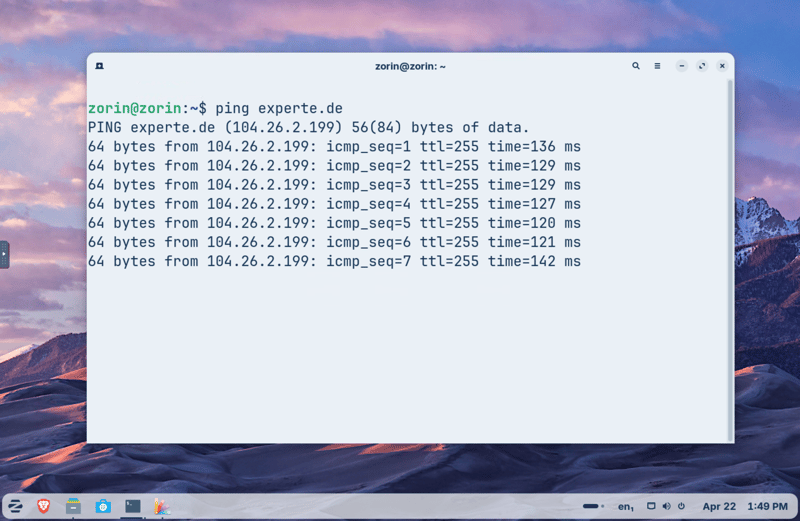
experte.com responds to the ping command.
If you don’t get a response, the issue could be your connection, DNS, a firewall, or the host itself being down.
To fetch data from the web, use curl. It retrieves content from websites or APIs.
To download files, wget is a reliable choice, especially on servers without a graphical interface. For example:
System and Processes
When your system feels sluggish, runs out of storage, or an app freezes, you need tools to check what's going on and manage processes.
System information
Use uname to display basic system details. The -a option is especially useful because it combines several key details in a single output.
This command displays:
Your operating system name
Your machine's hostname
Your kernel version
When the kernel was built
Your system architecture
Use df to check how much disk space is used and available on your file system.
The -h option makes the output human-readable. Instead of cryptic block sizes, you’ll see values in MB or GB. If updates fail or apps suddenly can’t save files, df is often the first step in diagnosing the issue.
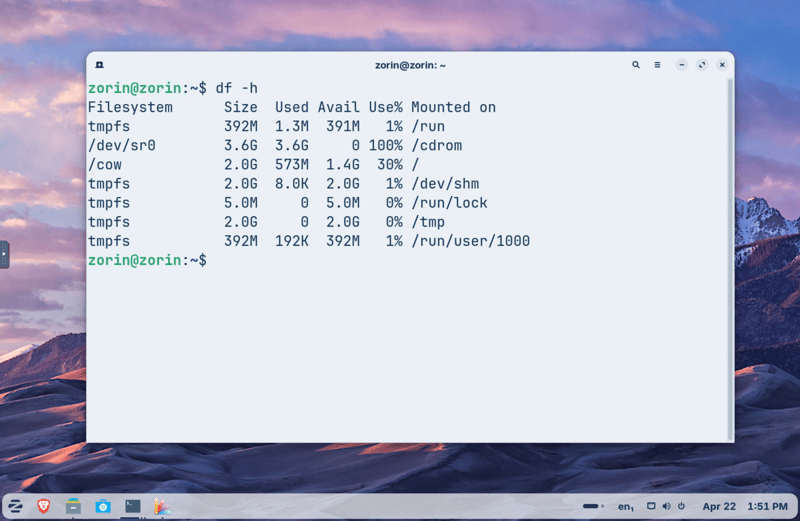
df shows you free and used disk space.
Monitor and control processes
Use top to view running processes in real time. It shows which programs use the most CPU or memory.
If your system feels slow, top is one of the first commands to try.
Use ps to get a snapshot of all running processes. Adding aux displays every process, not just your own.
Unlike top, this isn’t a live view, but it’s useful for finding specific processes or identifying a process ID.
Use kill to stop a process by its ID.
If a process doesn’t respond to kill, use a stronger signal.
This forces the process to stop. Don’t use it as a first step, as it doesn’t allow programs to shut down cleanly.
Use killall to end processes by name instead of by ID.
This is useful when you know the program’s name but don’t want to look up its process ID.
Check storage usage
Use du (short for "disk usage") to see how much space a specific folder is taking up. While df provides an overview of entire file systems, du focuses on individual directories:
This is useful when your system warns you that storage is running low. With du, you can quickly identify which folders use the most space. Large downloads, backups, and log folders are usually the main culprits.
Tips for Using Linux Commands
When you’re starting out with Linux, you don’t need to memorize every command. What matters more is learning how to work efficiently in the terminal. A few simple habits go a long way:
Use the Tab key. It auto-completes file names, folder names, and commands, saving time and avoiding typos.
Take advantage of the command history. Use the up and down arrow keys to scroll through previous commands.
Once you’re comfortable, combine commands. You can build powerful workflows from a few simple tools.
Set up aliases. If you use a long command frequently, create a shorter abbreviation.
Most importantly: never run commands blindly. Always check what a command does before using it with sudo, rm, or modified permissions. Being careful isn’t a sign of inexperience – it’s part of working responsibly in Linux.
Final Thoughts: Commands Make Work Faster
Linux commands let you work faster and more directly than graphical menus. You don’t need to know them all – a handful covers most everyday tasks.
What matters most is understanding the commands you use and practicing them regularly. That builds a solid foundation for working with Linux, including navigating the file system, installing software, managing permissions, and troubleshooting issues.
With a little practice, key commands become second nature. The learning curve feels steep at first, but it’s worth the effort.