RAID 5 for Beginners: Technology, Benefits, and Use Cases


If a hard drive fails, you risk losing your data and facing high costs. RAID 5 can help you avoid this nightmare by distributing your data across multiple hard drives and automatically protecting it.
RAID 5 offers reliable protection and high storage capacity without the need for expensive specialized hardware. This guide will teach you how RAID 5 works, when it is appropriate to use it, and how to maximize its benefits for your needs.


RAID 5 protects your data by distributing it across multiple hard drives. If one drive fails, RAID 5 can reconstruct the missing data from parity values and the remaining drives without any data loss.
RAID 5 is a suitable solution for NAS systems, home servers, or small offices if you're using at least three hard drives.
Setting up and maintaining RAID 5 requires basic technical knowledge, especially when you're handling a hard drive failure.
Compared to RAID 1, you get more usable storage while still maintaining redundancy, and the array can still tolerate a single drive failure. Unlike RAID 6, RAID 5 is usually faster when writing data.
RAID 5 is not a substitute for a proper backup. Make sure you also keep external backups so your data stays safe in the long run.
What Is RAID 5?
RAID 5 is a storage solution that distributes data and parity information across at least three hard drives. If one of the drives fails, the system can use the parity information and the remaining drives to reconstruct the missing data. This means that your server or NAS will stay up and running, and your data will remain accessible as if nothing had happened.
Like RAID 1, 6, and 10, RAID 5 offers real-time redundancy. Your data is distributed or mirrored across multiple hard drives. This means that if one drive fails, it doesn't automatically result in data loss.
Depending on the RAID level, some configurations can even tolerate multiple drive failures. RAID 5 is especially attractive because it only costs one drive's worth of capacity while still providing protection against failures.
With RAID 5, you lose the capacity of just one hard drive, regardless of the total number of drives. For example, four 4 TB drives give you 16 TB of total capacity. In a RAID 5 array, 12 TB is available as usable storage. The more drives you use, the better the ratio of capacity to redundancy becomes.
How RAID 5 Works
RAID 5 uses the principle of striping with distributed parity. The system distributes data blocks evenly across all hard drives. It also calculates parity information for each block of data, enabling the system to reconstruct the data if something goes wrong.
This parity information isn't stored on a single drive. Instead, it's spread evenly across all drives, which is why it's called distributed parity.
An example:
On hard drive 1: A1, B1, and the parity for C (Cₚ)
On hard drive 2: A2, the parity for B (Bₚ), and C1
On hard drive 3: the parity for A (Aₚ), B2, and C2
This rotating storage pattern creates an even workload across all drives. All drives share the work: sometimes hard drive 1 handles the parity data, then hard drive 2, then hard drive 3. Thanks to parity, RAID 5 can compensate for the failure of one drive, as long as only one drive fails.
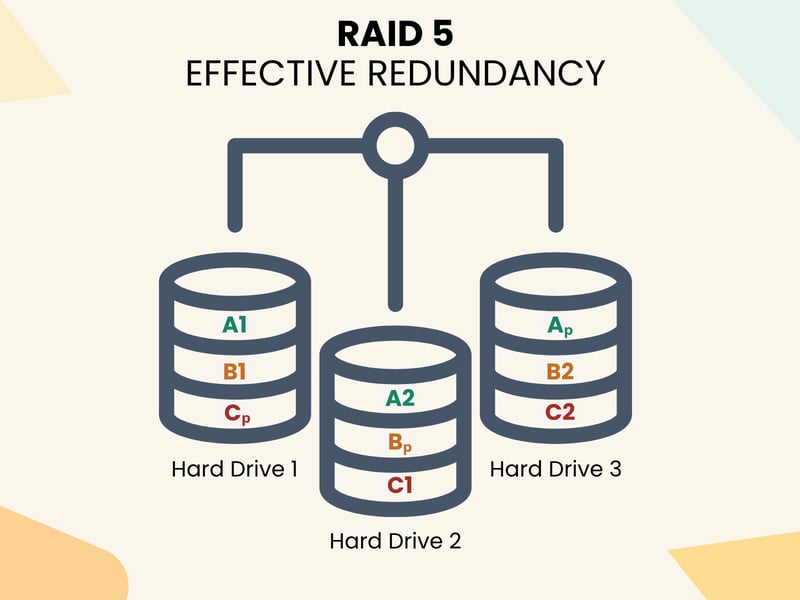
RAID 5 distributes data in blocks across hard drives.
A nice bonus of RAID 5: read performance improves because the system can pull data from multiple drives at the same time. Writing is a bit slower due to parity calculations. This is noticeable when you're working with many small files. How much this affects you depends on your specific system and hardware.
To set up a RAID 5 array, you need at least three hard drives. With this minimum in place, RAID 5 can store the necessary parity data so that no data is lost if one drive fails.
Using four hard drives increases storage efficiency and improves performance. In this case, about 75% of the total capacity is available as usable storage.
Use our RAID calculator to see the capacity and fault tolerance of different RAID systems.
Pros and Cons of RAID 5
RAID 5 is considered a proven middle ground between data security, storage efficiency, and performance. It's suited for environments where you want to store large amounts of data safely without wasting storage space or sacrificing good read speeds.
Protection against single drive failure
RAID 5 can handle the complete failure of one drive. The data is automatically restored from the remaining drives and parity, without data loss or system downtime.Good storage efficiency
Unlike RAID 1, which always reserves 50% of capacity for mirroring, RAID 5 only uses one drive for parity, regardless of the total number of drives. With five drives, about 80% of the total storage is available as usable capacity.Good read performance
Because RAID 5 spreads data across multiple drives, the system can access all drives in parallel when reading. This significantly increases read speeds. It's ideal for applications with many access requests, like databases or network drives.Automatic recovery
As soon as you replace a defective hard drive, the system automatically starts the "rebuild" process. The lost data is reconstructed from the remaining drives and parity without any user intervention.Flexible use cases
RAID 5 works well for small and medium-sized servers, NAS systems, backup storage, or central file servers. It's commonly used in offices, agencies, or by tech-savvy home users.
More complex setup
Compared to RAID 1, setup is more complex. You'll need either a capable RAID controller or you must configure software RAID in Linux or Windows with detailed settings.Slower write speeds
Every write operation requires the parity to be recalculated and stored. This takes processing time and slows down small, frequent write operations in particular. It's a noticeable drawback for data-heavy applications like video editing.Longer recovery time after failure
If a hard drive fails, the rebuild process can take many hours, or even longer depending on capacity. During this time, the system is especially vulnerable because a second drive failure would mean complete data loss.No protection against double failure
RAID 5 can only handle the failure of one hard drive at a time. If a second drive fails during this period, your data is permanently lost. For higher redundancy, RAID 6 or RAID 10 are better options.No protection against software issues
Like other RAID configurations, RAID 5 does not protect against viruses, file corruption, or accidental deletions. Anything that happens on one drive affects the entire array. An additional backup is essential.
When a hard drive fails, RAID 5 starts the rebuild process. During this phase, the system is especially vulnerable. Another failure would put all your data at risk. Large drives (like 8 TB or more) can take several hours or even days to rebuild. It's important to replace defective drives immediately and check RAID status messages regularly.
Typical Use Cases for RAID 5
RAID 5 is best suited to read-heavy environments with large amounts of data that require a balance between security and capacity. Here are a few example scenarios:
File servers with multiple users
In small to medium-sized businesses, RAID 5 works well for file servers accessed by multiple users at the same time. Parallel read access delivers strong performance, while a single drive failure won't cause any downtime.NAS systems for backup and archiving
RAID 5 provides enough redundancy to protect important files while using storage space wisely. In a NAS system with three or more hard drives, you can store large amounts of data securely in one central location. This is perfect for documents, photos, or project archives.Backup targets with high capacity
If you regularly back up large amounts of data, you need plenty of storage space. RAID 5 is a space-saving solution that still offers failure protection.Virtual machines and test environments
RAID 5 is a good fit for IT setups where multiple virtual machines or services run in parallel. The system performance is more than enough for standard applications, and the redundancy protects against failures.Home users with growing needs
RAID 5 can also be useful in a home network. For example, it works well if you run a central media archive or a private cloud. With multiple hard drives, RAID 5 lets you combine storage space and security without switching to more expensive solutions.
Setting Up RAID 5
RAID 5 is set up as hardware or software. Hardware RAIDs usually perform faster, while software RAIDs offer more flexibility and lower costs.
Hardware RAID
A hardware RAID 5 uses a dedicated RAID controller that's either installed as an expansion card or built into the motherboard. This controller manages the entire RAID system independently of the operating system. It detects all hard drives at system startup and automatically handles reading, writing, and parity calculations.
Better performance
Because the RAID controller handles parity calculations, the system's CPU stays free for other tasks. This improves write performance compared to software RAIDs.Stability for continuous operation
Hardware controllers are designed for 24/7 use and work reliably even at high temperatures or under constant load.Automatic recovery
If a hard drive fails, the controller usually starts rebuilding the RAID array automatically. You don't need to do anything manually. This saves time and reduces the risk of user errors.Independent of the operating system
Once set up, a hardware RAID works right away, even if you switch operating systems or don't have one installed (like in storage appliances). This makes it more resistant to software issues.
Additional costs
High-performance RAID 5 controllers can quickly cost between $100 and $500, depending on the features. For simple home systems, this can be too expensive.Hardware dependency
If the RAID controller fails, you may need the same model to restore the array. This can be a problem with rare or outdated controllers.Less flexible in daily use
Settings and maintenance are usually done through the controller's BIOS. Changes or upgrades aren't as easy as with a software solution and often require a restart.
Setting Up a Hardware RAID 5
Here's how to set up RAID 5 as a hardware solution:
- 1.
Connect the RAID controller: The controller is either already built into the motherboard or installed as an expansion card. Then connect at least three hard drives of the same size to the controller.
- 2.
Enter the RAID menu at startup: After turning on the computer, press the key combination shown on the screen to open the controller menu.
- 3.
Select RAID 5 and assign hard drives: Choose RAID 5 as the level and select the drives you want to include. Then start the initialization. The controller will distribute the data and automatically calculate the parity.
- 4.
Use the RAID as a drive: After setup, the BIOS recognizes the entire array as a single drive. You can install an operating system on it or use it as data storage.
Software RAID
With a software RAID, the operating system itself manages the RAID array. This saves money but requires more user involvement, especially during setup and maintenance.
No extra costs
All you need are your operating system and some available hard drives. This makes it a great option for private NAS solutions, DIY projects, or small servers on a limited budget.Easy to add later on
You can set up a software RAID 5 on existing systems without special hardware or motherboard changes. Setup stays flexible and is well-documented.Full control over the system
All RAID settings are accessible in the operating system. You can monitor the status, add hard drives, change the file system, or stop the RAID without accessing the BIOS.
CPU load
The processor handles all parity calculations. This can cause performance drops on older or heavily loaded systems, especially with many simultaneous write operations.Active after booting only
Since the RAID is only recognized by the operating system, startup problems can cause complications. This is risky for boot drives.More configuration effort
Setting up on Windows Server or Linux requires technical knowledge. Incorrect configurations can prevent the RAID from working at all or cause recovery issues after a failure.
Setting Up a Software RAID 5 on Windows
Windows 10 and 11 don't support true RAID 5 through the standard Disk Management tool. However, the Storage Spaces feature lets you create a similar solution with parity protection. No additional hardware is needed.
Here's how to set up Storage Spaces with parity:
- 1.
Open Control Panel and launch Storage Spaces: Type "Manage Storage Spaces" in the Start menu. You can also find it under Control Panel > System and Security > Storage Spaces.
- 2.
Create a new storage pool: Click "Add". Select at least three unused hard drives to include in the pool. Make sure these drives don't contain any important data because Windows will erase them.
- 3.
Select "Parity" as the resiliency type: In the next step, you'll define the resiliency type. Choose Parity to protect your data with redundant parity information. This setting ensures your data can be recovered if one hard drive fails.
- 4.
Set the drive name, letter, and size: Give your new storage space a name, assign a drive letter, and set the desired size. Windows also lets you specify a "larger" size than what's physically available (thin provisioning).
- 5.
Format and use the volume: Finally, Windows formats the new drive (NTFS by default) and mounts it as a regular drive. You can now use it like any other storage device.
Even though Storage Spaces offers redundancy similar to RAID 5, it's not a full replacement for professional RAID systems, especially for heavy server use. However, it works well for home use and smaller projects.
Setting Up a Software RAID 5 on Linux
Linux offers a powerful software RAID solution with the mdadm tool. You don't need any extra hardware, but setup is done entirely through the terminal. Some command line experience is helpful.
Step 1: Install mdadm
Open a terminal and enter:
This installs the RAID tool on Debian-based systems like Ubuntu. For other distributions, adjust the command accordingly.
Step 2: Create the RAID 5 array
Connect at least three empty hard drives to your system. Then create the RAID 5 array with:
Replace /dev/sdX, /dev/sdY, and /dev/sdZ with the actual device names of your drives. /dev/md0 is the new RAID array.
Step 3: Create a file system and mount the RAID
Format the new RAID array with a file system, such as ext4:
The RAID is now ready to use and available at /mnt/raid.
Step 4: Make the RAID persistent
To ensure the RAID is automatically detected and mounted after a reboot, save the configuration:
Also add an entry to /etc/fstab to automatically mount the RAID at boot.
Are you using RAID 5 in an office or production environment with many users? In that case, a hardware RAID is usually worth it for better performance. If you're building a home NAS or test system, software RAID is usually enough.
4 Common RAID 5 Mistakes and How to Avoid Them
RAID 5 offers solid protection against hard drive failures, but only when it's set up, used, and monitored correctly. In practice, the same mistakes keep happening, putting system security at risk or slowing down performance. Here are four of the most common mistakes:
- 1.
Treating RAID 5 as a backup replacement
Many users believe a RAID system can replace a backup. This is dangerous, because RAID 5 only protects against hardware failures. If a file is accidentally deleted or encrypted by a virus, those changes are present on all drives. - 2.
Not monitoring the RAID array status
If a drive fails, RAID 5 continues to work, but with limited protection. If you don't notice this, you risk losing all your data when the next drive fails. Use monitoring tools regularly or enable alerts on your NAS or RAID controller. - 3.
Mixing different hard drive types
Technically, you can combine drives from different manufacturers or with different sizes. But it's not a good idea. The smallest and slowest drive determines the performance and capacity of the entire array. It's better to use identical drives to keep performance stable. - 4.
Incorrect setup in BIOS or operating system
A RAID array only works properly if it's set up correctly. Misconfigured BIOS settings, missing initializations, or unrecognized drives can lead to unstable systems or data loss.
Comparing Other RAID Levels
RAID 5 is just one of several ways to combine hard drives into a secure and high-performance array. Depending on what matters most to you—maximum speed, highest reliability, or a balance of both—other RAID levels may be a better fit.
RAID Level | Redundancy | Usable Storage | Key Feature |
|---|---|---|---|
RAID 0 | None | 100% | Maximum speed, but no protection |
Mirroring (1:1) | 50% | Fault tolerance through mirroring | |
RAID 5 | 1 hard drive | approx. 67–80% | Good balance between security and capacity |
RAID 6 | 2 hard drives | approx. 60–75% | Higher fault tolerance for large arrays |
Mirroring + striping | 50% | Combination of performance and security |
Not every RAID level fits every use case. RAID 1 offers maximum data security, while RAID 0 focuses on speed. RAID 5 and 6 are good all-rounders. RAID 10 combines performance with redundancy, but at the cost of storage efficiency.
Not sure which level best fits your setup? Our RAID calculator helps you choose.
RAID 5 vs. RAID 1
RAID 1 is the simplest form of data mirroring with high fault tolerance. All data is mirrored one-to-one on two hard drives. If one fails, the system remains fully usable. The recovery process is fast.
RAID 5, on the other hand, uses parity to achieve redundancy with just one additional drive. This saves storage space but is more complex to set up.
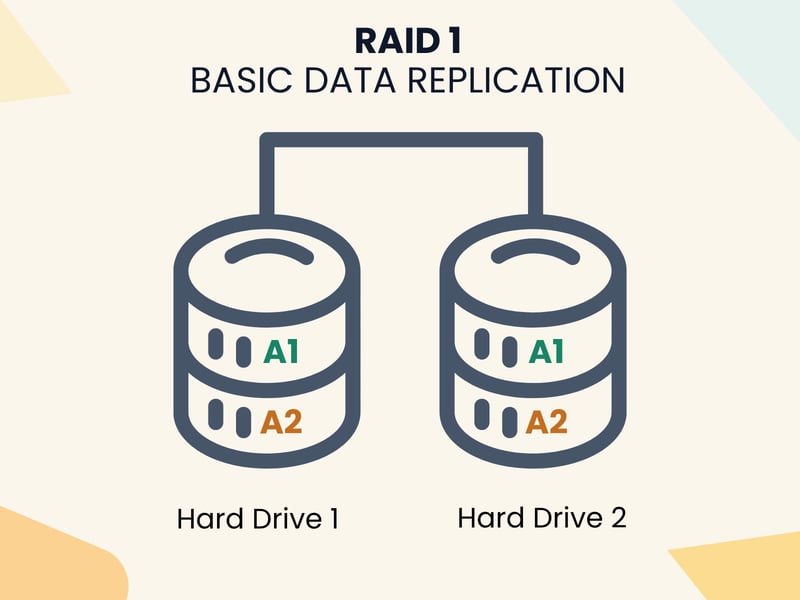
RAID 1 mirrors data on two hard drives.
Comparison | RAID 1 | RAID 5 |
|---|---|---|
Fault tolerance | 1 failed drive | 1 failed drive |
Storage efficiency | 50% | approx. 67–80% (depending on number of drives) |
Write speed | High | Medium |
Complexity | Low | Medium |
RAID 1 is a good fit if you want to mirror your data as simply and securely as possible. RAID 5 is the better choice if you're using multiple hard drives and both storage space and fault tolerance are important.
RAID 5 vs. RAID 6
RAID 6 is an evolution of RAID 5. The difference is that it stores two parity blocks instead of just one. This allows the system to keep working even if two drives fail at the same time. This is a real advantage for large arrays with long rebuild times.
However, RAID 6 comes with additional storage overhead. Write speeds are also slightly lower.
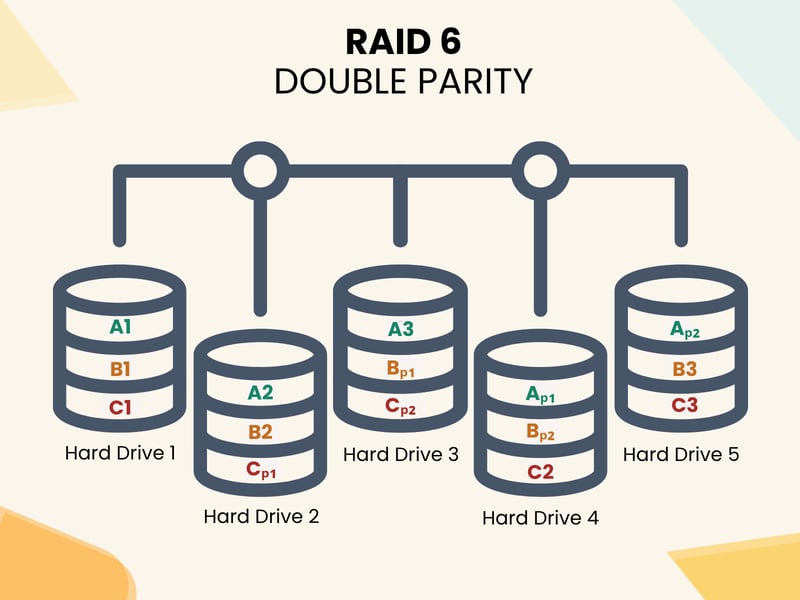
RAID 6 tolerates two failed hard drives.
Comparison | RAID 5 | RAID 6 |
|---|---|---|
Fault tolerance | 1 failed drive | 2 failed drives |
Storage efficiency | approx. 80% (with 5 disks) | approx. 67% (with 6 disks) |
Write speed | Medium | Slightly lower than RAID 5 |
Complexity | Medium | High |
RAID 6 is worth it for many drives or when fault tolerance is your top priority. RAID 5 is better suited for smaller arrays where performance matters more than maximum redundancy.
RAID 5 vs. RAID 10
RAID 10 combines the advantages of RAID 1 and RAID 0: it first creates multiple mirror pairs (RAID 1) and then distributes data in blocks across these pairs (RAID 0). This delivers high read and write speeds while protecting against one hard drive failure per mirror pair.
RAID 10 offers high performance and redundancy but requires at least four hard drives and uses only 50% of the available storage space. RAID 5 uses storage space much more efficiently if you want to maximize capacity while still maintaining solid protection.
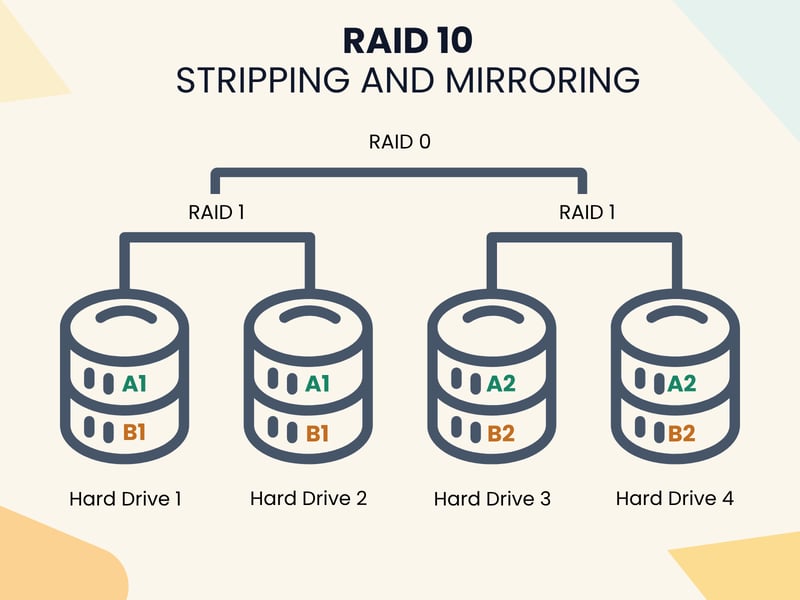
RAID 10 offers high performance and redundancy.
Comparison | RAID 5 | RAID 10 |
|---|---|---|
Fault tolerance | 1 failed drive | 1 per mirror pair (depending on failure) |
Storage efficiency | approx. 67–80% | 50% |
Write speed | Medium | High |
Complexity | Medium | High |
RAID 10 is best suited to applications that require high speed and availability. (for example, databases or virtualization). RAID 5 is more suitable for traditional file servers with limited budgets.

Conclusion
In RAID 5, data and parity information are distributed across at least three hard drives. In the event of a drive failure, the data can be reconstructed without the system going offline.
Compared to other RAID levels, RAID 5 strikes a balance between fault tolerance, storage efficiency, and read performance. It is an attractive option for those who regularly work with large volumes of data and require reliable access while avoiding the need for a complex setup.
RAID 5 is well-suited to small and medium-sized businesses that run file servers. It is also popular among tech-savvy home users with larger home networks. The system integrates easily with NAS devices and virtual machines. Just make sure you have at least three hard drives of the same size and are willing to handle the setup and monitoring.
Bear in mind that RAID 5 is not a replacement for backups. It's just one component of a comprehensive data protection strategy.