RAID 1 Explained: How It Works, Benefits, and Use Cases


A hard drive failure can wipe out important data, especially without a backup. RAID 1 helps protect against that risk.
With RAID 1, your data is automatically stored on two hard drives simultaneously. This guide explains how it works, its benefits, and what to consider when setting it up.


RAID 1 automatically mirrors your data across two hard drives. If one drive fails, your data stays intact.
RAID 1 is all about data protection, not maximizing storage. Your usable storage is cut in half because every piece of data is saved twice.
RAID 1 is not a replacement for a backup. It only protects against drive failure, not accidental deletion or malware.
Setup is straightforward. You can configure RAID 1 using either a hardware controller or software.
RAID 1 is especially useful for small servers and NAS systems but less suitable for high write workloads or tight storage budgets.
RAID 1 is just one of several RAID options. Depending on your needs, another RAID level may be a better fit. For example, RAID 0 offers higher speed, while RAID 5 provides better storage efficiency.
What Is RAID 1?
RAID 1 is a disk configuration that protects data from hardware failure. RAID stands for Redundant Array of Independent Disks, a method where multiple hard drives operate as a single unit.
Different RAID levels distribute data across drives in various ways to improve security, performance, or storage efficiency. RAID 1 is one of the simplest configurations and relies on full mirroring, meaning every byte is written to two or more drives simultaneously.
Unlike other RAID levels that focus on speed (RAID 0) or storage efficiency (RAID 5), RAID 1 focuses on fault tolerance. Mirroring provides strong data protection but comes with one major trade-off:
You can only use as much storage as the smallest drive in the array due to full mirroring. Two 1 TB drives provide just 1 TB of usable space, not 2 TB.
How RAID 1 Works
RAID 1 is based on mirroring. The system writes all data to two hard drives simultaneously, creating full redundancy so every file exists twice. If one drive fails, all your data remains intact.
This simple structure makes RAID 1 a popular choice for anyone who wants reliable data protection without dealing with more complex systems like RAID 5 or virtualized storage solutions.
Beyond fault tolerance, RAID 1 can slightly improve read performance: since both drives can be read simultaneously, read speed can increase. Write speed, however, does not improve, as every piece of data must be written twice, resulting in performance similar to a single drive.
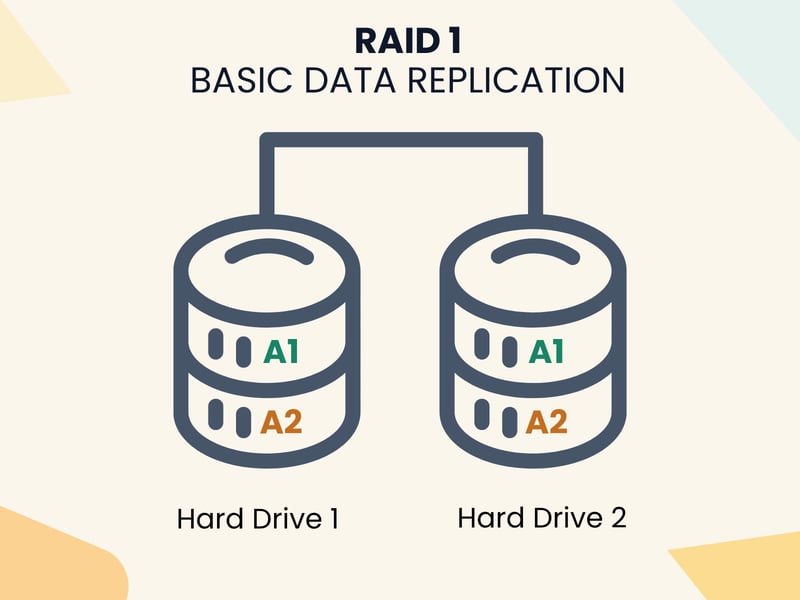
With RAID 1, at least two hard drives contain the exact same data.
Pros and Cons of RAID 1
RAID 1 offers several benefits thanks to its built-in redundancy, but it also comes with trade-offs. Here are the most important pros and cons:
Maximum data protection
RAID 1 reliably protects your data against drive failure. All data is stored identically on both drives, so if one fails, the system continues running without interruption.Easy recovery
If a drive fails, you replace it with a new one, and the system automatically mirrors the data onto the replacement, restoring full protection.Faster read speeds
Both drives can be read simultaneously, which often improves performance, especially when multiple applications access data or in environments with frequent read operations.Transparent operation
Mirroring happens entirely in the background, and the system manages data automatically, regardless of the operating system.Simple setup
Compared to more complex RAID levels like RAID 5 or RAID 6, RAID 1 does not require parity calculations or distributed blocks, making it a good option for beginners.
High storage overhead
RAID 1 cuts your usable storage in half. Two 2 TB drives provide only 2 TB of usable capacity, as the other half is reserved for mirroring. If you need a lot of storage, this protection requires double the drives.No write speed improvement
When saving data, everything is written to both drives at once. This duplication does not improve speed and may even slow the system slightly with weaker hardware or many small write operations.No protection against software issues
RAID 1 only guards against hardware failure. If malware encrypts your files or you accidentally delete a folder, both drives are affected immediately, and corrupted files or system errors are mirrored as well.Not a backup replacement
RAID improves data availability but is not a backup. It does not protect against theft, fire, power surges, or accidental changes, so separate external backups are still required for full data protection.
Common Use Cases for RAID 1
RAID 1 is a good fit for simple servers, NAS systems, or single-workstation setups. It is used wherever protection against drive failure matters more than maximizing storage or performance. Here are a few typical scenarios:
Local server systems focused on data protection
RAID 1 is a popular choice for small server environments where a single drive failure must not take down the system. It is especially useful for internal databases, sensitive business data, or systems that need to stay online at all times, as mirroring provides reliable protection.NAS systems for small offices or home networks
Network-attached storage (NAS) devices in home offices or small businesses also benefit from RAID 1. Important files such as documents, photos, or project data remain accessible even if one drive fails.First line of defense in backup strategies
RAID 1 works well as a primary layer of redundancy against hardware failures. It does not replace a proper backup (which protects against malware or physical damage such as fire), but it keeps your system running when a drive fails, forming a multi-layered protection strategy.For anyone who values data safety over raw performance
RAID 1 makes sense whenever data safety matters more than speed or storage capacity. Examples include accounting records, customer files, legal documents, or sensitive project data.
Setting Up RAID 1
If you want to set up a RAID 1 array, you have two options: configure the mirror using dedicated hardware or use a software solution. Both approaches have pros and cons.
Hardware RAID
A hardware RAID uses a dedicated RAID controller, either installed as an expansion card or built into the motherboard. This hardware handles all mirroring tasks without relying on the operating system.
As soon as the computer starts, the controller manages both drives and keeps them in sync automatically.
High stability: Once configured, the RAID runs independently of the operating system. This makes it ideal for 24/7 servers or production workstations.
Hot-swap support: Many controllers support hot-swapping. This means you can remove and replace a failed drive while the system is still running, with no downtime required.
Automatic rebuild: If a drive fails, the controller usually starts rebuilding the data onto the replacement drive automatically, with no manual steps needed.
Additional costs: A RAID controller typically costs between $50 and $300, depending on its features, while professional-grade models can cost significantly more.
Complex setup: BIOS menus can be confusing, and configuration mistakes can break the mirror.
Controller dependency: If the controller fails, you need an identical replacement model to recover your data.
How to Set Up Hardware RAID 1
Setting up a hardware RAID 1 starts before the operating system boots. After installing the RAID controller and connecting the drives, configuration is done through the controller’s BIOS menu.
There, you select the option to create a new RAID array, choose RAID 1 as the level, and select the two drives to mirror.
Some controllers also ask about options like stripe size or initialization type. These settings are usually irrelevant for RAID 1, since data is not distributed across multiple drives.
After saving the settings, the controller initializes the array. Depending on drive size, this process can take anywhere from a few minutes to several hours, during which all data from one drive is copied to the other.
Many RAID controllers also offer additional features such as:
S.M.A.R.T. monitoring – an early warning system that detects potential drive failures before they happen.
Hot-spare management – automatically activates a standby replacement drive if one fails.
Automatic rebuild – a new drive is automatically synced after you swap it in.
Once the RAID 1 array is created, the operating system sees it as a single drive. You can install Windows, Linux, or any other OS on it as usual, typically without extra drivers or configuration.
Software RAID
With a software RAID 1, the operating system handles the mirroring. On Windows, you can use Disk Management, while on Linux, the standard tool is mdadm. This approach requires no additional hardware. Setup is more flexible but requires more technical knowledge.
During normal operation, a software RAID 1 puts extra load on the CPU because the system handles all mirroring tasks. On lower-end hardware, this can noticeably impact performance, especially when resource-heavy applications run at the same time.
For basic servers with a modern CPU, software RAID remains a cost-effective and reliable solution.
No extra costs: You only use existing system resources, so there's no need to buy special hardware.
Flexible: The setup is fully configurable, including on virtual machines or mixed environments.
Great for individual users: A software RAID 1 is a solid entry-level solution if you want to protect a workstation or NAS.
Higher CPU load: Mirroring puts extra strain on the CPU, which can become noticeable under heavy system load.
Technical knowledge required: Setup and maintenance are more complex than with hardware RAID solutions.
Less convenient during failures: Recovering from a disk failure usually requires manual intervention.
Setting Up Software RAID 1
Setup happens directly in the operating system. On Windows, you use Disk Management; on Linux, you use the command line with mdadm.
→Setup on Windows
Here's how to set up a software RAID 1 on Windows:
- 1.
Prepare the drives: Connect two empty drives that are ideally the same size. Open Disk Management (right-click the Windows icon in the taskbar) and delete any existing partitions from both drives.
- 2.
Create a mirrored volume: Right-click one of the empty drives and select "New Mirrored Volume." Choose the second drive as the mirror partner. Windows will create a RAID 1 and begin syncing in the background.
- 3.
Format the file system: Assign a drive letter to the new volume and format it with NTFS. Once complete, the RAID is available like any regular drive.
- 4.
Monitor the sync: The initial mirroring process can take several hours, depending on the amount of data. You can track progress in the Disk Management window, and the system remains usable during this time.
→Setup on Linux (With mdadm)
Here's how to set up a software RAID 1 on Linux:
- 1.
Prepare the system: Install the mdadm tool (e.g., on Debian/Ubuntu with the command sudo apt install mdadm). Then connect two unformatted drives of the same size.
- 2.
Create the RAID: Use the following command to create a RAID 1:
mdadm create --verbose /dev/md0 --level=1 --raid-devices=2 /dev/sdb /dev/sdcCreate the file system: Once the array is created, format it using the following command:
sudo mkfs.ext4 /dev/md0 - 3.
Mount and enable permanently: Mount the RAID 1 manually or add it to /etc/fstab to enable automatic mounting at boot.
- 4.
Monitor the status: Use cat /proc/mdstat or mdadm --detail /dev/md0 to check the array’s status at any time.
It depends on your use case. If you want a quick setup without deep system configuration, hardware RAID is the better choice. If you prefer full control and don’t mind a learning curve, software RAID is a strong option.
Avoid making a blanket decision. Choose based on your environment: for 24/7 servers, hardware RAID is recommended, while for individual workstations or test setups, software RAID is usually sufficient.
4 Common RAID 1 Mistakes and How to Avoid Them
Even though RAID 1 is relatively straightforward, avoidable mistakes are common. Knowing them helps prevent outages:
- 1.
Confusing RAID 1 with a backup
RAID 1 only protects against a single drive failure. If you treat it as a complete backup solution, you risk losing everything to a virus or accidental deletion. A regular, external backup is still essential. - 2.
Not monitoring the RAID 1 status
When a drive fails, RAID 1 continues running but without redundancy. Many users do not notice the failure immediately. If a second drive fails before the first is replaced, all data is lost. Enable notifications, check the RAID status regularly, and watch for unusual sounds or error messages. - 3.
Using incompatible drives in a RAID 1
Different drive sizes or types can cause performance issues and wasted capacity. For best results, use two identical drives. - 4.
Misconfiguring the RAID 1 setup
An incorrect BIOS mode or an incompletely initialized volume can prevent proper mirroring. Read your motherboard or controller manual carefully and back up important files before setup.
Other RAID Levels Compared
RAID 1 is just one of many RAID configurations. If you need more performance, storage capacity, or redundancy, other RAID levels may be a better fit. Here is an overview of common alternatives:
RAID Level | Redundancy | Usable Storage | Key Feature |
|---|---|---|---|
RAID 0 | None | 100% | Maximum speed, but no protection |
RAID 1 | Mirroring (1:1) | 50% | Full data protection through mirroring |
1 drive | approx. 67–80% | Good balance of safety and capacity | |
RAID 6 | 2 drives | approx. 60–75% | Higher fault tolerance for large arrays |
Mirroring + striping | 50% | Combines performance and safety |
Choosing the right RAID level depends on what matters most: speed, fault tolerance, or storage capacity. RAID 1 remains an excellent choice for simple setups where maximum data safety with just two drives is the priority.
RAID 5 and RAID 6 work well in larger systems where performance and storage efficiency matter. RAID 10 combines performance and safety but at a higher cost. Compare your options and calculate your RAID requirements carefully before deciding.
RAID 1 vs. RAID 0
RAID 1 and RAID 0 both use at least two drives but serve different purposes. RAID 0 focuses on maximum speed, while RAID 1 focuses on data protection.
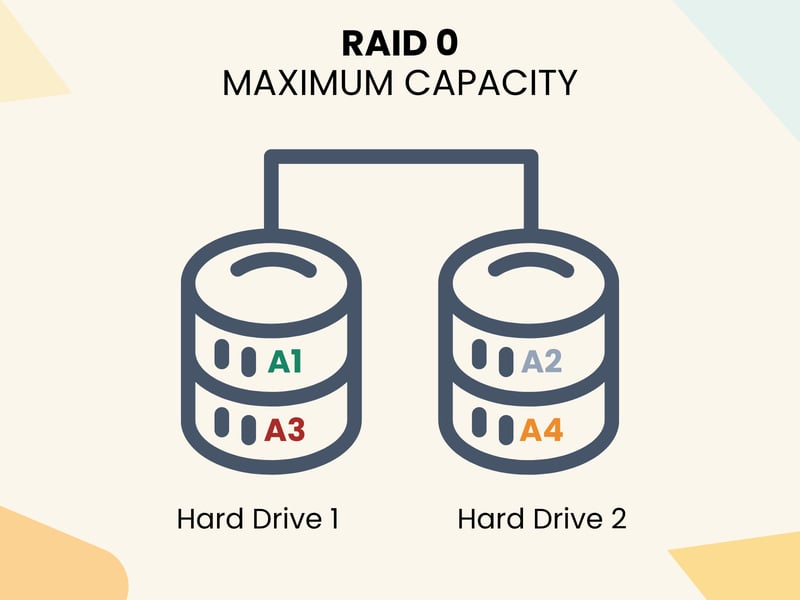
RAID 0 offers no redundancy.
Unlike RAID 1, RAID 0 uses striping: the system splits data into blocks and distributes them across both drives. This significantly improves read and write speeds. Since there is no redundancy, you get the full capacity of all drives, but if one drive fails, all data is lost.
Criteria | RAID 0 | RAID 1 |
|---|---|---|
Goal | Maximum speed | Maximum data protection |
Data distribution | Striping (blocks spread across drives) | Mirroring (identical copy on all drives) |
Minimum drives required | 2 | 2 |
Fault tolerance | None | Very high |
Write speed | Very high | Same as a single drive |
Read speed | High (parallel reads) | Slightly improved (with parallel access) |
Usable capacity | 100% (e.g., 2 × 2 TB = 4 TB) | 50% (e.g., 2 × 2 TB = 2 TB) |
Best for | Temporary work files, gaming, video editing | Secure storage for important data |
RAID 0 is built for speed but does not protect against data loss. If performance is your priority and you have a separate backup, it can be a good option. For critical data, RAID 1 is the safer choice.
RAID 1 vs. RAID 5
RAID 1 and RAID 5 also differ significantly. RAID 5 distributes data and parity information across at least three drives. If one drive fails, the system can rebuild the missing data from the remaining drives.
The downside is that recovery takes longer because the missing data must be recalculated from parity information.
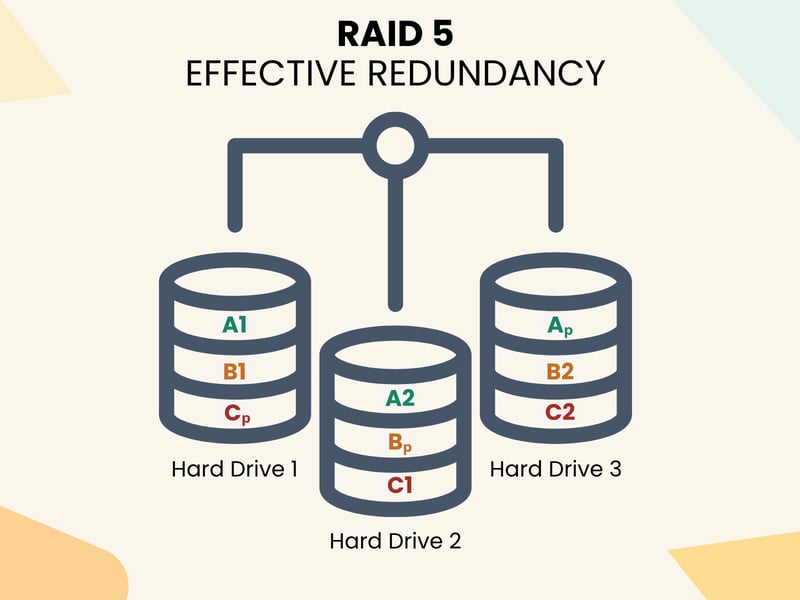
RAID 5 offers more options but is significantly more complex.
RAID 1 is easy to set up, even for beginners. RAID 5, however, requires experience with RAID controllers or software RAID, but scales better, especially in NAS systems with four or more drives.
Criteria | RAID 5 | RAID 1 |
|---|---|---|
Goal | Redundancy with more usable storage | Maximum data protection |
Data distribution | Striping with distributed parity | Mirroring (full copy) |
Minimum drives required | 3 | 2 |
Fault tolerance | Can survive one drive failure | Can survive one drive failure |
Recovery time | Long (parity recalculation needed) | Short (direct copy) |
Write speed | Reduced due to parity calculations | Unchanged |
Read speed | Improved through parallel reads | Slightly improved |
Usable capacity | About 67–80% (e.g., 3 × 4 TB = 8 TB usable) | 50% (e.g., 2 × 4 TB = 4 TB) |
Complexity | Medium to high | Low |
Best for | NAS systems, file servers, larger storage pools | Small servers, critical data |
RAID 5 offers more capacity and solid performance with a reasonable level of protection. If you are comfortable with a more complex setup, it is a strong alternative to RAID 1.
Conclusion
RAID 1 is a reliable way to protect data against drive failure. It combines two drives into an array that automatically mirrors all data in the background. If one drive fails, your data remains intact. The trade-off is that only half of the total storage capacity is usable.
RAID 1 is one of the simplest and most dependable RAID levels. It is a good fit for anyone who wants strong data protection without complex setups or parity calculations, especially where uptime and reliability matter more than speed or storage capacity.
That said, RAID 1 is not a backup. It protects against hardware failures but not against accidental deletion, malware, or file corruption. Always pair RAID 1 with an independent backup solution that is regular, versioned, and stored off-site.
Looking for a RAID level with more storage or higher speed? Check out our overview of the most important RAID levels to find the right option for your needs.