How to Cancel, Pause, or Sell Your Shopify Store


Your Shopify store has run its course, or you’ve decided to move to another ecommerce platform? Whatever the reason, you can close your store in just a few steps. And if you’re not ready to call it quits for good, you can pause it instead.
In this guide, we’ll show you how to cancel your Shopify store step by step. We’ll also explain how to put it on pause or sell it to someone else.


How to Cancel Your Shopify Subscription
Canceling your Shopify store only takes a few minutes, but there are a couple of things you should take care of first. Here’s what to do before closing your store for good, followed by a step-by-step guide to canceling your subscription.
First things first: Things to do before you cancel
First, make sure you don’t leave any unfinished business behind. Here’s a list of things to sort out before you cancel:
Complete any open orders
Check your orders and make sure any outstanding orders have been processed and shipped before you close your store.
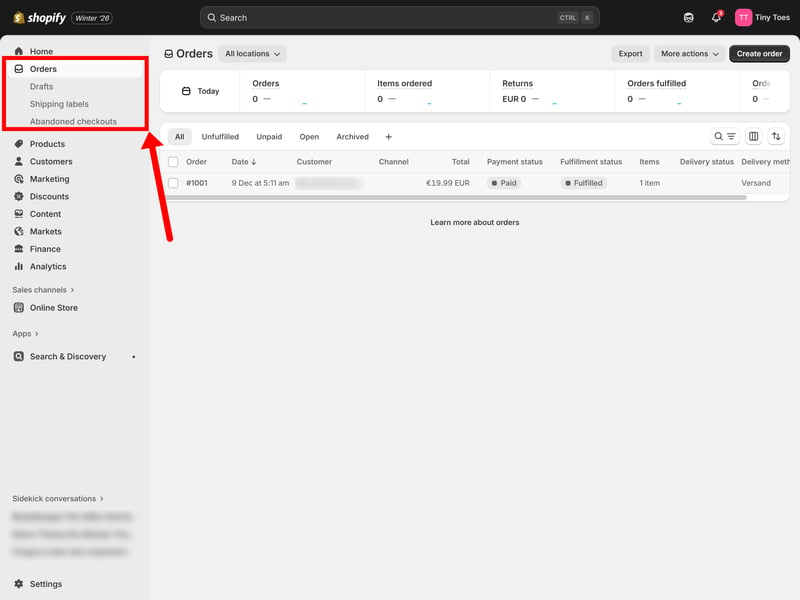
Make sure all orders are completed.
Pay any outstanding bills
You can’t close your Shopify store if you still have an outstanding balance. Make sure you’ve paid any charges owed to Shopify before you cancel.
You should also settle any outstanding bills with suppliers or other service providers before closing your store.
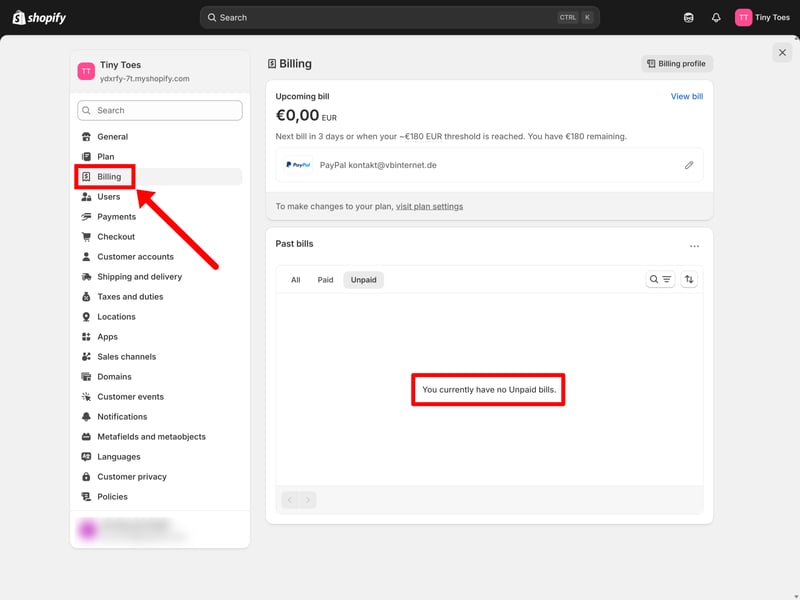
Pay any outstanding bills.
Cancel your subscriptions
Cancel any paid apps or other subscriptions connected to your store. Otherwise, these may continue to renew even after you close your store.
To see your active subscriptions, go to Settings > Plan > Subscriptions. From there, you can check which services you’re still paying for and cancel the ones you no longer need.
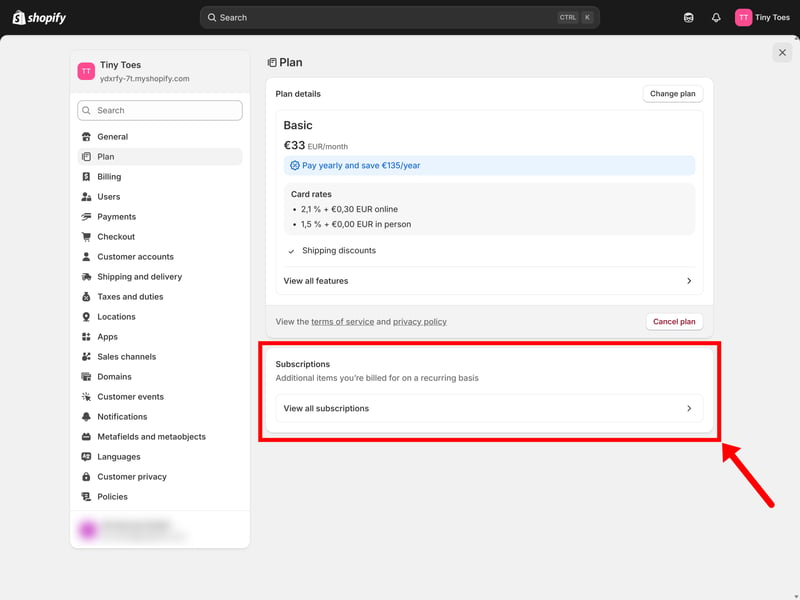
Cancel your app subscriptions.
Back up and export your data
Shopify keeps data from deactivated stores for two years, but you’ll need to reactivate your subscription if you want to access it again.
If there’s anything you might need later, export it before you close your store. You can export most of your important data, including products, orders, customer lists, and reports. Go to the relevant section and click Export.
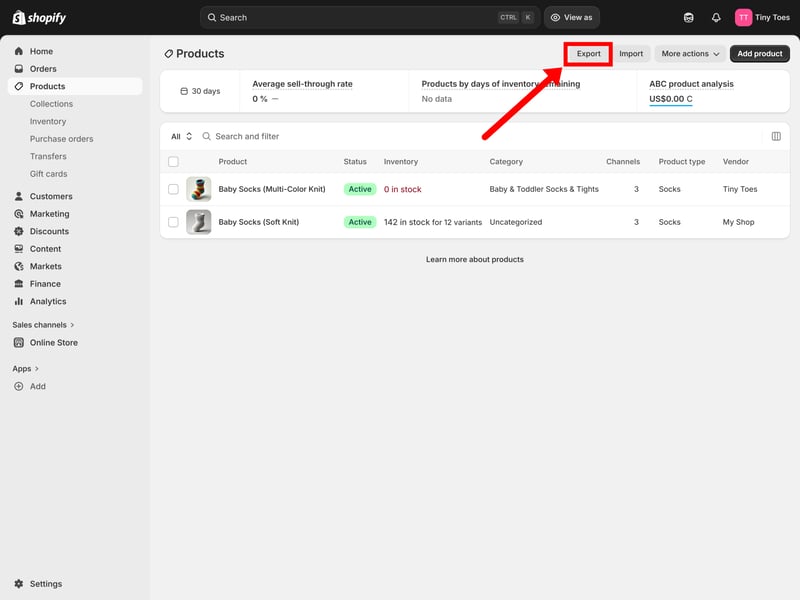
Back up your data by exporting it.
Then choose what you want to export and select the file format.
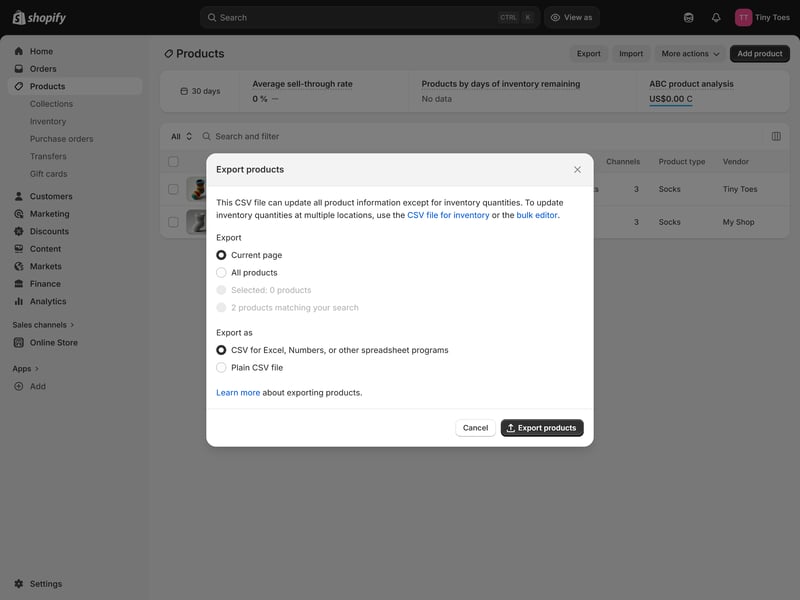
Select the data and format.
Transfer your domain
If you use a custom domain with your Shopify store, you may want to keep it for your next website. What you need to do depends on where you bought it:
- 1.
If you registered your domain through Shopify, transfer it to another domain provider so you can continue using and managing it after you close your store.
- 2.
If you bought your domain from another provider and connected it to Shopify, remove the domain from your store in the Shopify admin. You can then connect it to your new website.
You’ll find these options under Domains in your Shopify settings.
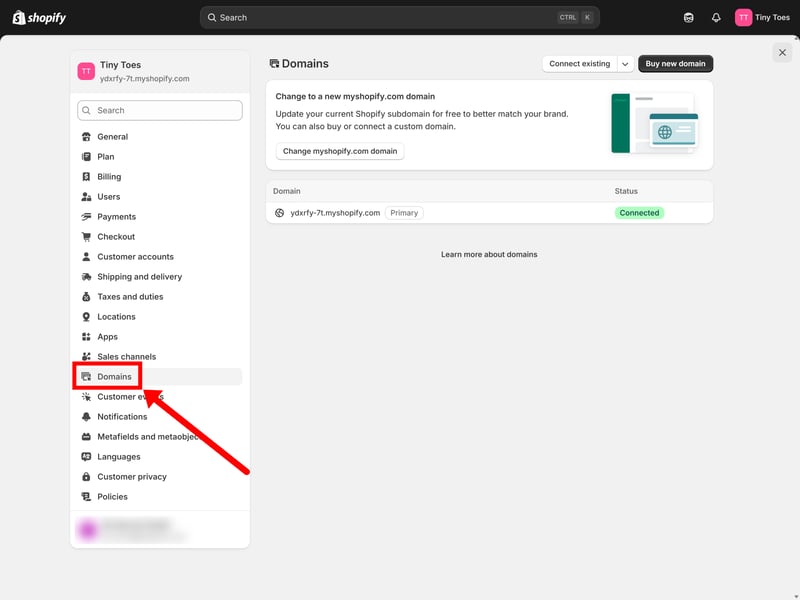
Disconnect your domain from Shopify and move it elsewhere.
Migrate your store
If you’re leaving Shopify for another ecommerce platform, move your store before you cancel your Shopify subscription. If you haven’t picked a new platform yet, take a look at our roundup of the best Shopify alternatives.

There are two main ways to move your store:
- 1.
Move it manually
Export your data from Shopify and import it into your new platform. This lets you transfer information such as your products, customers, and orders.
If you’re switching to a self-hosted solution like WooCommerce, you’ll also need to arrange hosting. - 2.
Use a migration tool
Tools like Cart2Cart can automate much of the process of moving your store from one ecommerce platform to another.
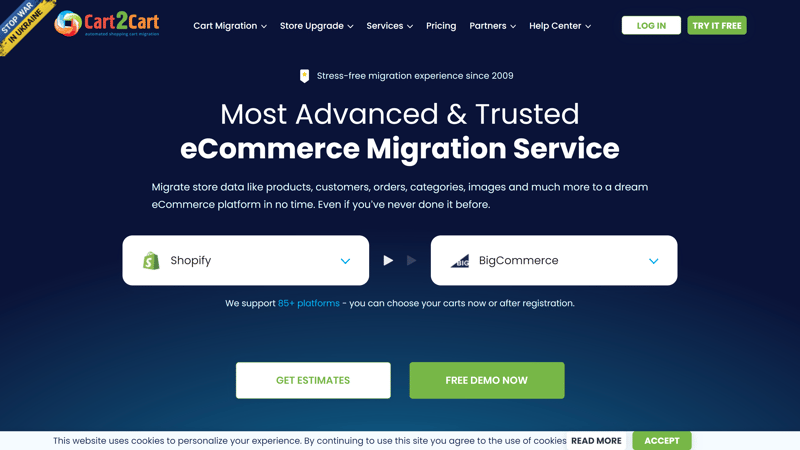
Use a migration tool like Cart2Cart to automate your store migration.
Once you’ve taken care of everything you need to keep, cancel, or move, you’re ready to close your Shopify store.
Canceling your Shopify subscription
Once you’ve taken care of everything above, you’re ready to cancel your Shopify subscription:
Step 1: Open your Shopify settings and go to Plan.
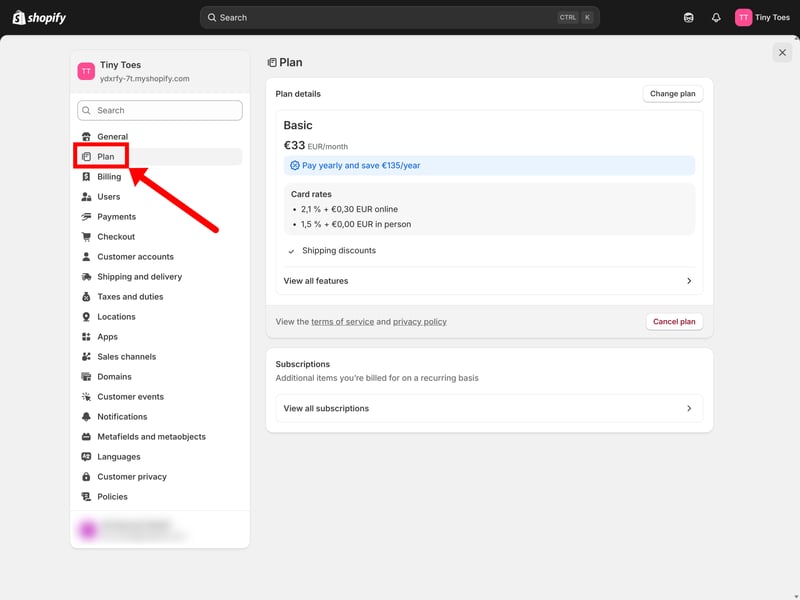
Go to Settings > Plan to see your current subscription.
Step 2: Click Cancel plan.
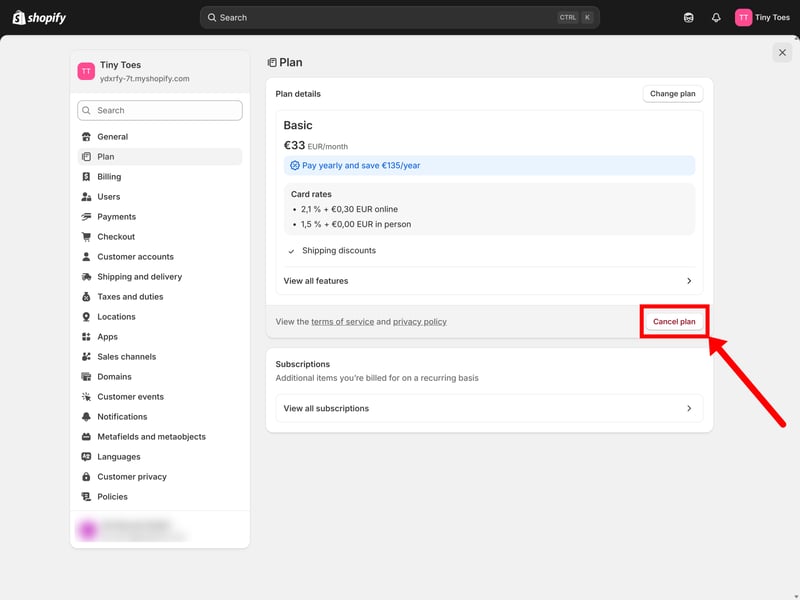
Canceling takes just a few clicks.
Step 3: Shopify will give you the option to cancel your plan, switch to a cheaper one, or start a new store on the same plan. To continue with the cancellation, select Cancel plan again.
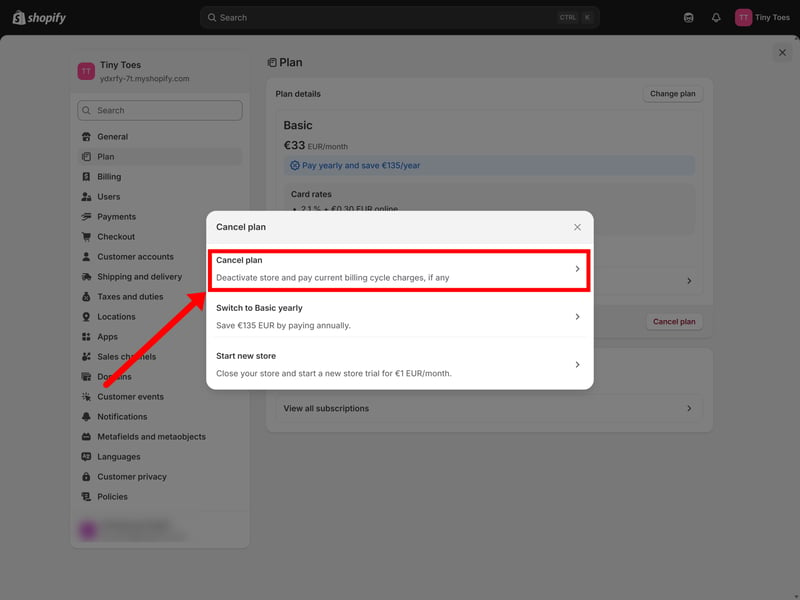
Continue with the cancellation process.
Step 4: Shopify will ask why you’re canceling. Select a reason for canceling from the dropdown menu or enter your own, then click Continue.
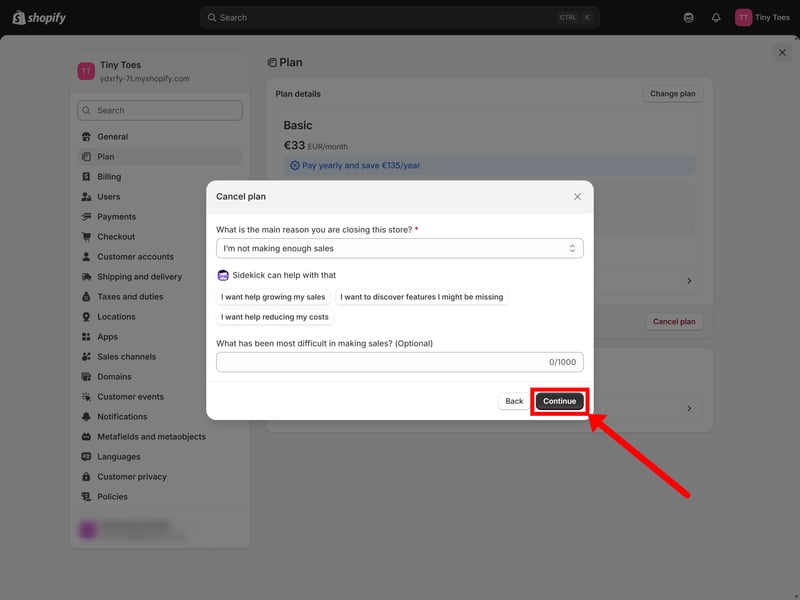
You’ll need to provide a reason to continue.
Step 5: Enter your account password and click Cancel plan one last time to confirm.
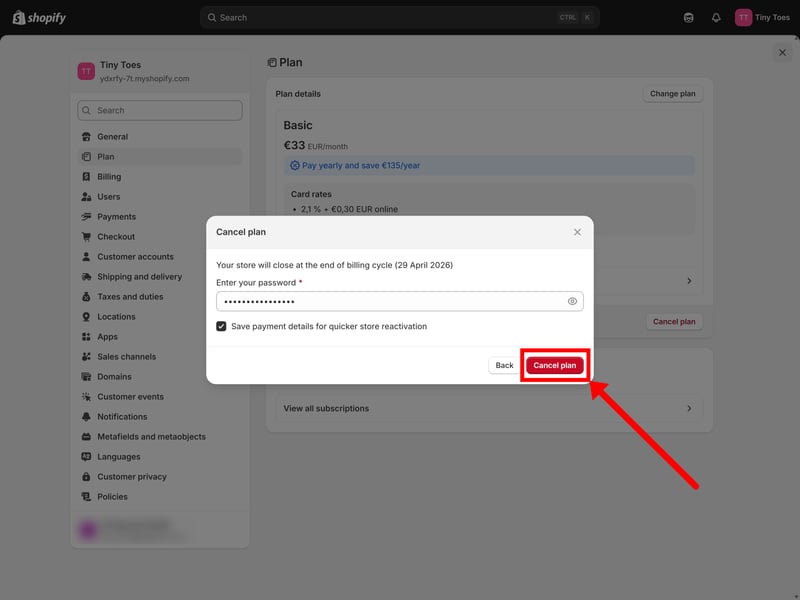
Enter your password to confirm the cancellation.
Your subscription is now canceled. Your store will remain active until the end of your current billing cycle, after which it will be deactivated. You can check the exact date under Settings > Plan. If you end up changing your mind, you can reactivate your plan from the same page.
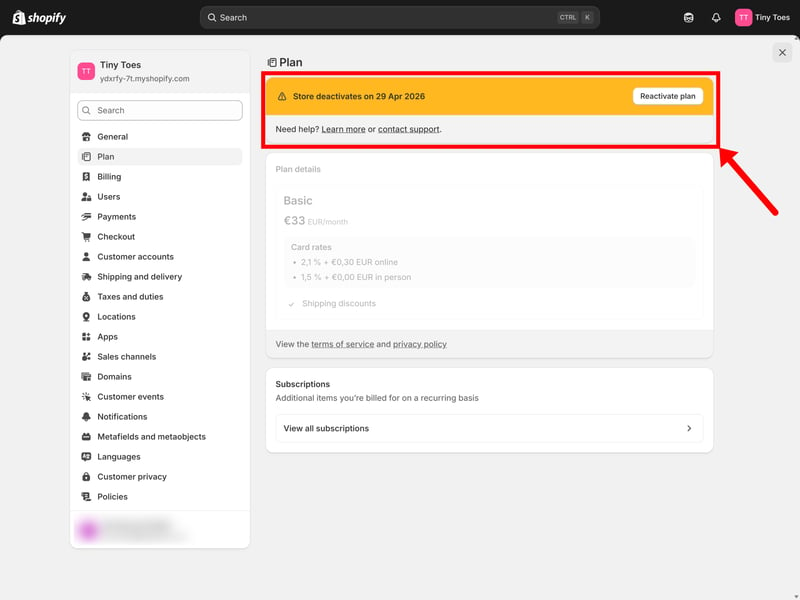
Shopify will show you when your store is scheduled to be deactivated.
Delete customer data immediately (optional)
When you cancel your subscription, Shopify keeps your store and its customer data for up to two years in case you decide to reactivate it.
If you’re sure you won’t be coming back, you can ask Shopify to delete your customers’ personal data sooner. This may also be necessary to meet privacy requirements such as the GDPR, which generally requires personal data to be kept only as long as necessary.
Important: Once the data has been deleted, it can’t be recovered and you won’t be able to reactivate your store. The closure is permanent, even if there was still time left on your subscription.
You can’t request the deletion yourself through the Shopify admin. Instead, you’ll need to contact Shopify Support. Shopify will process the request within 14 days, and you can cancel it during that period if you change your mind.
Pausing Your Shopify Store
Not ready to close your store for good? With Shopify’s Pause and Build plan, you can put your store on hold for $9 per month. You’ll still have access to your Shopify admin and can continue working on your store. Your products also remain visible online, but customers won’t be able to buy anything.
This can be useful if you want to take a break from selling without giving up your store altogether. It’s also a good fit for seasonal businesses that only sell during certain times of the year.
You’ll find the option to pause your store in the same place as the cancellation settings. Pause and Build is only available if your free trial has ended, you’re already on a paid plan, and you’re not on Shopify Plus.
Step 1: In your Shopify admin, go to Settings > Plan.
Step 2: Click Cancel subscription, then select Pause and Build.
Step 3: Review the terms and click Switch to Pause and Build to confirm.
Your store is now paused. You can still log in to your Shopify admin and work on it while you’re not selling.
Selling Your Shopify Store
If you’re ready to move on but your store is still doing well, selling it could be an option. You can hand the business over to someone else and get some money back for the work you’ve put into it. Here’s how it works:
Prepare your store for sale
Before you start looking for a buyer, get your store ready for sale:
Give your store a checkup
Make sure everything works as it should, both on the storefront and behind the scenes. Check your products, inventory, customer management, and other key processes, and fix any technical or design issues that could put off potential buyers.Work out what your store is worth
Estimate a realistic selling price. You can value the business yourself or bring in an expert for a professional valuation.Back up your data
Export important information such as product data, customer lists, and transaction records. Some of this will need to be handed over to the buyer, while you may also need to retain certain records yourself.Get the paperwork in order
Review any contracts, licenses, and other documents connected to the business. Depending on the size and complexity of the sale, it may be worth getting professional legal advice.
Find a buyer
Shopify doesn’t have a marketplace for buying and selling stores, so you’ll need to find a buyer yourself. One option is to list your store on a site like Empire Flippers or Flippa. Each platform has its own listing requirements, fees, and terms.
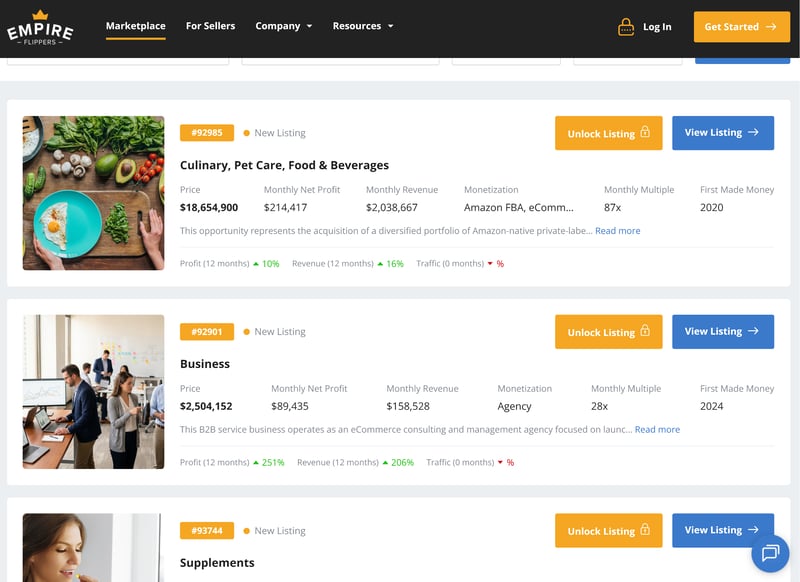
You can sell your Shopify store through marketplaces such as Empire Flippers.
For more on finding a buyer, negotiating a price, and completing the sale, see our step-by-step guide to selling a website:

Transfer ownership
Once you’ve found a buyer and signed the sales agreement, you can hand over the store. Shopify recommends taking care of the following:
Step 1: Update the business contact information in your store details, including the address, email address, and phone number.
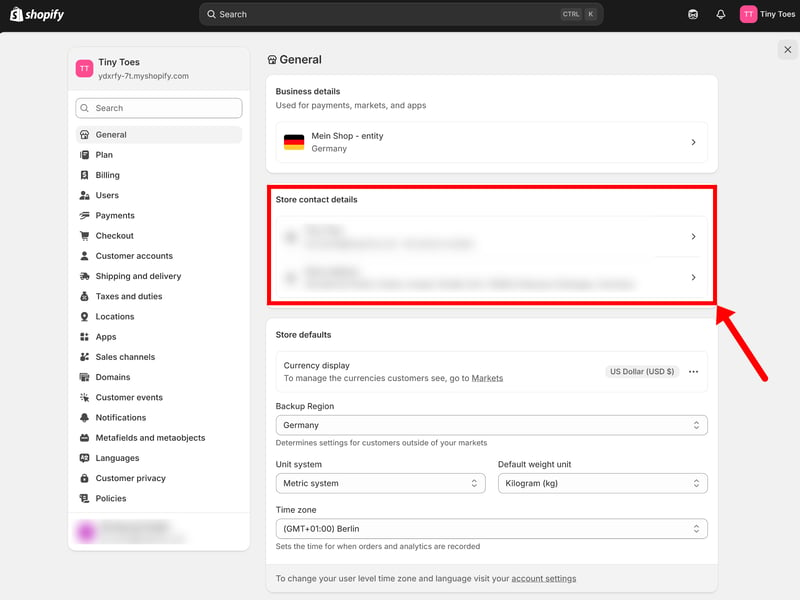
Update your store details.
Step 2: Add the new owner’s contact information to your store notification settings.
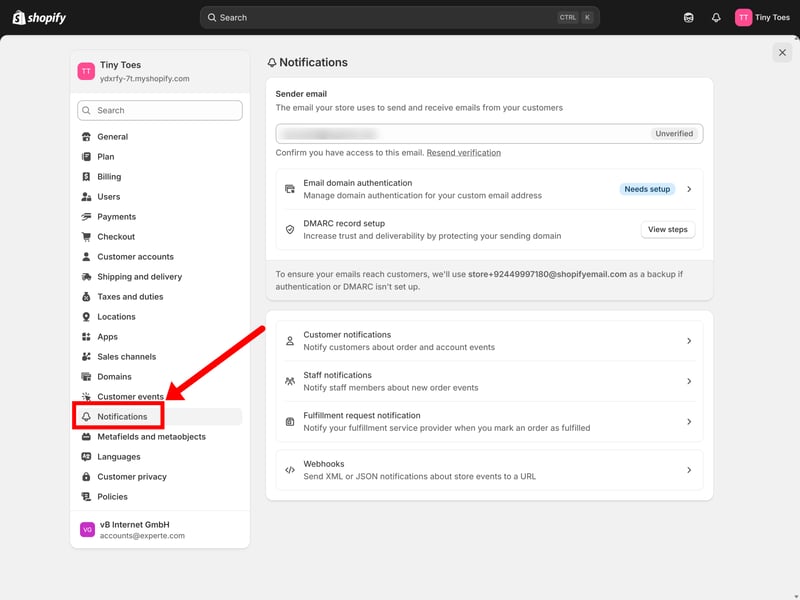
Add the new owner’s contact information.
Step 3: Update the contact information for any custom domains connected to the store.
Step 4: Replace your billing information with the new owner’s details, both for Shopify itself and for any third-party apps.
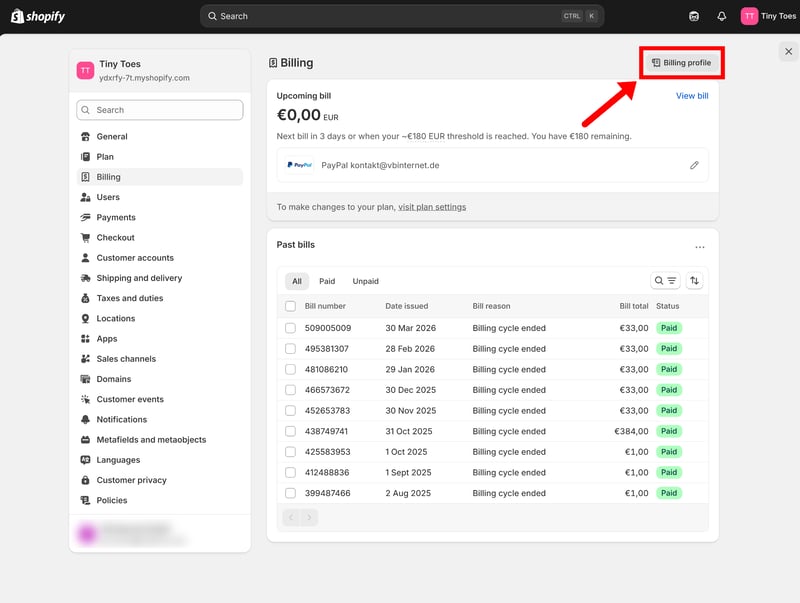
Update your billing information.
Step 5: Update your payout details so future payments go to the new owner’s bank account. Remember to do this for all payment methods and third-party payment providers, such as PayPal.
Step 6: Transfer the store to the new owner. In your Shopify admin, go to Settings > General. Under Transfer store, click Manage, enter the new owner’s email address, and click Transfer.
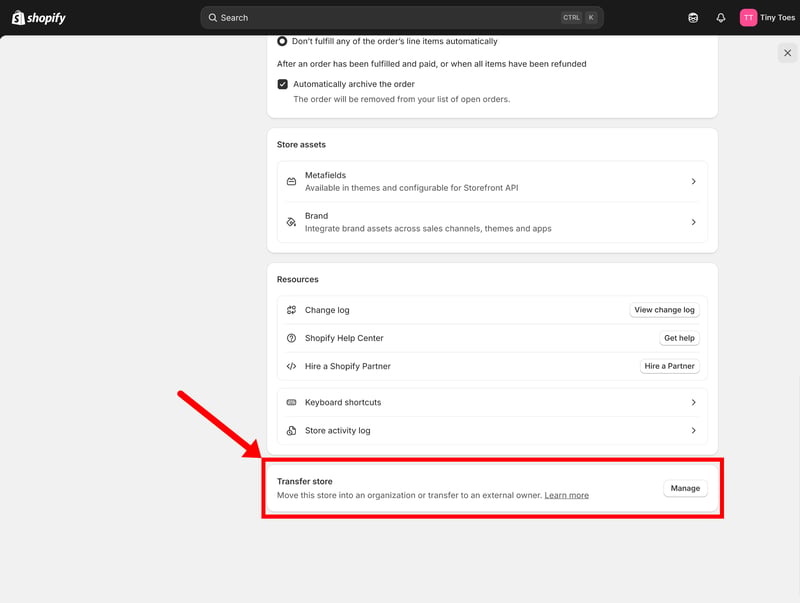
Transfer ownership of your Shopify store.
This is the point of no return. Once you complete the transfer, the new owner takes control of the store and your access to parts of the Shopify admin will be restricted. Make sure everything is in order before you take this final step.
Final Thoughts: Ready to Leave Shopify?
Closing your Shopify store only takes a few minutes, but don’t rush into it. Make sure you’ve completed any open orders, paid your outstanding bills, and exported any data you might need later.
Plus, closing your store isn’t your only option. If you just need a break, you can switch to Shopify’s Pause and Build plan and keep working on your store while checkout is disabled. If you’re ready to move on completely, you could also sell your store to someone else.
Planning to leave Shopify for another ecommerce platform? Take a look at our best Shopify alternatives to see what else is out there.