Squarespace Ecommerce Review 2026: The Best-Looking Ecommerce Builder?


Squarespace is synonymous with gorgeous templates and intuitive design tools. But when you’re running an online store, functionality trumps flair. Does Squarespace have the ecommerce power to back up its good looks?
We put Squarespace’s ecommerce features to the test to see if this design-centric website builder is a legitimate choice for serious online sellers.


Squarespace* is a beginner-friendly website builder that lets users create polished, professional-looking websites without needing any coding or web design experience. With a user base of around five million, it's one of the most popular platforms on the market today.
Squarespace is unapologetically design-centric, known for its sleek, high-end templates and minimalist aesthetic. But while it's no secret that Squarespace wins on style, it isn't lacking in substance: In our ranking of the best all-purpose website builders, its strong all-around capabilities earned it second place overall.
Squarespace positions itself as a jack-of-all-trades, capable of handling everything from creative portfolios to robust business sites. That includes online stores, of course. But can it really hold its own in the world of ecommerce, especially compared to dedicated sales machines like Shopify? Let's find out.
Squarespace Ecommerce Review
Beautiful templates
Squarespace’s designs are modern, professional, and look great right out of the box.Easy to use
The website editor is very intuitive and beginner-friendly. Even newbies should be able to create and customize pages without any trouble.Flexible product types
Squarespace lets you sell just about anything, including physical goods, digital downloads, services, and subscriptions.Solid basics for small stores
If you’re running a simple, straightforward store, Squarespace has all the basic tools you need.
Lacks flexibility
The ecommerce tools are fine for the basics, but you don't get much flexibility with things like shipping, taxes, or payment settings.Limited scalability
Squarespace isn't the right choice for bigger or more ambitious stores with larger, more complex inventories or businesses that want to sell internationally.Performance issues
The editor can feel slow and clunky at times. The fact that it doesn’t auto-save your work is a real downside.Frustrating customer support
Getting help can be difficult. We had a hard time reaching anyone, and many other users have reported similar experiences.
Setup & Ease of Use
| Setup |
| 3/4 |
| User interface |
| 6/8 |
| Performance |
| 1.5/3 |
Squarespace is designed to be approachable for complete beginners, and in that regard, it succeeds. The platform prioritizes simplicity over depth, offering far less flexibility and fewer advanced ecommerce tools than platforms like Shopify or WooCommerce.
Setting up Squarespace
Squarespace makes the initial setup a breeze. Everyone starts with a 14-day free trial, so there’s no pressure to commit to a plan or hand over your credit card details right away. Before you even create an account, you can dive right in by picking a template.
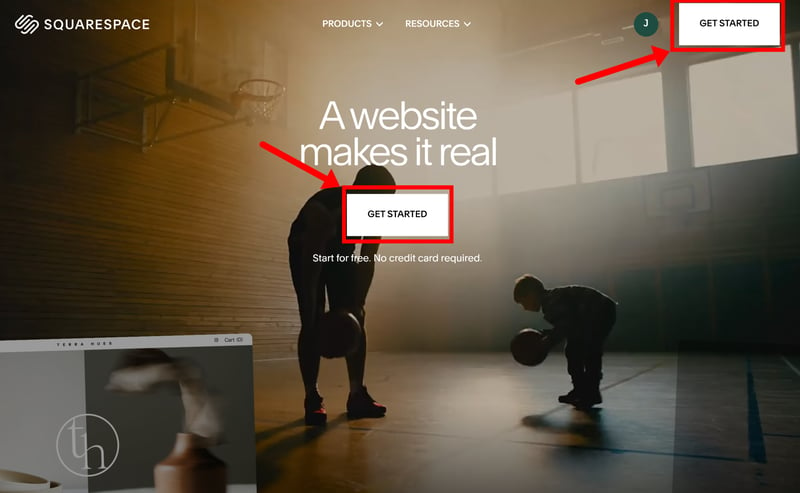
To get moving, just click “Get Started”.
The template gallery allows you to filter by industry or site type. If you select the “Store” category, you’ll see designs specifically optimized for selling (though you can add e-commerce features to any Squarespace template at any point down the road).
When you click on a template, you can preview it and play around with different color palettes. There's also a live demo for every design, which lets you click through the pages to see exactly how the site feels and functions before you commit to it.

Pick a template you like.
Once you’ve found a design that works for you, you’ll be prompted to create an account. From there, you’ll land directly in the Squarespace editor, the main hub for building and managing your new store.
Managing your shop in the Squarespace dashboard
The Squarespace dashboard is where you’ll build, manage, and maintain your website. Most tools and settings are easy to reach, and the interface generally does a good job of keeping things organized without feeling overly technical.
The dashboard is divided into several main areas:

The Squarespace dashboard.
- 1.
Live Preview: Most of the screen is dedicated to a real-time preview of your website. You can browse through pages just like a visitor would, making it easy to check layouts, content, and responsiveness before publishing changes.
- 2.
Sidebar: The left-hand sidebar contains the main navigation menu. From here, you can manage pages, update styles, upload assets, configure ecommerce features, and access tools like analytics, marketing, invoicing, and memberships.
- 3.
Search: The search bar lets you quickly jump to specific pages, settings, dashboard tools, or help articles.
- 4.
“Edit” Button: This opens Squarespace's visual page builder, where you can customize page content, replace images, adjust layouts, and move sections or blocks around with drag-and-drop controls.
- 5.
Top Bar: You can switch between desktop and mobile previews to see how your site looks across devices. You’ll also find the paintbrush icon, which opens the “Site Styles” panel for making global changes to your fonts, colors, and animations.
- 6.
Account: This area contains your account-level settings. It’s where you’ll manage domains, billing, subscriptions, permissions, connected services, and other administrative settings. If you manage multiple Squarespace websites, you can also switch between them here.
When you log in for the first time, keep an eye out for the setup guide in the main menu. It walks you through the most important first steps, such as editing your homepage, connecting a domain, setting up products, or publishing your site for the first time.
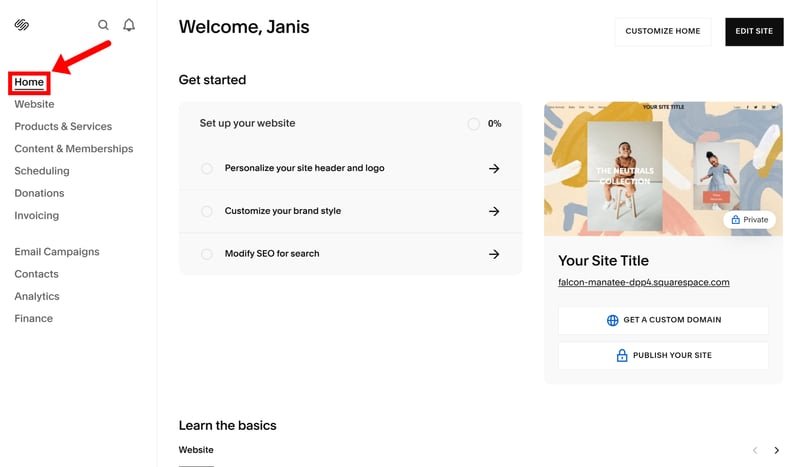
The setup guide walks you through the most important steps.
Customizing your site with sections and blocks
The Squarespace editor is a visual, drag-and-drop builder that lets you customize your site in real-time. To keep things organized, the platform uses a two-tier hierarchy: sections and blocks.
Think of sections as the structural foundation of your page. Every page is made up of these horizontal “slices”, which appear with a blue outline when you hover over them.
Each section has its own menu for quick adjustments, allowing you to tweak the layout, move it up or down, or even save it as a template for later use. If you want to add more content, you just hit the “Add Section” button to insert a blank canvas or a pre-designed layout between existing ones.
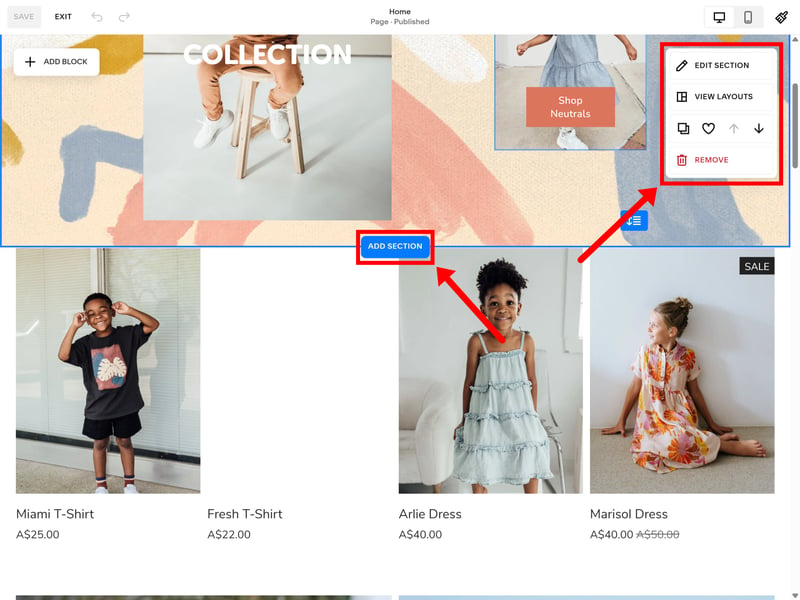
Add a new section.
Blocks are the actual content elements that live inside those sections. These range from basic text and images to more dynamic features like product carousels or social media feeds.
By clicking “Add Block”, you can drop an element into the section and then use the grid system to drag, resize, and snap it into the perfect position.

Drag and drop blocks to rearrange them.
Managing products and ecommerce
Squarespace keeps the “business” side of things separate from the “design” side. While you design the look of your store in the editor, you manage what you're actually selling through two main categories in the dashboard menu:
- 1.
Products & Services
This is the hub for physical goods, professional services, and downloadable files. - 2.
Content & Memberships
This means gated content like online courses, video-on-demand, and member-only areas or “paywalled” blogs.
Both areas allow you to quickly add new items, track your inventory, and set up discount codes.
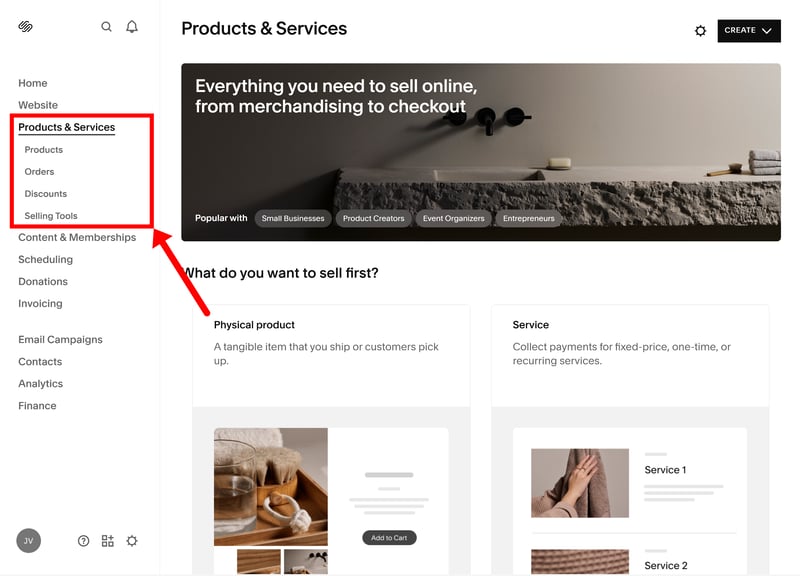
Manage your (digital) products and services.
For setting up ecommerce features, like connecting payment providers, configuring shipping zones, or calculating taxes, you’ll need to head to the “Selling” section in your settings (more on this later). This is where you can fine-tune the checkout experience for your customers as well.
Cracks in the polish
Squarespace looks great on the surface, but once you start using it daily, some of its quirks can start getting on your nerves. There's the lack of auto-save, for example. You do get a warning if you try to close the editor without hitting the “Save” button, but an ill-timed browser crash could still wipe out your recent work.

Don't forget to save manually, since Squarespace won't do it for you.
Some workflows are also more tedious than they need to be. There's no quick-jump feature between pages, for example. If you want to edit a different page, you have to exit the editor entirely, find the new page in your dashboard, and then re-open the editor. It’s a clunky process that breaks the flow when you’re trying to make a bunch of smaller edits across different parts of the site.
Performance isn't always as snappy as we'd like, either. Switching between pages often triggers brief loading times as the interface resets itself. We also ran into our fair share of technical hiccups. Occasionally, features would disappear, pages would freeze, or the site preview simply wouldn't load. These were the exception and the experience was mostly stable overall, but they happened often enough to be noticeable.
Squarespace applies the same philosophy to its interface as it does to its templates: the design feels polished, modern, and well-organized. The platform is clearly built for users who want a clean, straightforward website-building experience without a steep learning curve.
A few workflow quirks occasionally get in the way, but overall, Squarespace remains one of the most beginner-friendly website builders on the market. That ease of use does come with trade-offs, though: don’t expect the same depth and flexibility of customization you’d get from dedicated ecommerce platforms like Shopify or WooCommerce.
Templates and Design
| Number of templates | 190 | 1/2 |
| Template quality |
| 3/3 |
| Website builder |
| 2.5/4 |
| Customizing shop pages |
| 2.5/4 |
| Custom code |
| 1/2 |
No matter how high-quality your products are, if your store doesn't look the part, visitors will bounce before they even reach the checkout. This is where Squarespace has always had an edge: its templates and design tools are among the best in the biz.
190 Templates (45 for E-commerce)
Squarespace clearly takes a quality-over-quantity approach. With around 190 templates in total, 45 of which are designed specifically for ecommerce, the selection isn't as massive as what you’ll find on some competing platforms.
You also won’t have to sift through dozens of filler templates, though. Every design feels modern, polished, and thoughtfully put together, more like something from a high-end creative agency than a generic, low-effort placeholder.
| Number of templates | |
|---|---|
 | 3,000 |
 | 1,000 |
 | 500 |
 | 225 |
 | 190 |
 | 170 |
 | 70 |
 | 47 |
 | 34 |
 | 12 |
 | 11 |
In the past, Squarespace used “template families”, where different designs came with different hidden rules and features. Since version 7.1, however, everything has been consolidated into a single system. Now, every template has access to the exact same features and styling options.
The only real difference between templates today is how the demo content is laid out and styled out of the box. That also means that you can’t swap templates anymore once you've started.
You can add a store to any Squarespace site, but the ecommerce templates are the most “plug-and-play” option. They come with product grids and shop pages pre-configured and ready to go.

Pick an ecommerce template to speed things up.
Instead of picking a template, you can also let Squarespace’s AI draft a store for you. You just answer a few questions about your business, pick your preferred sections, and choose a color palette.
The AI then generates a site based on your input. The results are alright (they use the same design engine as the templates, after all ), but generic. For a store with real personality, the handcrafted templates are still the way to go.
Sitewide styling and customization
The Site Styles menu is where you handle the “big picture” design. That includes things like your primary color palette, font pairings, button shapes, and site-wide animations.
You can fine-tune every detail manually, or speed things up by choosing one of Squarespace’s curated color and font themes. Because these settings are global, your entire store will automatically stay on-brand, ensuring a cohesive design language.
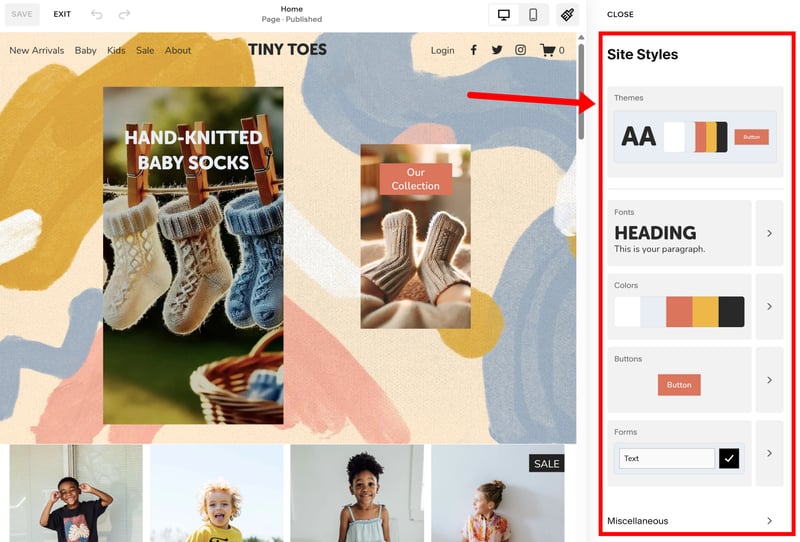
Use the Styles panel to tweak your store’s overall look and feel.
Drag-and-drop with guardrails
When it comes to page design, Squarespace strikes a balance between creative freedom and structural guardrails. Unlike a completely free-form builder like Wix, Squarespace uses a grid-based system.
When you move a block, a grid appears to show you exactly where the element will snap into place. You can fine-tune this grid by adjusting the row count, alignment, and spacing within the section settings. While this system can be a little frustrating when an element won't land exactly where you want it, it does ensure your layout stays clean, symmetrical, and well-aligned.
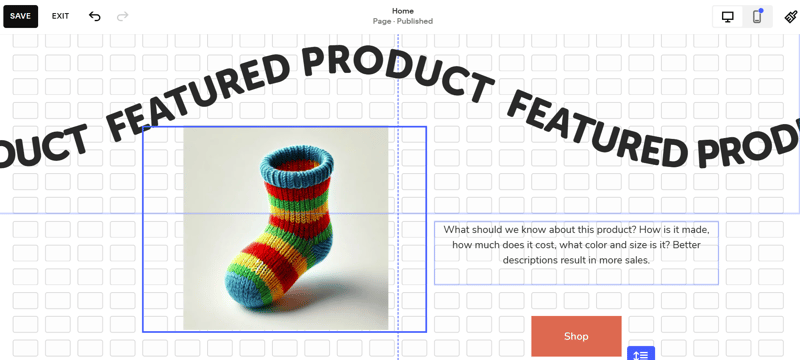
Moving blocks around within the grid system.
You also have a lot of control at the section level. For each “slice” of your page, you can swap out backgrounds, add visual effects, or apply a specific color palette from your global theme.
Most sections also come with multiple layout presets. If you aren’t happy with how a section looks, you can often just cycle through different arrangements rather than having to move every block manually. This makes it easy to experiment with different looks without the hassle of a total rebuild.
Designing your storefront
How you showcase your products is arguably the most important part of your site. In Squarespace, this experience is built around two main areas: the shop page (your main catalogue) and individual product pages.
The shop page serves as your store’s primary landing page, presenting your items in a clean, gallery-style grid. Customizing this view is straightforward: just click the “Edit Section” button, exactly as you would for any other part of your website.
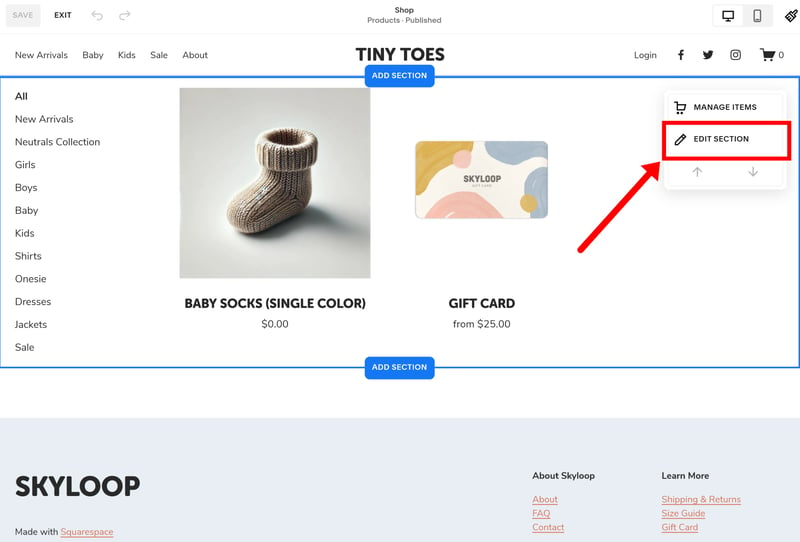
Editing your shop's main layout.
From this menu, you can fine-tune the layout by adjusting the number of columns, the aspect ratio of your product photos, and the overall section width. You can also swap out the color scheme to make sure the items pop.
You can further customize the section by changing the spacing between products and deciding how product information is displayed. There’s also the option to show or hide the price and “Add to Cart” button for each item. Category filters can be placed either alongside the products or above them.
Squarespace offers a decent amount of cosmetic and functional control, but it doesn't give you the deep customization flexibility of more dedicated ecommerce platforms. That’s why Squarespace works best for smaller stores with a manageable product range that don’t require advanced filtering or complex product categorization systems (more on that here).
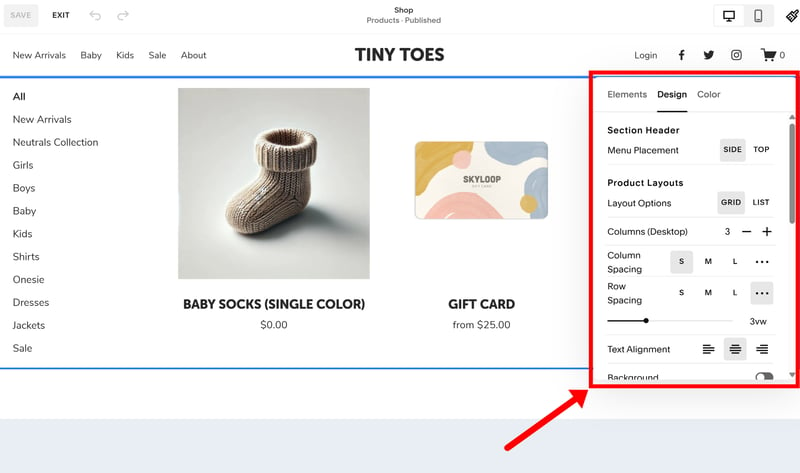
Customize the content and design of your store's main page.
Designing your product pages
You can customize the look of your product pages in the section settings of any item. Just keep in mind that these changes are global: whatever design you pick will apply to every single product in your store.
Squarespace gives you four formats to choose from:
- 1.
Simple: A classic side-by-side view with product images on one side and the description on the other.
- 2.
Wrap: Images are pinned to the left, and the description “wraps” around them.
- 3.
Half: A split-screen look where images take up the left half and the text takes up the right.
- 4.
Full: Product images appear in a carousel, followed by the description.
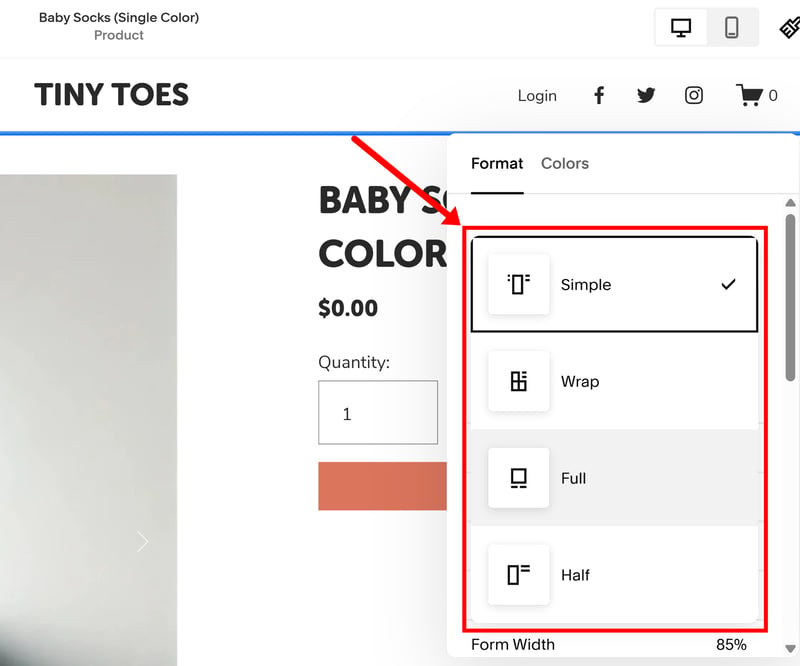
You have four main design presets for your product pages.
If you want to customize the design further, you’ll need to stick with the “Simple” format. Here, you can tweak things like image width, text alignment, or the look of your variant selectors (buttons vs. dropdowns). You can also toggle zoom effects and choose whether your gallery displays as a slideshow, a stack, or a carousel.
It’s also possible to add extra page sections like banners, text blocks, or image galleries directly below the listing. This gives you more room to explain and showcase your products. For example, you can use the extra space for brand storytelling, sizing guides, FAQs, promotional content, or additional product details.
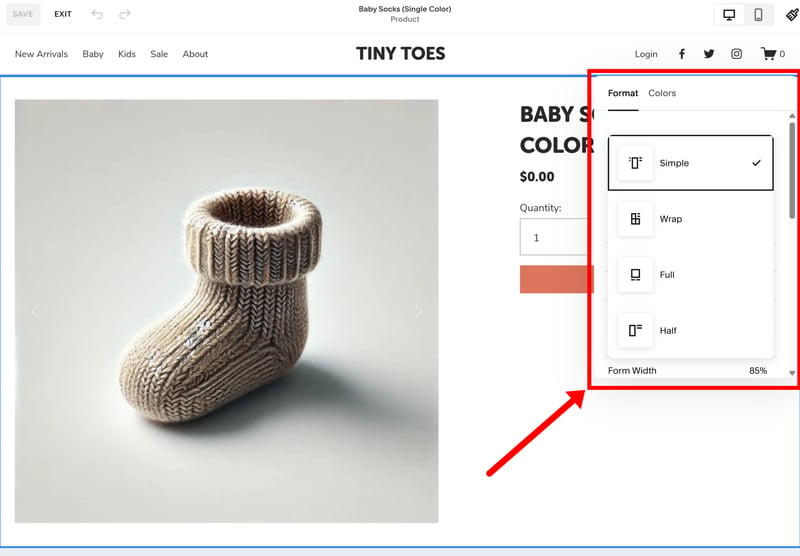
The “Simple” format offers the most granular control over your design.
There’s a decent amount of flexibility for styling and presentation, but the overall structure of your product pages is fairly rigid. There’s also no true drag-and-drop functionality within the product section itself. If you want more unconventional layouts or design ideas that aren’t covered by the built-in settings, you’ll need to look into workarounds or custom code.
Squarespace does support custom HTML, CSS, and JavaScript. You can use code blocks to add specific styling to individual pages, and the built-in CSS editor (available on all plans) lets you making minor tweaks to fonts, colors, or background elements.
Unlike fully self-hosted platforms (such as WooCommerce), Squarespace doesn't allow for server-side code like PHP or SQL.
A rich library of page and section layouts
Squarespace includes a large library of pre-built page layouts and content sections that help you put together your site much faster. Instead of starting every page from scratch, you can insert ready-made sections for things like “About” pages, contact forms, FAQs, galleries, or product showcases.
Once added, every element is fully customizable. You can swap out the content, tweak the colors, and change the fonts to match the rest of your brand.
Editing for mobile
Squarespace templates are fully responsive, meaning they’re designed to look great on desktops, tablets, and smartphones alike. Within the editor, you can toggle between desktop and mobile previews to see exactly how your store translates to smaller screens (there's no dedicated tablet view, though).
The platform also allows for independent mobile editing. You can rearrange blocks or adjust spacing specifically for the mobile version without affecting your desktop layout. This gives you a high level of control over the mobile user experience.

Optimizing your layout specifically for mobile users.
The content itself is mirrored across all devices, however. If you add a new section while in the mobile view, it will also appear on the desktop version. Currently, there is no built-in way to hide specific elements or sections on mobile only. For that, you would need to use custom code.
While many ecommerce competitors treat design and presentation as a secondary concern, Squarespace puts aesthetics and branding front and center. The templates are sleek, and the editor offers just enough flexibility to make the content your own without overwhelming you with technical settings and design decisions.
Like with most website builders, there’s a trade-off between simplicity and creative freedom. You’re always working within Squarespace’s underlying structure, which keeps designs clean and consistent, but can feel limiting if you're trying to build unconventional layouts or highly customized storefronts.
For small-to-medium stores that prioritize presentation and ease of use, though, Squarespace strikes an appealing balance.
Product Management
| Product types |
| 3/4 |
| Product features |
| 2/3 |
| Product variants |
| 4/6 |
| Product pricing |
| 2/3 |
| Product organization |
| 1.5/2 |
| Inventory |
| 1.5/2 |
Squarespace’s focus on design is no surprise; it’s a website builder that happens to have ecommerce features, rather than a dedicated ecommerce platform. It does a great job of making your storefront look beautiful — but how does it handle the ecommerce side of things?
Adding new products
Adding and managing products is simple and straightforward. When you first open the product section, you'll notice that Squarespace has already populated your store with a few demo products. You can simply delete these and start building your own catalogue.
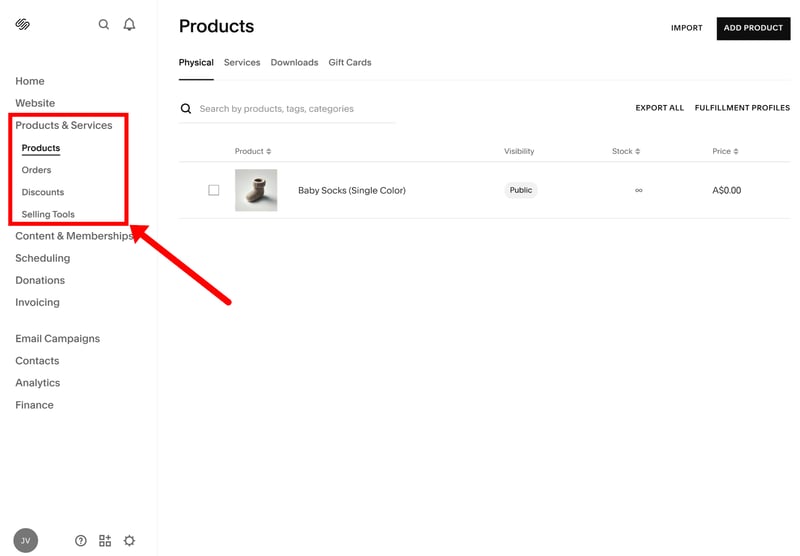
The Squarespace product overview screen.
To create a listing, just click on the “Add Product” button. One of the best things about Squarespace is the variety of items you can sell. Along with standard physical goods, you can sell digital downloads (like PDFs), professional services, and gift cards. It also handles more specialized content, such as online courses, video-on-demand, memberships, and paywalled blog posts.
Squarespace | Wix | Shopify | Ecwid | Hostinger | IONOS | BigCommerce | Jimdo | Sellfy | Square | WooCommerce | |
|---|---|---|---|---|---|---|---|---|---|---|---|
✓ | ✓ | ✓ | ✓ | ✓ | ✓ | ✓ | ✓ | ✓ | ✓ | ✓ | |
✓ | ✓ | ✓ | ✓ | ✓ | ✓ | ✓ | ✗ | ✓ | ✓ | ✓ | |
✓ | ✓ | ✗ | ✗ | ✓ | ✓ | ✗ | ✓ | ✗ | ✗ | ✗ | |
✓ | ✓ | ✓ | ✗ | ✗ | ✗ | ✗ | ✗ | ✗ | ✗ | ✗ | |
✓ | ✓ | ✓ | ✓ | ✓ | ✓ | ✓ | ✗ | ✗ | ✗ | ✗ | |
✗ | ✓ | ✗ | ✓ | ✓ | ✓ | ✓ | ✓ | ✗ | ✗ | ✗ | |
✓ | ✓ | ✓ | ✓ | ✗ | ✗ | ✗ | ✗ | ✓ | ✗ | ✗ | |
✗ | ✓ | ✓ | ✗ | ✗ | ✗ | ✗ | ✗ | ✗ | ✓ | ✓ | |
Total | 6 | 8 | 6 | 5 | 5 | 5 | 4 | 3 | 3 | 3 | 3 |
Squarespace caps digital files at 300 MB. That’s quite restrictive — for comparison, Shopify allows for files up to 5 GB.
Editing your products
Every listing includes the basics: a title, description, and images. Other options depend on the product type. For physical goods, you can set up variants and choose how to track your inventory. For digital items, there’s a dedicated upload area for files like PDFs, ZIP files, images, or audio downloads.
Beyond the standard content, the “Additional Info” section allows you to drop in custom blocks like forms, buttons, charts, or even your own code.
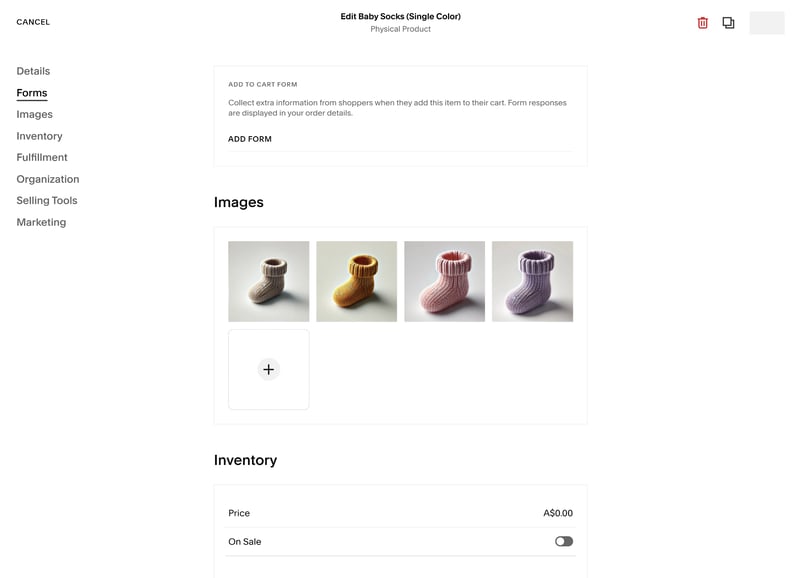
A look inside the Squarespace product editor.
Product management is solid overall, but things get more cumbersome with larger catalogues. While you can bulk-edit basic details like pricing and stock levels for variants, there’s no way to update content or variants across multiple different products at once.
Duplicating products could be handled better, too. It’s all or nothing, meaning you can’t pick and choose which elements you want to carry over to the new listing. Specialized ecommerce platforms offer a lot more time-saving shortcuts here. Then again, Squarespace isn't really built for that kind of scale anyway.
Up to 250 variants per product
You can add up to six different categories (like color, size, or material), and the platform automatically does the legwork of generating every possible combination and assigning them unique SKUs.
Each product allows for up to 250 of these combinations. You have full control over the details for each version, meaning you can set specific inventory levels, sale prices, images, and dimensions for every individual variant.
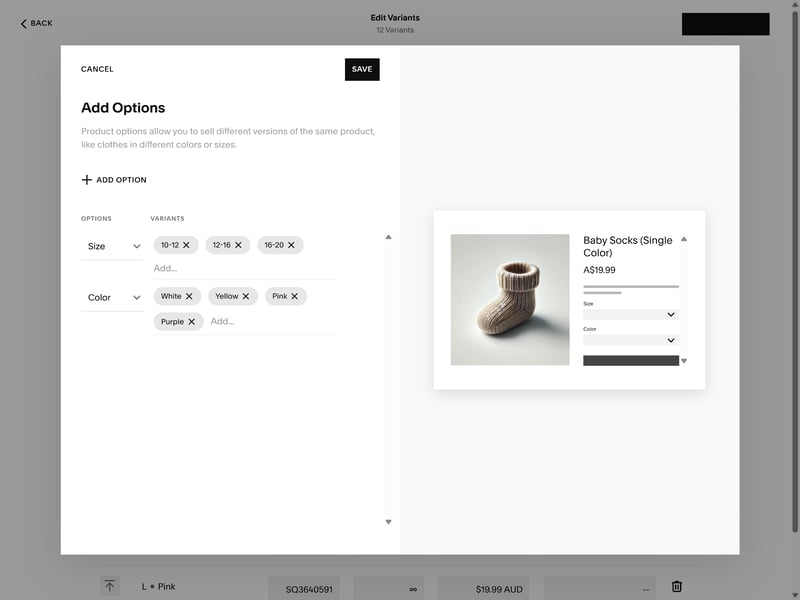
Managing product options in Squarespace.
Sadly, you can’t really customize how these options are presented to your customers. On the storefront, all the choices are grouped into the same dropdown menu, which isn’t always the most intuitive (or visually appealing) way to browse product variants.
Squarespace | BigCommerce | Ecwid | Hostinger | IONOS | Shopify | Square | WooCommerce | Sellfy | Wix | Jimdo | |
|---|---|---|---|---|---|---|---|---|---|---|---|
Max. number of options | 6 | unlimited | unlimited | unlimited | unlimited | 3 | 6 | unlimited | unlimited | 6 | 2 |
Max. number of variants | 250 | 600 | unlimited | 100 | unlimited | 2048 | 250 | unlimited | unlimited | 1000 | 36 |
Variant-specific images | ✓ | ✓ | ✓ | ✓ | ✓ | ✓ | ✓ | ✓ | ✓ | ✗ | ✗ |
Variant-specific pricing | ✓ | ✓ | ✓ | ✓ | ✓ | ✓ | ✓ | ✓ | ✓ | ✓ | ✗ |
Variant-specific SKU | ✓ | ✓ | ✓ | ✓ | ✓ | ✓ | ✓ | ✓ | ✗ | ✓ | ✗ |
Variant-specific inventory | ✓ | ✓ | ✓ | ✓ | ✓ | ✓ | ✓ | ✓ | ✓ | ✓ | ✗ |
Total | 4 | 4 | 4 | 4 | 4 | 4 | 4 | 4 | 3 | 3 | 0 |
Pricing and discounts
You can assign a fixed price to every product and variant, along with an optional sale price. If you do add a sale price, the platform automatically displays the original price as a crossed-out MSRP to highlight the deal.
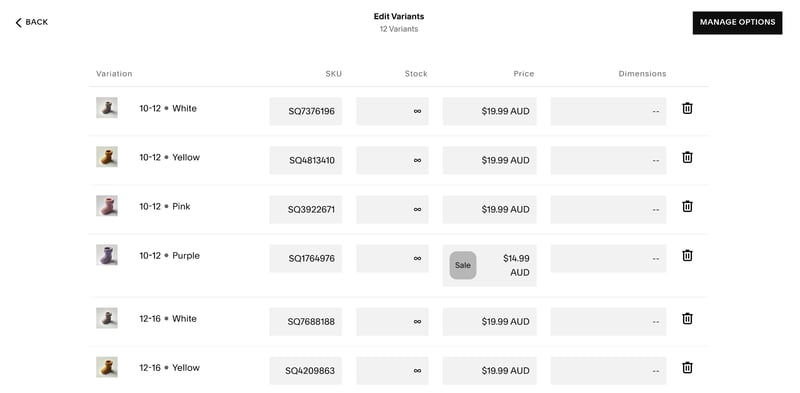
Setting individual prices for product variants.
Beyond the basics, however, the pricing features are a bit thin. For instance, there’s no built-in tool for unit pricing (like “price per ounce” or “price per gram”), so you’d have to calculate that yourself and type it into the description manually. There’s also no native support for bulk discounts at the product level (more on discount codes and promotions in the next section).
Managing your inventory
By default, Squarespace sets your inventory to “unlimited”. To start tracking stock, you just toggle that off and enter your current numbers. The platform then handles the rest, automatically deducting items as they sell.
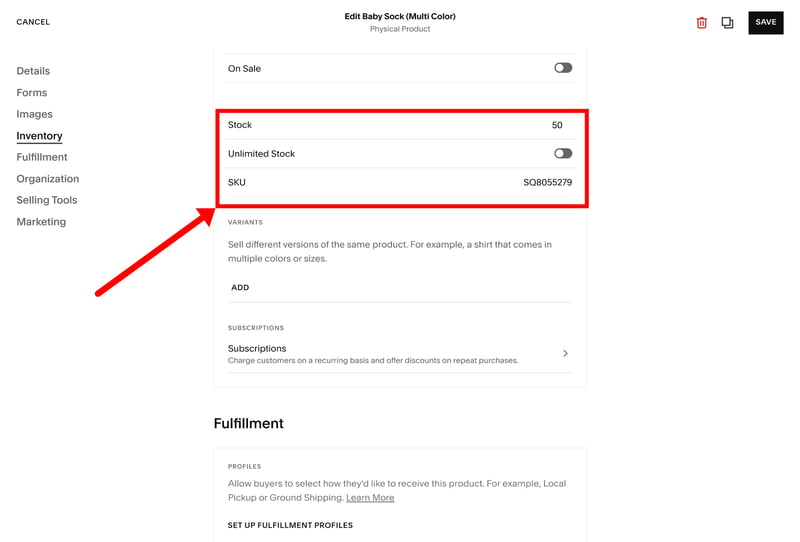
Keep an eye on your stock levels.
If a product or variant runs out, a red arrow appears in your product list, making it easy to see exactly what needs attention at a glance. From there, you can quickly restock or hide specific variants. To stay ahead of things, you can also set up low-stock alerts that send an email or a push notification to the Squarespace app whenever your inventory hits a certain level.
Sorting and organizing your catalogue
The larger your inventory grows, the more important it becomes to keep everything organized. Squarespace uses a system of categories and tags to help keep things tidy.
Each item can be assigned to one or multiple categories. These aren’t just internal labels for organization, but actual storefront categories customers can browse through. Squarespace automatically generates a dedicated URL for each category and adds it to the filter bar on your main shop page.
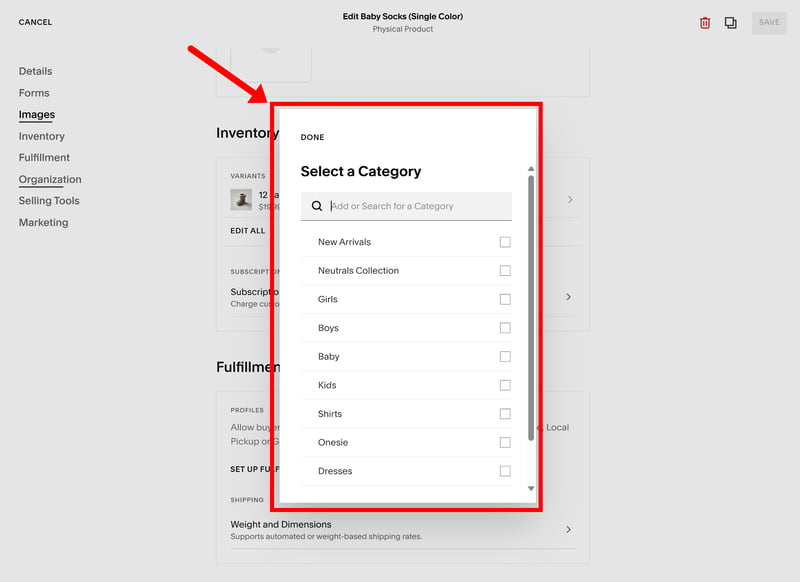
Assigning categories to your products.
While the system is easy to use, it’s clear that Squarespace is tailored toward smaller boutiques rather than massive retailers. You won't find nested subcategories or advanced “faceted” search (like the ability to filter by both size and color simultaneously).
By default, Squarespace puts every product on one main shop page with a simple category filter. To move beyond this basic storefront structure, you’ll need to get a bit creative. You can hide the main shop page and link directly to specific category pages in your navigation instead, for example. You can also use “Summary Blocks” to pull products from specific categories and display them anywhere else on your site.
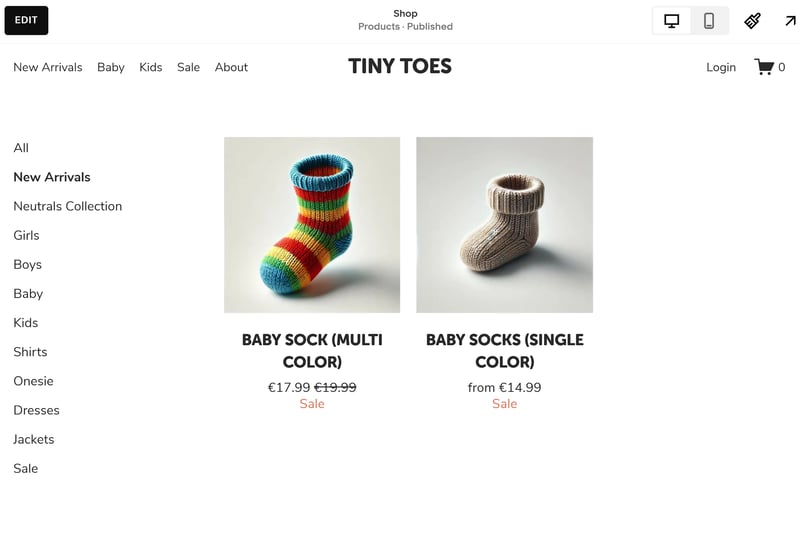
You can assign products to as many categories as you need.
Ultimately, Squarespace gives you enough tools to keep smaller catalogues clean and easy to navigate, but it lacks the deeper organization and filtering systems required for larger and more complex stores.
Managing products is simple, straightforward, and built around the needs of smaller stores. Native support for lots of different product types is also a plus, since many ecommerce platforms require third-party add-ons for anything beyond physical products or digital downloads.
Squarespace wasn't built for larger or operationally complex stores, though. Bulk editing is limited, product organization is fairly basic, and many workflows become tedious once you’re managing a bigger catalogue.
Sales Features
| Taxes |
| 2.5/3 |
| Shipping options |
| 2/3 |
| Discounts |
| 2/3 |
| Payment providers |
| 2/3 |
| Order management |
| 1.5/2 |
| Advanced features |
| 3/6 |
Once your products are ready to go, it’s time to start selling. Squarespace takes the same approach here as it does throughout the rest of the platform: prioritizing simplicity over complexity.
Core sales features like taxes, discounts, checkout settings, and payment processing are easy to configure, but compared to more specialized ecommerce platforms, there’s less depth, flexibility, and fine-grained control.
Managing payments
To start taking orders, you’ll need to connect a payment gateway. Squarespace naturally pushes you toward Squarespace Payments, the platform’s own integrated payment solution. Setting it up is straightforward, and it supports most of the payment methods customers expect today, including Visa, Mastercard, American Express, Apple Pay, Google Pay, and Klarna.
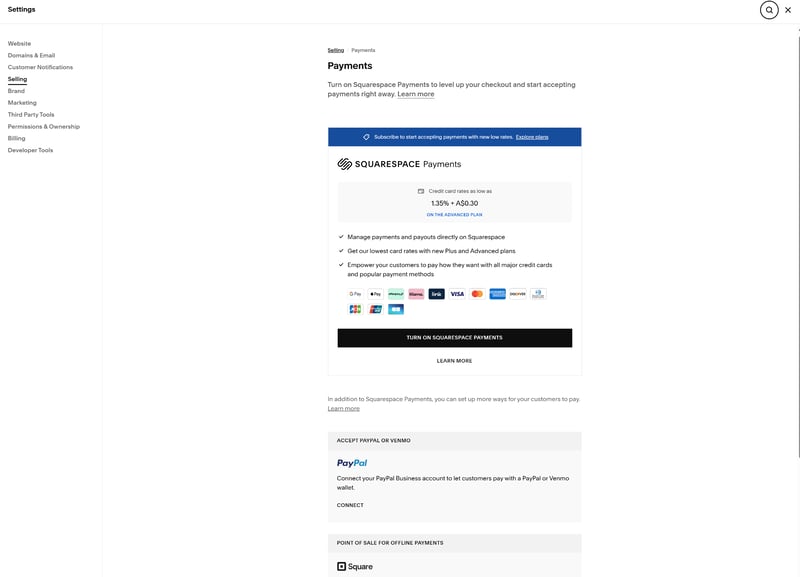
Squarespace has its own integrated payment platform.
If you prefer, you can also connect third-party gateways like Stripe, PayPal, or Square for in-person sales. The selection is quite small, though, and missing a few major players like Amazon Pay, as well as local and region-specific payment providers.
Squarespace also doesn’t support “manual” or “offline” payment methods like cash on delivery, bank transfer, or checks. Everything is built around fully online payments and automated checkout flows.
Squarespace | WooCommerce | Shopify | Ecwid | IONOS | Wix | BigCommerce | Hostinger | Jimdo | Sellfy | Square | |
|---|---|---|---|---|---|---|---|---|---|---|---|
Number of payment providers | 5 | 19 | 100 | 120 | 120 | 80 | 65 | 4 | 2 | 2 | 1 |
Paypal | ✓ | ✓ | ✓ | ✓ | ✓ | ✓ | ✓ | ✓ | ✓ | ✓ | ✗ |
Stripe | ✓ | ✓ | ✓ | ✓ | ✓ | ✓ | ✓ | ✓ | ✓ | ✓ | ✗ |
Square | ✓ | ✓ | ✗ | ✗ | ✗ | ✗ | ✗ | ✗ | ✗ | ✗ | ✓ |
Amazon Pay | ✗ | ✓ | ✓ | ✓ | ✓ | ✗ | ✓ | ✗ | ✗ | ✗ | ✗ |
Klarna | ✓ | ✓ | ✓ | ✓ | ✓ | ✓ | ✓ | ✗ | ✗ | ✗ | ✗ |
Mollie | ✗ | ✓ | ✓ | ✓ | ✓ | ✓ | ✗ | ✗ | ✗ | ✗ | ✗ |
Native payment solution | ✓ | ✓ | ✓ | ✗ | ✗ | ✓ | ✗ | ✗ | ✗ | ✗ | ✗ |
Manual payment methods | ✗ | ✓ | ✓ | ✓ | ✓ | ✓ | ✓ | ✓ | ✗ | ✗ | ✗ |
Total | 5 | 8 | 7 | 6 | 6 | 6 | 5 | 3 | 2 | 2 | 1 |
Setting up taxes
Tax setup is handled automatically in most regions. You just plug in your business address and tax registrations, and the system takes care of the calculations at checkout.
The system is fairly straightforward. You just need to enter your business details, add a tax address, and select the regions where you’re registered to collect taxes. Squarespace then applies the appropriate rates automatically during checkout.
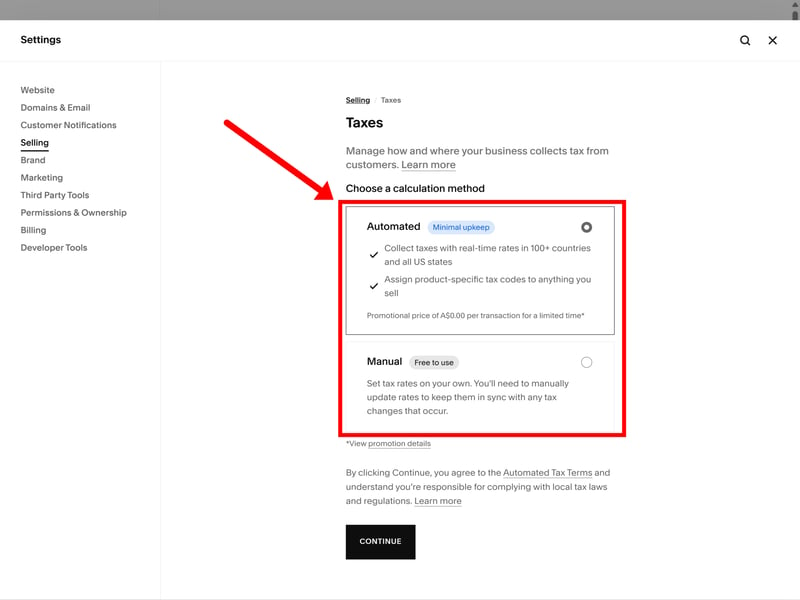
Automatic tax calculation in Squarespace.
Just keep in mind that the system is clearly designed with the US market in mind, where tax is typically added at the final step of the checkout process. If you’re selling in a region where prices must be tax-inclusive by law, you’ll need to be careful with your settings to ensure your pricing remains transparent and compliant.
If needed, Squarespace also allows you to bypass the automated system and configure tax rates manually instead.
Shipping options
When it comes to shipping, Squarespace offers a few standard ways to handle deliveries at checkout. You can set up different methods and restrict them to specific regions — whether that’s by country, state, or specific zip codes.
You essentially have two main choices for calculating rates:
Flat rate – a fixed fee per order or per item.
Weight-based – the shipping cost changes depending on the total weight of the order.
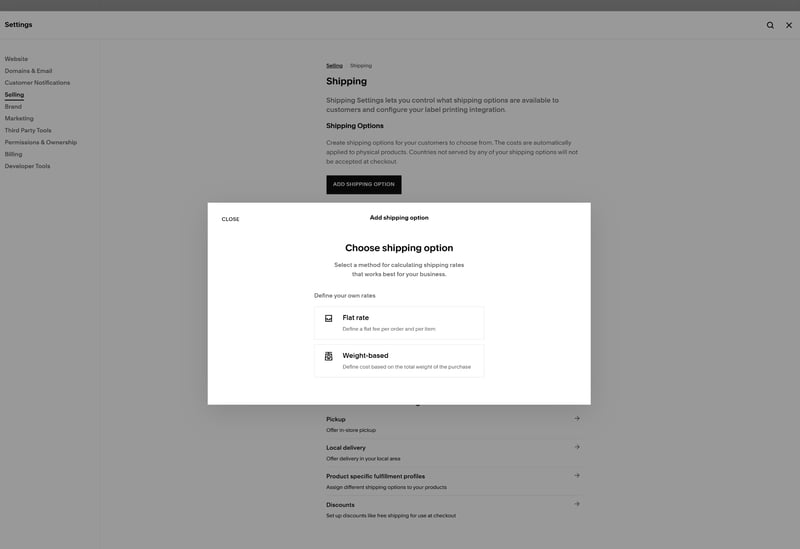
Shipping options in Squarespace.
Squarespace supports local delivery and in-store pickup, which are handy if you handle your own deliveries or have a physical storefront.
There's also carrier-calculated shipping, which pulls real-time rates from providers based on the weight and dimensions of the package. Availability depends on your location, though, and real-time rates are often limited to domestic shipping.
Compared to more dedicated ecommerce platforms like Shopify, Squarespace doesn’t do as much to streamline the actual fulfillment process. While you can buy and print UPS or USPS shipping labels directly within Squarespace, the platform’s built-in tools are still fairly limited when it comes to bulk fulfillment, advanced shipping workflows, warehouse management, or international logistics.
If you need more automation or flexibility, you’ll likely end up connecting a third-party service like ShipStation or Easyship, which can add extra setup steps and ongoing costs.
Discounts and coupons
Squarespace gives you a solid set of tools for running sales and promotions. You can set up percentage-based discounts, flat-rate amounts, free shipping, and “Buy X, Get Y” deals (like 3-for-2). These can be applied automatically at checkout or triggered by a discount code.
You can also target these offers to specific products or categories and set conditions like minimum purchase amounts or promotional dates.
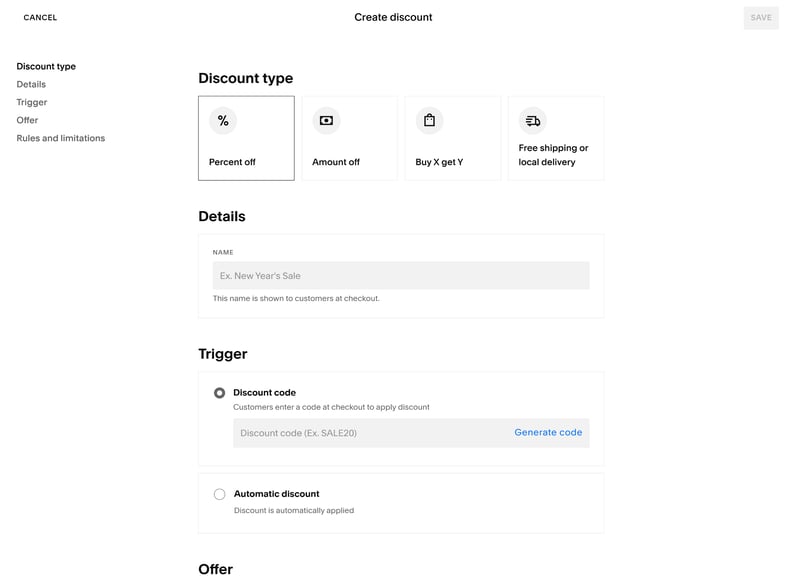
Discount and promotion settings in Squarespace.
The discount system covers the essentials well, but it’s not super flexible when it comes to more unique or sophisticated promotions. For instance, there’s no native way to set up tiered pricing, like offering 10% off when a customer buys five or more of an item. It's also not possible to offer personalized discounts to specific customer segments.
Managing your orders
Your incoming orders live in the “Orders” section of the dashboard. You can quickly filter them by status (pending, fulfilled, or canceled) to keep track of what needs your attention.
The overview gives you the essentials at a glance, including order number, customer info, and the date the purchase was made. Clicking into an individual order opens a sidebar with the rest of the details, such as the shipping address and payment method. This is also where you can handle tasks like processing refunds or printing receipts.
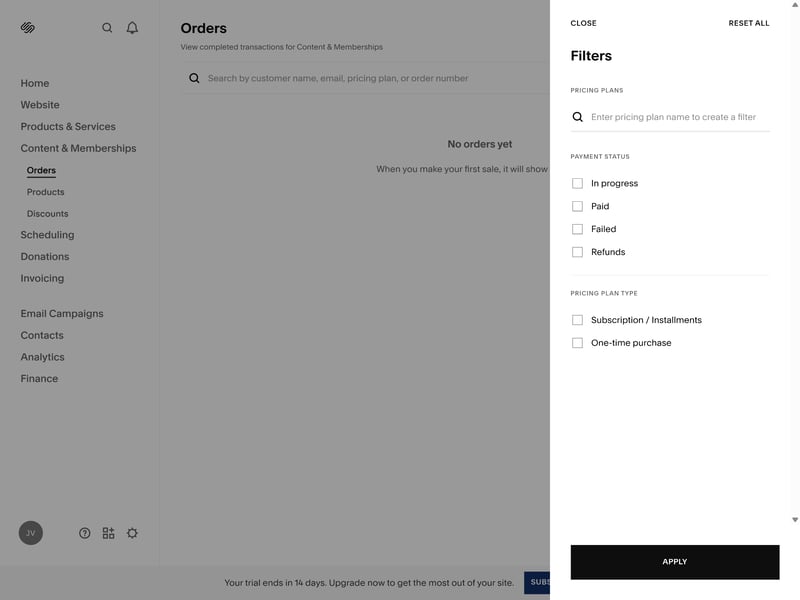
Managing orders in Squarespace.
Extras and extensions
Squarespace includes a handful of useful ecommerce extras, such as email marketing, customer reviews, social selling integrations, and support for dropshipping via third-party apps. The built-in email tools are decent, covering basics like newsletters, abandoned cart emails, and simple automations.
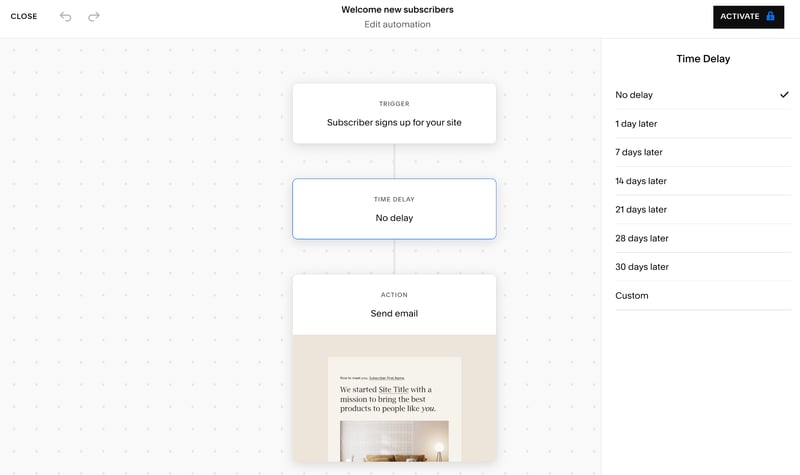
You can create automated email campaigns.
Still, the overall ecosystem feels relatively small, especially compared to platforms like Shopify, WooCommerce or even Wix, its closest competitor. Squaraespace's own marketplace only includes around 50 extensions, and many features that come built into more ecommerce-focused platforms rely on external integrations here instead.
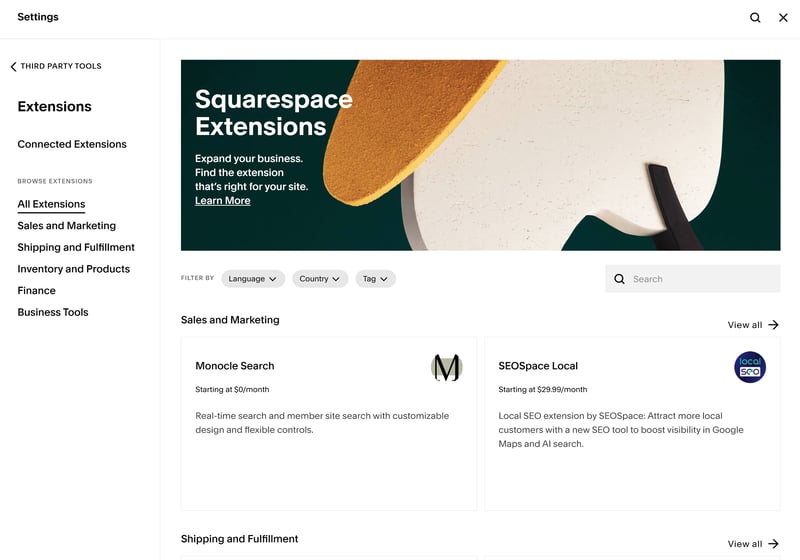
You'll find around 50 extensions in Squarespace's app store.
Squarespace can handle the essentials, but it’s not really a platform built for growth or sophisticated ecommerce workflows.
Squarespace isn’t going to replace Shopify anytime soon. The basics are all there, from payments and taxes to discounts and shipping, and for smaller stores, they work reasonably well. But once your store — and your needs — become more complex, you'll start to feel the limitations.
The sales tools lack the depth and sophistication of dedicated ecommerce platforms, many advanced workflows require workarounds or third-party services, and the overall ecosystem is rather small. Squarespace might be great for smaller brands, but it doesn’t really have the power to scale with ambitious, more demanding online stores.
Customer Support
| Documentation and tutorials |
| 1.5/2 |
| Support channels |
| 1/2 |
| Speed and quality |
| 1/3 |
| Customer reviews |
| 0/3 |
Squarespace puts a lot of emphasis on self-service support. The help center is extensive, well maintained, and packed with detailed tutorials covering most parts of the platform. The guides themselves are genuinely good, with clear explanations, screenshots, and step-by-step instructions that make even more technical tasks fairly easy to follow.
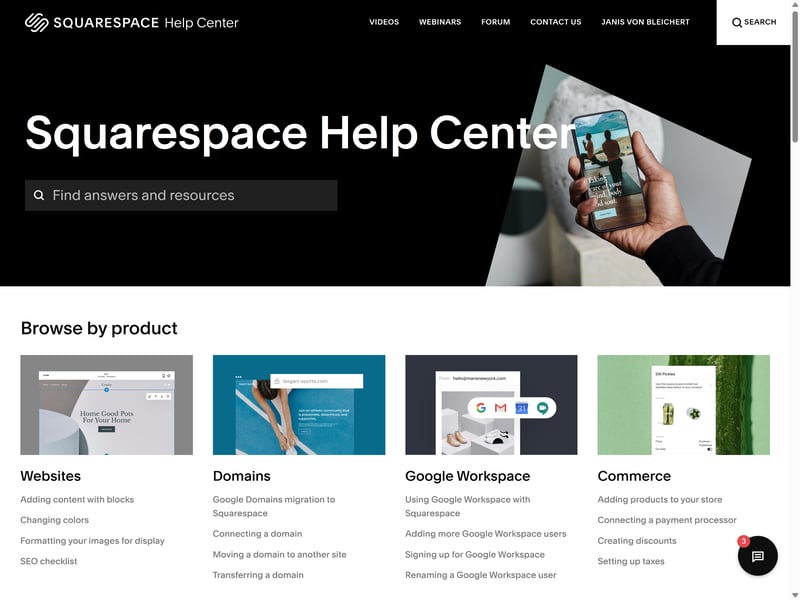
The Squarespace help center.
Hit-or-miss human support with an AI bouncer
Squarespace offers human support via live chat, which is available Monday to Friday from 4 AM to 8 PM ET. Like most platforms these days, Squarespace tries to funnel everyone through a chatbot first. Unfortunately, the bot is often more of a hurdle than a help, frequently providing confusing or outright incorrect answers.
Even if you hit a dead end, the bot doesn't automatically offer to connect you to a person. You have to specifically demand a human agent to get any further.

You’ll have to get past the AI chatbot first.
When you eventually do reach an actual person, the experience isn't much better. In our experience, the agents didn't seem to have a deep grasp of the platform’s ecommerce features. Responses were often shallow and slow, giving the impression that the agent was just looking things up or reading from a script as they went.
There's no phone support at all. Your only alternatives are reaching out via X (formerly Twitter) or Facebook Messenger.
Overall, we found Squarespace’s support frustratingly slow and impersonal. It comes across as a system designed to filter out as many requests as possible rather than one built to actually solve your problems.
Unhappy customers
The public sentiment on sites like Trustpilot is equally grim. Reviews are filled with complaints describing the support as “clueless”, “non-existent”, or “terrible”. If you run into a serious technical issue with your store, don't count on getting quick or helpful assistance.
Squarespace clearly expects you to solve most problems on your own. To be fair, the help center does a pretty good job of supporting that approach: the guides are detailed, well-structured, and cover most common issues you’re likely to run into.
But if you actually need to talk to a person, the experience takes a nosedive. Chat and email responses are slow, generic, and heavily scripted, a complaint that comes up again and again in user reviews as well. Don’t expect fast responses or deep technical help here.
Pricing
| Costs for a small shop | $23.00 | 4/6 |
| Costs for medium-sized shop | $23.00 | 6/6 |
| Costs for large shop | - | 0/3 |
| Pricing model |
| 1.5/3 |
| Trial version |
| 2/2 |
Squarespace offers four main tiers: Basic, Core, Plus, and Advanced. While every plan allows you to sell an unlimited number of products and services, the fees and features vary quite a bit between them.
First, the fees. You’ll need to account for two separate types: transaction fees taken by Squarespace itself, and payment fees charged by your processing provider.
Transaction fees
This is a commission Squarespace takes for using their platform. If you’re on the Basic plan, you’ll pay a 2% transaction fee on every product you sell. There are also separate fees for selling digital products (like downloads or courses); these range from 7% down to 2% and are only waived entirely on the Advanced plan.Payment fees
These are the standard credit card rates charged by the payment gateway (like Stripe or Squarespace Payments). These rates stay largely the same on Basic and Core, but fees for domestic cards drop slightly once you move up to the Plus or Advanced plans. This can lead to significant savings for high-volume sellers.
Many key features only unlock once you reach the Core plan or higher. You'll need at least a Core subscription to access things like discount codes, automated tax calculations, and Google Shopping integration.
Here's an overview of Squarespace's pricing tiers:
| Basic | Core | Plus | |
|---|---|---|---|
| Monthly price | from $16.00 | from $23.00 | from $39.00 |
| Contract period (months) | 1 - 12 | 1 - 12 | 1 - 12 |
| Product management | |||
| Number of products | unlimited | unlimited | unlimited |
| Product filters | ✗ | ✗ | ✗ |
| Product variants | ✓ | ✓ | ✓ |
| Product inventory | ✓ | ✓ | ✓ |
| Product reviews | ✓ | ✓ | ✓ |
| Internationalization | |||
| Multiple languages | ✗ | ✗ | ✗ |
| Multiple currencies | ✗ | ✗ | ✗ |
| Automatic tax calculation | ✗ | ✓ | ✓ |
Comparing Squarespace to the competition
Comparing ecommerce platforms on subscription price alone can be misleading. Your total cost of ownership will depend on your sales volume, your choice of payment provider, and your specific feature requirements.
Still, the monthly fee is the most predictable part of your budget, so we've used these base costs as a starting point for our comparison. We looked at three common scenarios:
Small store: 10 products, up to $10,000 in annual sales, custom domain
Medium store: 500 products, up to $200,000 in annual sales, product variants
Large store: 10,000 products, up to $2 million in annual sales, product variants, product filters, multilingual support
Here's how Squarespace stacks up against other ecommerce platforms:
| Small shop | Mid-size shop | Large shop | |
|---|---|---|---|
| $2.75 | $2.75 | |
| $10.00 | $10.00 | $19.93 |
| $10.00 | $10.00 | $19.93 |
| $11.75 | $11.75 | $11.75 |
| $12.60 | $22.00 | |
| $14.00 | $14.00 | $68.00 |
| $22.00 | $119.00 | |
| $23.00 | $23.00 | |
| $25.00 | $45.00 | $105.00 |
| $29.00 | $299.00 | |
| $29.00 | $29.00 | $29.00 |
On paper, Squarespace looks pretty affordable for mid-sized shops. The Core plan covers most of the essentials and doesn't come with transaction fees (for physical products) or arbitrary product limits.
It's less attractive if you're selling digital products, though: Squarespace will take a cut of 5% on the Core plan — that's on top of your standard credit card processing fees. If you want to avoid transaction fees for digital products entirely, you need to move all the way up to the Advanced plan.
For larger shops, Squarespace isn't really in the conversation. It lacks the heavy-duty infrastructure that a high-volume business needs to function.
Squarespace’s pricing is reasonable for smaller stores, but you have to watch out for the transaction fees—especially if you’re primarily selling digital products. The Core plan covers the essentials, but the higher plans offer lower credit card and transaction fees. If you're processing enough volume for that to matter, though, you might have already outgrown the platform.
Final Verdict: More Showroom Than Shop Floor
Squarespace’s main appeal is exactly what you’d expect from the design-first website builder: it makes building a polished, professional-looking online store very easy. If you just want a shop that looks great and don't care too much about advanced ecommerce workflows or customization, it’s a solid enough choice.
At its core, though, Squarespace is a website builder first and an ecommerce platform second. While its sales tools cover the basics and are seamlessly integrated into the rest of the platform, they simply lack the depth and sophistication of a dedicated powerhouse like Shopify. Then there are the transaction fees to worry about in most plans — especially if you're selling digital products.
Ultimately, Squarespace works best as a sleek, all-in-one solution for small businesses that need a simple shop as part of their larger web presence. If you’re looking to scale, sell internationally, or have very specific technical requirements, you’ll outgrow the platform pretty quickly.

Squarespace User Feedback
What do actual Squarespace users think of the platform? It really depends on where you look. While reviews on Trustpilot are often quite brutal, the feedback on sites like G2 and Capterra tends to be much more positive. Here are some commonly mentioned pros and cons:
Gorgeous, high-end templates
Users highlight Squarespqce's sleek, modern designs that make it easy to build a site that looks like it was created by a professional agency.Beginner-friendly editor
A lot of customers praise the drag-and-drop builder for being approachable and easy to learn, especially for people with no coding experience.Convenient all-in-one setup
Users often mention how convenient it is to manage everything in one place, from the website and online store to domains, email marketing, and appointment bookings.
Frustrating customer support
Support is one of the platform’s biggest weak spots in user reviews. Complaints about slow responses, generic answers, and difficulty resolving urgent issues come up frequently.Frequent price hikes
Some long-time users are unhappy about recurring price increases and feel that certain costs are not communicated clearly enough upfront.Ecommerce limitations
Squarespace users run into limitations as their needs grow, particularly around payments, taxes, integrations, and more advanced ecommerce workflows.Constant upgrade nudges
A number of users also mention that the platform pushes upgrades and add-ons quite aggressively, which can start to feel intrusive over time.
Top Squarespace Alternatives
Not sold on Squarespace? Here are a few other options to consider:
Best for Scaling: Shopify or WooCommerce
Squarespace is just a website builder with ecommerce features tacked on. If you’re building a serious, high-volume business, it simply can’t compete with dedicated platforms like Shopify or WooCommerce, which offer the depth and advanced tools that a growing store eventually needs.Easier for Beginners: Hostinger or IONOS
If Squarespace feels too complex or you’re on a tight budget, builders like Hostinger or IONOS are even more straightforward to set up. Just keep in mind that you’ll be giving up almost all of the design flexibility that makes Squarespace stand out in the first place.
Find the best Squarespace e-commerce alternatives here: