How to Create a Google Business Profile: Get Found in Google Search and Maps

When you search for “bakery near me” or “accountant in my area,” you don’t see the usual list of websites. Instead, you get a map with three businesses, complete with hours, reviews, and a call button. This is the Local Pack—and for many local searches, it often determines which businesses get the clicks. So how do you get your business in there?
The foundation is your Google Business Profile. It’s how you officially list your business with Google and control how it appears in search results and on Google Maps. We’ll walk you through how to create a Google Business Profile, verify it, and optimize it so it brings in new customers.
A Google Business Profile is a free, official listing with Google that shows up in local search results and on Google Maps.
To make your profile visible, you first need to verify it. The most common way to do this today is with a short video of your location.
A complete, well-maintained profile with photos, reviews, and regular updates often ranks better and builds trust with potential customers.
What Is a Google Business Profile?
A Google Business Profile (formerly Google My Business) is where you manage your business information on Google. This includes your business name, address, hours, photos, contact details, and customer reviews.
Google displays this information in two places: directly in search results when someone searches for your business or related services in your area and on Google Maps. A well-maintained business profile is one of the most important parts of local search engine optimization (local SEO).
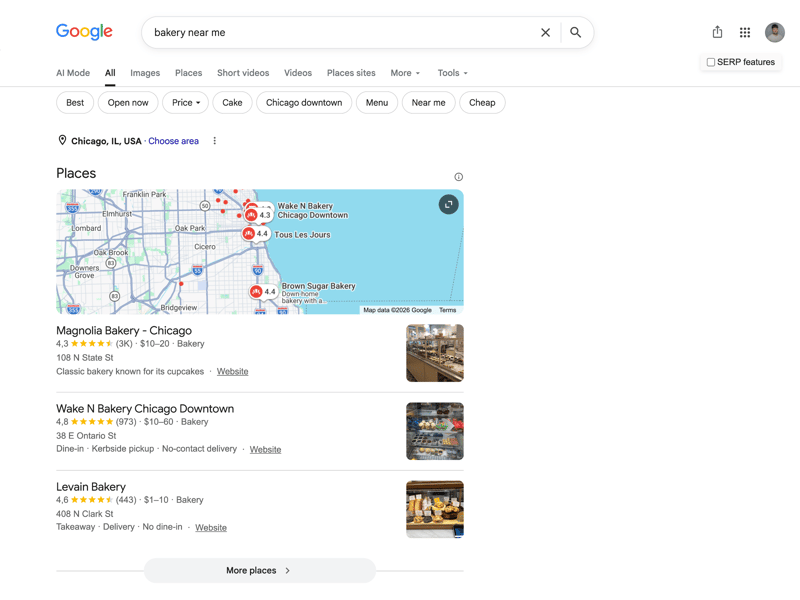
The Local Pack shows three businesses with reviews, hours, and contact options, right above the regular search results.
Google Account and Google Maps Listing: What’s the Difference?
There are a few Google products you'll encounter when setting up your business listing:
Your Google Account (required to sign in and manage your profile) is your personal access to Google services like Gmail or Drive. You need one to create a business profile.
Your Google Business Profile is the actual record containing all your business information. You manage it through your linked Google Account.
Your Google Maps listing is one of two ways your business profile appears. If your business doesn’t already have a profile, Google may create a basic Maps listing automatically, using publicly available data. You can claim this listing and expand it into a full profile.
Creating a Google Business Profile is free. Don’t confuse it with Google Ads, which is Google’s paid advertising program for running ads in Google Search and other Google services.
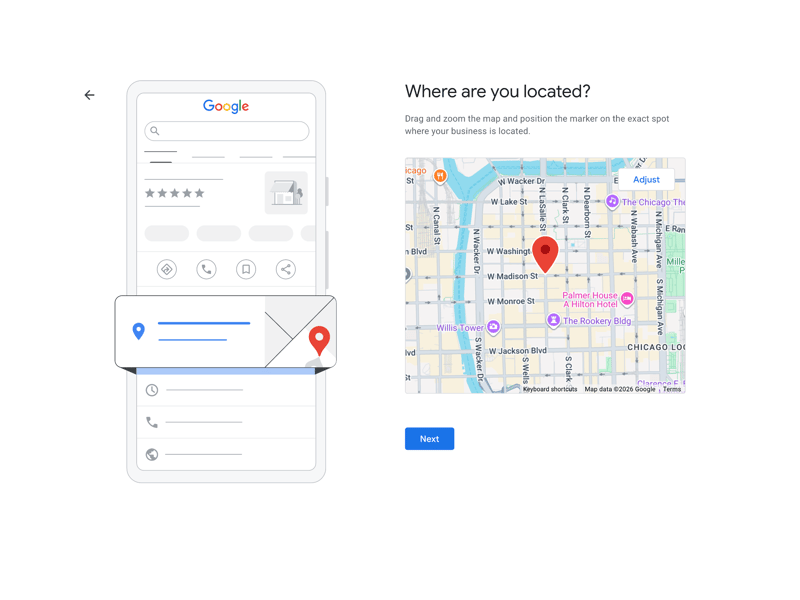
If you don’t have a physical location, you can specify a service area instead.
Why Your Business Profile Matters
A Google Business Profile is one of the most important tools for showing up in local Google searches and on Google Maps. It also helps potential customers quickly learn about your business.
A well-maintained profile serves three key purposes:
It makes you visible in local searches
A Google Business Profile is one of the foundations of your visibility in local search results. Without one, your business may not appear at all, or only partially, in local searches.It builds trust
Business hours, photos, and especially customer reviews help potential customers get a sense of your business before they visit.It drives customer actions
A complete and active business profile makes it easier for searchers to interact with you. It directly encourages actions like calling your business, requesting directions, or visiting your website.
How to Create a Google Business Profile: Step by Step
Before you start, gather the information you’ll need to set up your profile. Google will ask for the following information during setup. Some are required, others optional but recommended.
Information | Required | Optional |
|---|---|---|
Business name | ✓ | |
Primary category | ✓ | |
Address or service area | ✓ | |
Phone number | ✓ | |
Google Account | ✓ | |
Website URL | ✓ | |
Business hours | ✓ | |
Additional categories | ✓ | |
Photos and logo | ✓ | |
Business description | ✓ | |
Attributes (e.g., accessibility, payment methods) | ✓ |
Once you have the key details ready, you can start setting up your business profile.
Create an Account
Go to business.google.com and sign in with a Google account. If you don’t have one yet, you can create one right there.
We recommend setting up a separate business account instead of using a personal one. This is generally more professional and makes it easier to add employees to your profile later.
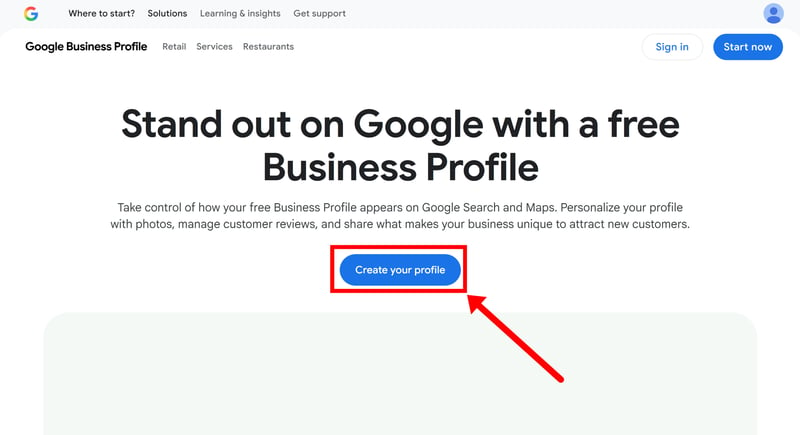
First, you’ll need an account.
Choose Your Business Name and Category
Enter your business name exactly as it appears on your sign, business card, or website footer. Google cross-checks this information with other public sources, and any discrepancies could delay verification or even lead to a profile suspension.
Next, pick a primary category that best describes your business, like “Dental Clinic” instead of just “Medical Clinic.” This category helps determine which searches will show your profile.
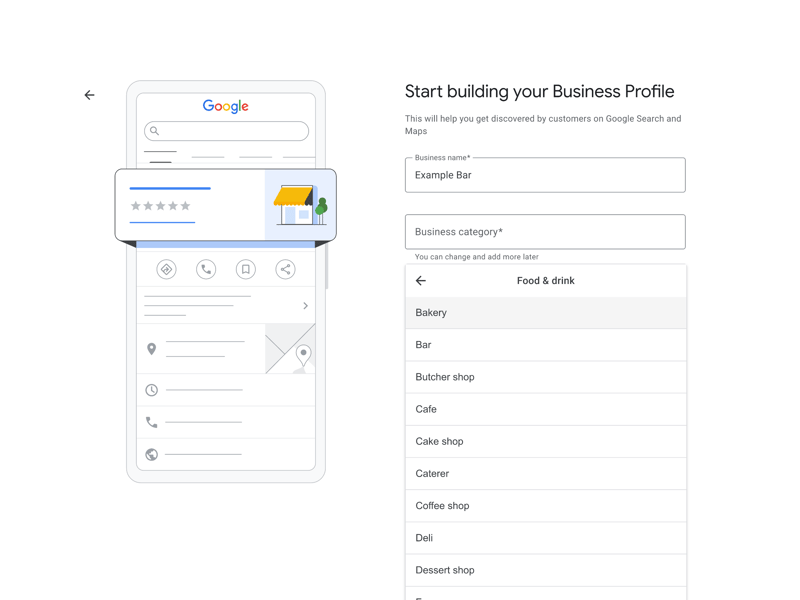
The primary category affects which searches display your profile, so the more specific, the better.
Enter Your Address and Contact Info
Enter your business address, phone number (if you have one), and your website URL. Make sure this information matches your listings in other major business directories. This is called NAP consistency—name, address, and phone—and it's a key factor in local SEO.
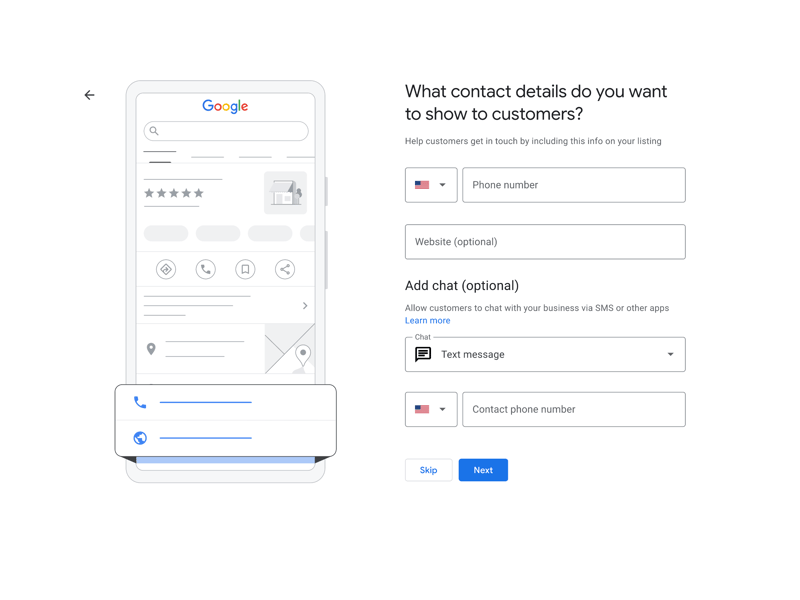
Your business name, address, and phone number must match all other online listings.
Verify Your Profile
Before your business profile goes live on Google Search and Google Maps, you need to verify it. This step confirms your business is real and that you’re authorized to manage the profile.
Google decides which verification methods are available to you. Here are the options:
Video verification
This is now the most common method. You’ll record a short, unedited video on your phone to prove your business location and your authority to manage the profile. Typically, you’ll show your business sign or logo at the entrance.Service-area businesses (SABs) without a physical office can show their company vehicle or work equipment with the business name visible. Google typically reviews the video within three to five business days.
Phone verification (if available)
Some businesses can verify by phone call or text. You’ll receive a code to enter in your profile. This is the fastest option, but it’s not available for every business.Postcard Verification (increasingly replaced by video)
In the past, Google mailed a postcard with a verification code to your business address, which could take up to two weeks. The method still exists, but video verification has largely replaced it, and it’s rarely used in practice today.
Optimize Your Business Profile
Once your profile is verified, it becomes publicly visible. To improve your visibility in relevant searches and make a strong first impression, optimize it right away and keep it updated over time.
Here’s how to optimize your business profile:
Complete Your Business Information
Fill out every available field, from your business description to hours of operation, accessibility features, and accepted payment methods.
Your business description can run up to 750 characters. Use this space to describe what you offer clearly and naturally—avoid stuffing it with keywords.
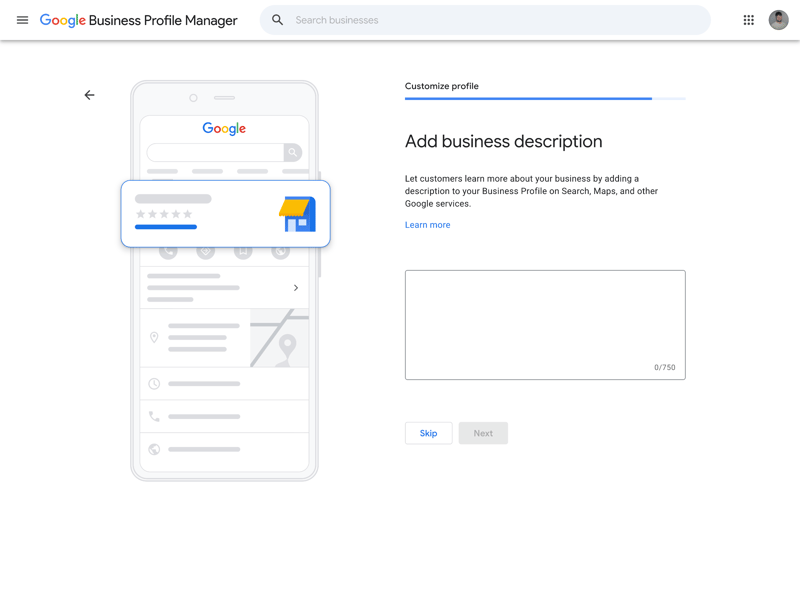
You have up to 750 characters for your business description.
Choose Your Primary and Secondary Categories
Beyond your primary category, you can add secondary categories to highlight other services. For example, a hair salon that also offers skincare treatments should select both categories.
Only choose categories that truly describe what you offer. Irrelevant categories can hurt your profile’s visibility for the right searches.
Upload High-Quality Photos
Profiles with high-quality, engaging photos get more attention than those without. Upload your logo along with photos of your entrance, your workspace, and your team. Recent, well-lit images look professional and build trust, unlike blurry or outdated ones.
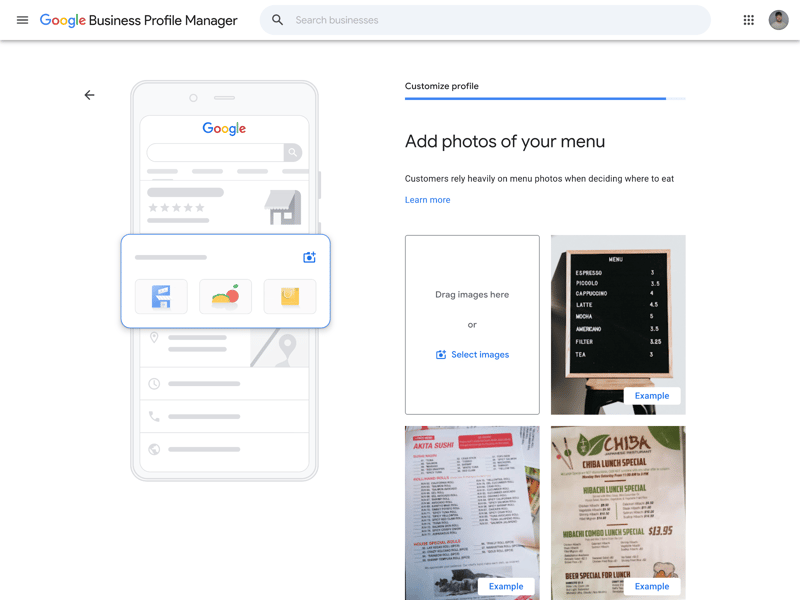
Photos of your logo, space, and team boost engagement and build trust.
Actively Collect Reviews
Reviews are one of the most powerful ways to build trust with potential customers. Ask happy customers to leave one, ideally right after a successful purchase or service. You’ll find the direct review link in your business profile dashboard.
Respond to reviews, too, both positive and critical. This shows you take feedback seriously.
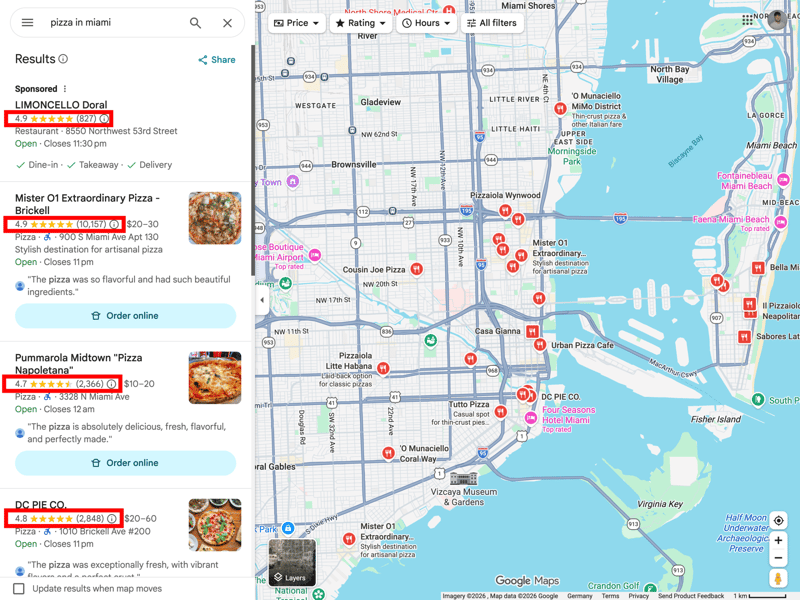
Google reviews help potential customers get a better sense of your business.
Use the Q&A Feature
Customers can post public questions on your profile, and anyone, including other customers, can answer them. Keep an eye on this section and respond quickly so you can provide accurate, helpful answers and prevent misinformation.
Post Google Updates (Formerly: Google Posts)
Use the Updates feature to share news, promotions, or events directly on your profile. These updates appear prominently and signal to both Google and potential customers that your business is active. They also keep your profile fresh and allow you extra space to highlight offers.
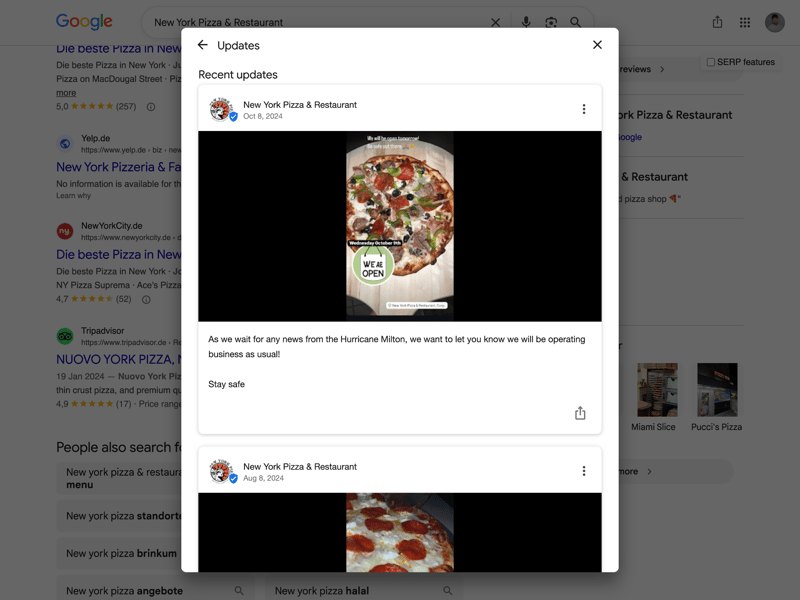
Use the Updates feature to keep customers informed about the latest news or short-term campaigns.
Add Products and Services
Depending on your industry, you can add individual products or services to your profile, complete with descriptions, prices, and photos. This helps potential customers gauge whether your business fits their needs before they even reach out, making it easier for them to call, send an inquiry, or stop by.
Keep Your Profile Updated
A business profile isn’t a one-time project. Check in regularly to confirm your hours are correct, add new photos, and make sure all your information is still accurate. Actively maintained profiles tend to outperform those that haven’t been touched in months.
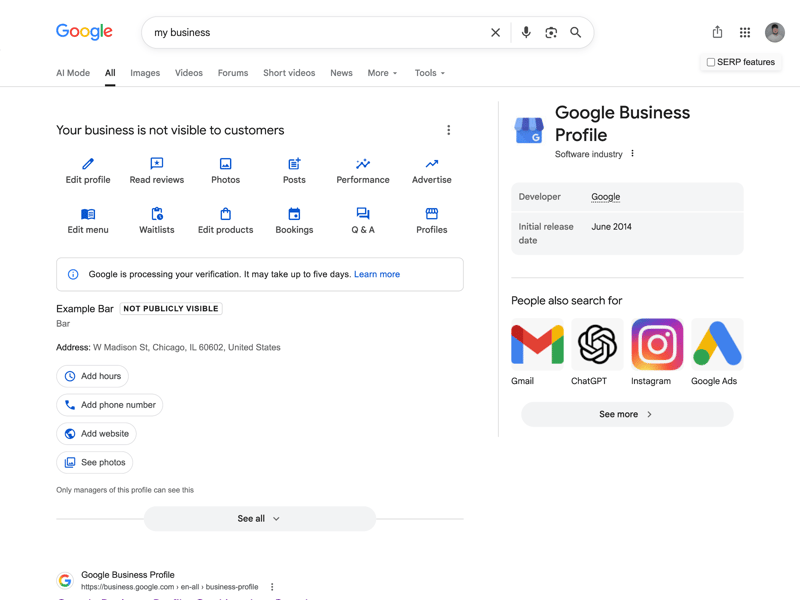
The profile view in Google Search shows at a glance which sections are complete and where gaps remain.
To see if your optimizations are paying off, keep an eye on key metrics like clicks, rankings, impressions, calls, messages, and direction requests. If these numbers aren’t improving as expected, review your profile to identify areas for improvement.
Final Thoughts: How a Well-Maintained Profile Drives Local Growth
Setting up a Google Business Profile is quick. With the right preparation, it rarely takes more than an hour. The effort is minimal, but the payoff is significant. For many local businesses, it’s the foundation for visibility in Google Search and Google Maps, often reaching potential customers before they ever visit your website.
But the work doesn’t stop after setup. Uploading current photos, collecting reviews, answering questions, and keeping your hours up to date can improve your rankings and make a strong first impression on potential customers.
Ready to boost your local SEO? Read our guide on improving your Google rankings.
Frequently Asked Questions
Yes, creating and managing your profile is completely free. Google Ads is a separate, paid advertising program.
It depends on the method you choose. Video verification is usually reviewed within a few business days, while phone or SMS verification can be completed instantly.
No, a website is helpful but not required. You can use your profile fully without one.
Yes. During setup, select that you visit customers at their location and define your service area instead. Your exact address won’t be shown publicly.
It will still appear in search results, but it may rank lower than actively managed profiles from competitors. Outdated information can also reduce trust with potential customers.